Workflow steps
Workflow steps let you split a workflow's tasks into stages that run in order. Tasks in a later step stay locked until every task in the step before it is finished.
What steps do
Every task in a workflow belongs to a step. When the workflow is assigned, only the tasks in the current step can be completed. Once all of them are complete or skipped, the next step unlocks.
Steps are useful when:
- A task needs information collected in an earlier task. For example, a payroll sync should only run after the user has filled in their profile and tax details.
- You want users to see a few tasks at a time instead of the whole workflow at once.
- You want something to happen automatically at a certain point, such as sending a notification once the paperwork is done.
Tasks inside the same step have no set order. Users can complete them in any order.
Every workflow has at least one step. If you never add a second step, the workflow works exactly as it always has: every task is available straight away.
Step 1 - Add steps to a workflow
-
Navigate to the Workflows menu and open the workflow you want to edit.
-
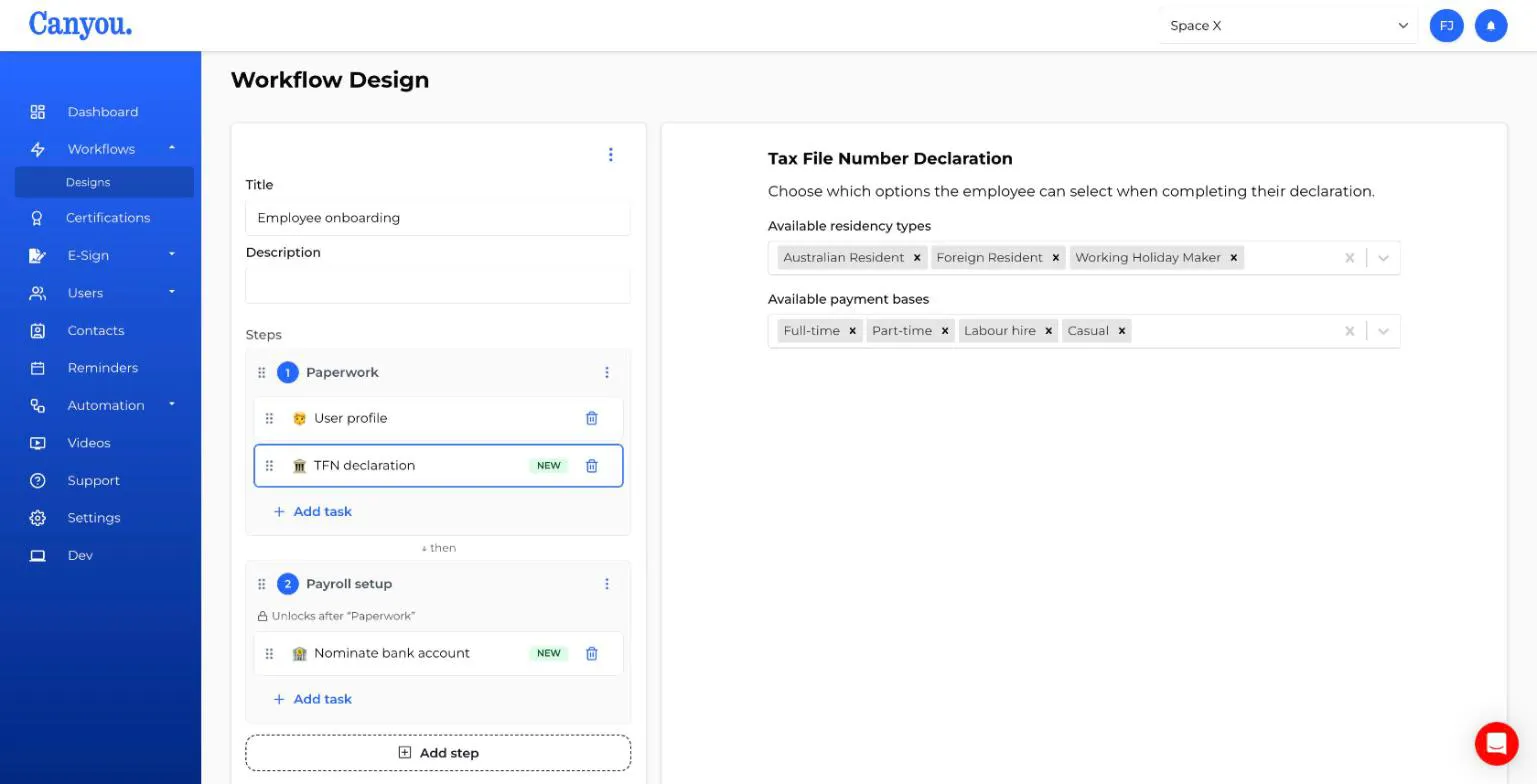
In the task list, click Add step. A new, empty step is added to the bottom of the list.
-
Click the step's name to rename it, for example "Paperwork" or "Payroll setup". If you leave it blank, it shows as "Step 1", "Step 2" and so on.
-
Click Add task inside a step to add a task to that step.
Each step after the first shows Unlocks after with the name of the step before it, so you can see the order at a glance.
Step 2 - Organise your steps
- Move a task to another step: drag it into the step you want.
- Reorder tasks within a step: drag them up or down.
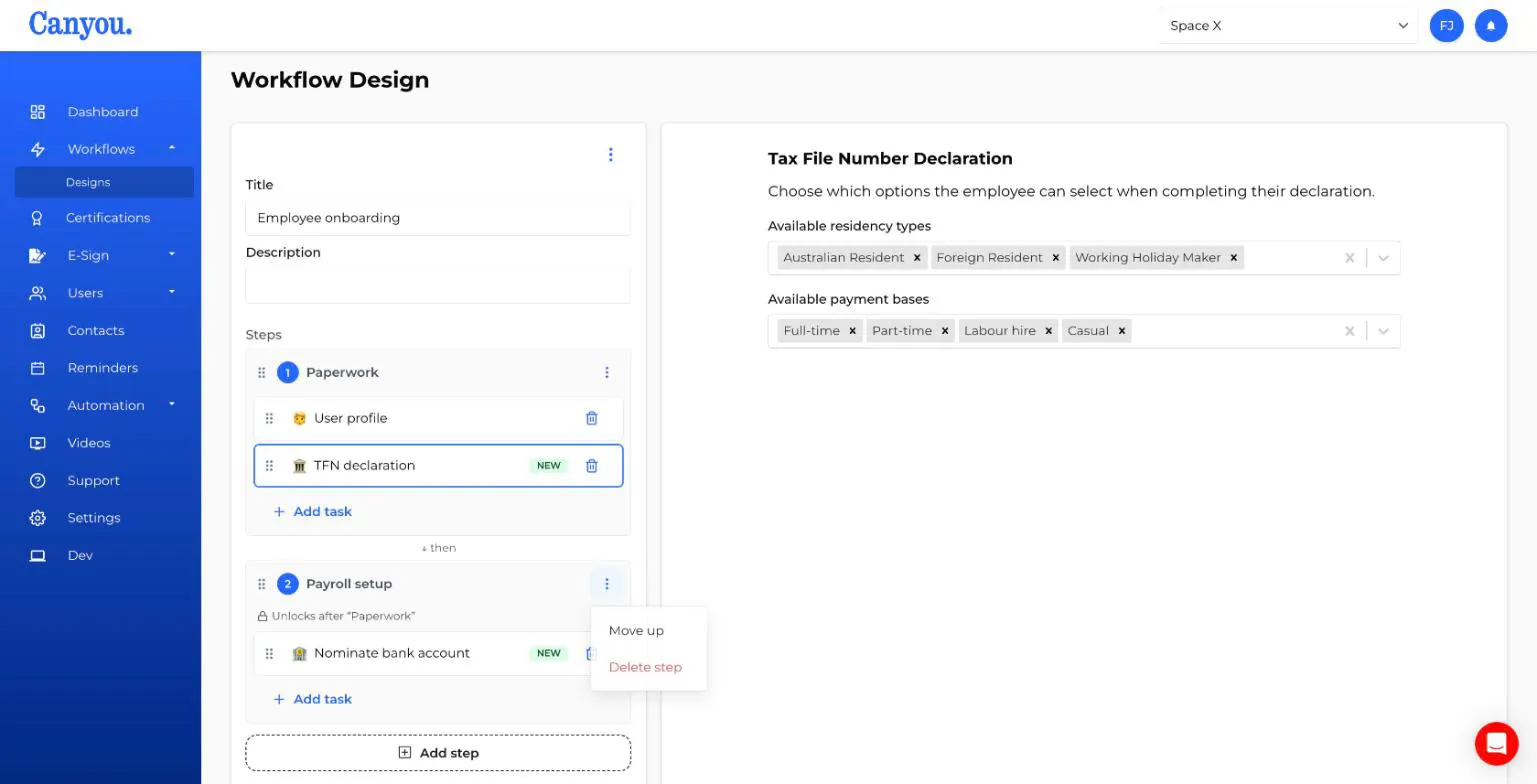
- Reorder steps: drag the step by its handle, or use the step's 3 dot menu and select Move up or Move down.
- Delete a step: use the step's 3 dot menu and select Delete step. Its tasks are not deleted. They move into the step above it, or the step below if you delete the first step. You can't delete the last remaining step.
Empty steps are removed when you save, because they have nothing to unlock.
Click Save when you're done.
Step 3 - Check designer warnings
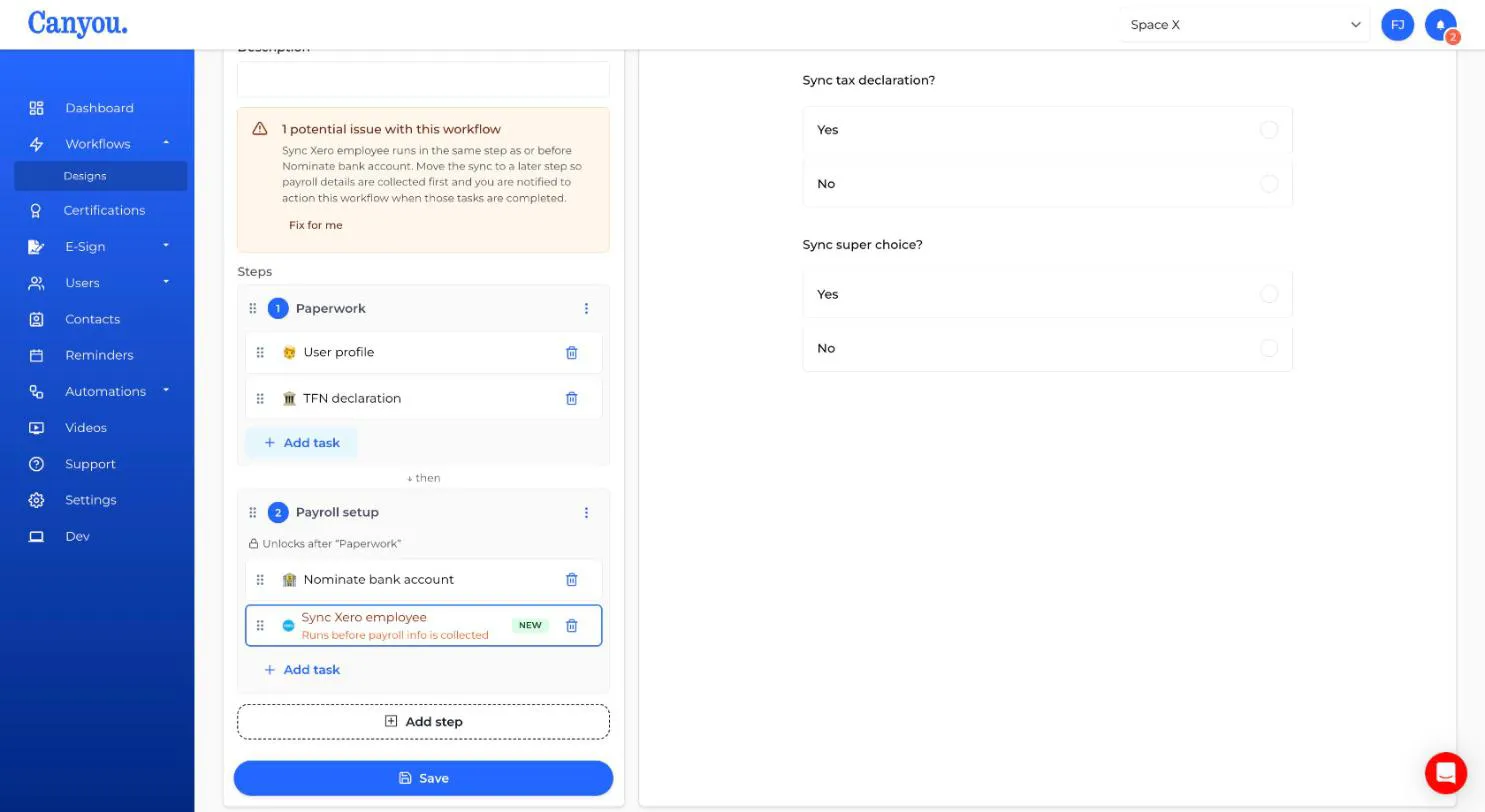
As you build a workflow, Canyou checks the order of your tasks and shows anything that needs a look in a box above the steps. The task involved is also highlighted in the task list.
Warnings (orange) point out something that will probably cause trouble, but you can still save.
The main one is a Sync Xero employee or Link Deputy employee task in the same step as, or an earlier step than, a TFN declaration, Super choice or Bank account task. The sync would run before the user's payroll details are collected, so the task shows "Runs before payroll info is collected". Click Fix for me and Canyou moves the sync into the step after the payroll tasks, adding a new step if it needs to.
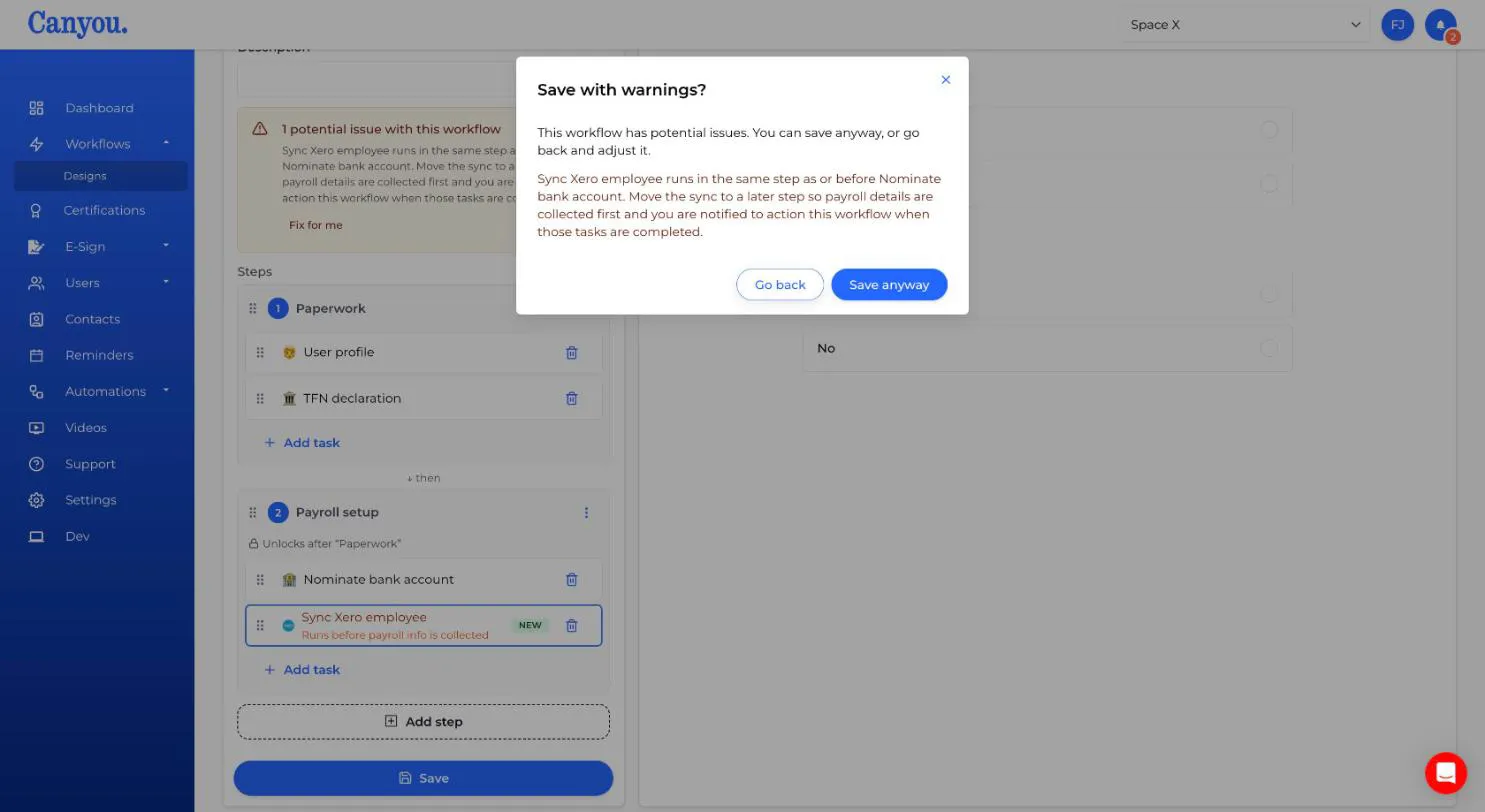
If you click Save while there are warnings, Canyou asks Save with warnings?. Click Go back to fix them, or Save anyway.
Problems (red) must be fixed before the workflow can be saved. For example, a Set custom field task that uses a form answer from a task in the same or a later step, or from a task or question that's been removed. The message tells you what to change, such as moving the form task to an earlier step or removing the answer.
What users and admins see
When a workflow with steps is assigned:
- The workflow shows Step 1 of 3 (or similar) and lists each step with its tasks.
- Tasks in the current step can be opened and completed as normal.
- Tasks in later steps are shown as locked. The user can't complete them and won't be notified or reminded about them yet.
- When the current step is finished, the next step unlocks and the people assigned to its tasks are notified.
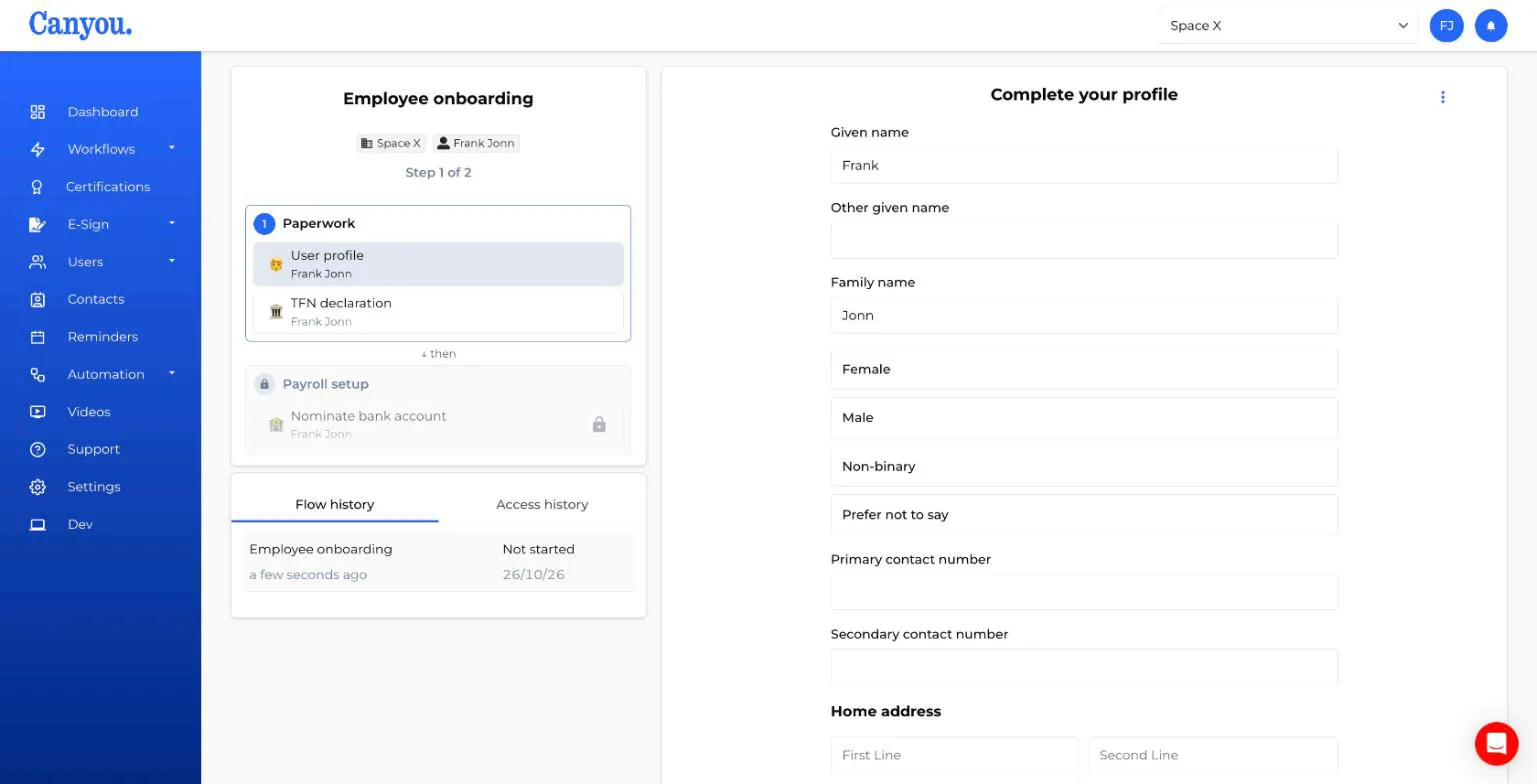
Admins can still see and open tasks in every step, including locked ones.
Skipping a task counts as finishing it. If you skip the last open task in a step, the next step unlocks.
Tasks that run automatically
Some tasks don't need anyone to complete them. They run on their own as soon as their step unlocks.
- Notification: sends a message to the people you choose and then completes itself. Put a notification task in its own step to let someone know when the steps before it are done.
- Set custom field: saves the values you choose to the user's custom fields and then completes itself. If a value can't be saved, the task waits for an admin to enter it. Learn more
- Integration sync tasks: tick Sync automatically when this step starts and the user's details are sent to the integration as soon as the step unlocks. If you leave it unticked, an admin is notified to review and run the sync. If an automatic sync fails, an admin is notified to fix and retry it, and the next step stays locked until the sync succeeds.
If every task in a step runs automatically, the step finishes straight away and the next step unlocks.
Editing steps on a workflow that's already in progress
Changes to a workflow's steps only apply to workflows assigned after you save. Workflows that are already in progress keep the steps they started with.