Updating an E-Sign Template
You can change anything about a template at any time: the PDF, the name, the signers, the order and the fields. Each save creates a new version, so documents that are already out for signature are never changed underneath your signers.
Edit a template
- Go to E-Sign > Templates.
- Click View on the template. The version number is shown on the card, such as v1.
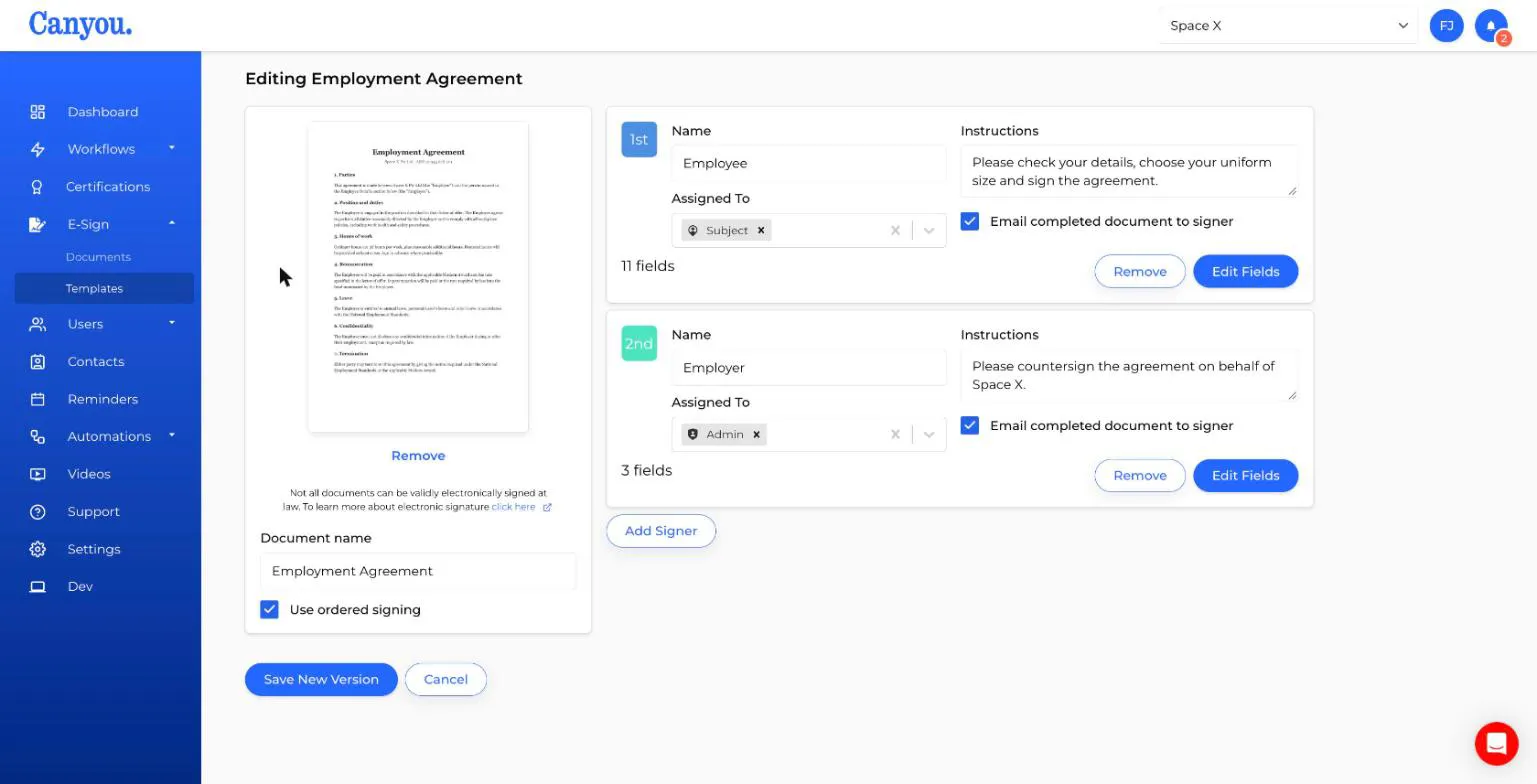
- Make your changes. You can:
- Upload a different PDF (click Remove, then upload the new file).
- Rename the document.
- Turn ordered signing on or off, or drag signers into a new order.
- Add, remove or change signers.
- Click Edit Fields to change fields and validation rules, then Save in the designer.
- Click Save New Version.
The template's version number goes up by one.
Replacing the PDF
If you upload a new PDF, your existing fields are kept in the same positions. If the new PDF has fewer pages, fields on missing pages are moved to the last page. Always open Edit Fields after replacing the PDF to check everything still lines up.
What a new version changes
- New documents use the latest version, whether they're sent from a workflow or anywhere else.
- Documents already sent keep the version they were sent with, including its fields, rules, signers and order. This protects documents that are partly signed.
- Workflows that use the template don't need updating. They always send the latest version.
If a document that's already been sent needs the change, send it again after saving the new version.
"Someone has updated this template since you last loaded it"
This appears if a colleague saved the template while you had it open. Copy any changes you need, reload the page to get the latest version, and make your changes again.
Delete a template
On E-Sign > Templates, click the three dots on the template card and choose Delete, then confirm.
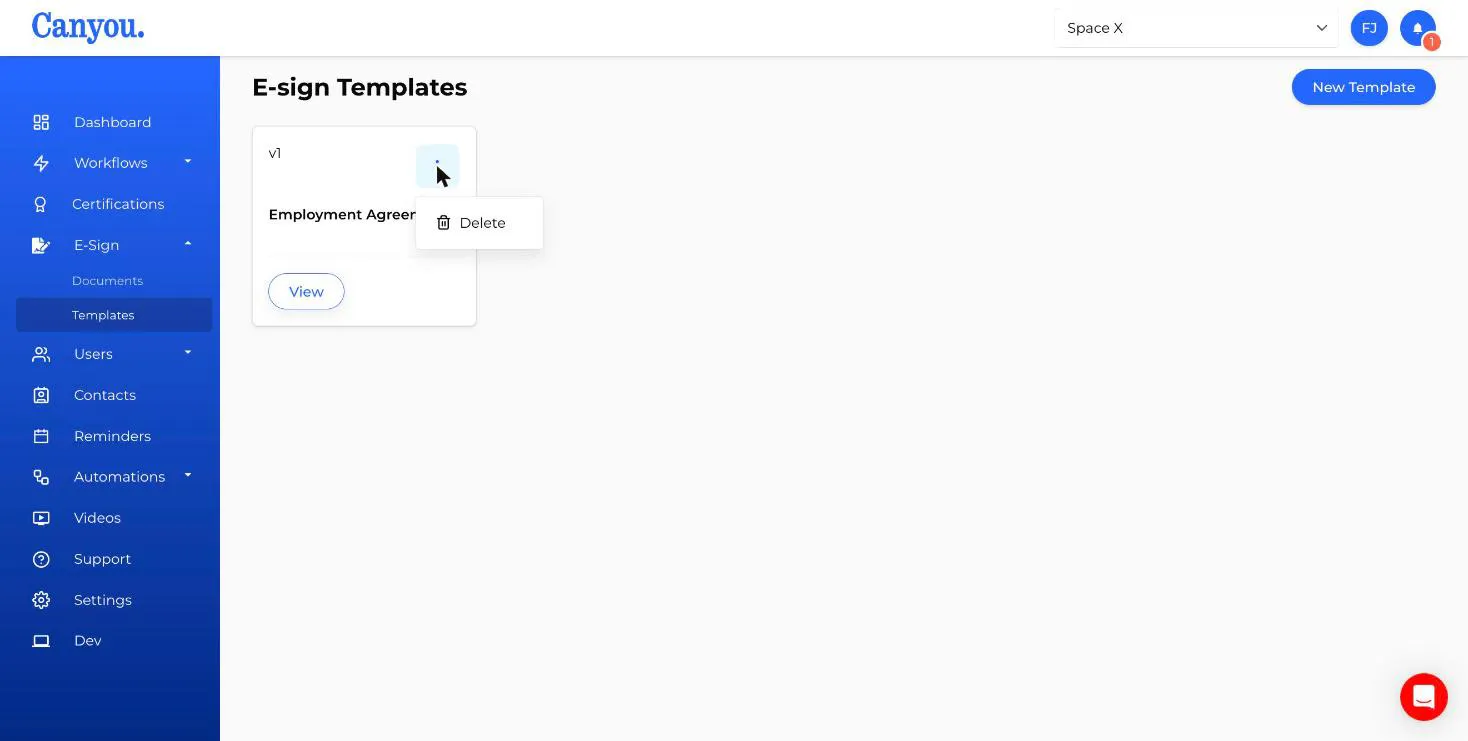
Deleting a template:
- Removes it from the Templates page and from the template list when adding tasks to workflows.
- Doesn't affect documents already sent. They can still be signed, and signed copies stay on E-Sign > Documents.
Before deleting, check whether any workflows still use the template, and swap them to a different template if needed.
NextCreating an e-sign template NextAdding fields to a template