Connecting to Workforce One 🔗
Follow this guide to connect your Canyou business to Workforce One.
Before you start
Have these details from Workforce One ready:
- Your Portal URL, e.g.
https://acme.workforceone.com.au - Your API URL, e.g.
https://acme-api.workforceone.com.au - Your consumer name (CName), e.g.
acme. This is often the same as the first part of your Portal URL, but not always, so check with Workforce One support if you're unsure. - An OAuth client ID and client secret from the Application Register in Workforce One. When you register Canyou, set the redirect URL to
https://app.canyou.com.au/workforce-one/oauth. - The login for a Workforce One API user. You'll sign in with it to approve the connection.
Connecting
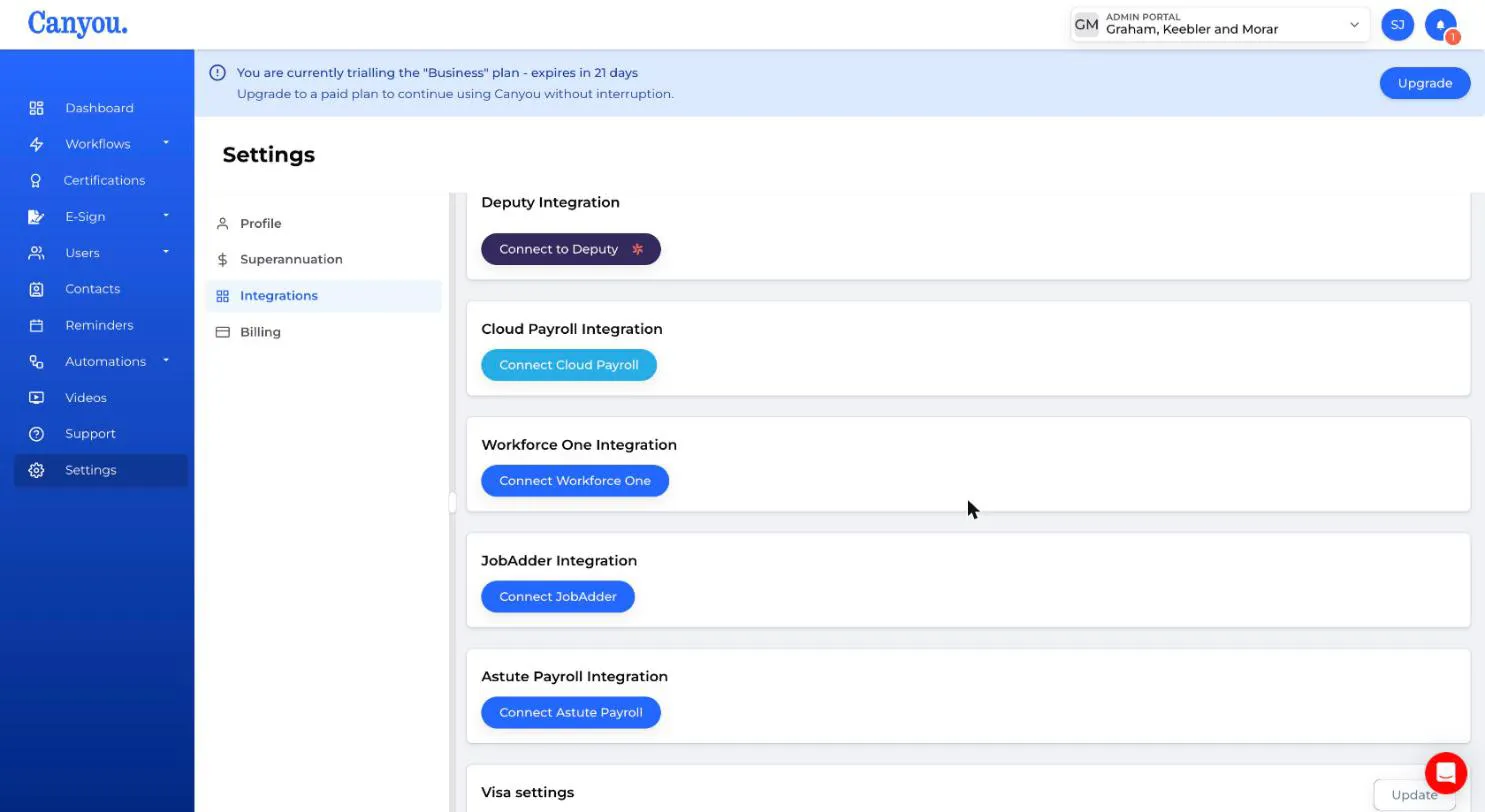
- Navigate to Settings > Integrations, then click the Connect Workforce One button.
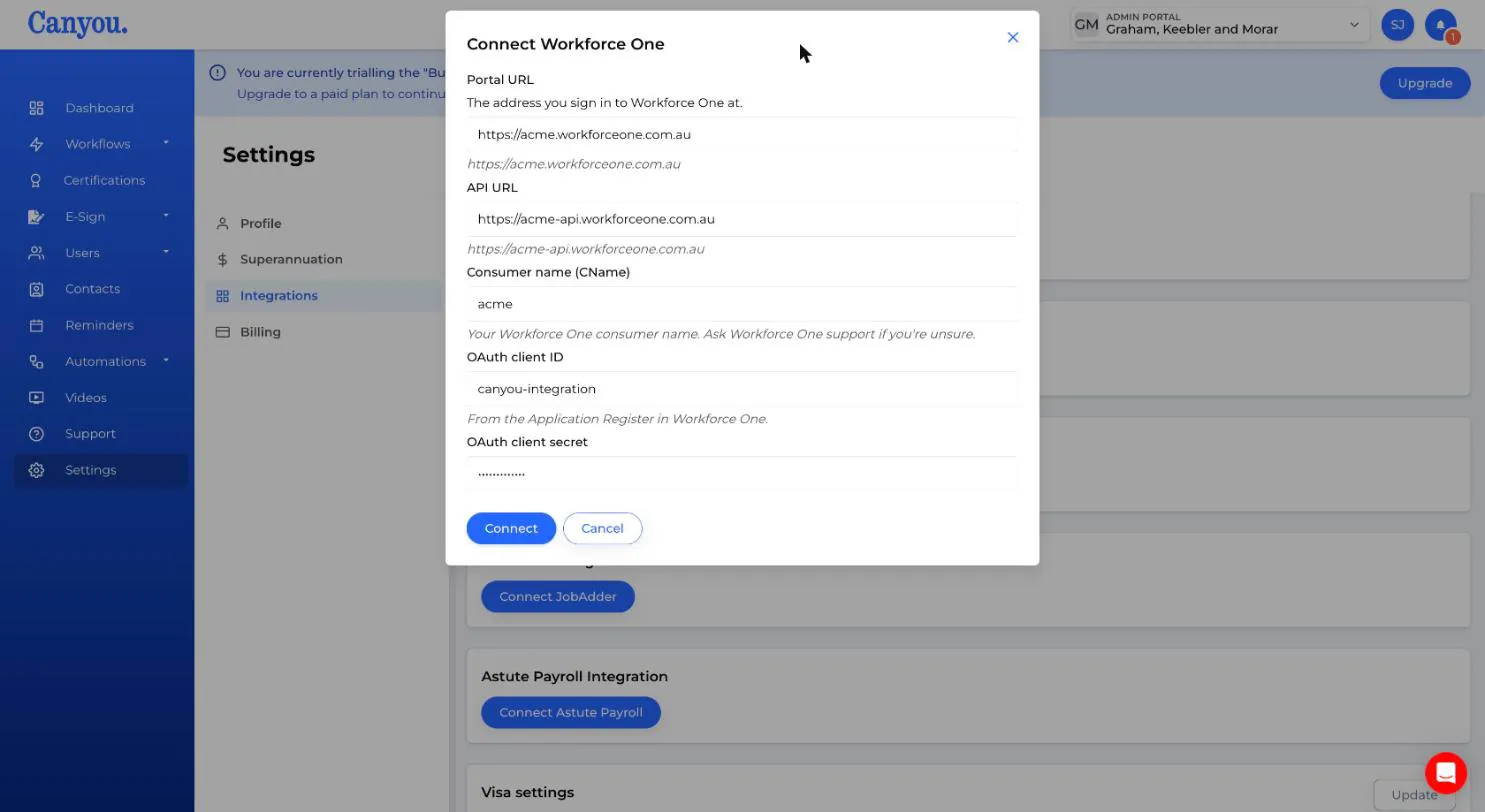
- Enter your Portal URL, API URL, Consumer name (CName), OAuth client ID and OAuth client secret. You can paste the full Workforce One addresses, and Canyou shows the address it will use under each one.
-
Click Connect. You'll be taken to Workforce One.
-
Sign in with your Workforce One API user and approve the connection.
-
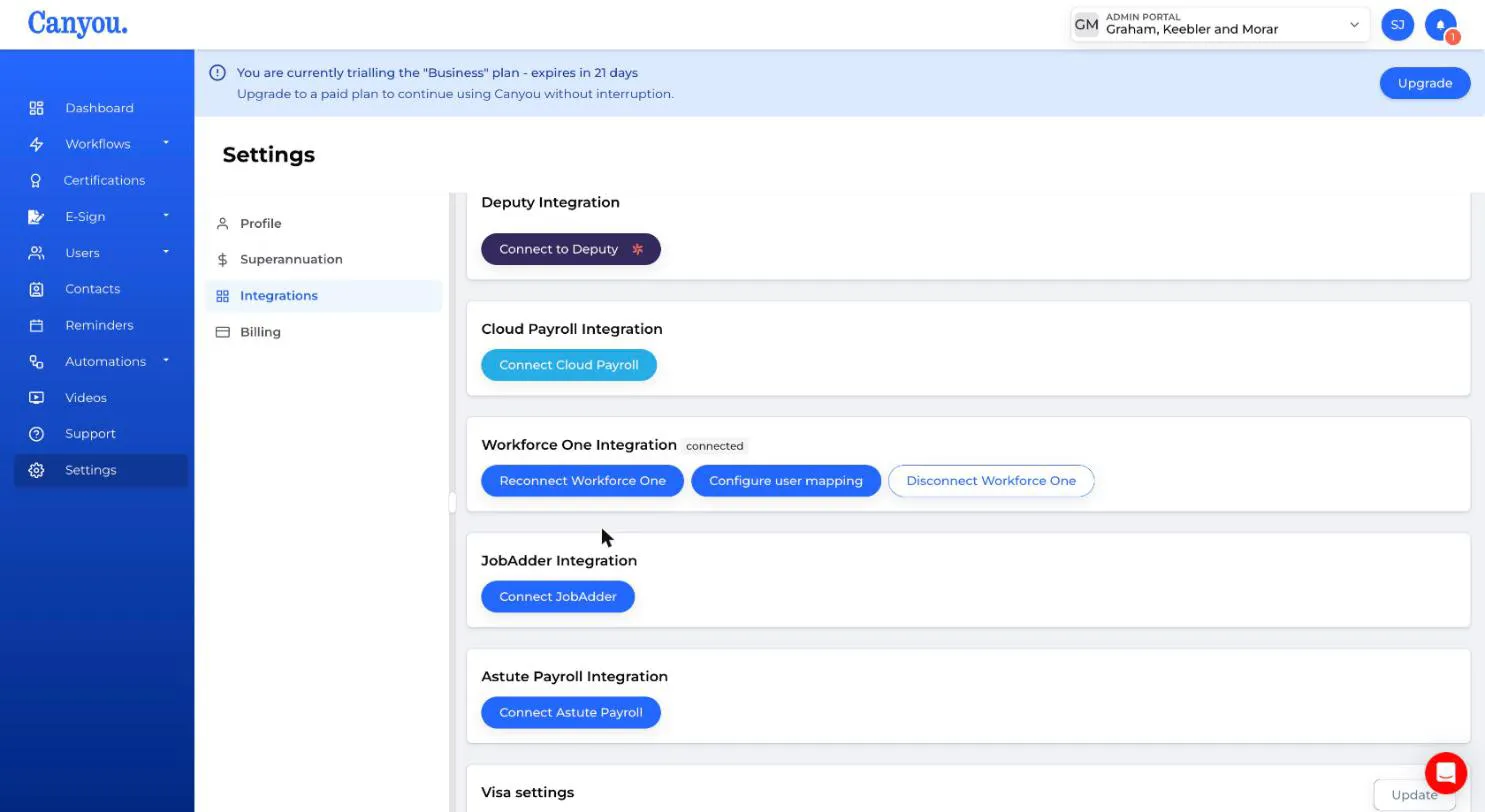
You'll be returned to Canyou. Your business is now connected, shown by the connected badge next to Workforce One.
Linking your Workforce One users
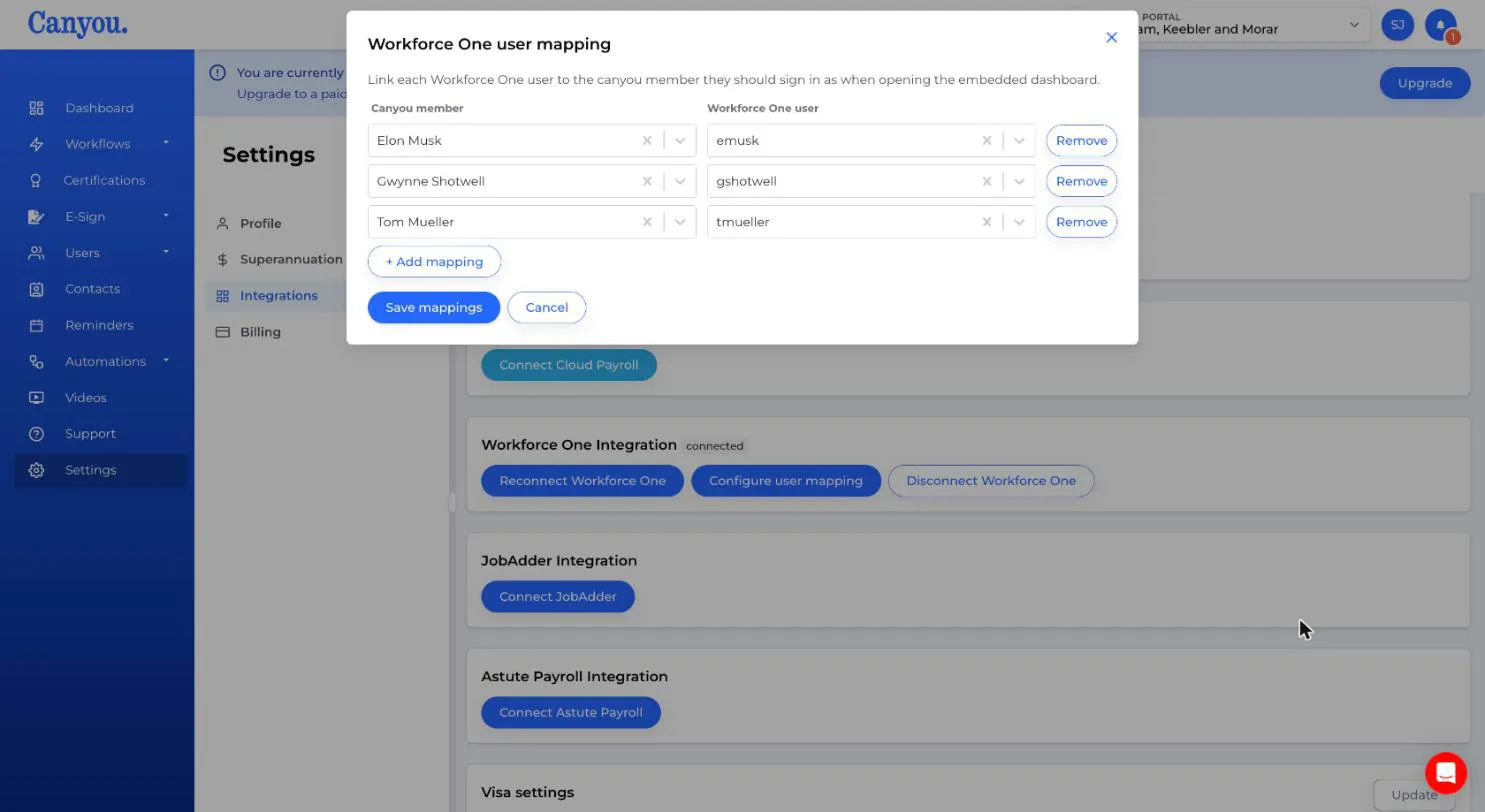
Link each Workforce One user to their Canyou member, so they can open the Canyou dashboard from inside Workforce One. A Workforce One user who isn't linked can't open the dashboard.
-
Click Configure user mapping.
-
For each person, choose their Canyou member on the left and their Workforce One user on the right. Click + Add mapping to add another row.
-
Click Save mappings.
Note: Canyou loads your Workforce One users in the background after you connect. If the Workforce One user list is empty, wait a minute and open Configure user mapping again.
Adding the Canyou dashboard to Workforce One
Ask Workforce One support to add the Canyou dashboard to your Workforce One portal, using this address:
https://iframe.canyou.com.au/workforce-one/auth
Once it's added, linked users can open Canyou from within Workforce One.
Reconnecting or changing your details
- Reconnect Workforce One uses the details you entered last time. Use it if Workforce One asks you to sign in again.
- To change your URLs, consumer name or OAuth client, click Disconnect Workforce One, then connect again with the new details. Disconnecting clears your user links, so you'll need to set them up again.
Great job, you're now connected to Workforce One! 🥳