Adding an E-Sign Template to a Workflow
The most common way to send a template is as a task in a workflow. Every time the workflow is assigned to a user, Canyou creates a new document from the template for them, and the Subject signer is that user.
For example, add your "Employment Agreement" template to a "New starter onboarding" workflow, and every new starter you assign gets their own agreement to sign.
You'll need an e-sign template first.
Step 1 - Open the workflow
Go to Workflows > Designs and open the workflow you want to add the document to, then click Edit. Or click Create to start a new workflow.
Step 2 - Add an E-Sign template task
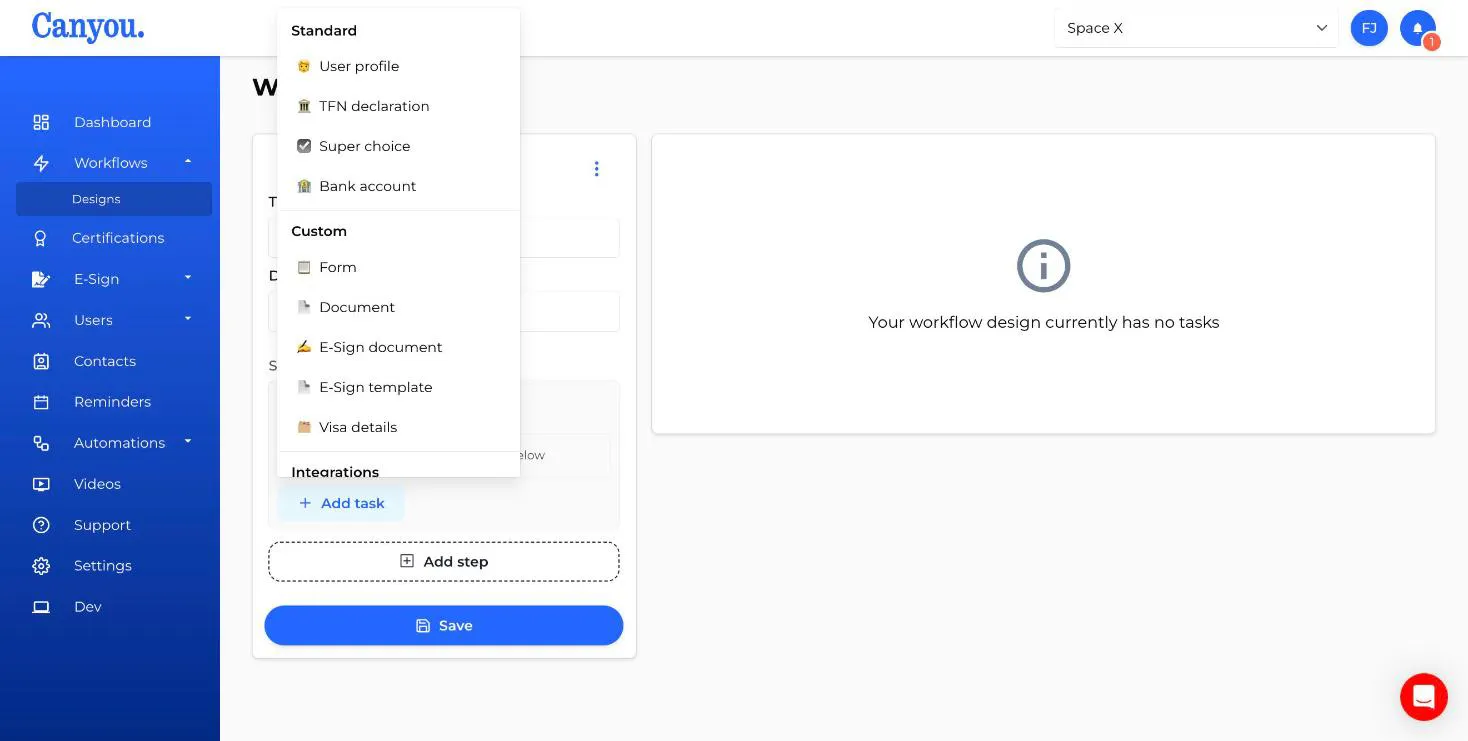
Under the step you want, click Add task and choose E-Sign template from the Custom section.
Step 3 - Choose the template
Select your template from the Template dropdown. A summary of the template's signers and their instructions appears below it. Click the template name to open it if you need to make changes.
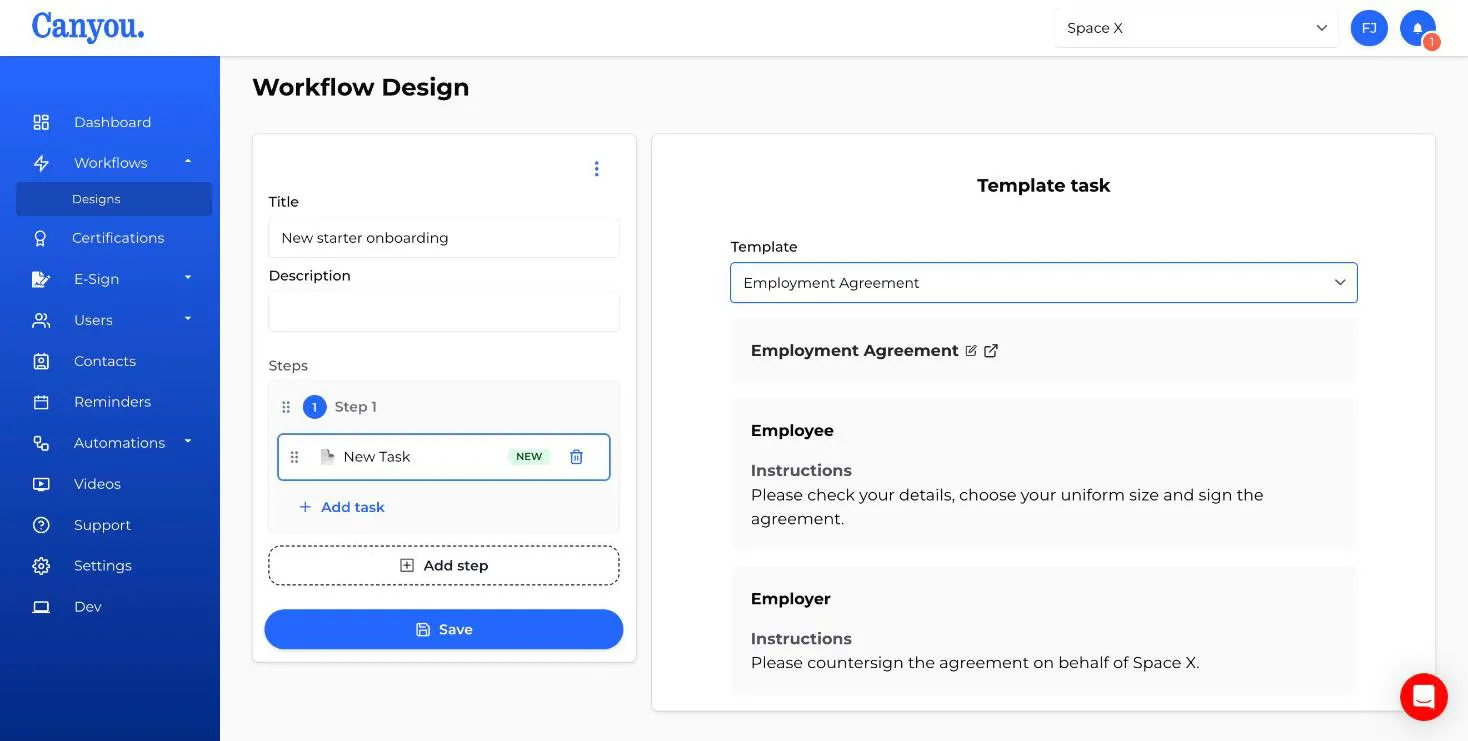
The task takes the template's name. Click Save to save the workflow.
Step 4 - Assign the workflow
Assign the workflow as you normally would, for example from the user's Workflows tab, from a position, or through an entry point. See Create a workflow for the options.
Once assigned:
- The document appears on E-Sign > Documents as In progress.
- The people who need to sign first see it as an action item on their dashboard.
- If someone hasn't signed, you can send a reminder.
Good to know
Who is the Subject? The user the workflow is assigned to. Any signer assigned to Subject is filled by that person.
Using steps. If the document should only be signed after other tasks are done, put the E-Sign template task in a later workflow step. This is separate from ordered signing, which only controls the order of signers inside the document.
Which template version is used? The latest version at the time the workflow is assigned. If you later update the template, documents already sent aren't changed.
Usage. Each E-Sign template task that's assigned counts as one e-sign document on your plan, however many people sign it. Tasks that are skipped don't count.
Copying workflows to another business. When you copy a workflow that uses a template into another business, the template is copied too. Only Subject and Admins assignments are kept, because specific members and positions don't exist in the other business. A signer left with nobody assigned is set to the Subject. Check the copied template's signers before using it.
NextNext: Signing a document NextSending a one-off document for signature