User Notes
Notes let you keep a written record against a user, such as a check-in conversation, shift preferences or anything else your team should know. Notes are for your team only. The user they're about never sees them.
Add a note
- Navigate to the Users menu and click on the user.
- Click the Notes tab. The number next to it shows how many notes the user has.
- Click New note.
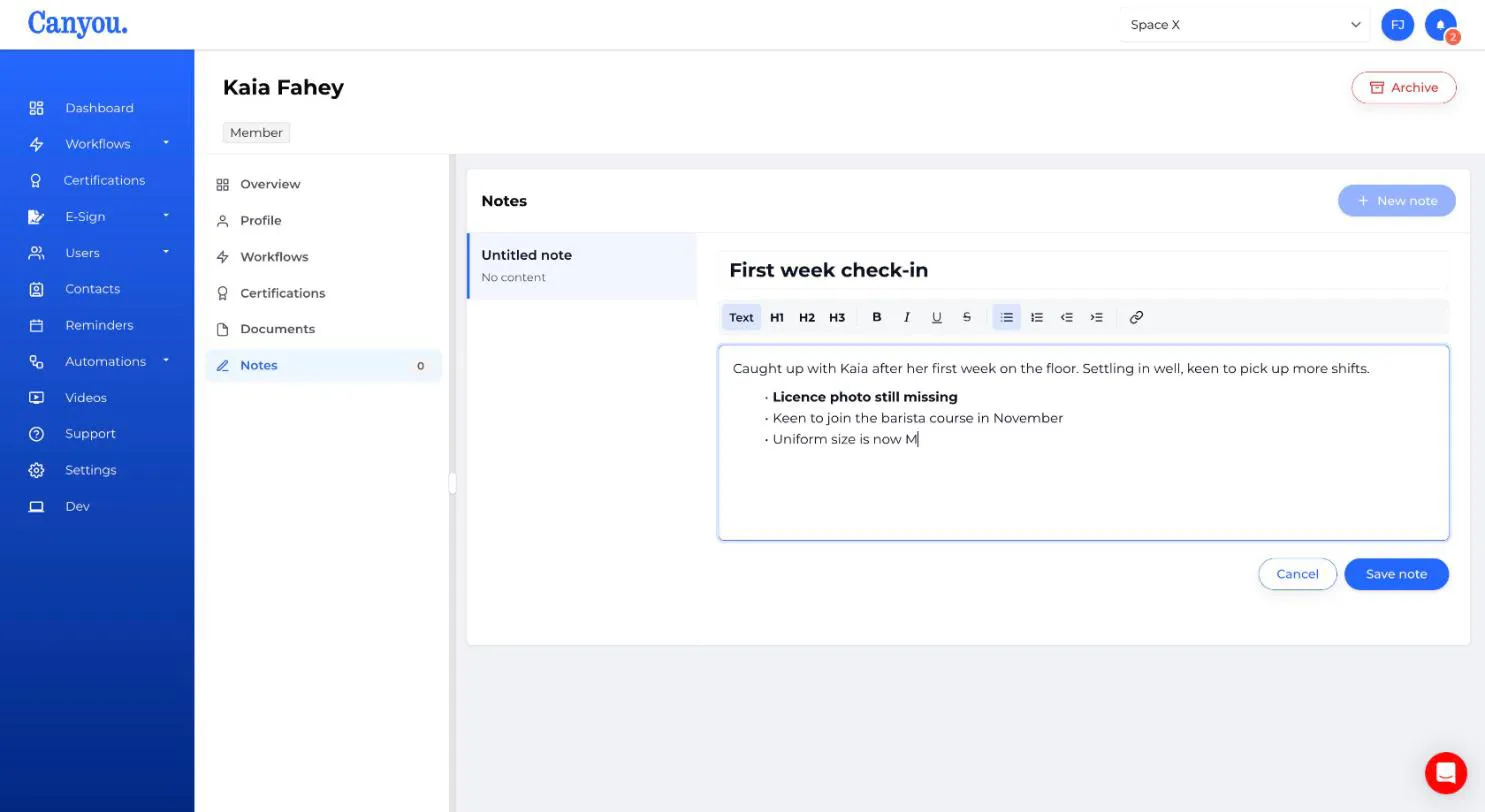
- Give the note a title, then write the note underneath. Use the toolbar to format it:
- Text, H1, H2 and H3 for headings
- Bold (⌘B), italic (⌘I), underline (⌘U) and strikethrough
- Bulleted and numbered lists, with indent and outdent (Tab and Shift+Tab)
- Links (⌘K)
- Click Save note.
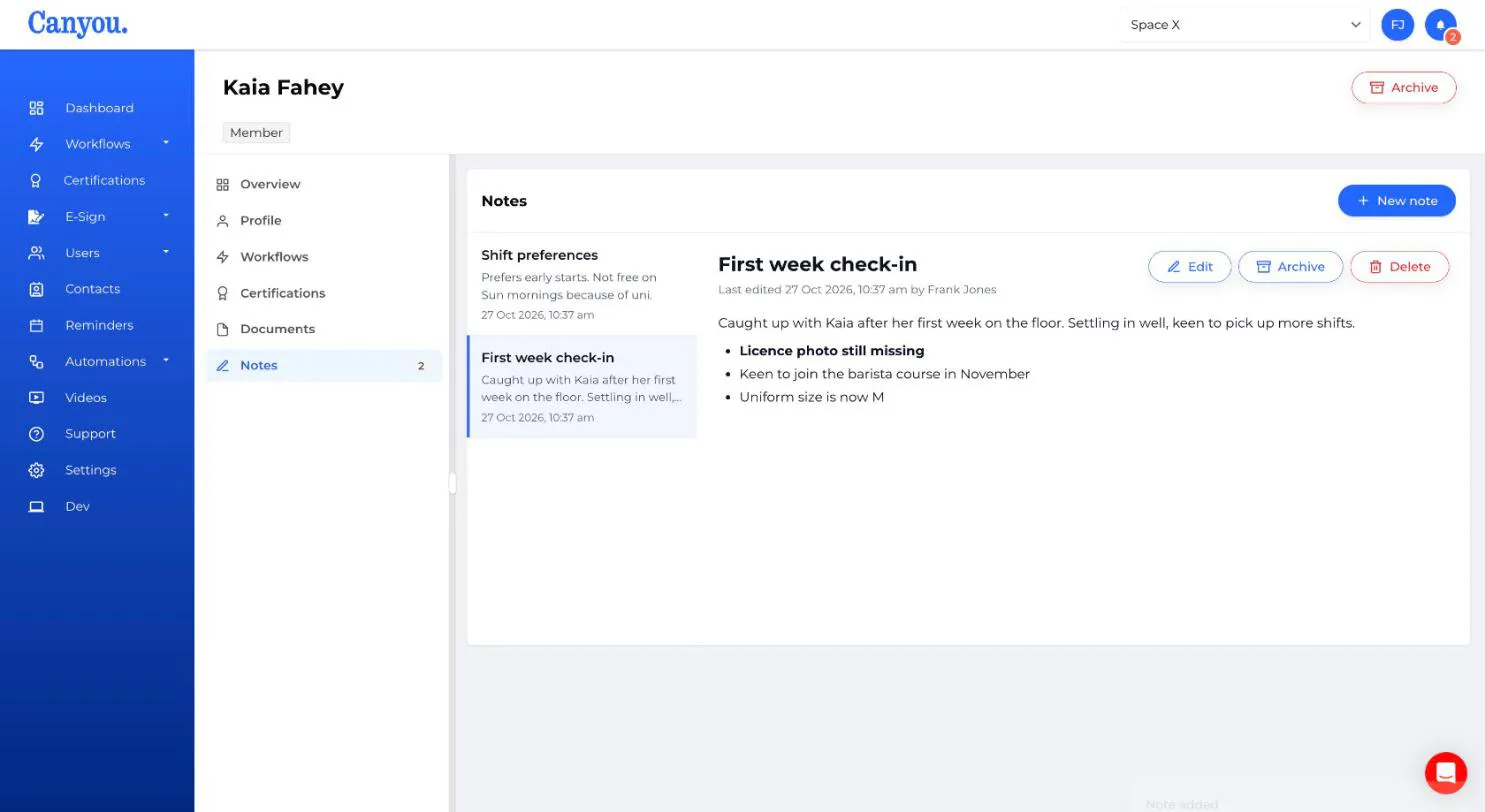
The note is saved with your name and the time, and shows at the top of the list.
Edit, archive or delete a note
Click a note in the list to open it, then use the buttons at the top:
- Edit - change the title or the note. The note shows who last edited it and when.
- Archive - moves the note out of the main list without deleting it. Click Archived at the top of the Notes tab to see archived notes, and Restore to bring one back.
- Delete - permanently removes the note. You'll be asked to confirm, and this can't be undone.
Who can see notes
- Anyone who can view users in your business can read notes.
- Anyone who can edit users can add, edit, archive and delete notes.
- The user a note is about can never see it.