Sending a One-Off Document for Signature
Use Upload for Signature when you need a single document signed and don't want to build a reusable template or a workflow. For example, a contractor agreement for one supplier, or a variation letter for one client.
You set it up exactly like a template, with signers and fields, but it's sent the moment you click Send for Signature.
Step 1 - Start the document
Go to E-Sign > Documents and click Upload for Signature.
Step 2 - Upload the PDF and set up signers
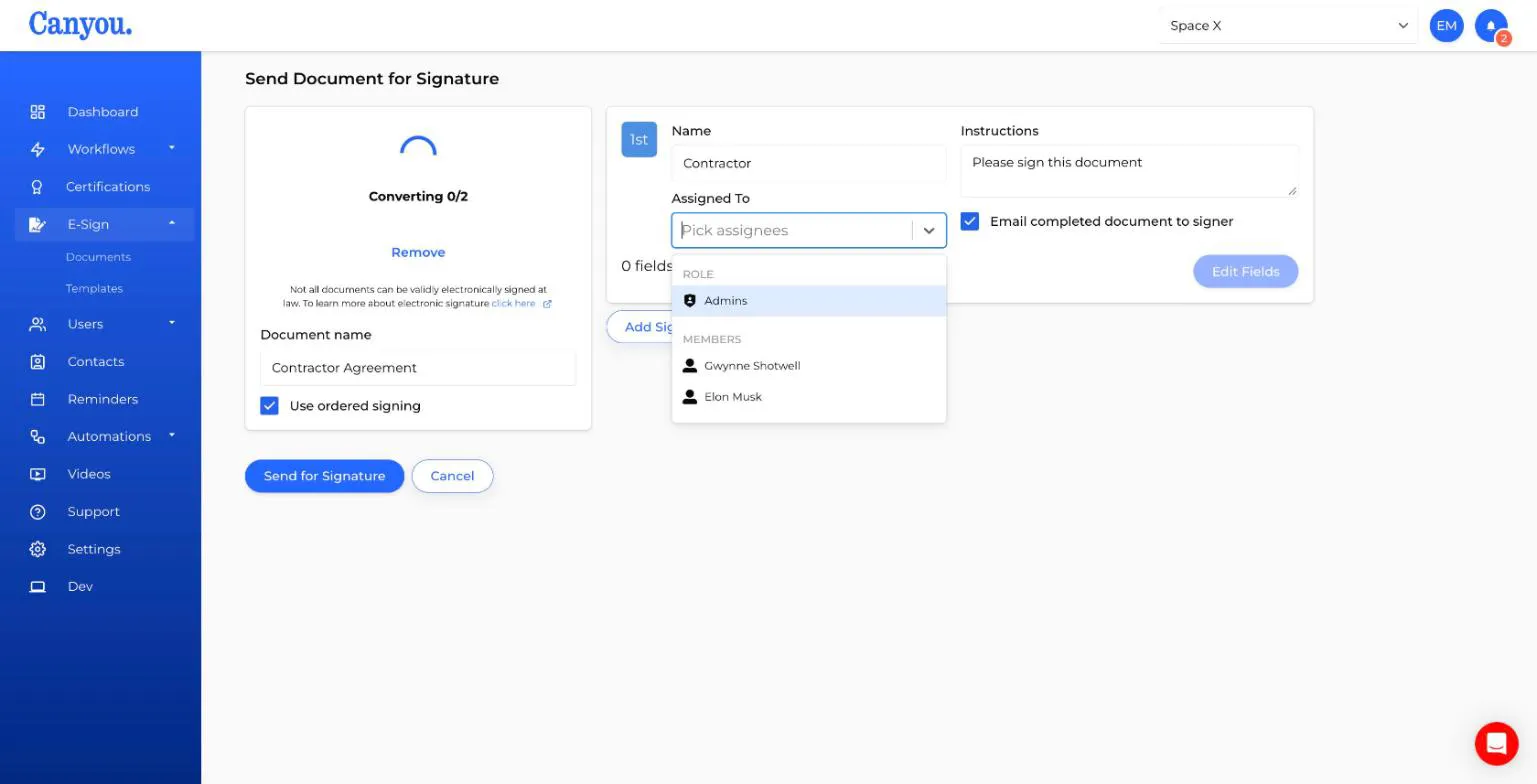
- Click Upload Template and choose your PDF. Wait for Converting to finish.
- Enter a Document name.
- Choose whether to Use ordered signing. See Ordered signing.
- Fill in each signer's Name, Assigned to and Instructions, and add more signers with Add Signer if needed.
The main difference from a template is who you can assign. A one-off document isn't sent to a particular user through a workflow, so there's no Subject. Assign each signer to Admins, a position, or specific members.
The person signing must be a member of your business. Invite them first if they're not already in Canyou, for example as a client or supplier. See Invite a member.
Step 3 - Add fields
Click Edit Fields on each signer and place their fields. This works exactly the same as for a template. See Adding fields to a template and Field validation.
Step 4 - Send
Click Send for Signature. Canyou sends the document straight away and takes you back to E-Sign > Documents, where it shows as In progress.
From there you can track it, send reminders and download the signed PDF like any other e-sign document. See Tracking e-sign documents.
Good to know
- One-off documents don't appear on the Templates page and can't be reused. If you send the same document often, create a template instead.
- Because there's no template to open, the document's menu on the Documents page doesn't show View template.
- Each one-off document counts as one e-sign document on your plan.