Signing a Document
This article walks through what a signer sees when they're asked to sign an e-sign template document. It's useful for helping a user, client or supplier who's stuck, and for checking your own template before you send it to others.
Step 1 - Open the document
Documents waiting for a signature appear under Action items on the signer's dashboard, inside the workflow they belong to. Click the workflow, then the document.
The Sign tab shows:
- The signer's instructions in a blue box at the top.
- A preview of the document.
- Confirm your Details - the signer's given and family name.
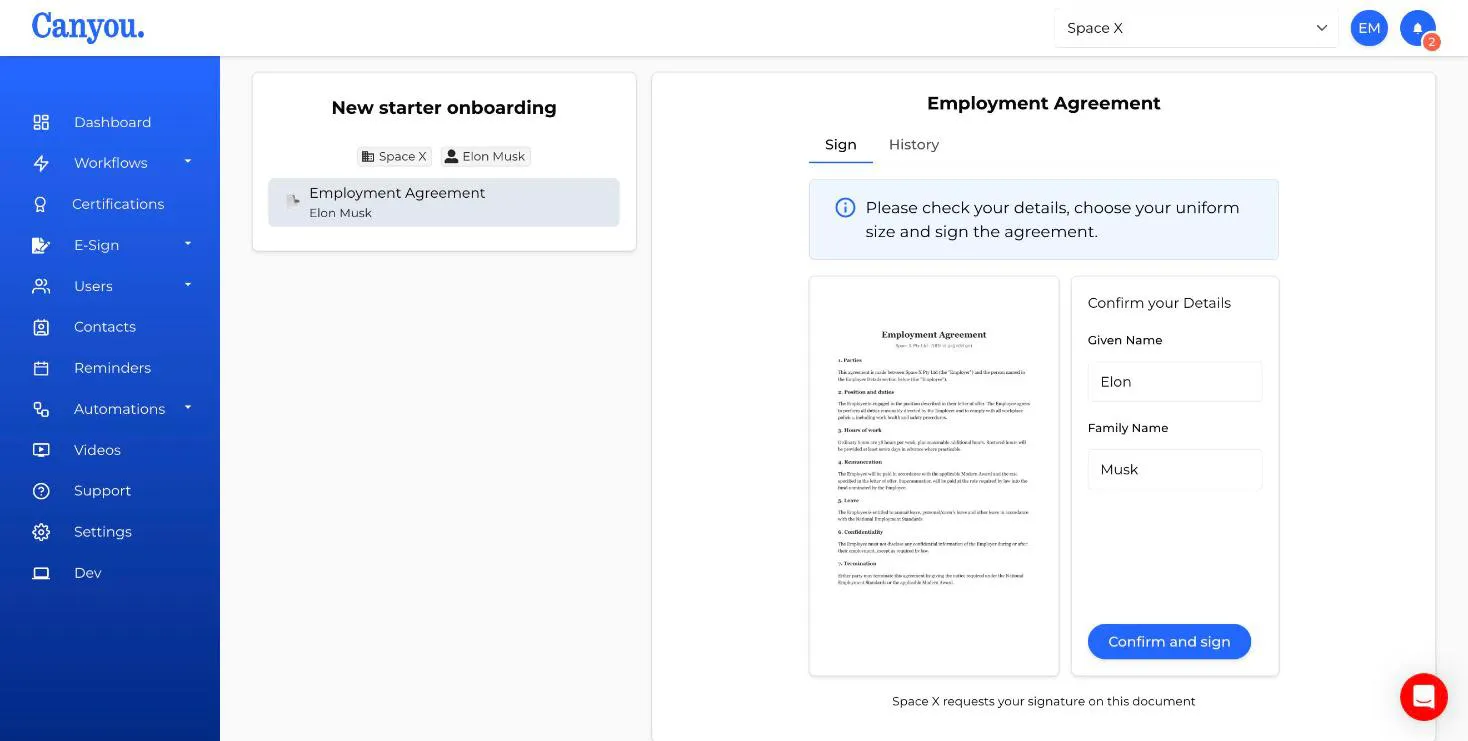
Check the name is correct, then click Confirm and sign. If the name is changed here, the signer's Canyou profile is updated too.
Step 2 - Fill in the fields
The document opens full screen. Only the signer's own fields can be filled in. Answers from anyone who has already signed are shown, but locked.
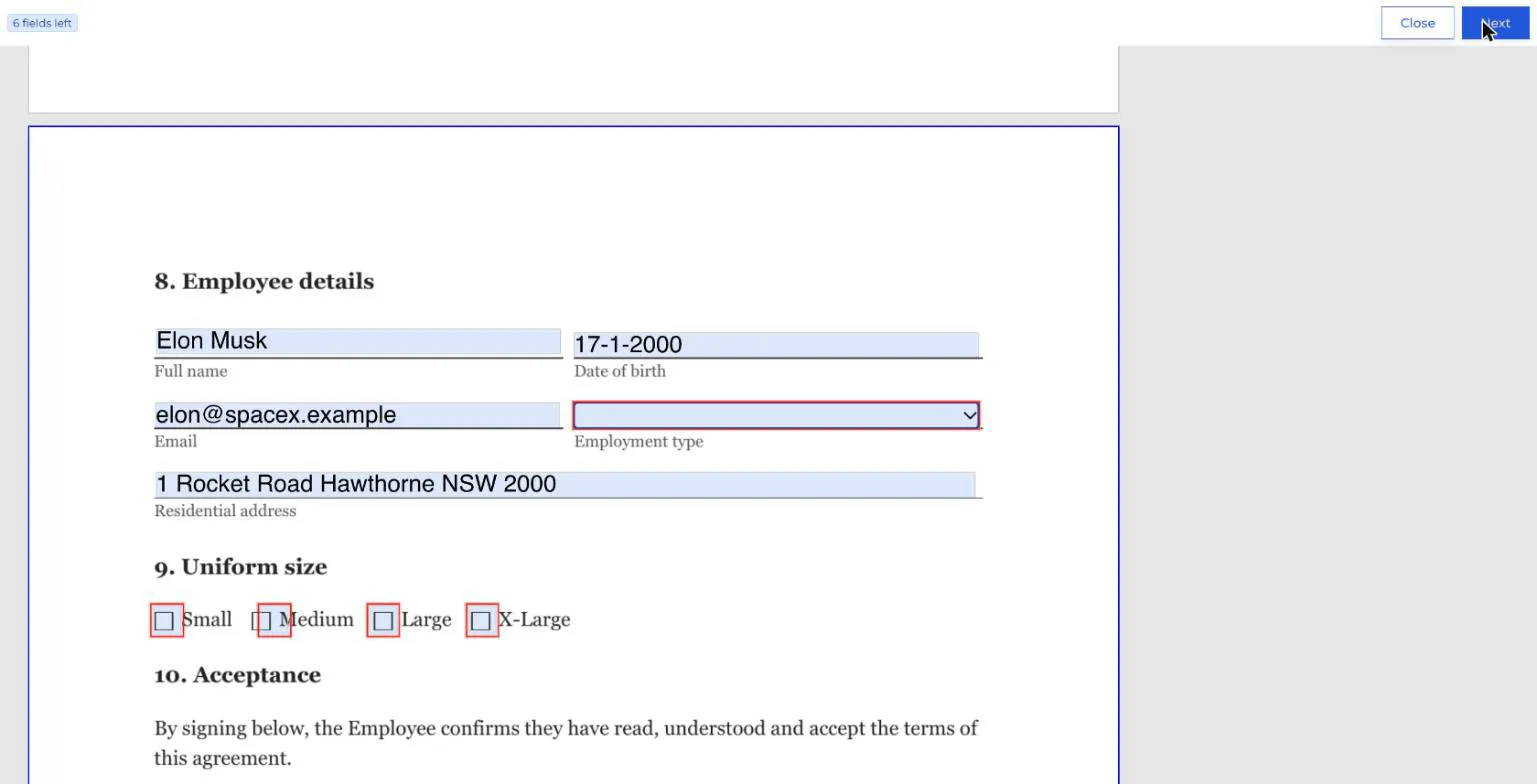
- The fields left counter (top left) shows how many fields still need attention.
- Fields with a red outline still need an answer, or the answer doesn't meet the field's rules.
- Hover over a field to see its name and, if it isn't valid yet, what's wrong.
- Click Next (top right) to jump to the next field that needs attention, even if it's on another page.
- Prefilled fields (like name, email and address) start with details from the signer's profile. They can be changed.
- Date signed fields fill in automatically.
If a field won't accept an answer, see Field validation. The checkbox groups section explains the most common problem.
Step 3 - Add a signature
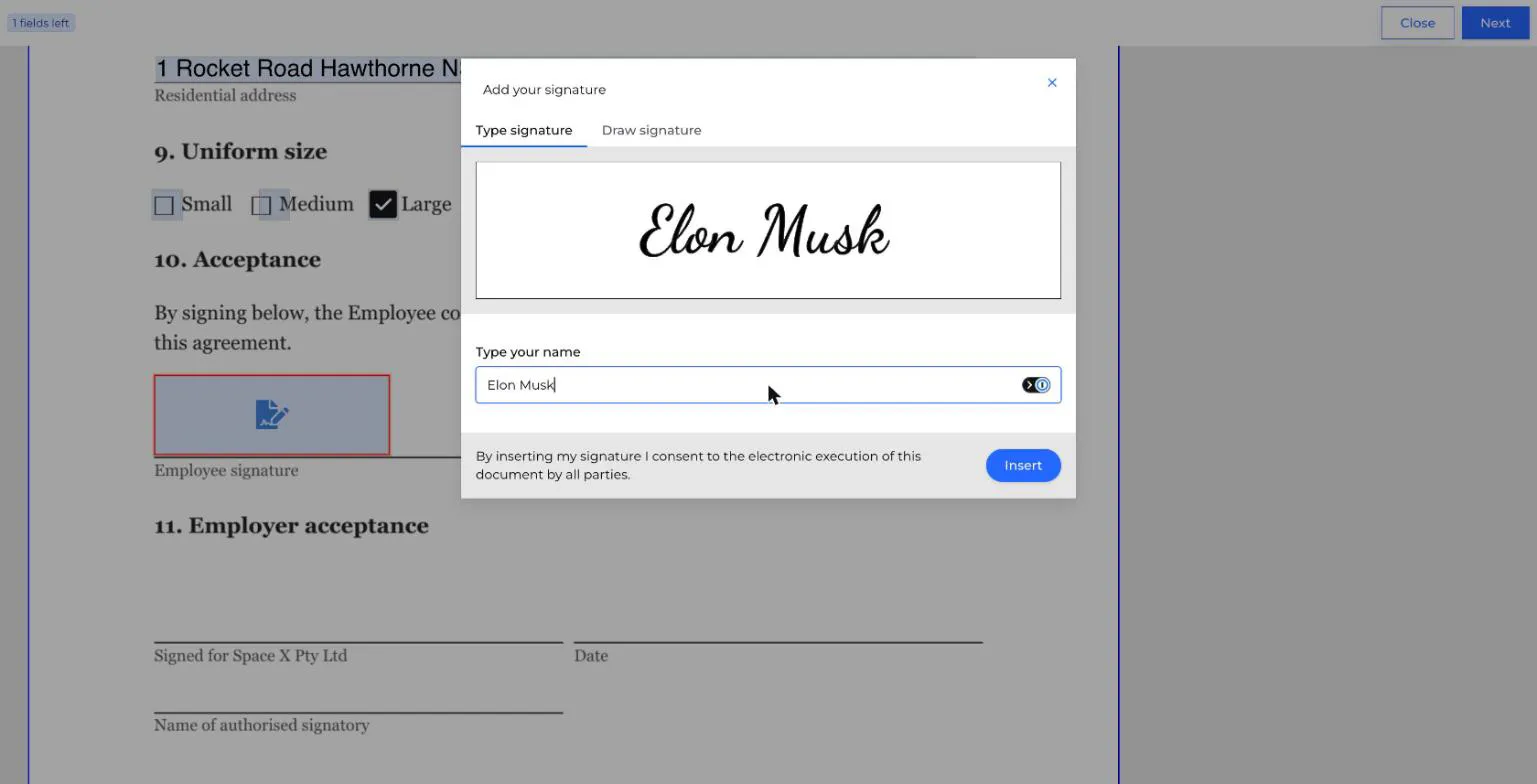
Click a signature box. Choose how to sign:
Type signature - the name from the profile is shown in a handwriting-style font. Change the text if needed.
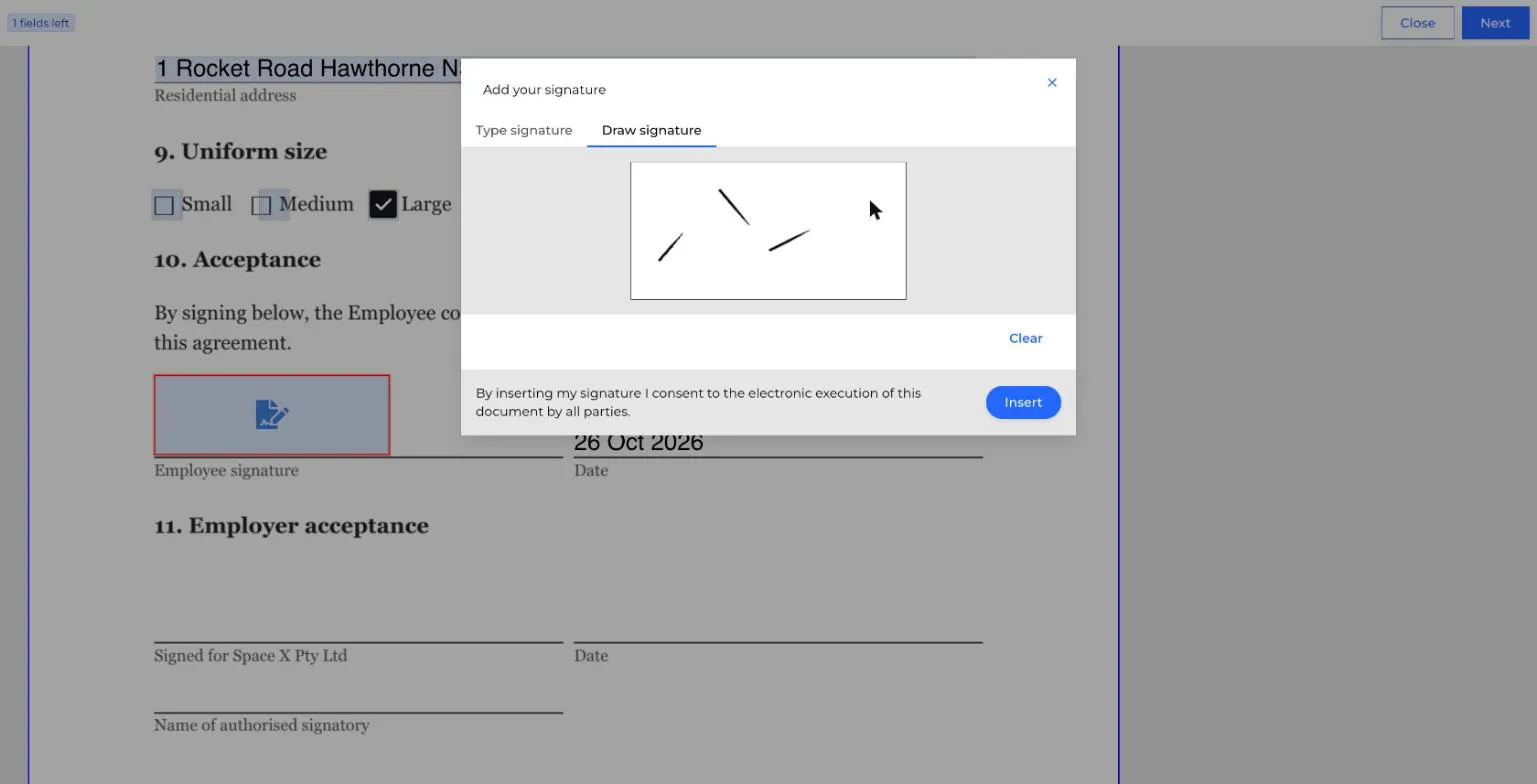
Draw signature - draw a signature with a mouse, trackpad or finger. Click Clear to start again.
Click Insert. By inserting their signature, the signer consents to signing the document electronically.
A signer only signs once. If the document has several signature boxes for them, the same signature fills them all. To change it, click Change signature at the top.
Step 4 - Finish signing
When fields left reaches 0, the Next button changes to Finish signing.
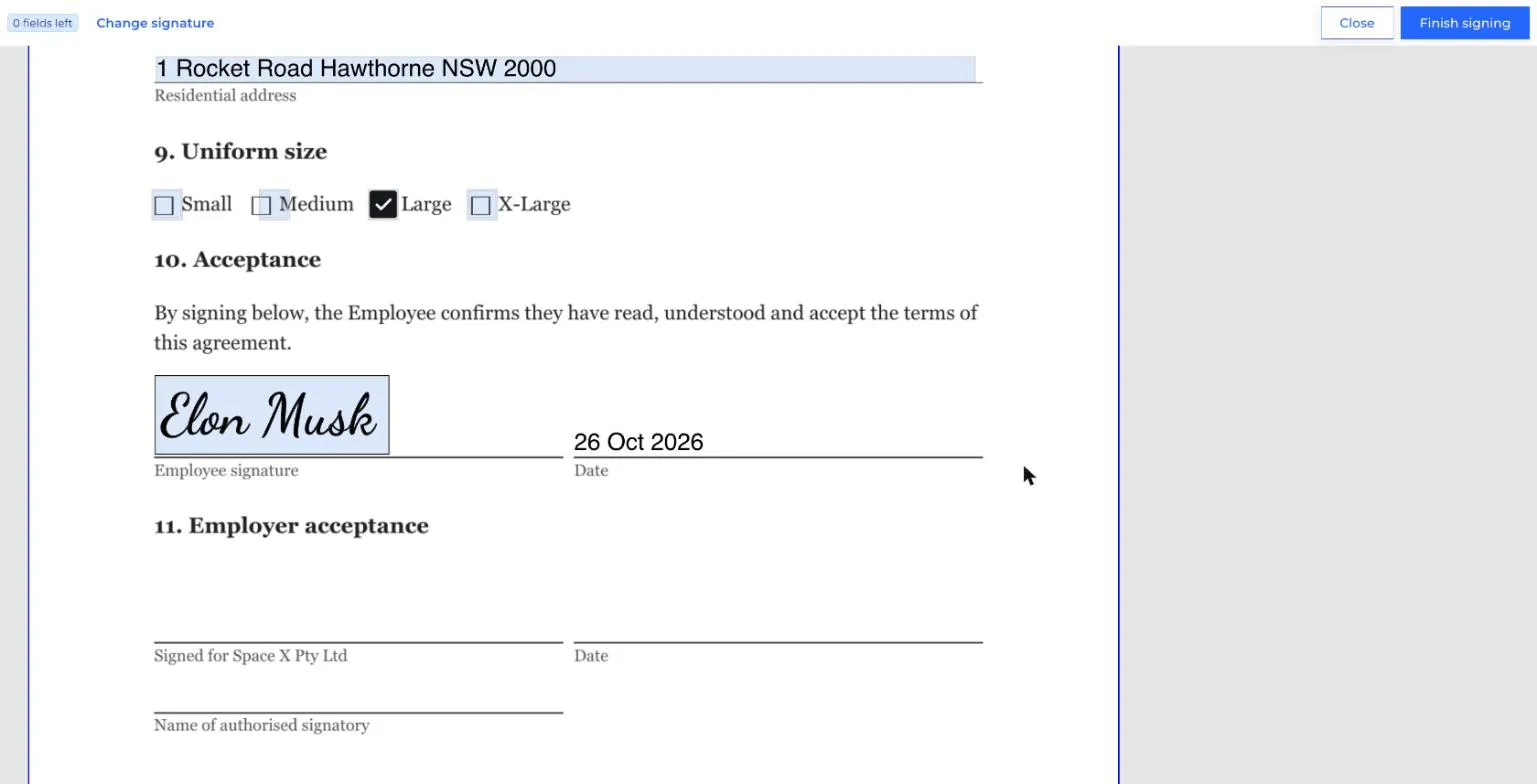
Click Finish signing, then Finish signing again to confirm. Click Review answers to go back and check first.
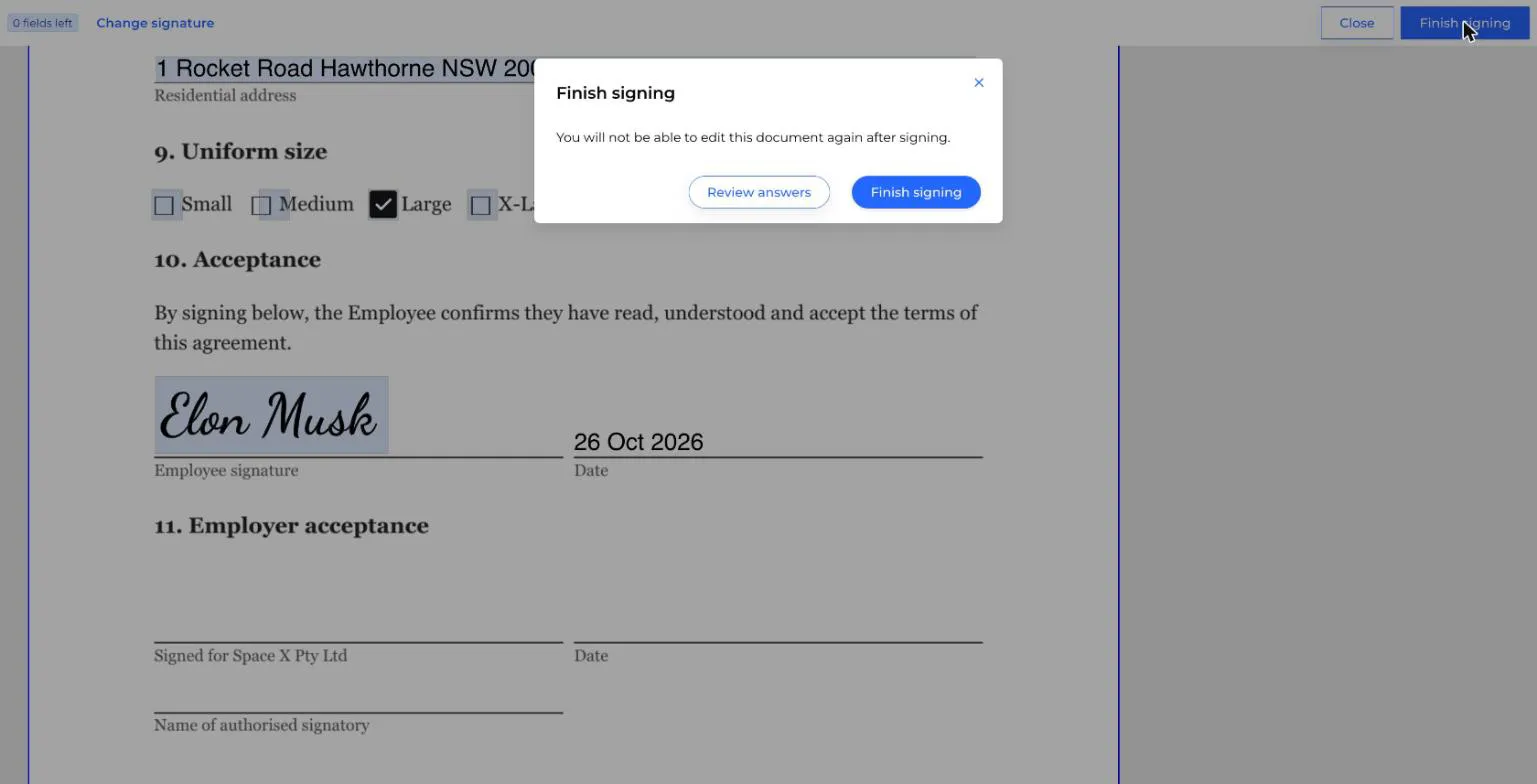
Once submitted, the signer can't change their answers.
Close leaves the document without submitting. The answers stay filled in while the page is open, but they aren't saved until the signer clicks Finish signing.
What happens next
- If there's another signer, it moves on to them. With ordered signing, the next signer in line is asked to sign. Without it, others may already be signing.
- The History tab shows who has signed and who's still to sign.
- When the last signer finishes, Canyou creates the final signed PDF. Signers whose part has Email completed document to signer ticked are emailed a copy.