Your Dashboard
The dashboard is the first page you see when you open a business. It's a to-do list of everything in the business that needs you, sorted into groups so you can work through it from top to bottom.
Canyou builds the list for you. Items appear when something needs attention and clear on their own once it's sorted, so there's nothing to tick off by hand.
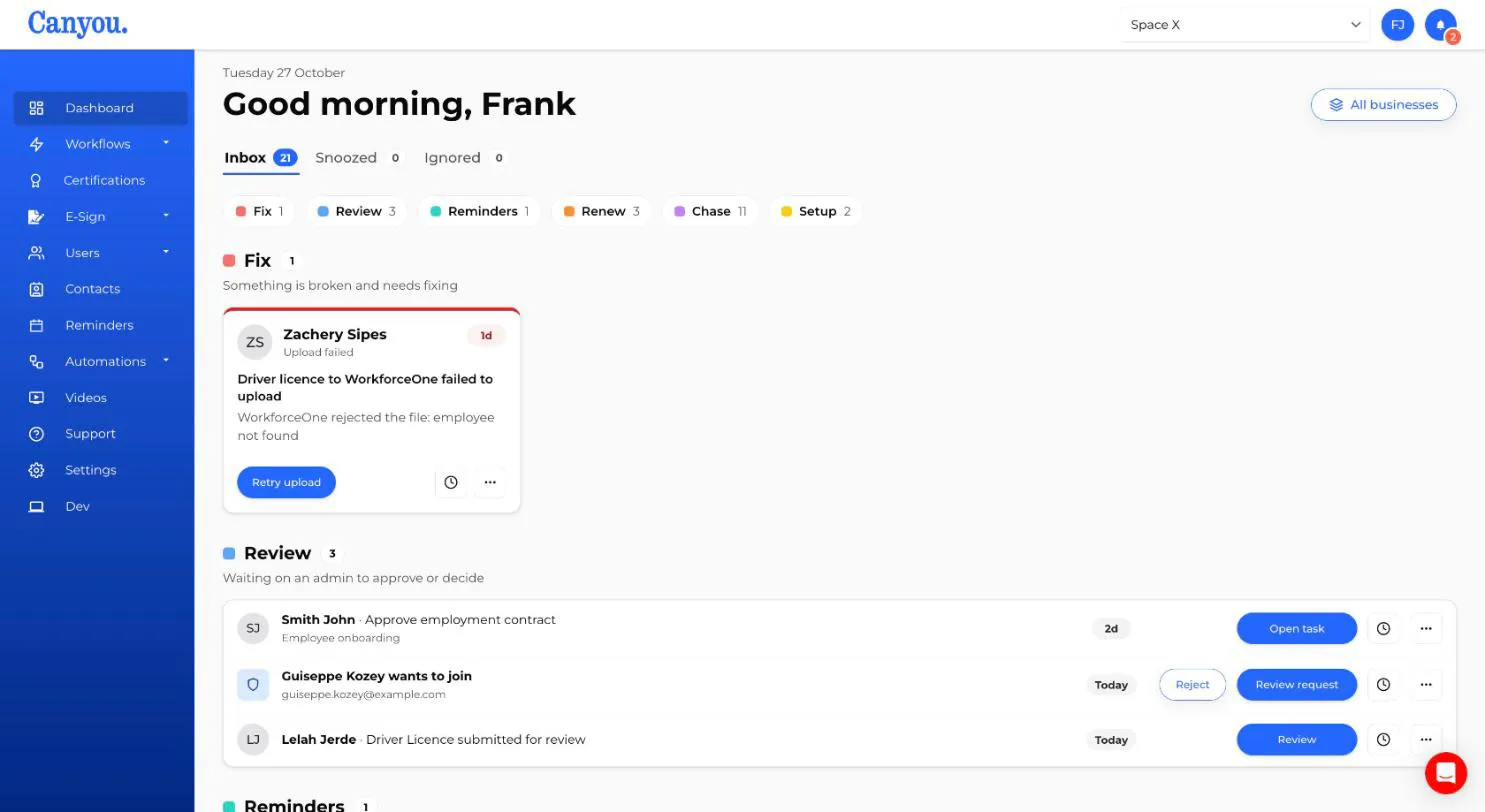
What's on the dashboard
Items are grouped into six categories. The chips at the top show how many items are in each one, and clicking a chip jumps to that group.
| Category | What it means | Examples |
|---|---|---|
| Fix | Something is broken and needs fixing | A subscription problem, a document that failed to upload |
| Review | Waiting on an admin to approve or decide | Someone who wants to join, a certification submitted for review, a workflow task waiting on an admin |
| Reminders | Reminders that are due | A reminder you set up on the Reminders page |
| Renew | Certifications and visas that have expired or are expiring | A driver licence that expires in 12 days, a visa that expires soon |
| Chase | Waiting on someone in your team | A user stuck on a workflow task for 7 days or more, a required certification not submitted, an invite that hasn't been accepted |
| Setup | Finish setting up the business | Nominating a default super fund |
Each item shows who it's about, what's needed, and how long it's been waiting (or, for expiring items, how many days are left).
You only see items for the areas your role can manage. For example, subscription problems only show for people who can manage billing.
Act on an item
Every item has a button for the most likely next step, so most things can be handled straight from the dashboard:
- Review request or Reject - for someone who wants to join your business
- Review - opens a submitted certification so you can approve it
- Open task - opens a workflow task that's waiting on an admin
- Mark done - closes a reminder that's due
- Ask to renew - sends the user a reminder to update an expiring or expired certification
- Nudge - sends the user a reminder about a workflow task or certification they haven't finished
- Resend invite - sends the invite email again
- Retry upload - tries a failed document upload again
Once the underlying issue is sorted, for example the certification is approved or the user finishes their task, the item disappears from the dashboard.
Snooze or ignore an item
Not everything needs doing today. Use the two buttons on the right of each item to clear your list without losing track of anything.
Remind me later (the clock icon) snoozes the item. Choose Tomorrow, In 3 days, Next week or In a month, and it moves to the Snoozed tab until that date, then comes back to your inbox.
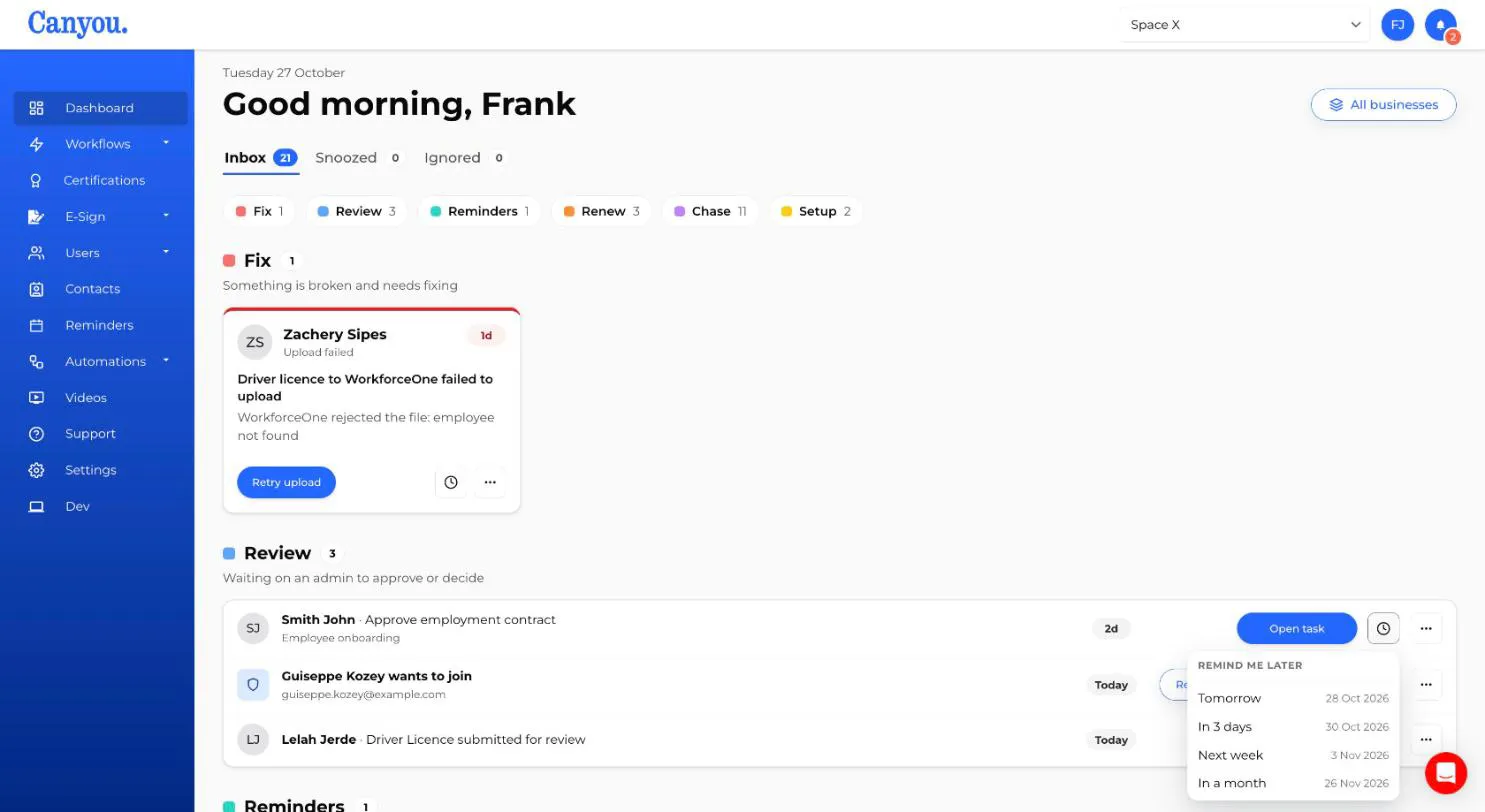
More actions (the ⋯ icon) lets you Ignore an item. Ignored items move to the Ignored tab and stay out of your inbox.
Snoozing and ignoring only affect your own dashboard. Other admins still see the item in their inbox.
To bring an item back early, open the Snoozed or Ignored tab and click Move back to inbox.
See every business at once
If you manage more than one business, click All businesses in the top right of the dashboard. This shows how many items each business has in each category, so you can see where you're needed most. Click Open to go to that business's dashboard.
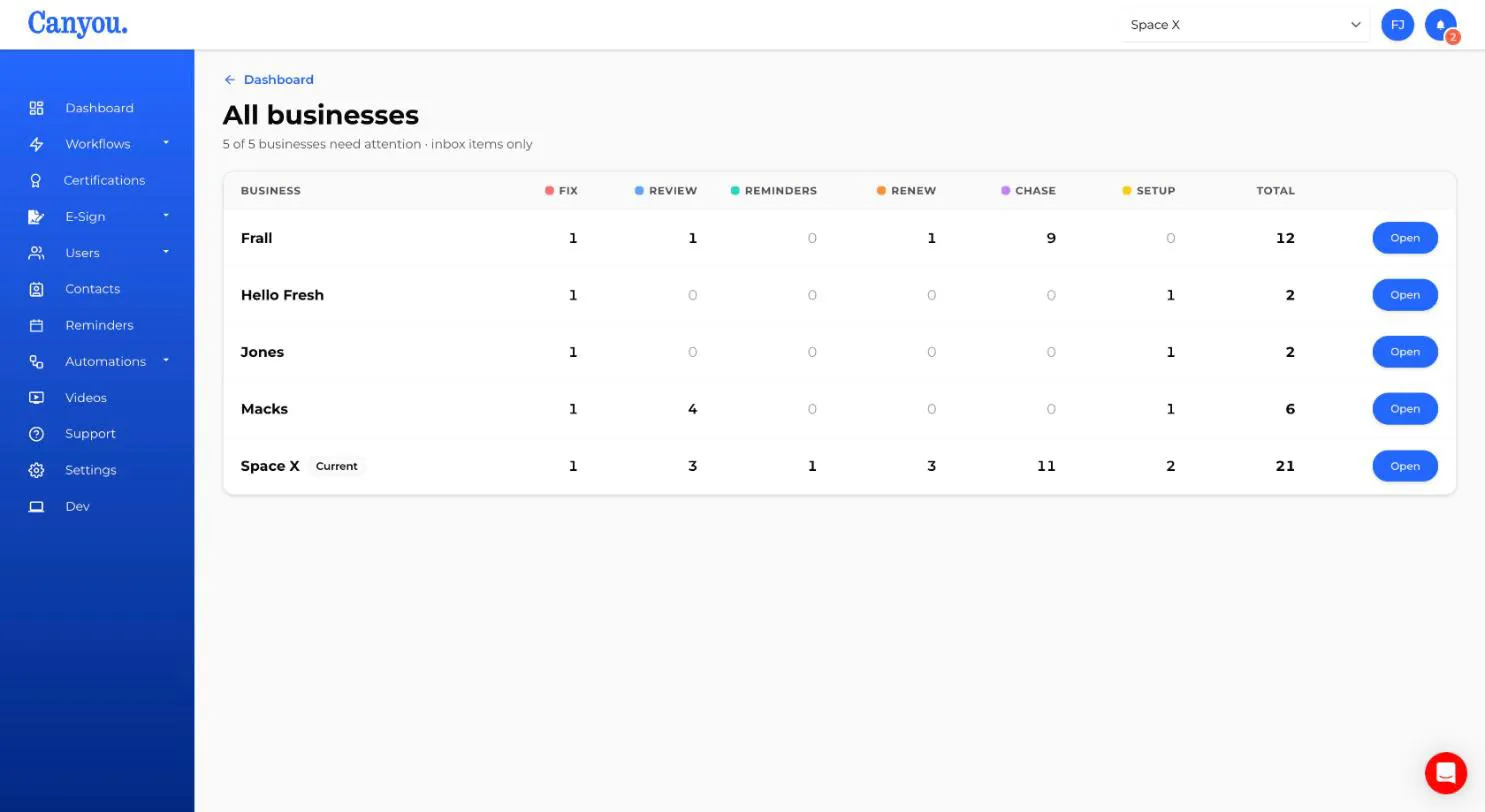
The counts only include items in each inbox. Snoozed and ignored items aren't counted.