Cash Out Annual Leave
Let employees ask to cash out some of their annual leave, and get a separate written agreement signed by both of you every time.
Fair Work has strict rules for cashing out annual leave. The employee must keep at least 4 weeks of annual leave afterwards, and under most awards each cash out needs its own written agreement that states the amount of leave, the payment and the payment date, signed by the employer and the employee. A clause in an employment contract isn't enough.
This guide sets that up as a self-service workflow: the employee asks, you fill in the figures and sign, then the employee checks and signs. Each request creates a new signed agreement.
For the Fair Work rules behind it, including tax and super, see our guide to cashing out annual leave.
What you'll use
- A Form task for the employee's request
- An e-sign template with ordered signing for the agreement
- Workflow steps so the agreement only starts after the request
- Self-service workflows so employees can start a request themselves
- Completion notifications to tell payroll when an agreement is signed
Step 1 - Get the agreement PDF
Download the Fair Work Ombudsman's Agreement to cash out annual leave template, or use your own version. Check your award or enterprise agreement first. Not every award allows cashing out, and some have their own rules.
The agreement needs space for:
- the employee's and employer's names
- the amount of leave (hours or days)
- the payment, and whether it's before or after tax
- the payment date
- the employee's signature and date
- the employer representative's name, signature and date
- a parent or guardian's name, signature and date, if the employee is under 18
Step 2 - Create the e-sign template
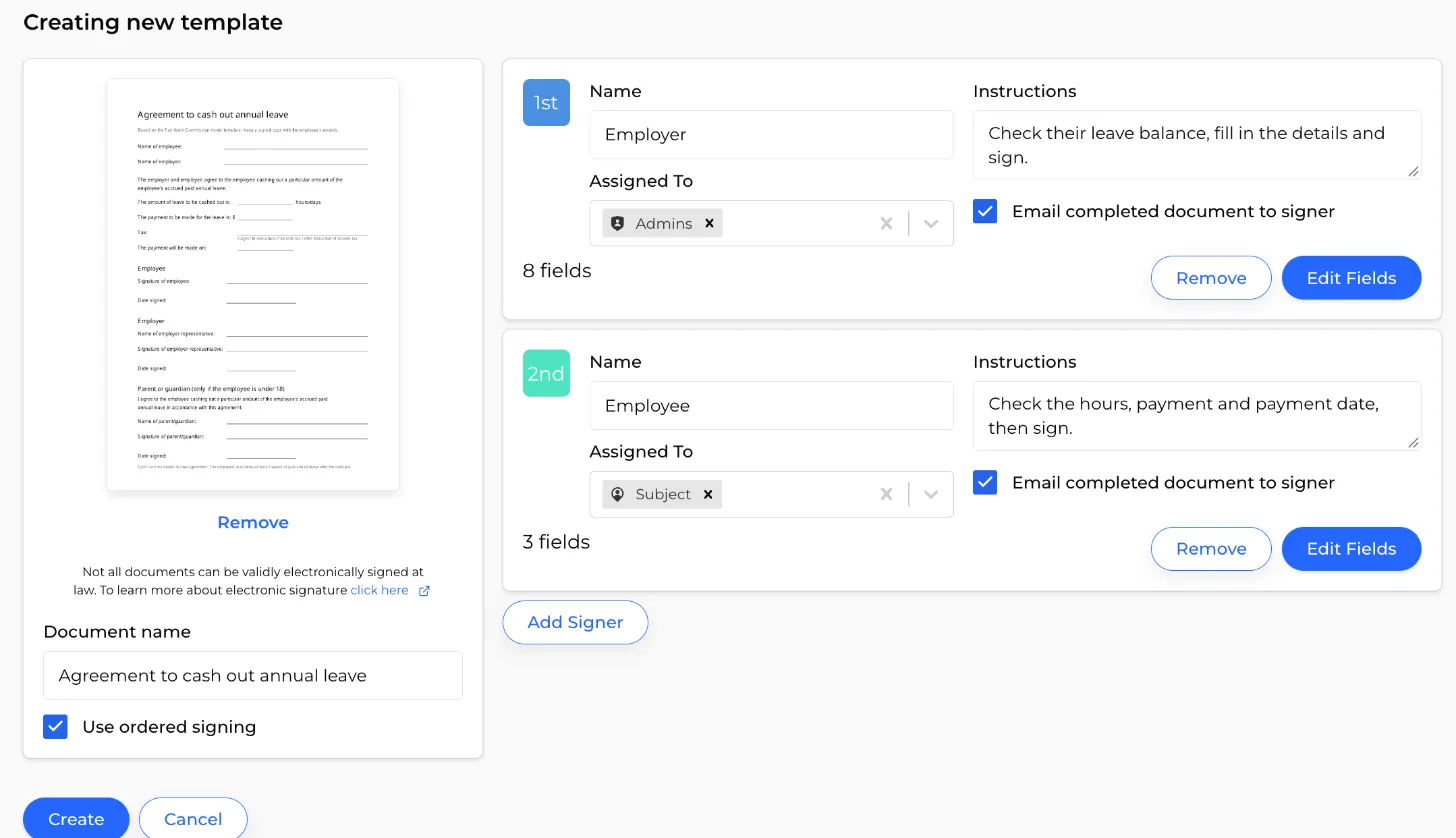
Go to E-Sign > Templates, click New Template and upload the PDF. Name the document "Agreement to cash out annual leave" and leave Use ordered signing ticked.
Set up two signers, in this order:
- Employer - Assigned To your payroll officer, a position, or Admins. Instructions: "Check their leave balance, fill in the details and sign."
- Employee - Assigned To Subject (the person who starts the workflow). Instructions: "Check the hours, payment and payment date, then sign."
The employer signs first on purpose. That way the employee only signs once the hours, payment and payment date are filled in.
Tick Email completed document to signer on both signers so you each get a copy of the signed PDF.
Full guide: Creating an e-sign template
Step 3 - Add the fields
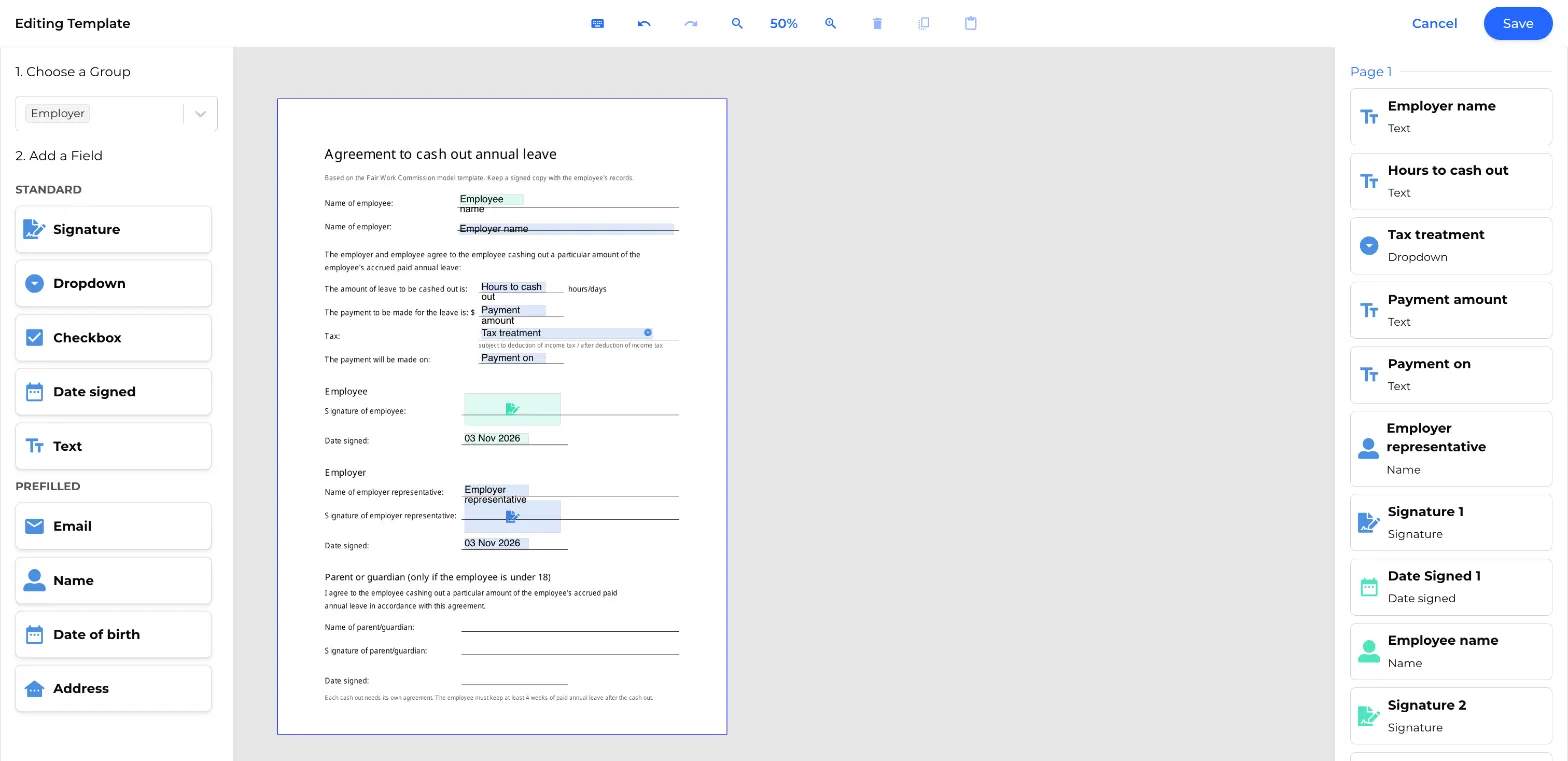
Click Edit Fields and place these fields.
Employer fields:
- Text - employer name
- Text - hours (or days) of leave to cash out
- Text - payment amount
- Dropdown - tax, with the options "Gross - subject to income tax" and "Net - after income tax"
- Text with Date validation - payment date
- Name (prefilled) - employer representative's name
- Signature and Date signed
Employee fields:
- Name (prefilled) - employee's name
- Signature and Date signed
Click Save, then Create.
Full guide: Adding fields to a template
Employees under 18. Under most awards, a parent or guardian must also sign. Signers in Canyou are people in your business (the Subject, admins, positions or members), so for an employee under 18, have their parent or guardian sign a printed copy of the completed agreement and keep it with the signed PDF.
Step 4 - Create the workflow
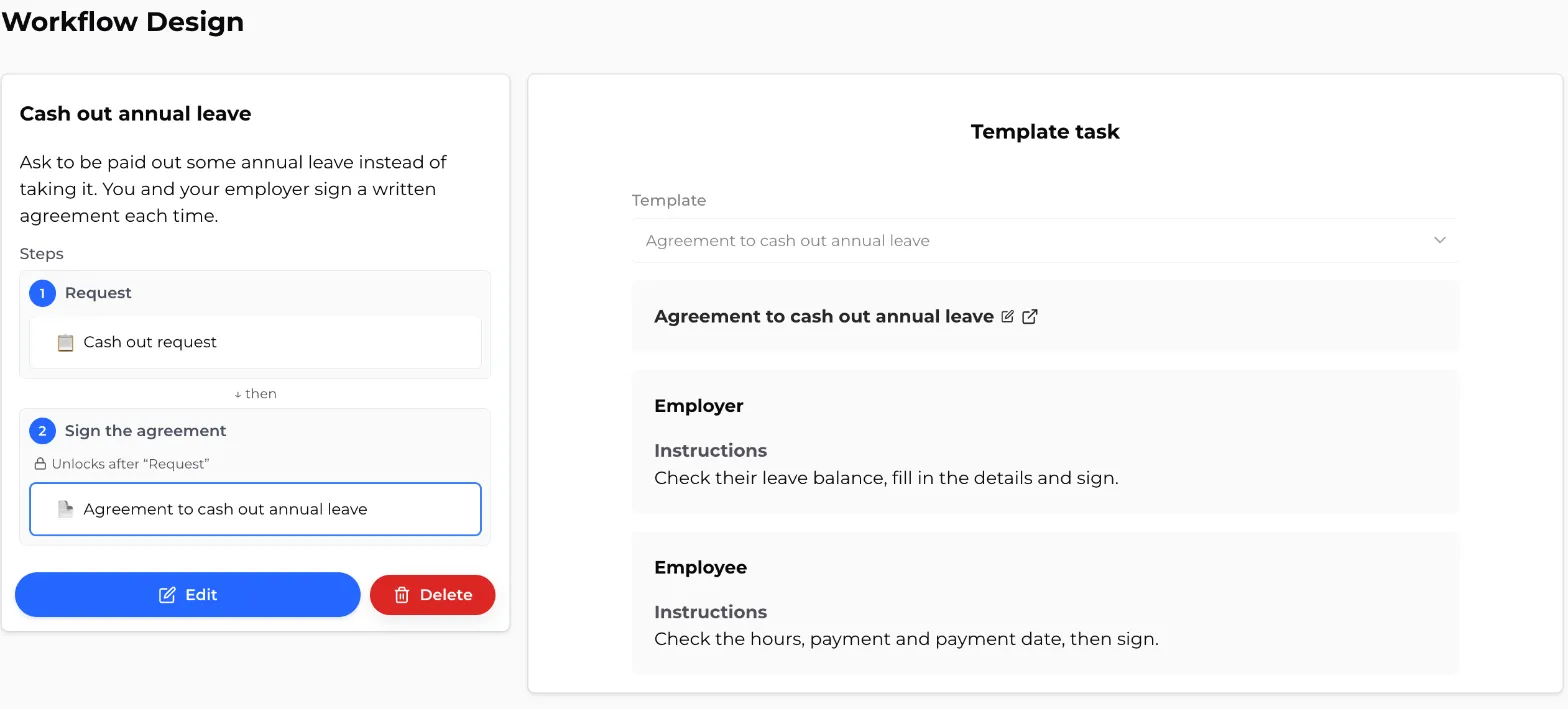
Go to Workflows, click Create and name the workflow "Cash out annual leave". Add a description, for example "Ask to be paid out some annual leave instead of taking it. You and your employer sign a written agreement each time." Employees see it when they start a workflow.
The finished workflow has two steps:
Step 1 - Request
Rename Step 1 to "Request". Click Add task, select Form, name it "Cash out request" and leave Assigned To as Subject. Add these sections:
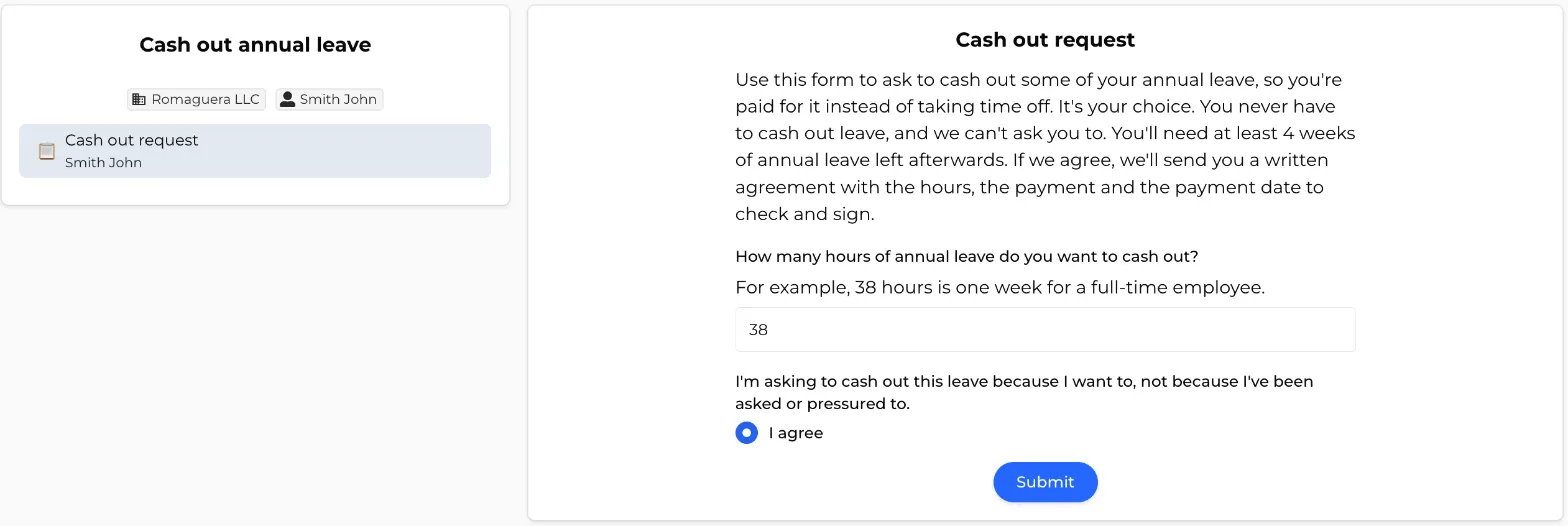
- Content block - for example: "Use this form to ask to cash out some of your annual leave, so you're paid for it instead of taking time off. It's your choice. You never have to cash out leave, and we can't ask you to. You'll need at least 4 weeks of annual leave left afterwards. If we agree, we'll send you a written agreement with the hours, the payment and the payment date to check and sign."
- Number question (Required) - "How many hours of annual leave do you want to cash out?"
- Multiple choice (Required) - "I'm asking to cash out this leave because I want to, not because I've been asked or pressured to." with one option, I agree.
Step 2 - Sign the agreement
Click Add step and rename it "Sign the agreement". It shows Unlocks after "Request", so the agreement is only sent once the employee has submitted their request.
Click Add task, select E-Sign template and choose Agreement to cash out annual leave. Click Save.
Full guides: Create a workflow, Adding an e-sign template to a workflow
Step 5 - Make it self-service
On the Workflows page, open the workflow's 3 dot menu, click Make self-service and confirm.
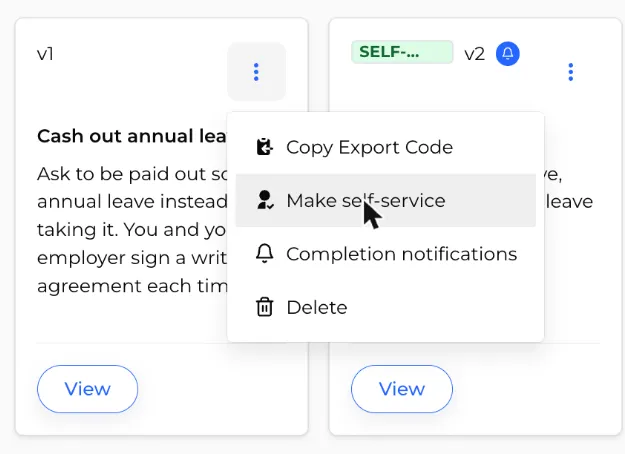
Employees can now click Start workflow on their dashboard and pick Cash out annual leave. Each time they start it, Canyou creates a new agreement, so you never reuse an old one.
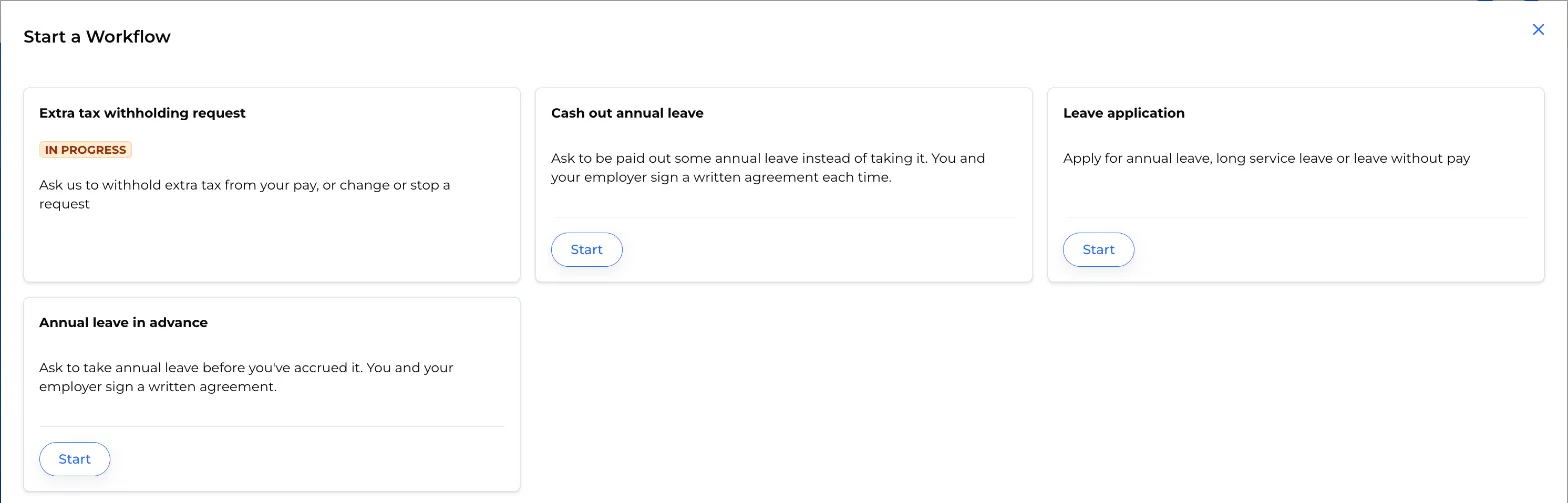
Full guides: Create a self service workflow, Start a self service workflow
Step 6 - Notify payroll
Open the workflow's 3 dot menu and select Completion notifications. Toggle Notifications on, add your payroll officer, bookkeeper or Admins in the Notify field, and click Save.
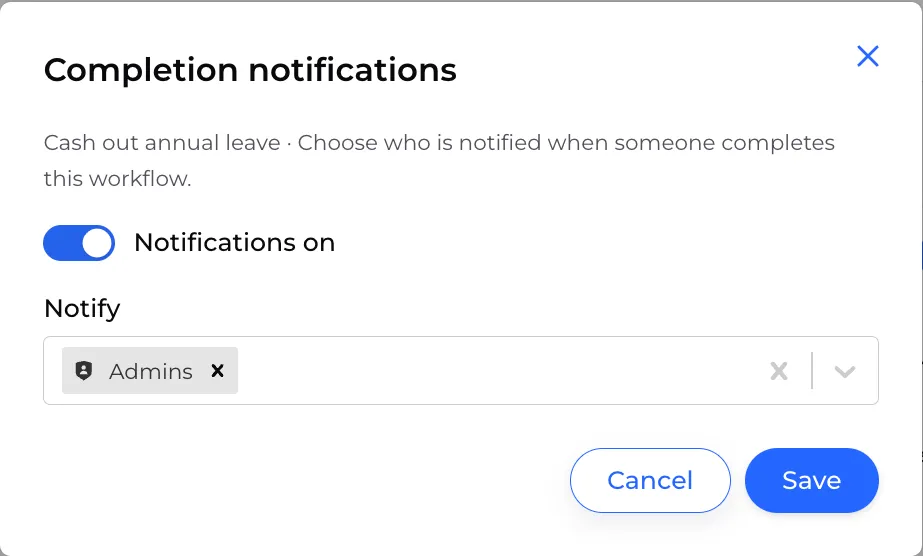
Payroll is told as soon as both signatures are in, so they know the cash out is agreed and can be paid.
Full guide: Completion notifications
How it works day to day
- The employee asks. They start Cash out annual leave from their dashboard, enter the hours and confirm it's their own choice.
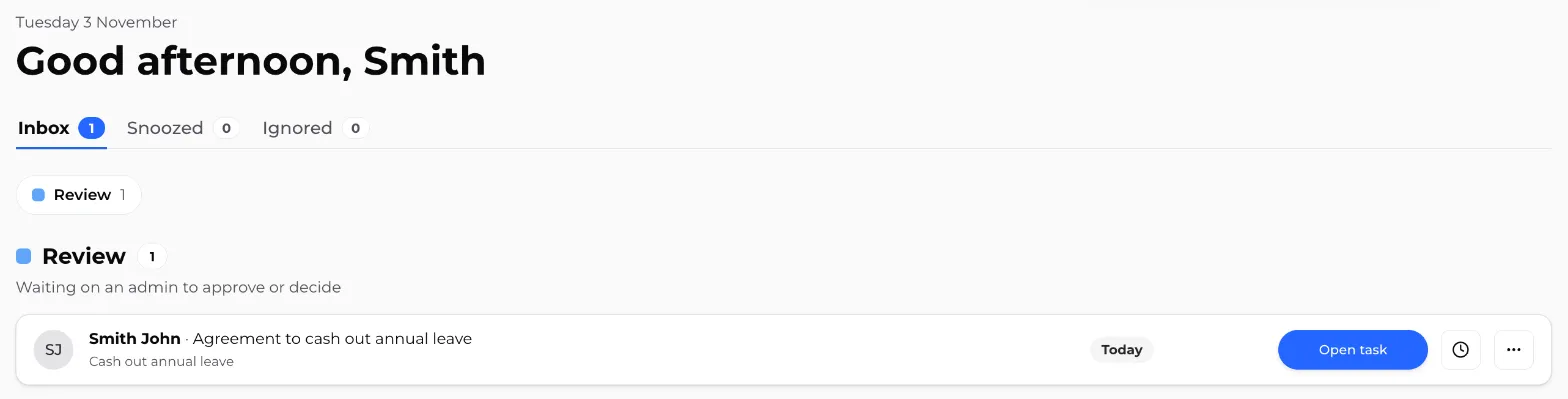
- You check the balance. The agreement appears on the employer signer's dashboard. Before you sign, check in payroll that the employee will have at least 4 weeks of annual leave left, and that you're within any limit in the award (most allow no more than 2 weeks in 12 months).
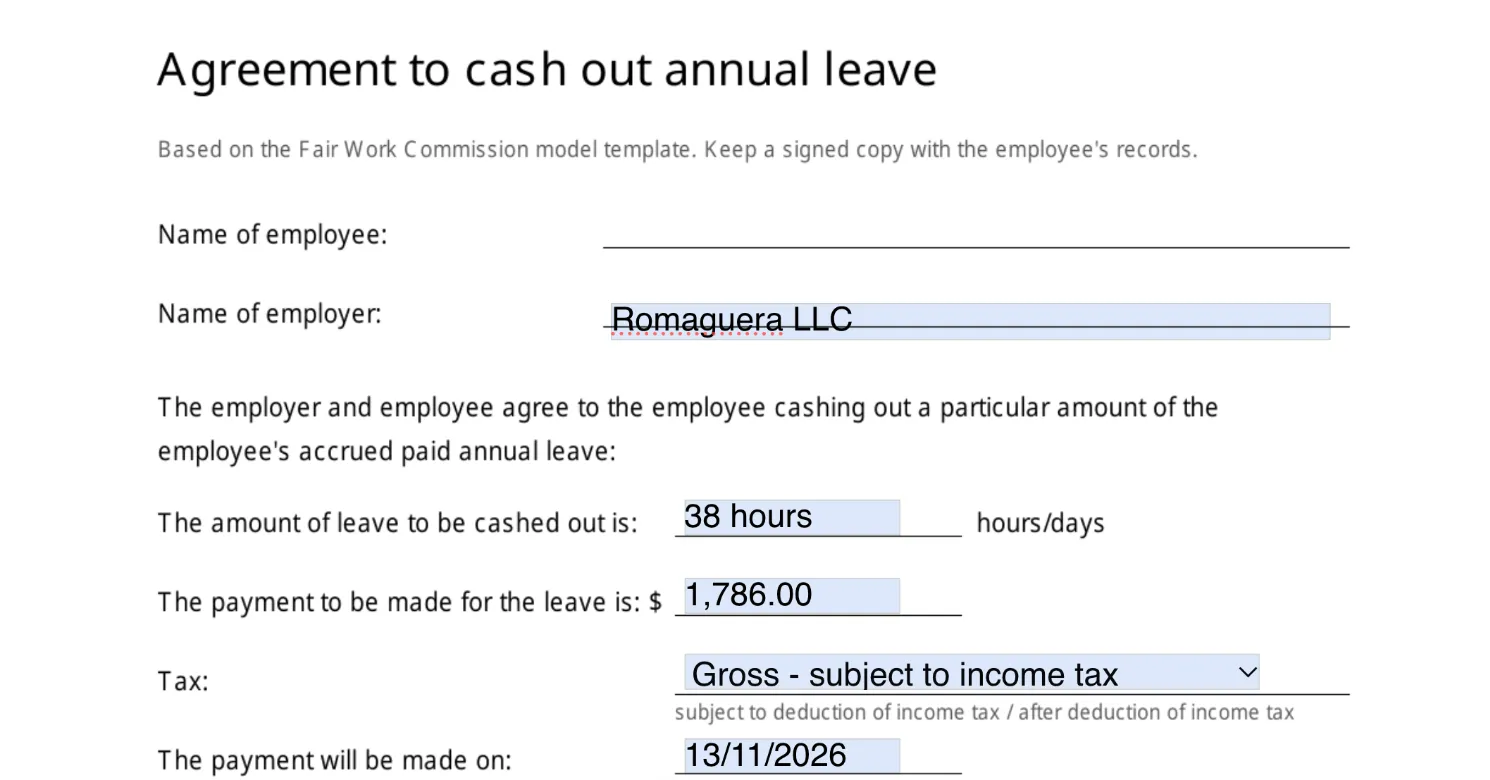
- You fill in the figures and sign. Enter your business name, the hours, the payment (at least what they'd be paid if they took the leave, including any leave loading), whether it's before or after tax, and the payment date. Then sign.
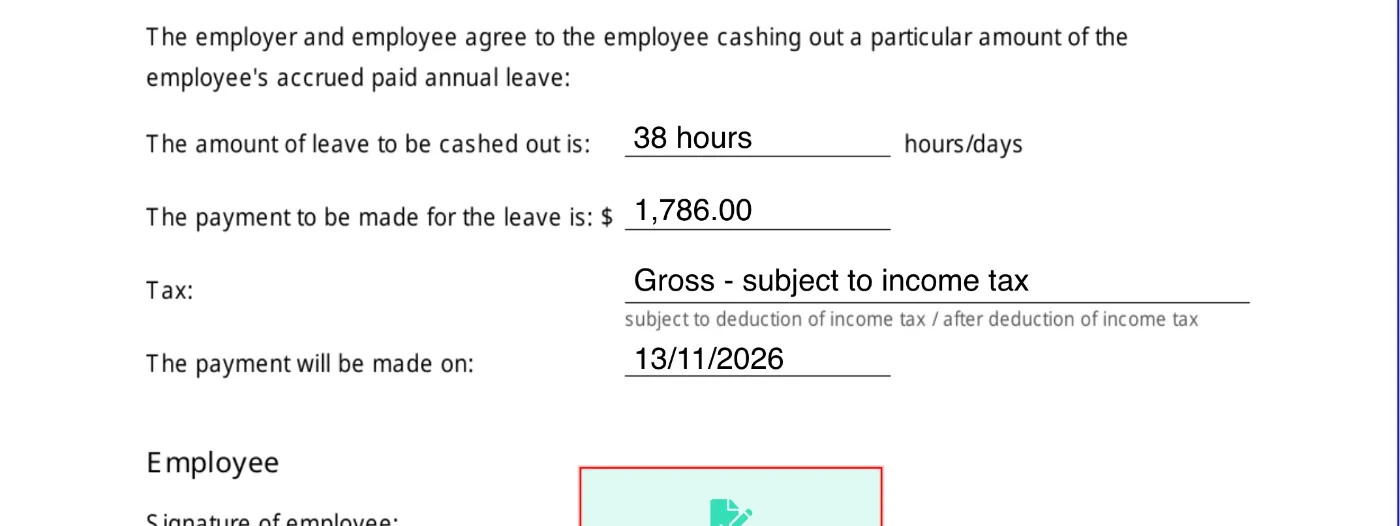
- The employee checks and signs. They see the figures you entered and sign the same document.
- Payroll pays it. Once both have signed, payroll gets the completion notification. Pay the cash out in your payroll software using its cash out of annual leave pay item, and reduce the employee's leave balance.
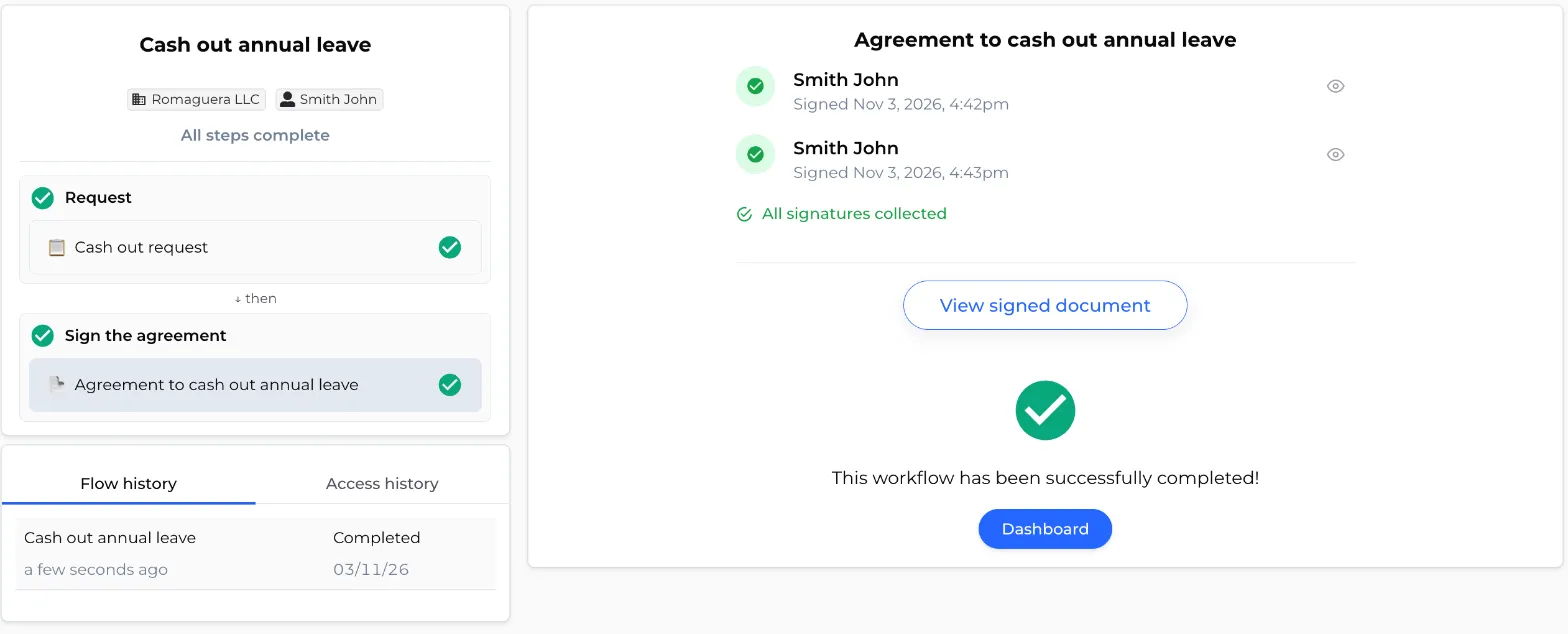
The signed agreement stays against the employee in the workflow, with the date and time each person signed. That's the copy you keep in their records.
Good to know
- If you don't agree. Don't sign. Talk to the employee, then open their workflow and skip the agreement task. Nothing has been signed, so nothing is paid. Cashing out is only ever by agreement.
- Never pressure employees. Don't assign this workflow to employees to clear leave balances. The request should always come from the employee. If your business has large leave balances, check your award's excessive leave rules instead.
- Tax and super. For a continuing employee, the ATO says to withhold tax using its tax table for back payments, commissions, bonuses and similar payments (Schedule 5). Cashed out annual leave is ordinary time earnings, so super guarantee applies. Your payroll software's cash out pay item usually handles both.
- Changing the agreement later. If you update the template, requests already in progress keep the version they started with.