Pre Hire Registration 📋
Collect a candidate's details before you hire them, and always know where each candidate is up to, without updating anything by hand.
You'll combine custom fields, a workflow and saved filters. When the workflow is assigned, the candidate is marked as "Registration sent". When they finish their registration form, they're moved to "Registration complete" and show up in your review list automatically.
What you'll use
- Custom fields to record each candidate's stage and details
- Set custom field task to update the candidate's stage automatically
- Workflows and workflow steps to run the process in order
- Form task to collect the candidate's details
- Saved filters to see your candidates at each stage
- Inviting users to add each candidate to Canyou
Step 1 - Create your custom fields
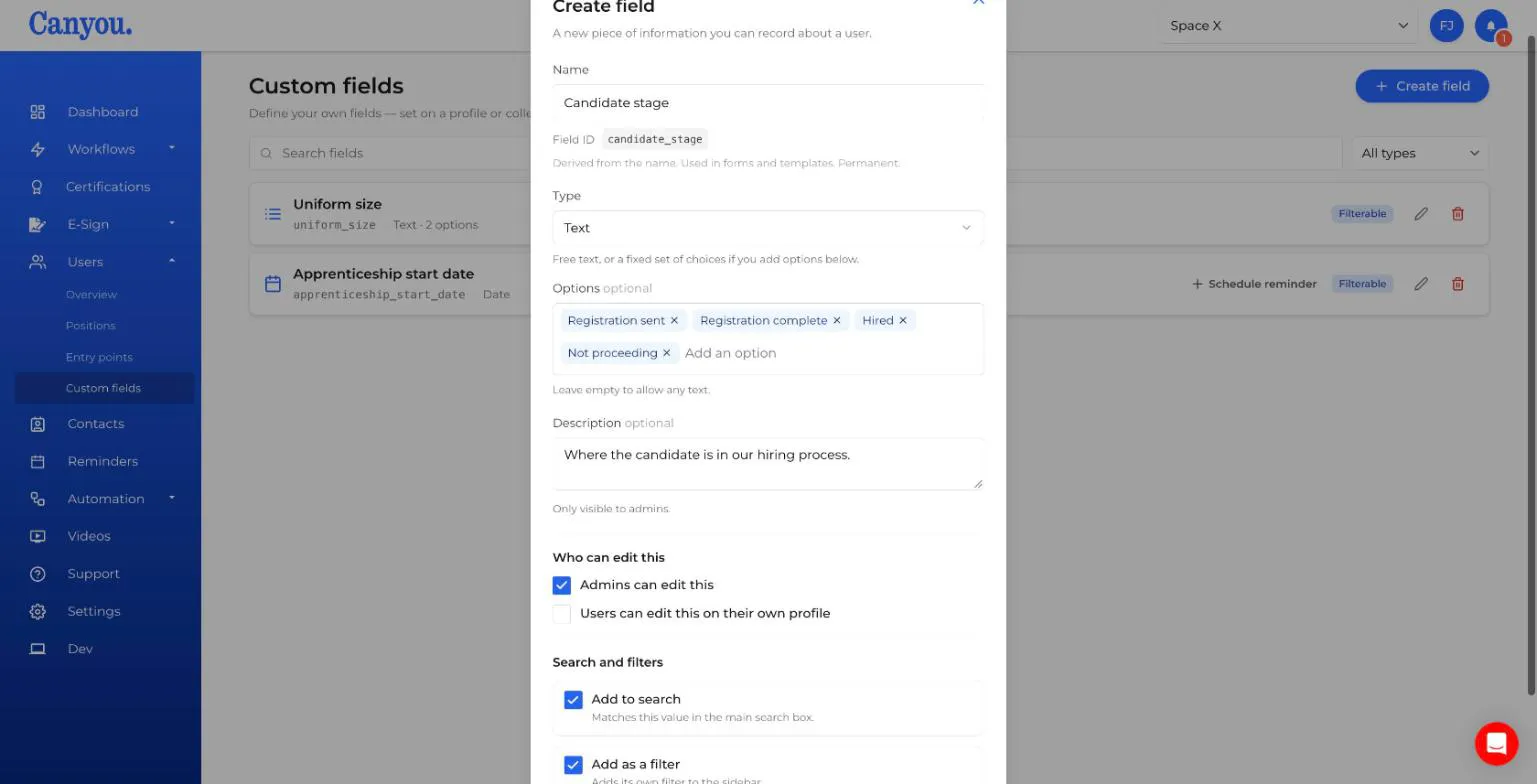
Go to Users > Custom fields and click Create field for each of these:
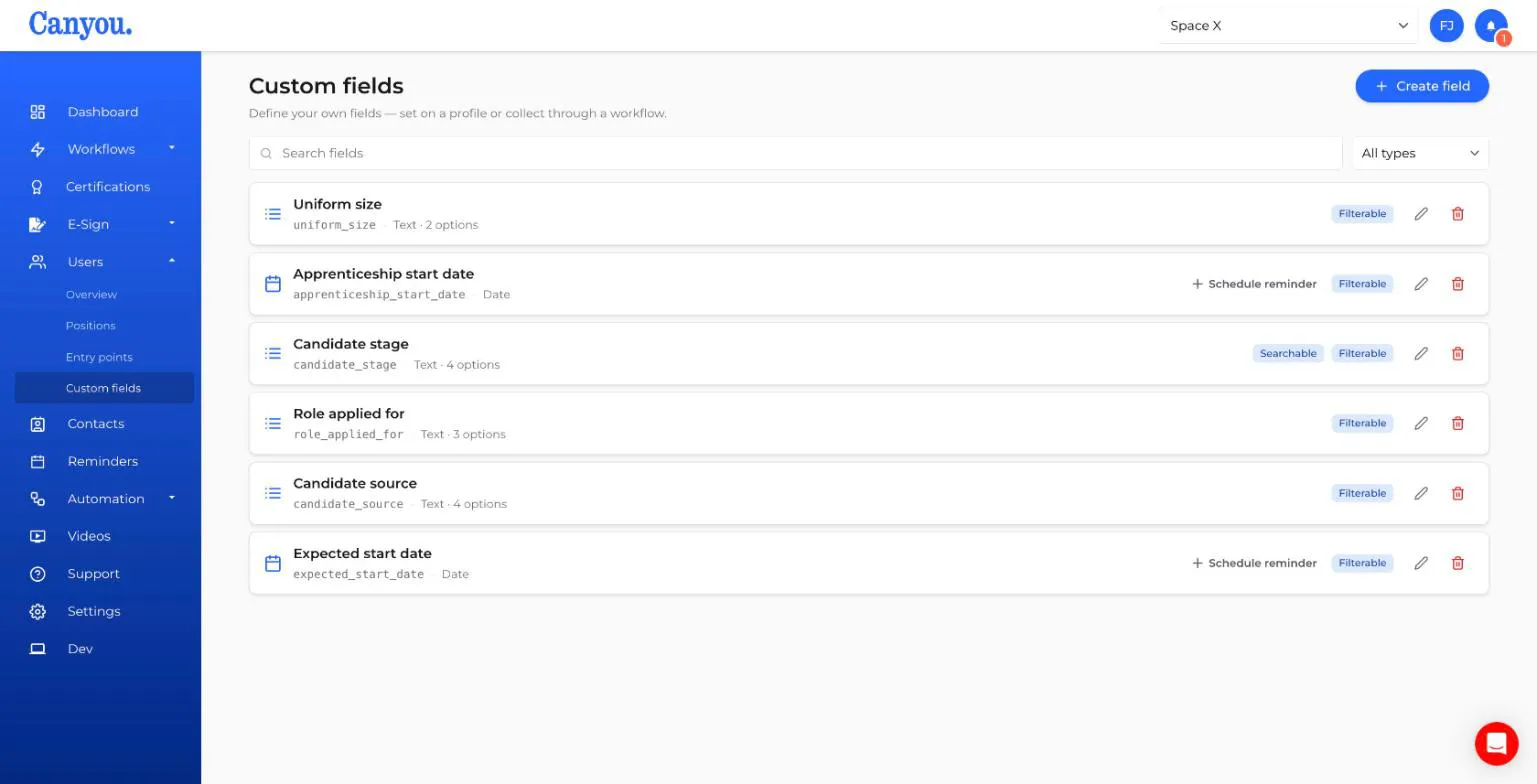
- Candidate stage - Type: Text. Options: Registration sent, Registration complete, Hired, Not proceeding
- Role applied for - Type: Text. Options: your roles, e.g. Chef, Kitchen hand, Front of house
- Candidate source - Type: Text. Options: e.g. Job board, Referral, Agency, Walk-in
- Expected start date - Type: Date
For each field:
- Keep Admins can edit this ticked. The workflow can only update fields that admins can edit.
- Tick Add as a filter so you can filter your Users list by it.
When you're done, your list of custom fields looks like this:
Full guide: Creating and using a custom field
Step 2 - Build the Pre Hire Registration workflow
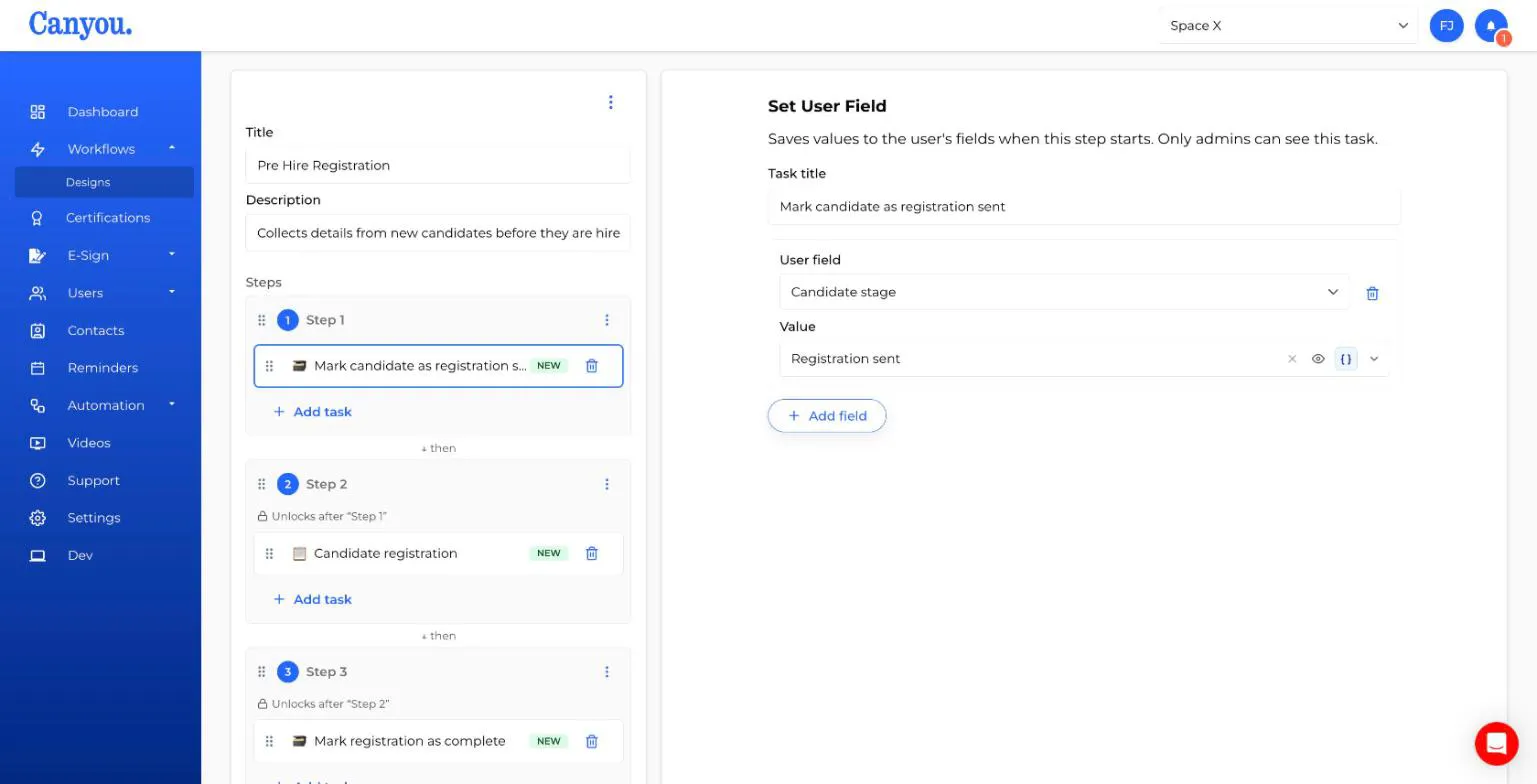
Go to Workflows > Designs, click Create, and name the workflow "Pre Hire Registration". Set it up with three steps:
Step 1: Mark the candidate as "Registration sent"
Add a Set User Field task. Choose Candidate stage and set the value to Registration sent. This runs as soon as the workflow is assigned.
Step 2: Collect the candidate's details
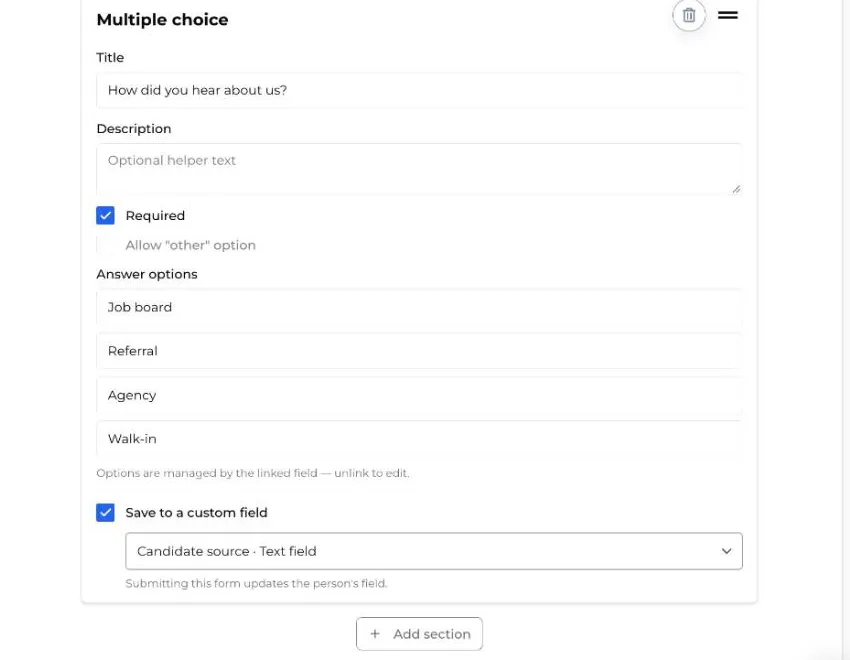
Add a Form task and add your questions. For each question that matches a custom field, tick Save to a custom field and choose the field. For example:
- "When can you start?" (Date question) saves to Expected start date
- "How did you hear about us?" (Multiple choice) saves to Candidate source
When you link a multiple choice question to a custom field with options, the answer options are filled in from the field for you.
You can add other tasks to this step too, like Visa details or Document tasks, if you need them before you hire.
Step 3: Mark the registration as complete
Add another Set User Field task. Choose Candidate stage and set the value to Registration complete. This step unlocks once the candidate has finished step 2, so the stage updates as soon as they're done.
Click Save.
Full guides: Create a workflow, Workflow steps, Set custom field task
Step 3 - Add a candidate and assign the workflow
Add the candidate as a user and assign them the Pre Hire Registration workflow. They'll get an invite to fill in their registration, and their Candidate stage is set to "Registration sent" straight away.
If you know the role they've applied for, set Role applied for on their profile.
Full guide: Invite a user
Step 4 - Create saved filters for each stage
On the Users page:
- Click More filters, choose Candidate stage and tick Registration complete.
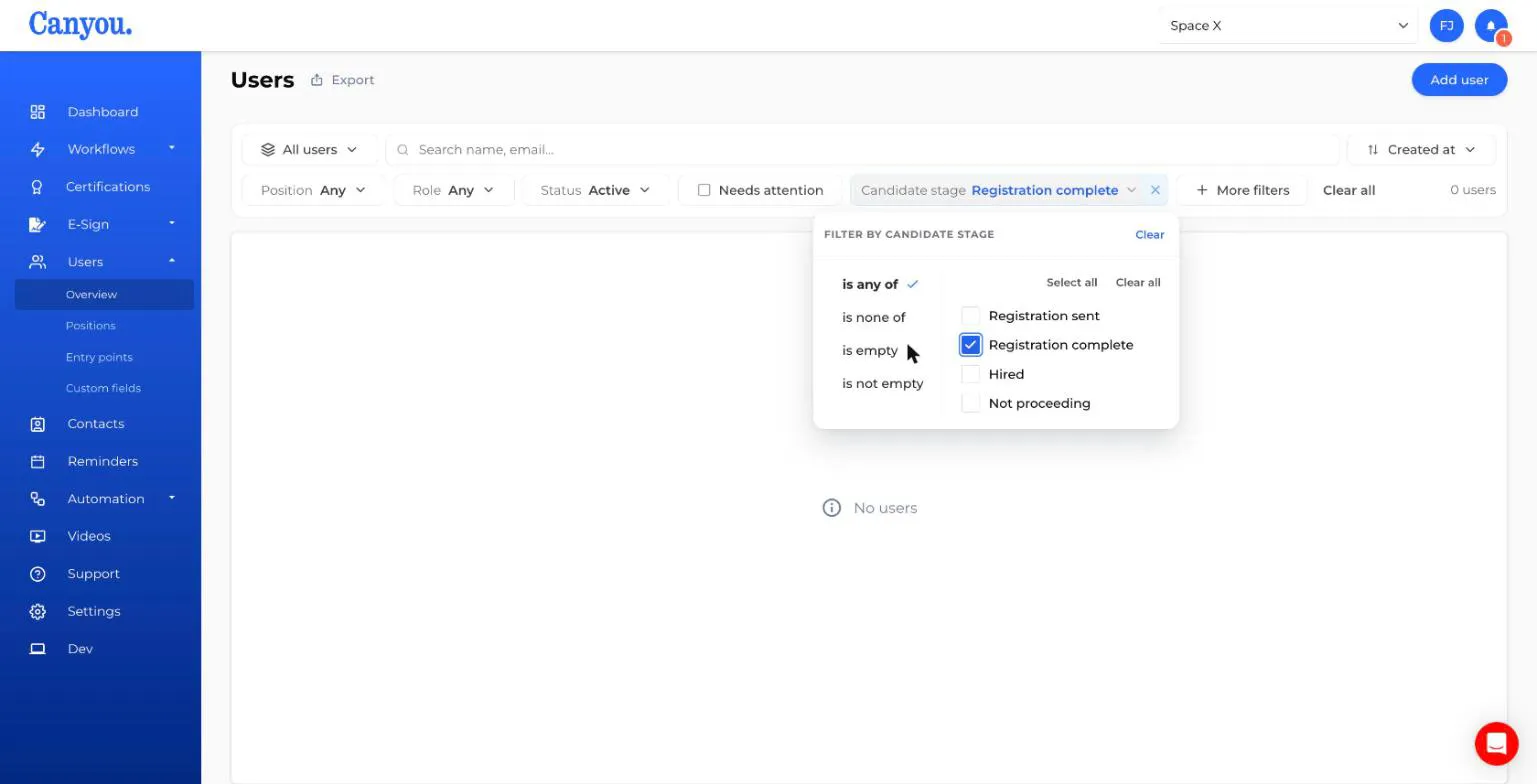
- Open the saved filters menu (it shows All users by default) and click Save as new view...
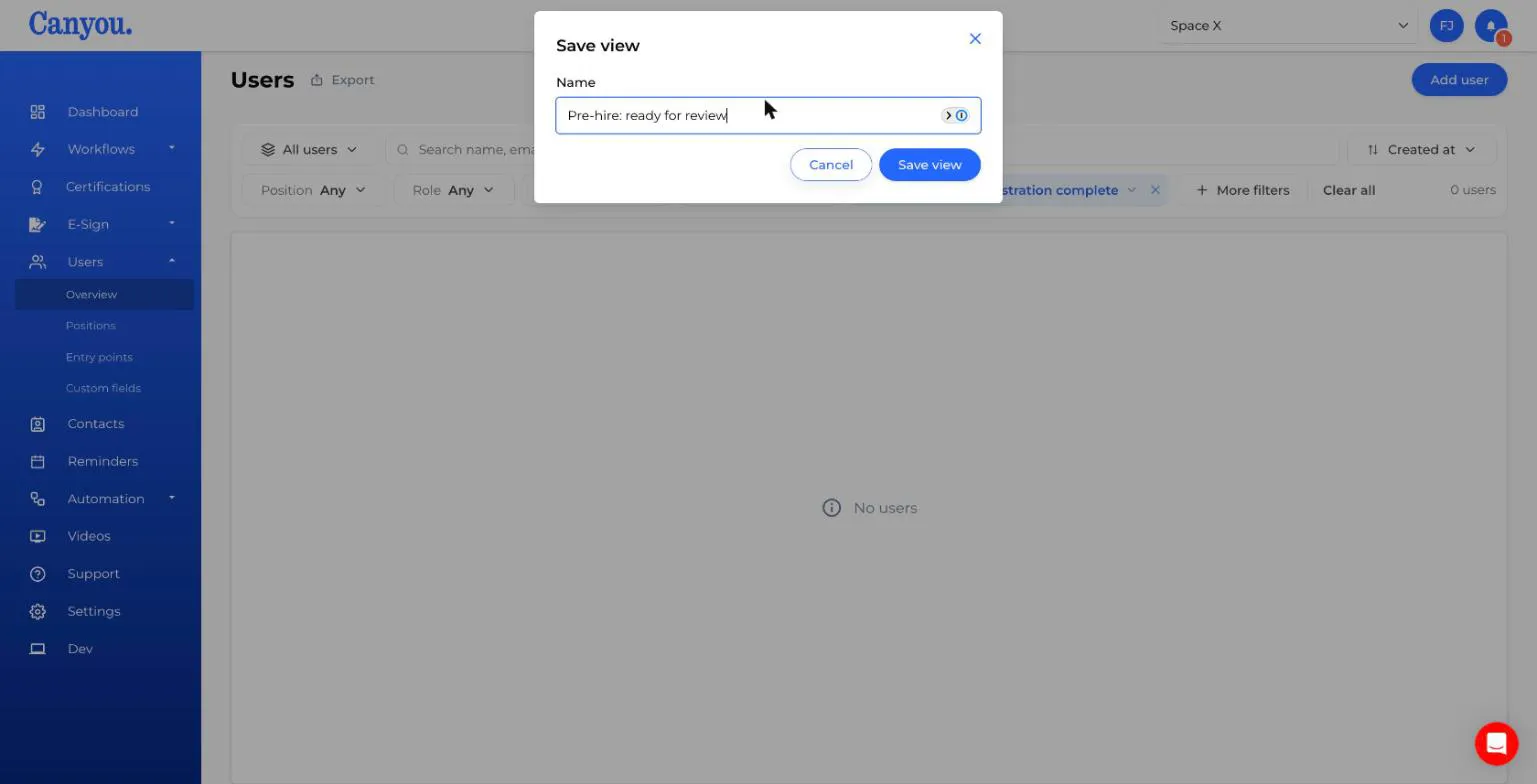
- Name it "Pre-hire: ready for review" and click Save view.
Repeat for any other lists you want, for example:
- Pre-hire: awaiting candidate - Candidate stage is Registration sent
- Starting soon - Expected start date within the dates you choose
Saved filters are shared with everyone in your business, so your whole team can open the same lists.
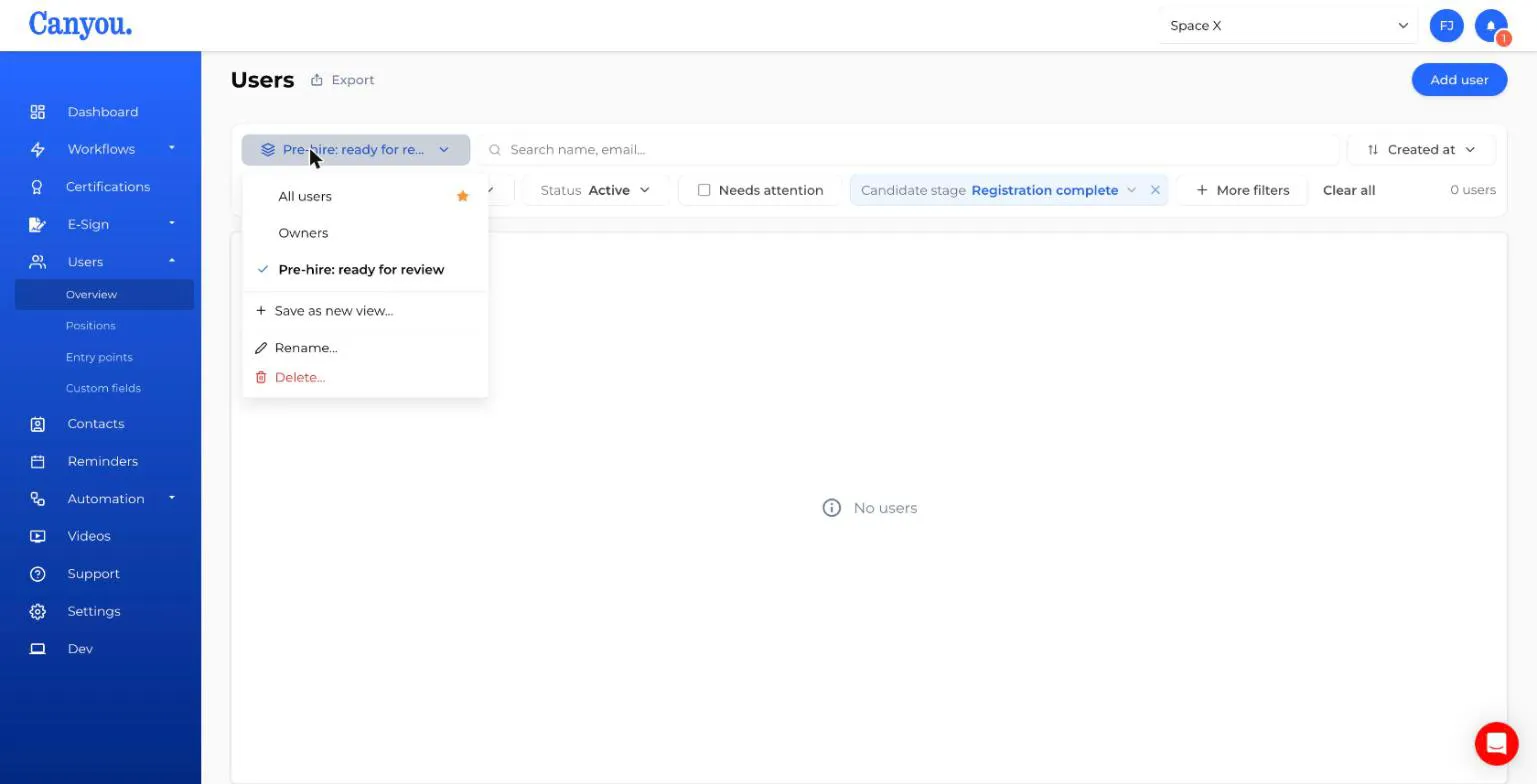
Full guide: Saved filters
Step 5 - Move a candidate to Hired
When you hire a candidate, assign your usual onboarding workflow. Add a Set User Field task to its first step that sets Candidate stage to Hired. They'll drop out of your pre-hire lists automatically, and everything they gave you during registration stays on their profile.
If a candidate isn't going ahead, set their Candidate stage to Not proceeding on their profile.
What this unlocks
- A hiring pipeline with no manual tracking. Each candidate's stage updates as they move through the workflow, and your saved filters work like pipeline columns.
- One record from candidate to user. Registration answers are saved to the candidate's profile and carry straight into onboarding, so nobody is asked for the same thing twice.
- Reporting by source and role. Filter or export your users by Candidate source and Role applied for to see where your hires come from.
- Start-date planning. See who's starting soon and get their onboarding moving in time.
Adapt it
The same pattern of a stage field, Set User Field tasks and saved filters works for other processes, such as:
- Offboarding - track users from "Notice given" to "Exit complete"
- Contractor approval - track contractors from "Details requested" to "Approved"