Adding Fields to a Template
Fields are the parts of the PDF a signer fills in: their signature, text boxes, dropdowns, checkboxes and so on. You place them in the field designer, and each field belongs to one signer.
To open the designer, click Edit Fields on any signer card while creating or editing a template. The PDF must have finished converting first.
The designer layout
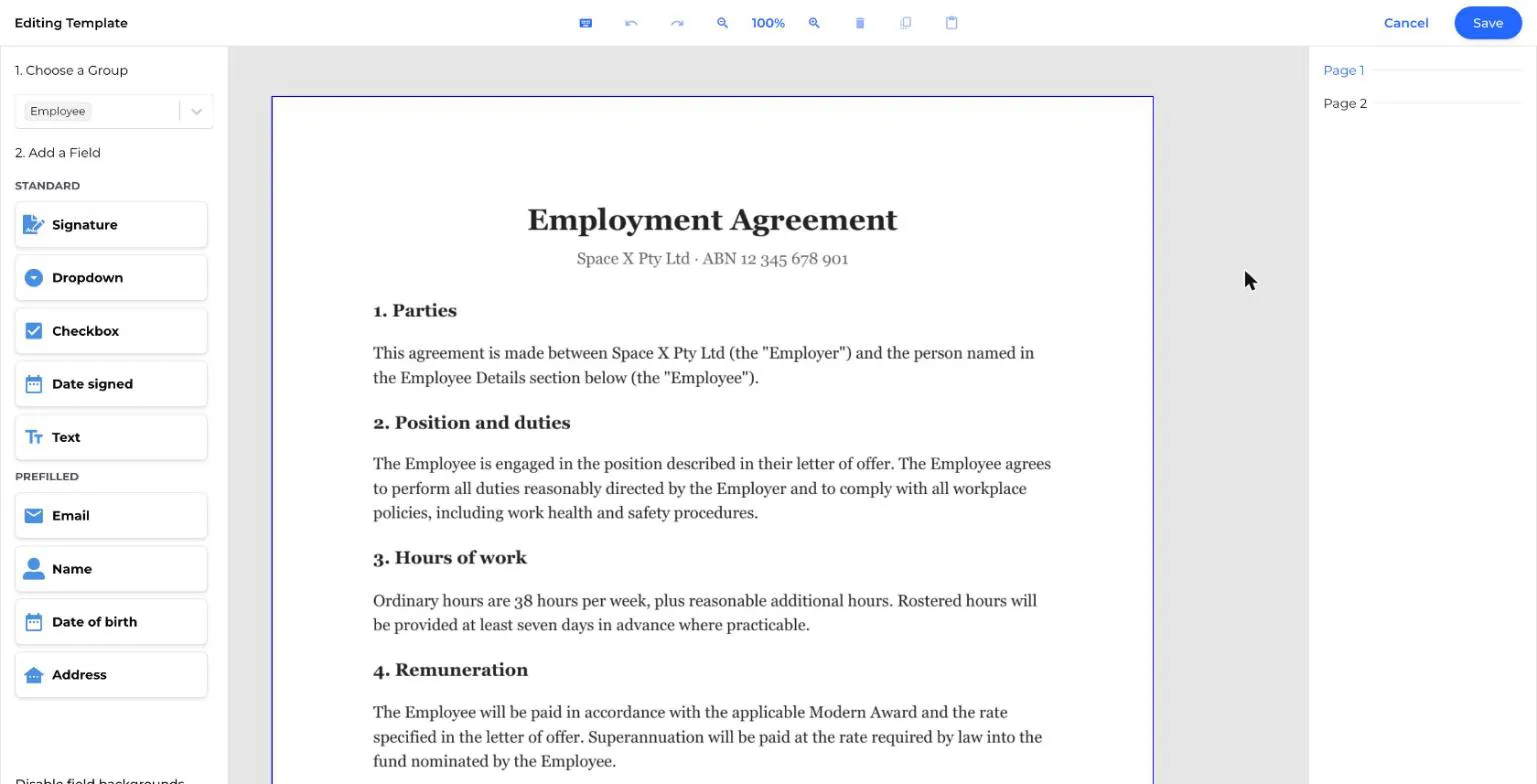
- Left - choose which signer you're adding fields for, then pick a field type.
- Middle - the document. Scroll through the pages and drag fields into place.
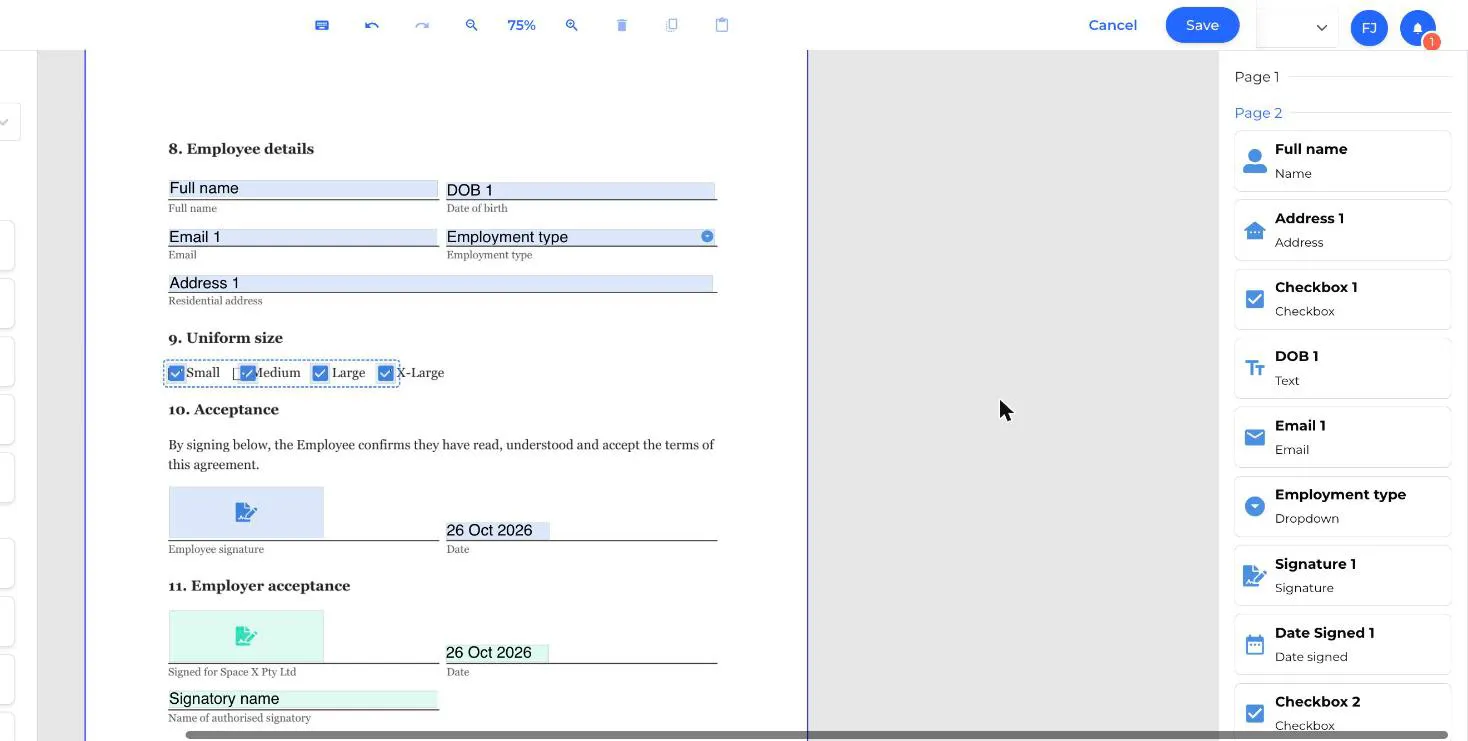
- Right - with nothing selected, a list of every field grouped by page. With a field selected, that field's settings.
- Top - hotkeys, undo and redo, zoom, delete, copy and paste, plus Cancel and Save.
Step 1 - Choose a signer
Under 1. Choose a Group, select the signer you want to add fields for. Fields take on that signer's colour, so you can see at a glance who fills in what.
Step 2 - Add a field
Under 2. Add a Field, either:
- Drag a field type onto the page where you want it, or
- Click a field type to drop it in the middle of the page you're looking at, then drag it into place.
Drag a field to move it, and drag its handles to resize it. You can also select several fields and move them together with the arrow keys.
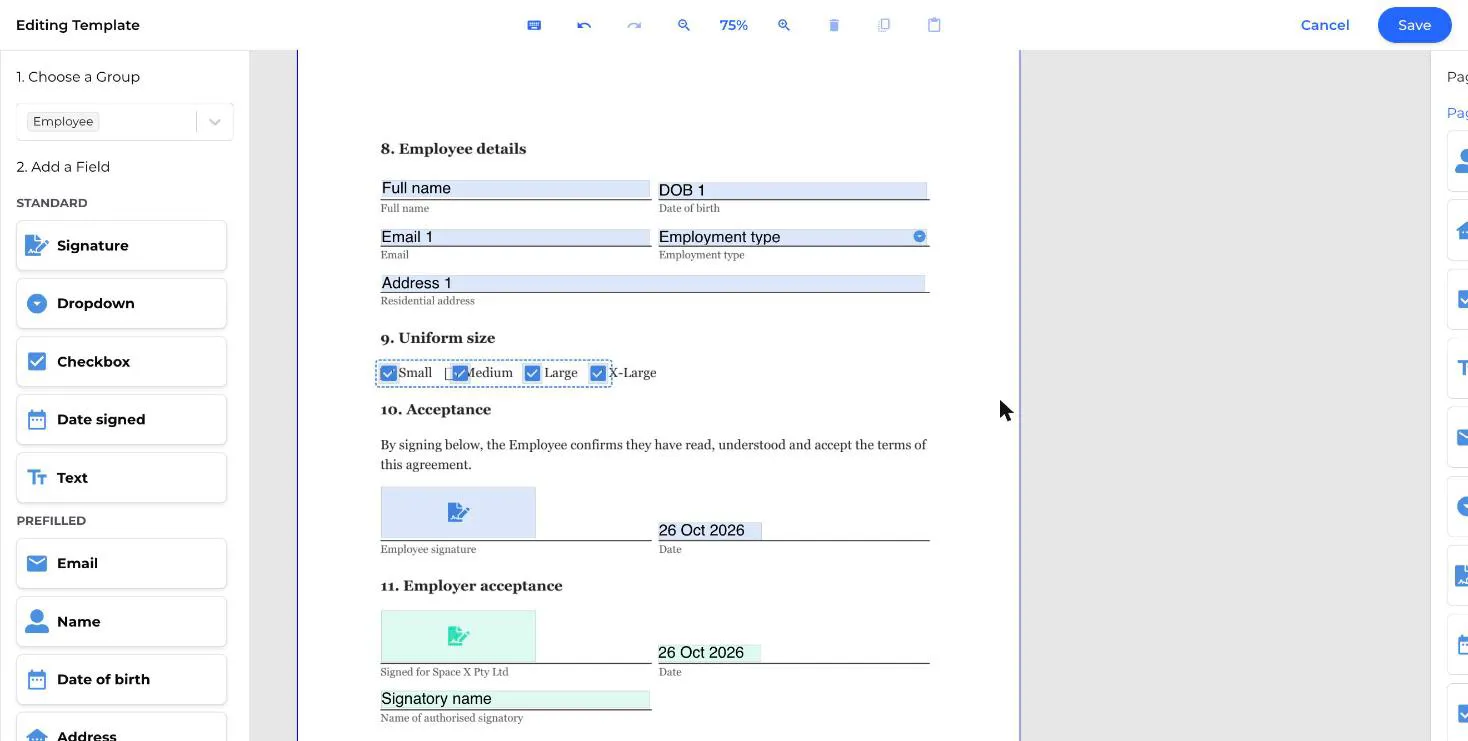
Standard fields
- Signature - where the signer's signature appears. A signer only signs once. If you add several signature boxes for the same signer, their one signature fills all of them.
- Dropdown - the signer picks one option from a list you set.
- Checkbox - a tick box. Checkboxes can be grouped with rules like "select exactly 1". See checkbox groups.
- Date signed - filled in automatically with the date the signer signs. The signer can't change it.
- Text - a free text box. You can add a default value, a character limit and a validation rule.
Prefilled fields
Prefilled fields are text boxes that start with a value from the signer's own Canyou profile. The signer can still change the value before signing.
- Email - the signer's email address. Checked as a valid email.
- Name - the signer's given and family name.
- Date of birth - the signer's date of birth. Checked as a date in DD/MM/YYYY format.
- Address - the signer's address.
The value always comes from the person signing, not the user the workflow is for. So a Name field placed for the "Employer" signer fills in the name of the admin who countersigns. If a profile detail is missing, the field starts empty.
Step 3 - Set up each field
Click a field to see its settings on the right. Every field has:
- Field name - shown to the signer when they hover over the field, and used in the field list and error messages. Give it a clear name like "Employment type" rather than "Dropdown 1".
- Signer - the dropdown under the name. Change it to move the field to a different signer.
- Placement - exact position (X, Y) and size (height, width) in millimetres, for lining fields up precisely.
Depending on the field type you'll also see:
Text settings
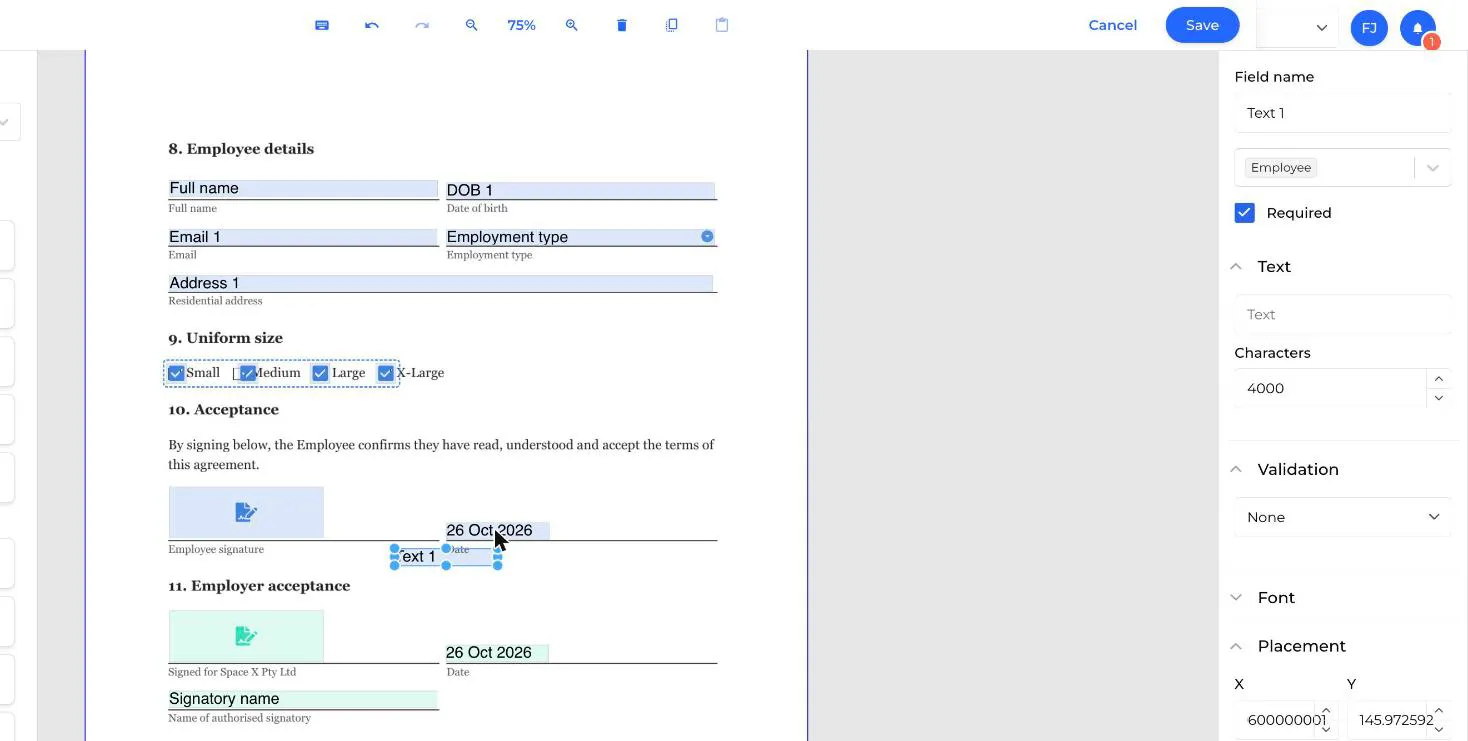
- Required - untick to let the signer leave it blank.
- Text - a default value the signer starts with.
- Characters - the maximum number of characters allowed.
- Validation - a format the answer must match, such as email, phone or ABN. See text validation.
- Font - font size, character spacing, line height and alignment.
Dropdown settings
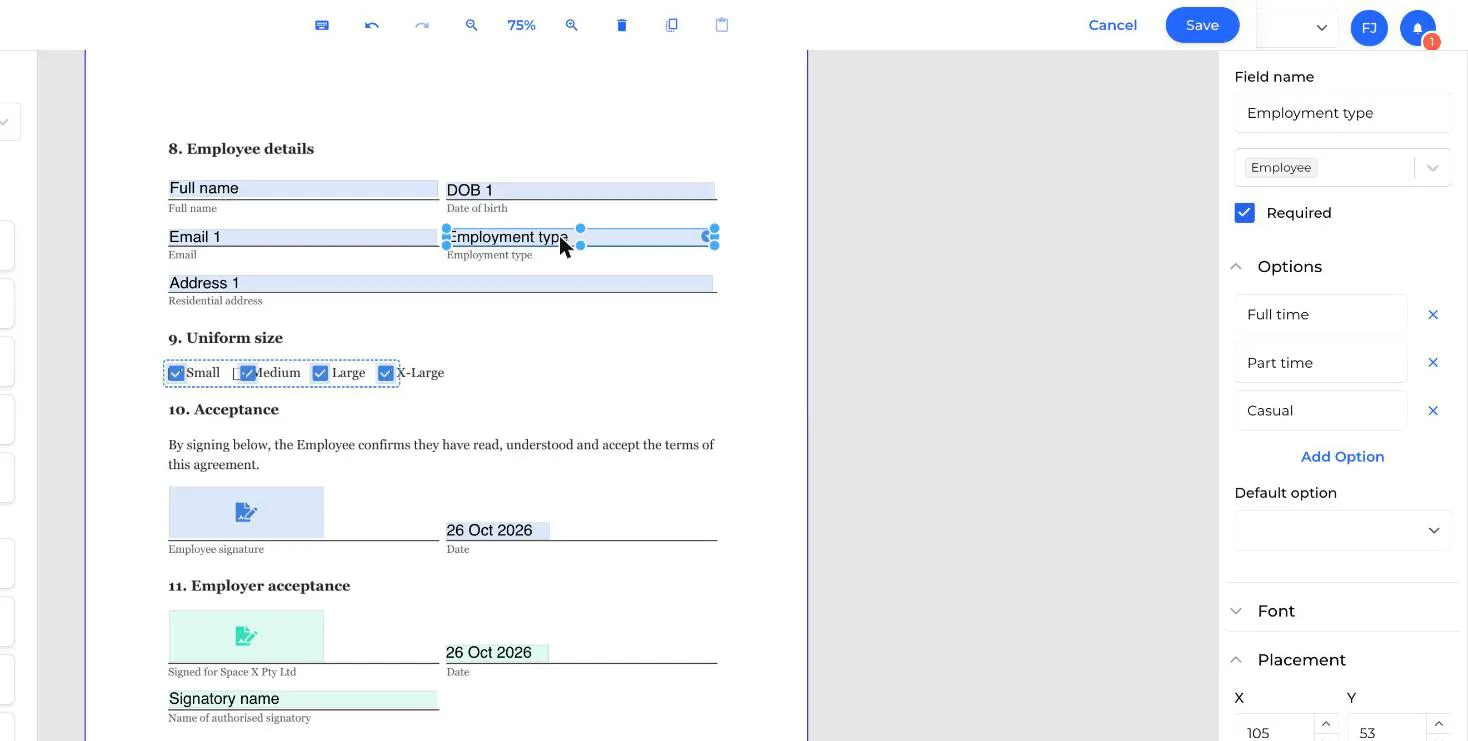
- Required - untick to make choosing an option optional.
- Options - edit, remove, or click Add Option to add choices. A dropdown needs at least one option.
- Default option - optionally preselect an option.
Checkbox settings
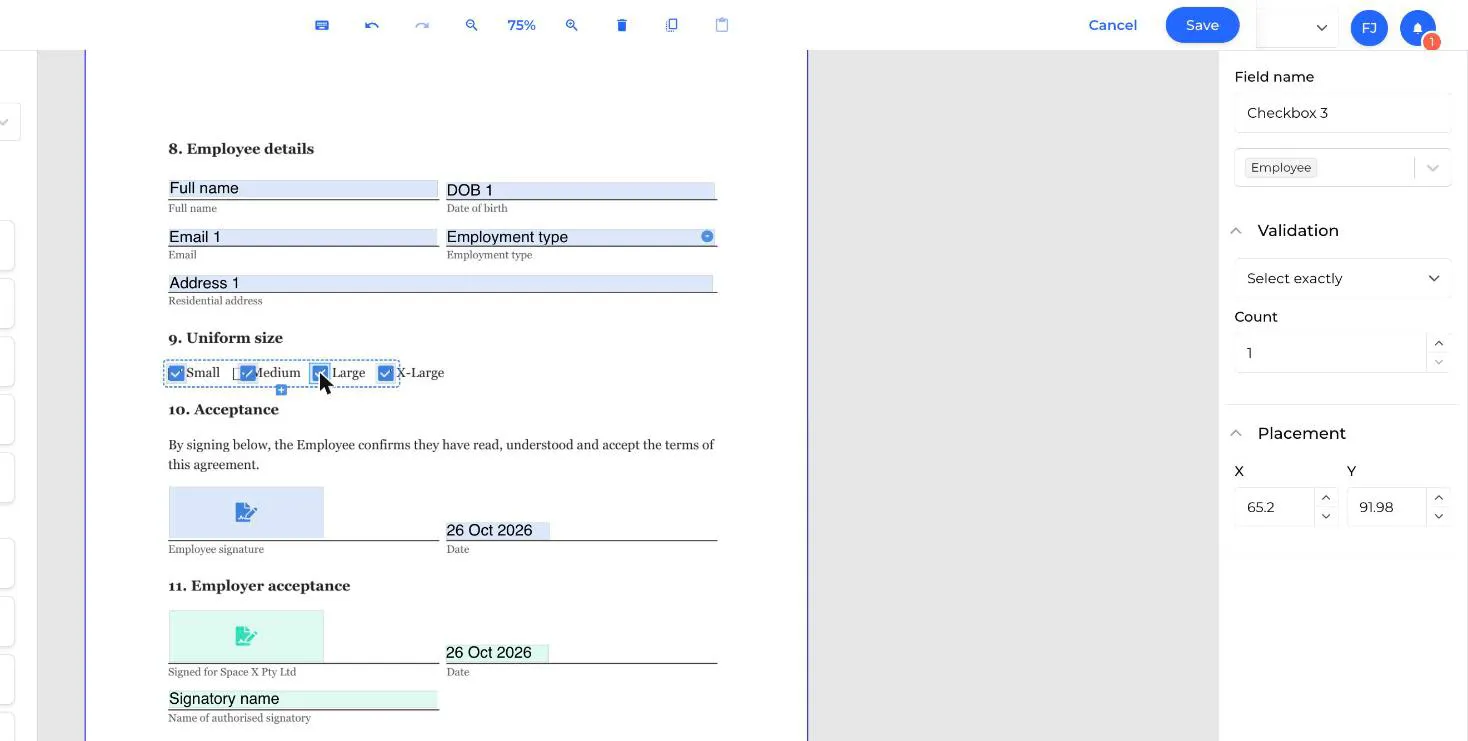
- Validation - the rule for the checkbox group, for example Select exactly 1. New groups start as Select at least 1.
To add another checkbox to the same group, select a checkbox and click the small + below it. The new checkbox appears to the right and shares the group's rule. Dragging a new checkbox from the left panel starts a separate group.
Read checkbox groups before you set this up. It's the most common cause of signers getting stuck.
Date signed settings
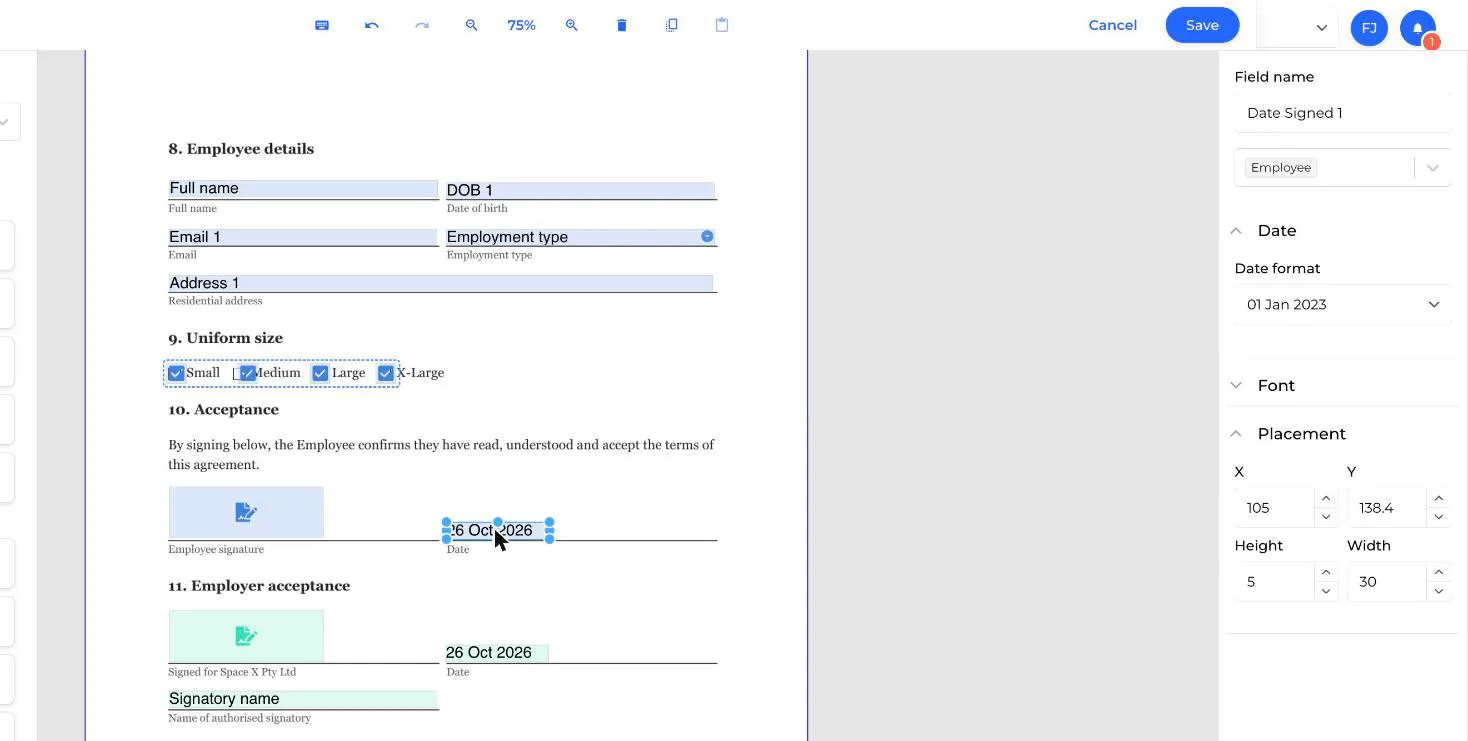
- Date format - how the date is written, for example "01 Jan 2023", "01/01/2022" or "Monday, January 1st 2022". Some formats include the time and time zone.
Step 4 - Check your fields
Click an empty part of the canvas to see the field list on the right. It lists every field by page. Click a field in the list to jump to it.
Tick Disable field backgrounds at the bottom of the left panel to hide the coloured backgrounds, which makes it easier to check that fields line up with the lines on your PDF.
Step 5 - Save
Click Save in the top right to keep your fields and return to the template. Then click Create (or Save New Version when editing) on the template page. Your fields aren't saved to the template until you do.
Click Cancel to close the designer without keeping your changes.
Hotkeys
Click the keyboard icon in the toolbar to see these at any time.
- Delete or Backspace - delete the selected fields
- Ctrl + A or Cmd + A - select all fields
- Arrow keys - move the selected fields
- Ctrl + = and Ctrl + - - zoom in and out
- Ctrl + Z - undo, Ctrl + Shift + Z - redo
- Ctrl + C and Ctrl + V - copy and paste the selected fields
Clicking the zoom percentage fits the current page to the screen.
NextNext: Field validation explained NextAdding an e-sign template to a workflow