Approving Certifications ☑️
When employees upload a Certification we need to verify that the image uploaded is valid and the details are correct.
Canyou gives you the ability to check each uploaded Certification and either approve or reject them.
In this example we will demonstrate how to approve or reject a Certification
Let's approve a Certification
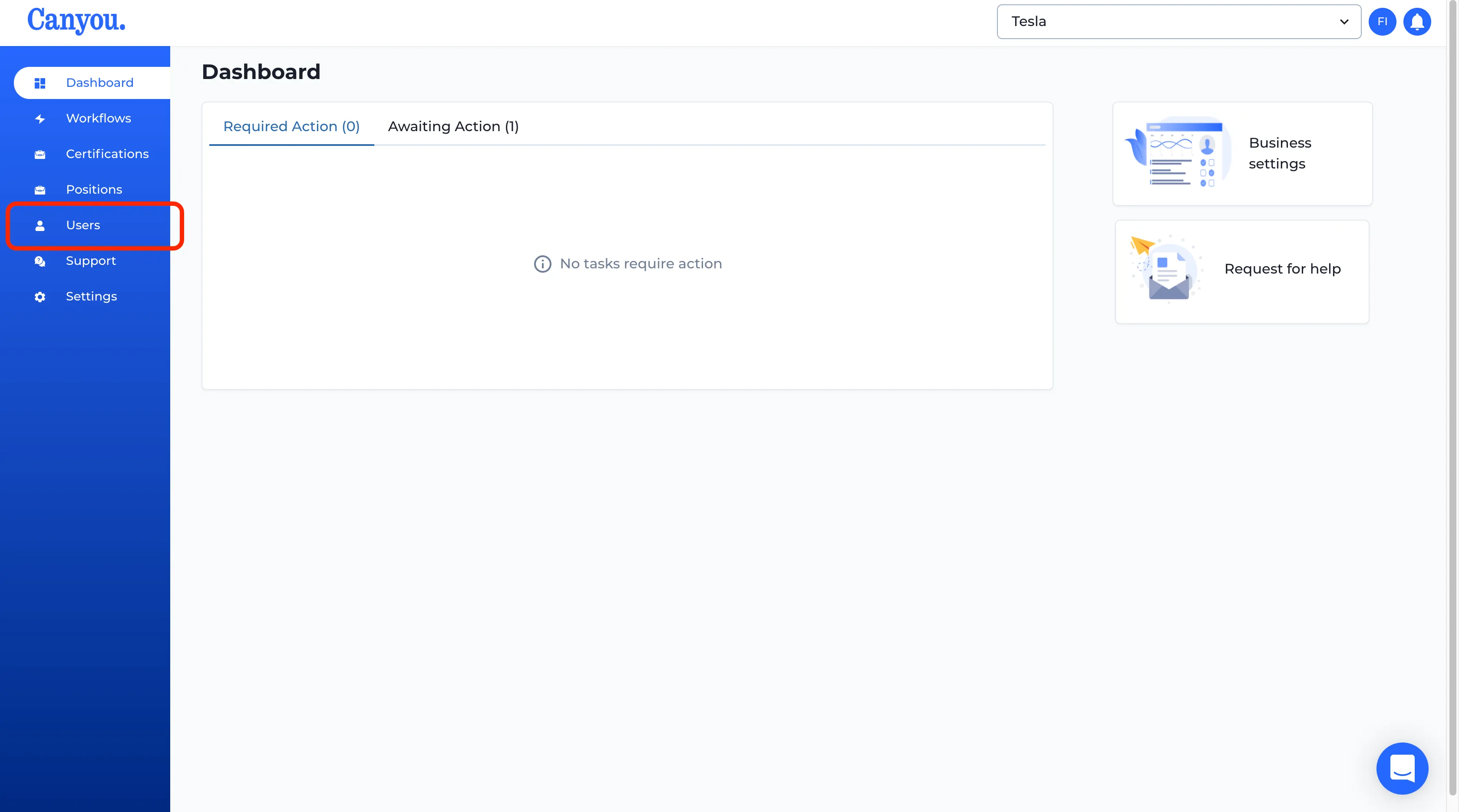
- Navigate to the Users menu.
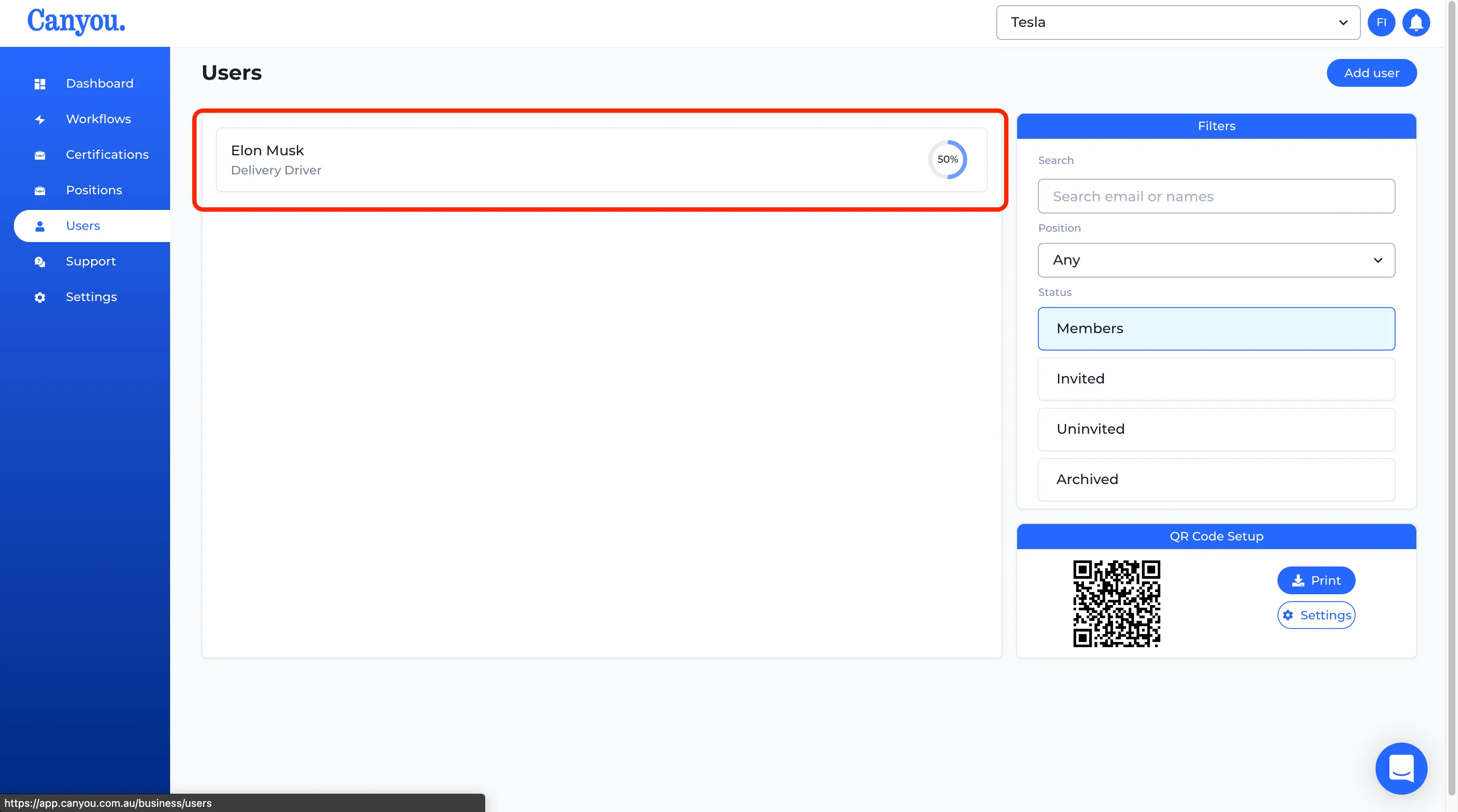
- Click the user with the Certification we want to review.
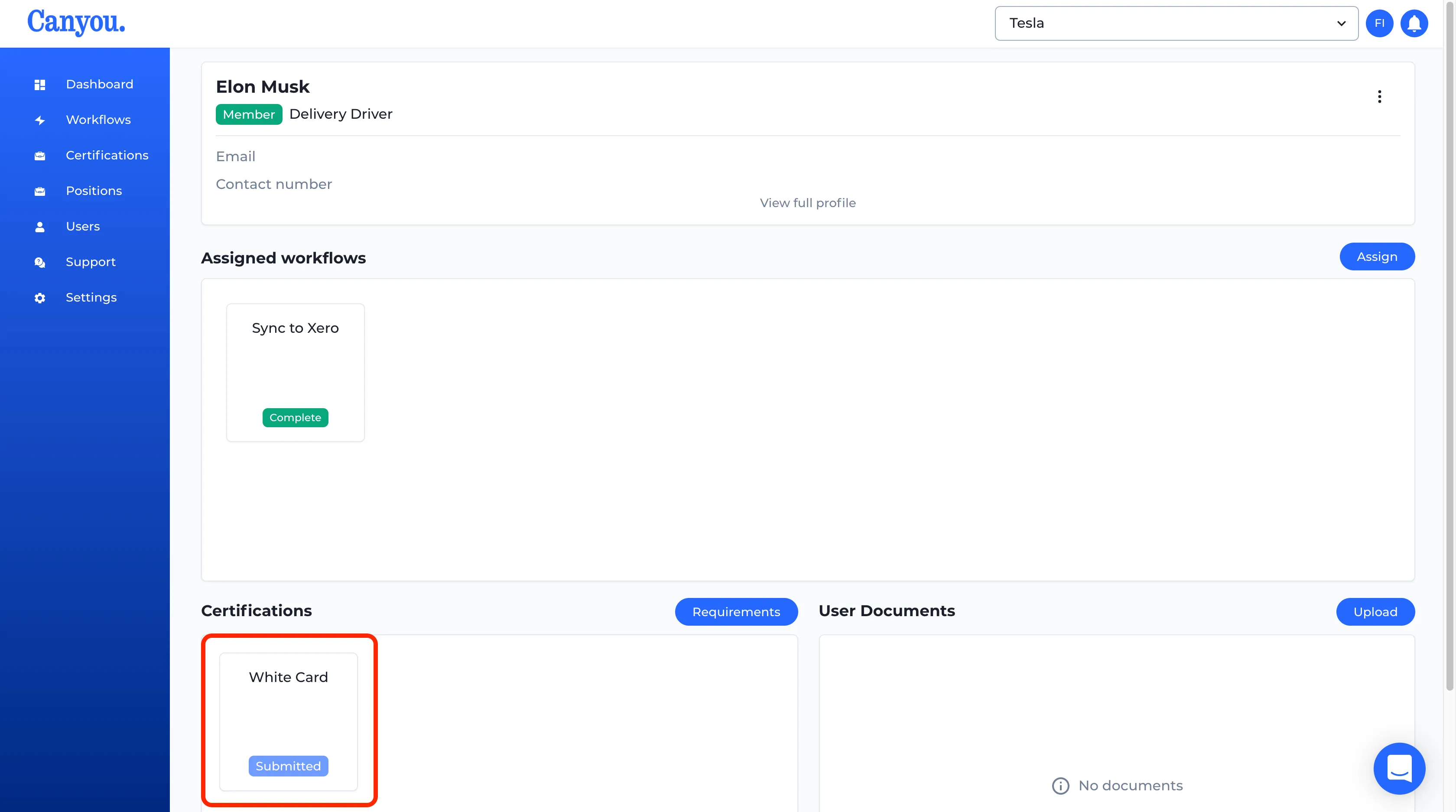
- We can see here that our employee has a certification with a "Submitted" status. We need to review this Certification and either approve or reject. Click the Certification.
- Now we can review the details of the certification to ensure it is correct. We can click on the image to show the certification full size
(Tip: if you want to download a copy of a Certification you can right click and "Save As").
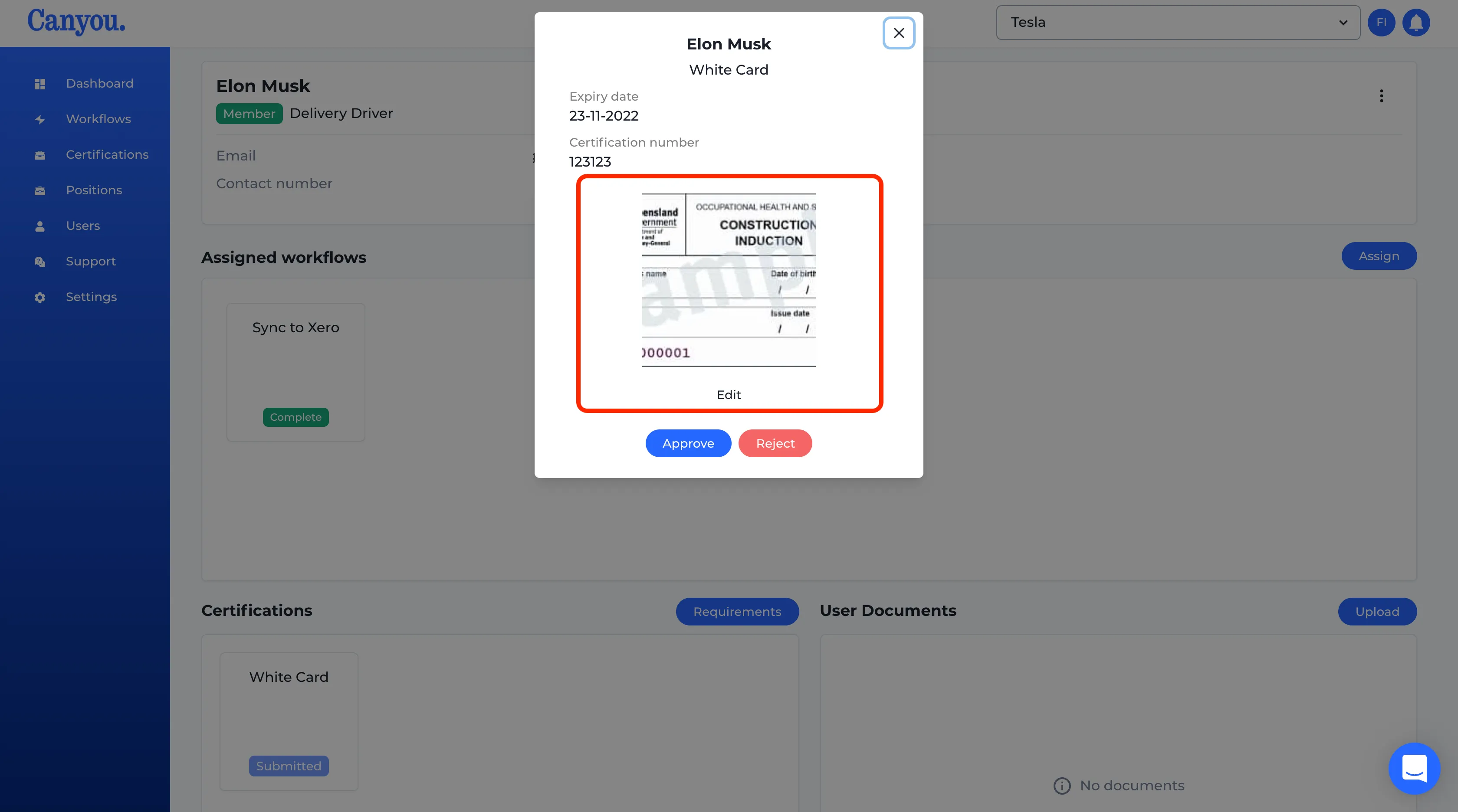
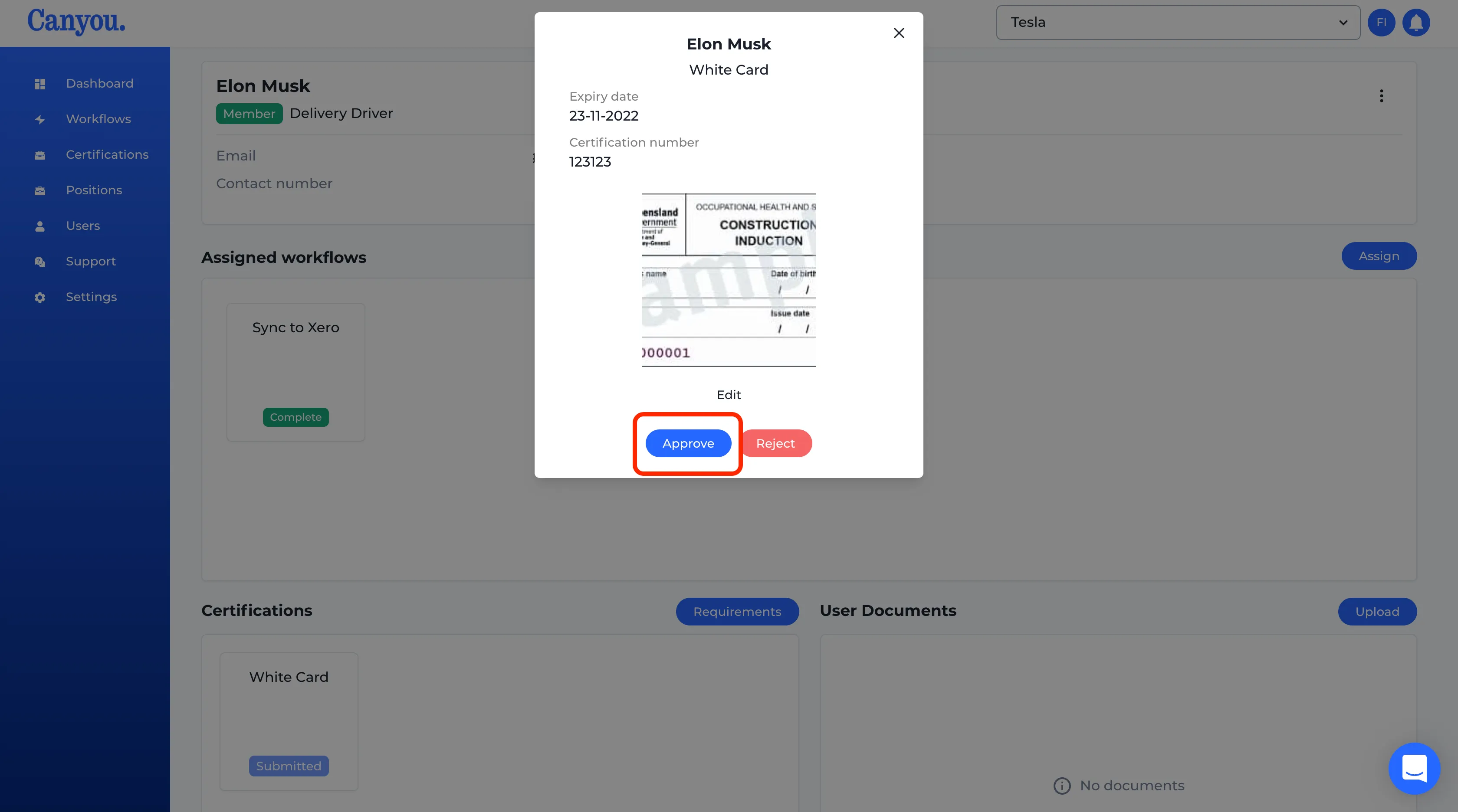
- If we are satisfied with the image and the details we can click the "Approve" button. Alternatively we can click the "Reject" button if we would like the employee to re-submit the Certification.
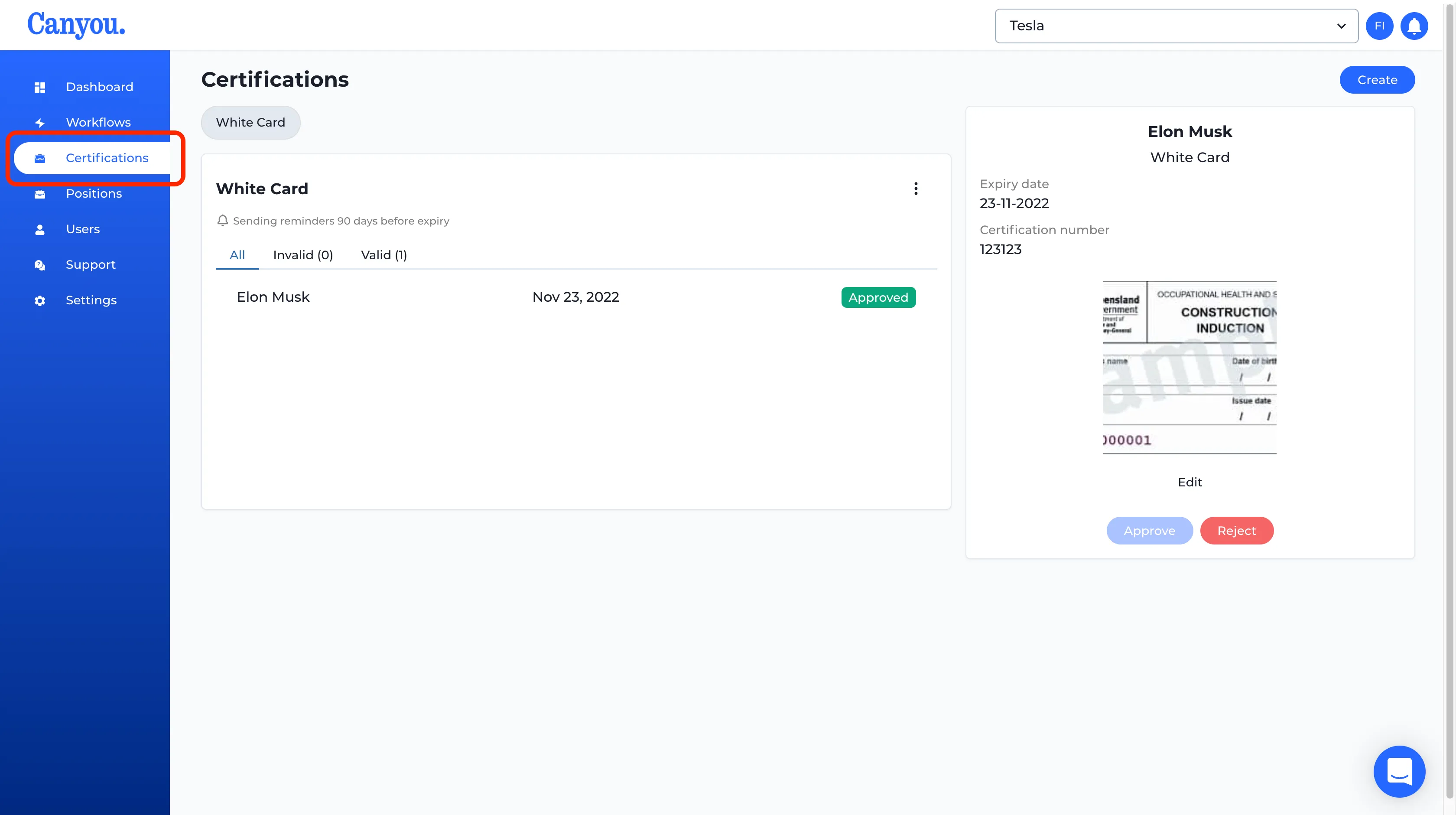
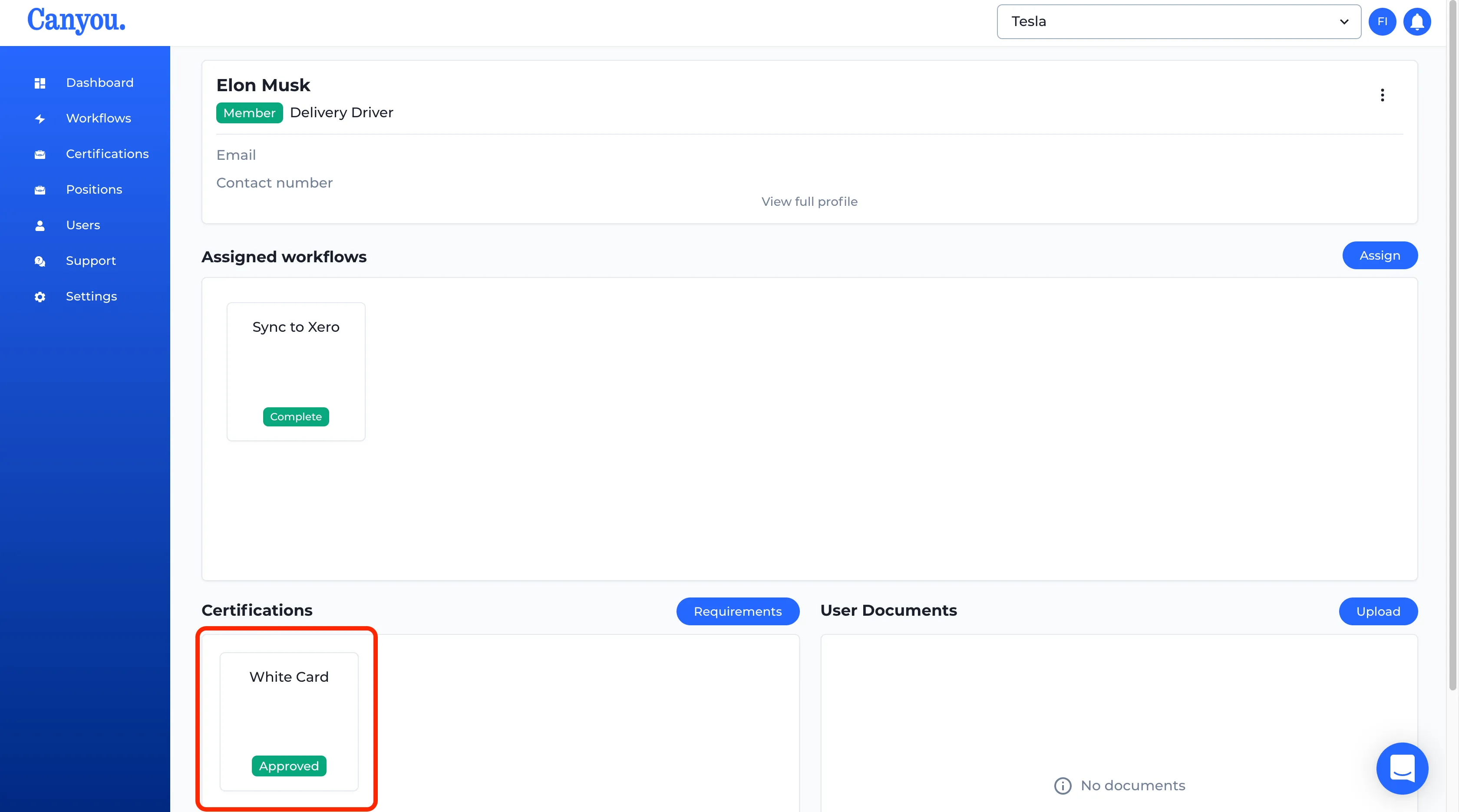
- We can now see the Certification is in the "Approved" status.
- We can also navigate to the Certifications menu at any time to review, approve and reject all your Certifications.