Creating an E-Sign Template
A template is a PDF plus the people who need to sign it. Once it's set up you can send it as many times as you like, through a workflow or as a one-off.
This article covers uploading the PDF and setting up the signers. Placing fields on the document is covered in Adding fields to a template.
Step 1 - Start a new template
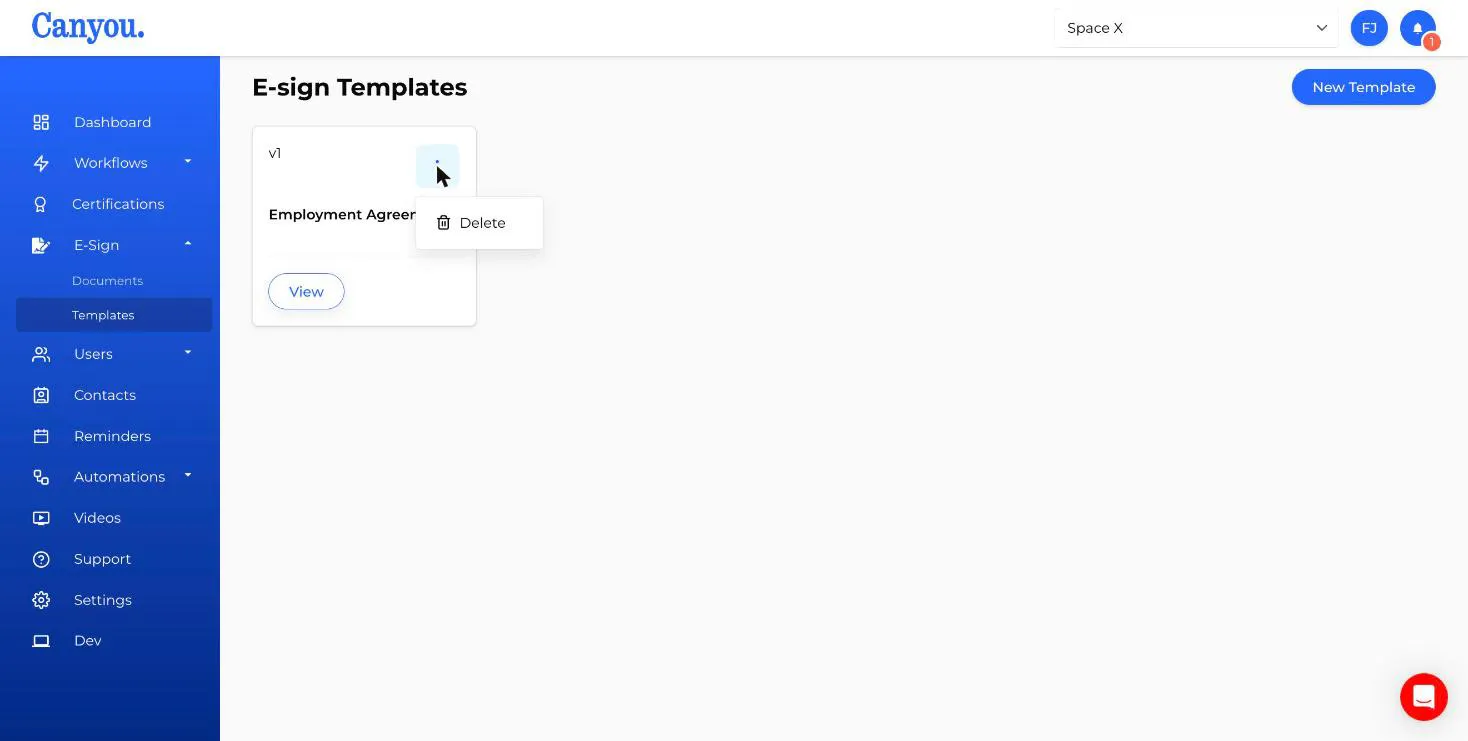
Go to E-Sign > Templates and click New Template.
Step 2 - Upload your PDF
Click Upload Template and choose your PDF. Canyou converts each page so it can be shown in the field designer. You'll see Converting with a page count while this happens. Wait for it to finish before adding fields.
Once converted, a preview of the first page appears. Click it to open the full document, or click Remove to choose a different file.
If your PDF is password protected, you'll be asked to enter its password before it uploads.
Step 3 - Name the document and choose the signing order
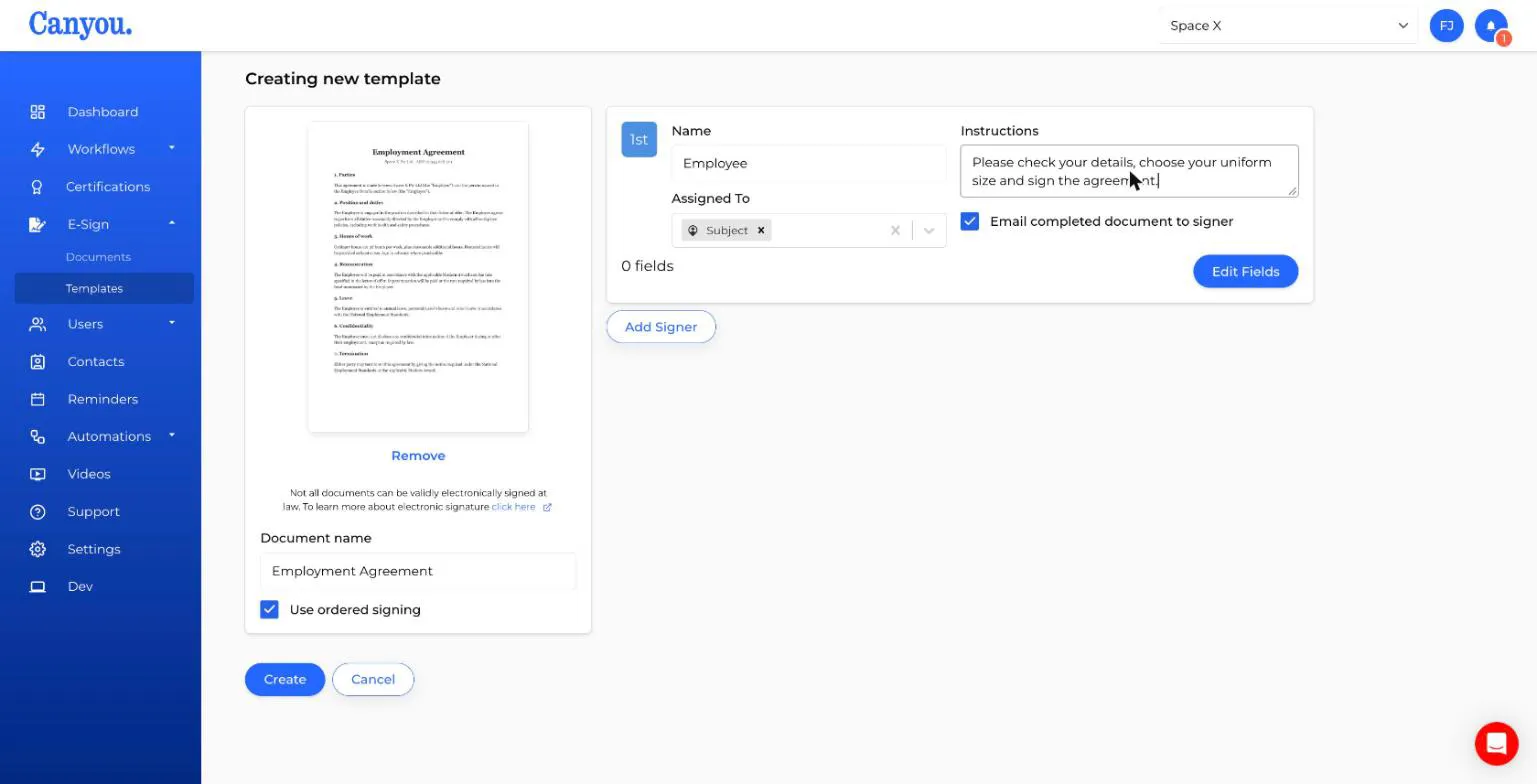
- Document name - shown to signers and used to find the document later, for example "Employment Agreement".
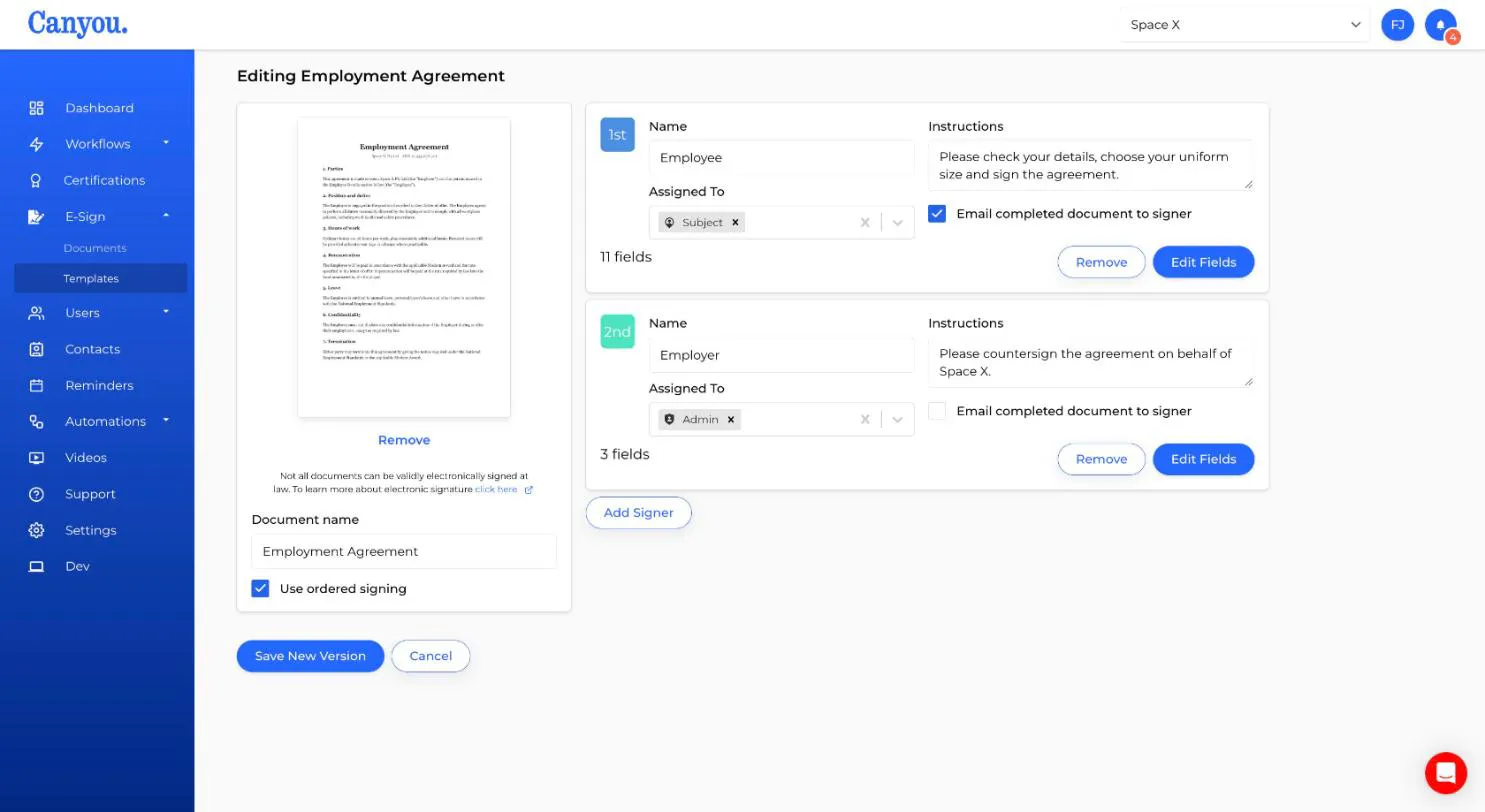
- Use ordered signing - on by default. When it's on, signers sign one after another in the order shown on the right. When it's off, every signer can sign at the same time. If you're not sure which you need, read Ordered signing.
Step 4 - Set up each signer
Every template starts with one signer. Each signer card has:
- Name - a label such as "Employee", "Manager" or "Client". Signers don't see it. It's used in the designer, the history and on the Documents page ("Waiting for Employee").
- Assigned to - who can sign for this signer. See the options below.
- Instructions - shown to the signer at the top of the document, for example "Please check your details and sign on page 2".
- Email completed document to signer - when ticked, the person who signs for this signer is emailed the fully signed PDF once everyone has signed. See Email the completed document to signers.
The coloured badge on the left is the signer's colour. Their fields use the same colour in the designer. With ordered signing on, the badge also shows the signing position (1st, 2nd, and so on).
Who can be assigned
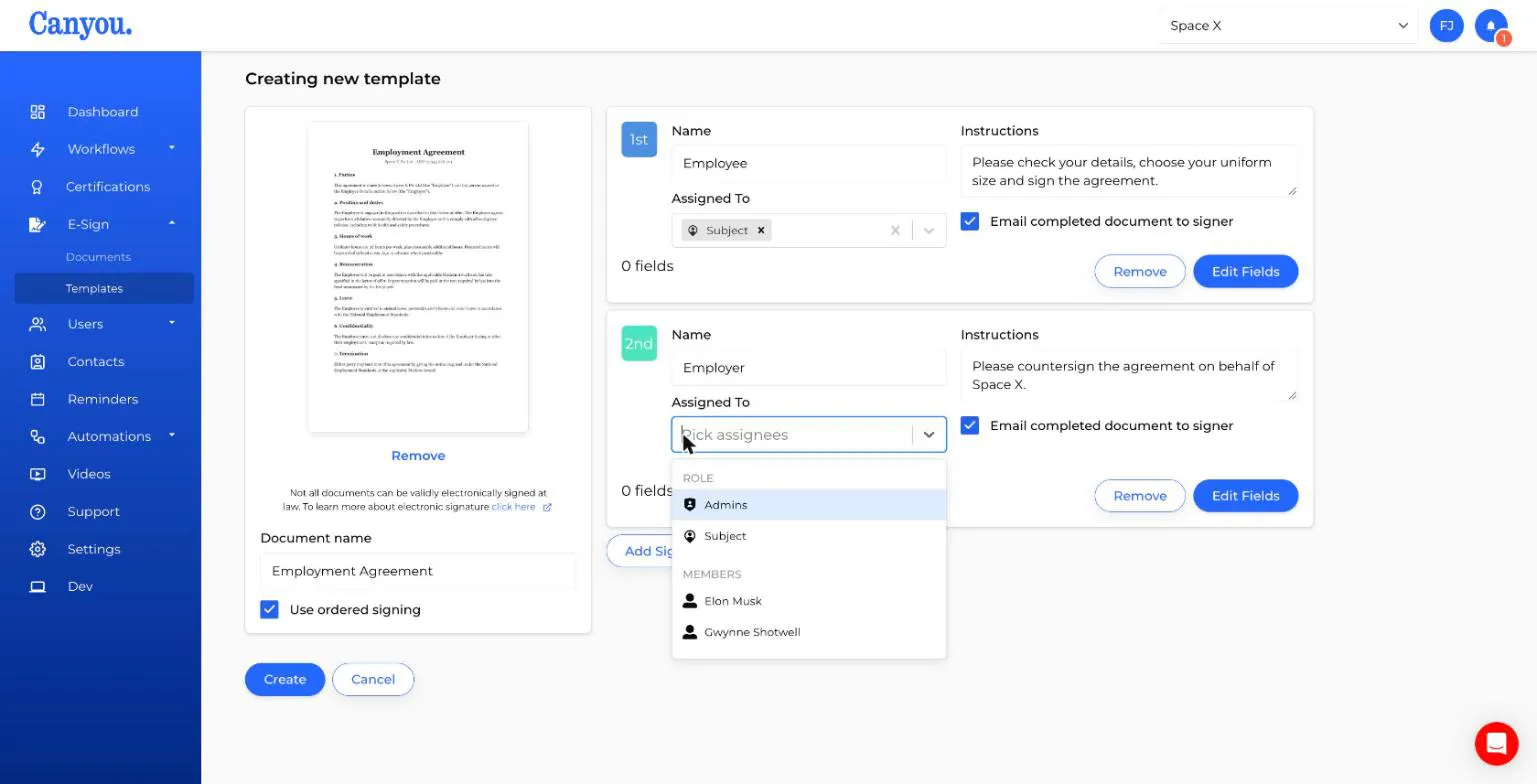
- Subject - the user the workflow is assigned to. Use this for the person the document is about, like a new starter signing their own contract.
- Admins - any admin of the business.
- Positions - anyone in the position, for example "Store Manager".
- Members - a specific person.
You can pick more than one. Everyone picked can see the document and sign it, but only one signature is needed for each signer. The first eligible person to sign completes that signer's part.
Step 5 - Add more signers
Click Add Signer to add another signer card. New signers get the next colour and default to the Subject, so change Assigned to if someone else should sign.
With ordered signing on, drag a signer by its coloured badge to change the order. Click Remove to delete a signer. A template always needs at least one.
Step 6 - Add fields and create the template
Every signer needs at least one field. Click Edit Fields on a signer card to open the field designer and place their fields. The card shows how many fields each signer has.
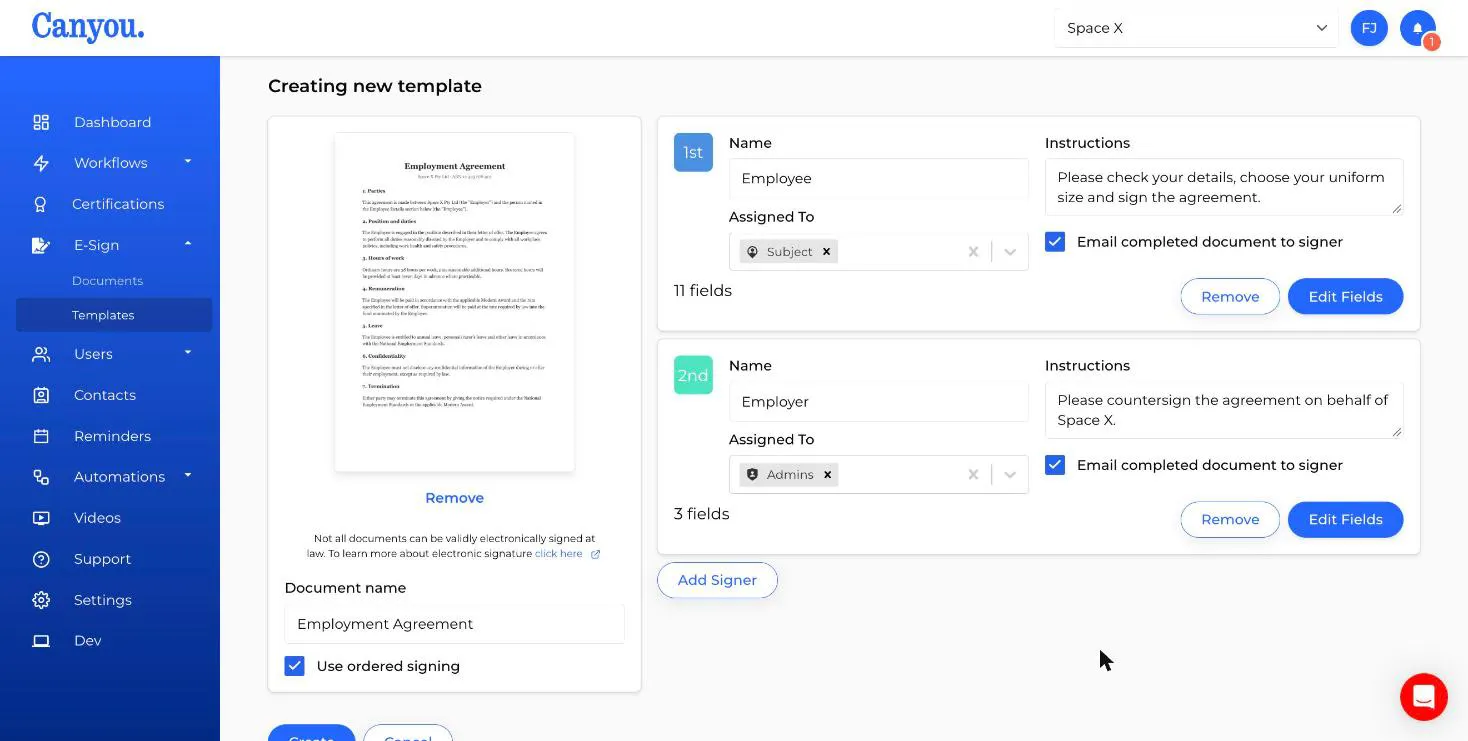
When every signer has fields, click Create. The template appears on the Templates page as v1.
If you try to leave the page with unsaved changes, Canyou asks whether you want to stay or discard them.
Email the completed document to signers
Signers often want their own copy of what they signed, like a new starter keeping a copy of their employment contract. Tick Email completed document to signer on a signer card and Canyou sends it to them automatically, so you don't have to download and send it yourself.
Once everyone on the document has signed, each person who signed for a ticked signer gets an email:
- The subject names the document, the user it's for and your business, for example "Employment Agreement" completed for Jane Smith at Acme Pty Ltd.
- The fully signed PDF is attached.
- A button opens the workflow in Canyou, where they can view the document again.
The setting is per signer, so you can send a copy to the new starter but not to the manager who countersigns. If more than one person could sign for a signer, only the person who actually signed gets the email. Nothing is sent until the last signature is in.
To turn it on for an existing template, edit the template, tick the box and save. Documents sent after you save use the new setting. Documents already sent keep the setting they were sent with. Learn about updating a template
NextNext: Adding fields to a template NextOrdered signing explained