Adding a Workforce One Task to a Workflow 🔄
Add the Sync to Workforce One task to a workflow to send a new starter to Workforce One as part of onboarding, instead of entering them by hand afterwards.
Before starting ensure you've connected Workforce One (learn how to do that here). The task only shows in the task list once Workforce One is connected.
Adding the task
-
Navigate to the Workflows menu and open (or create) the workflow you want to add the task to.
-
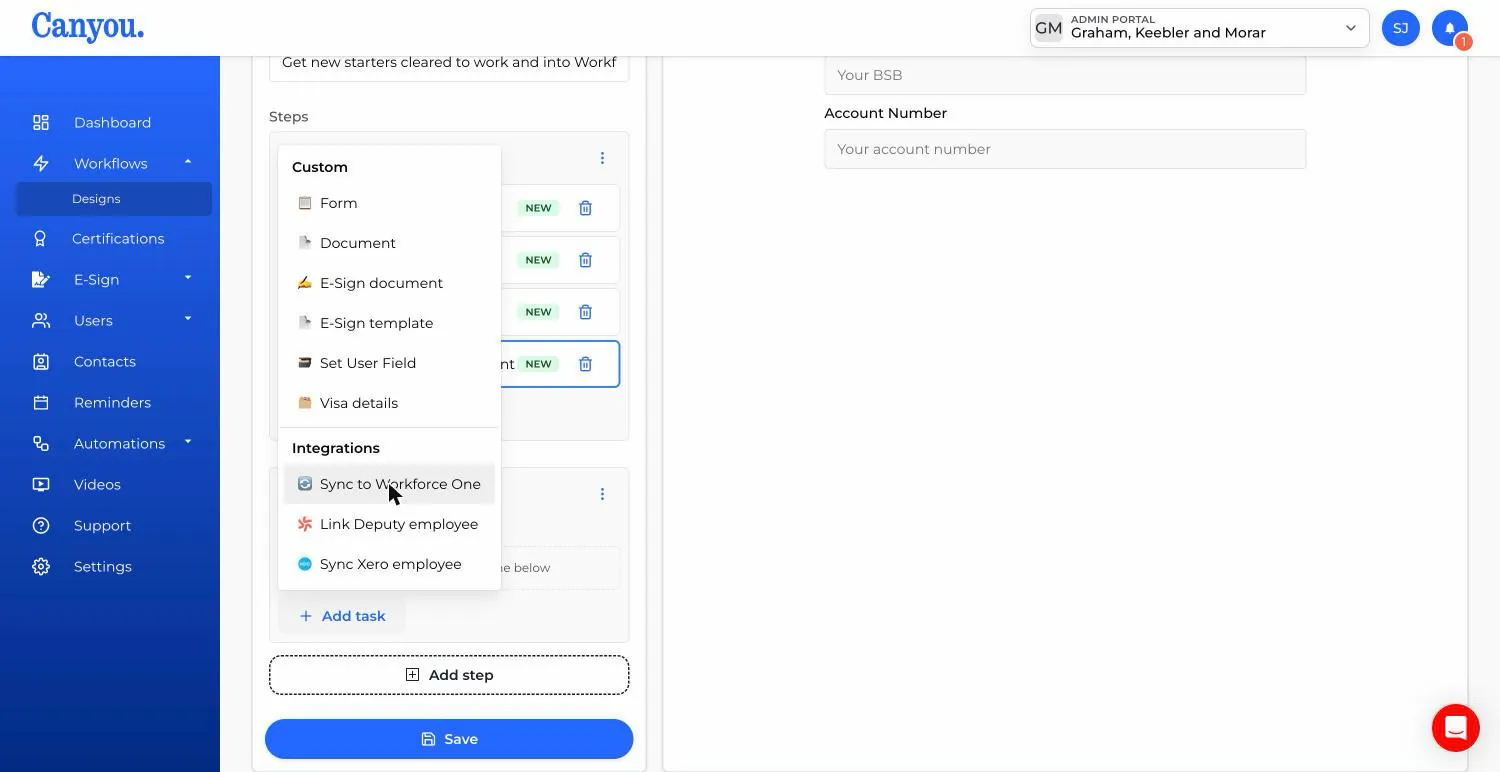
Click Add task and select Sync to Workforce One under Integrations.
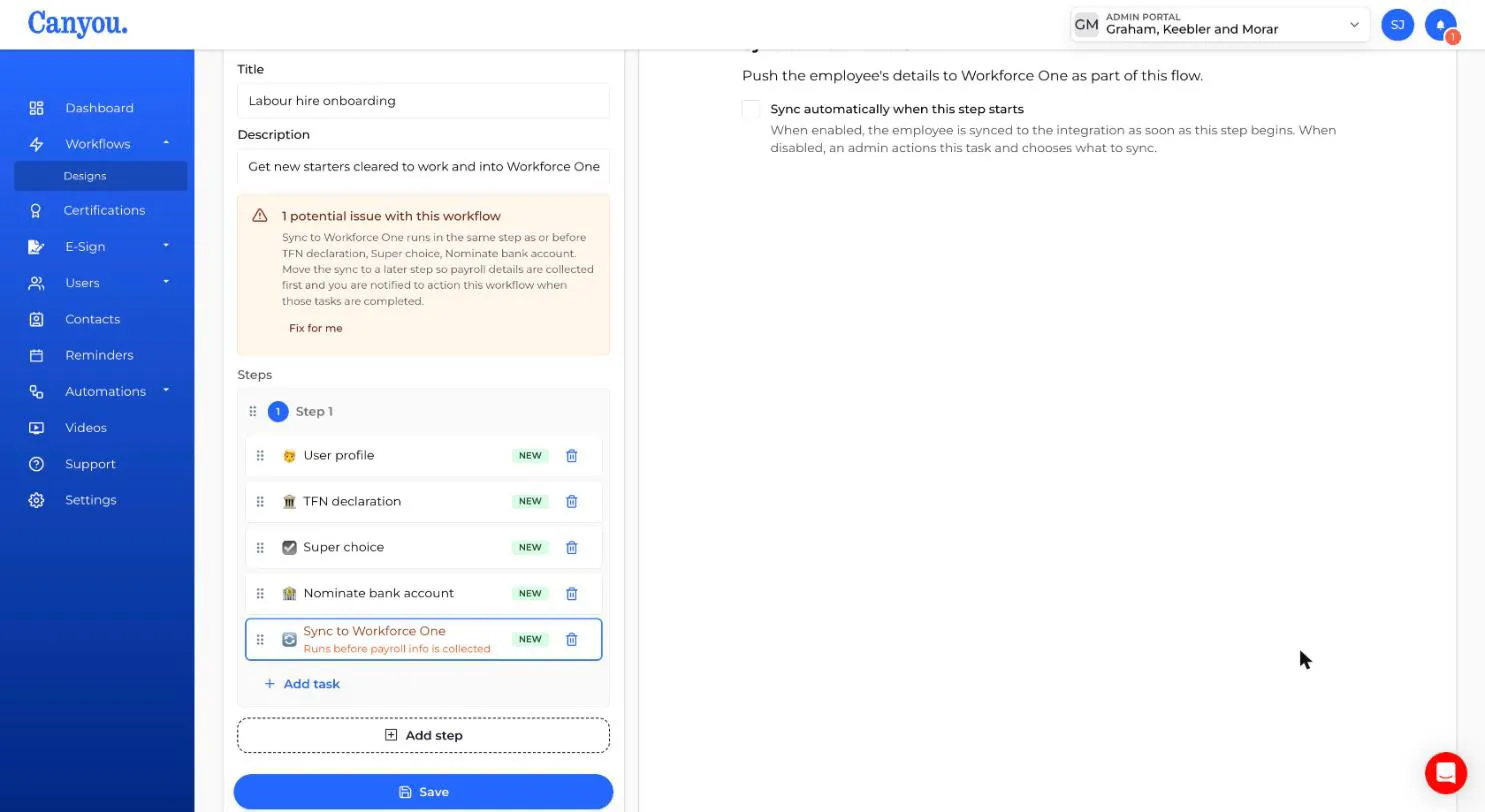
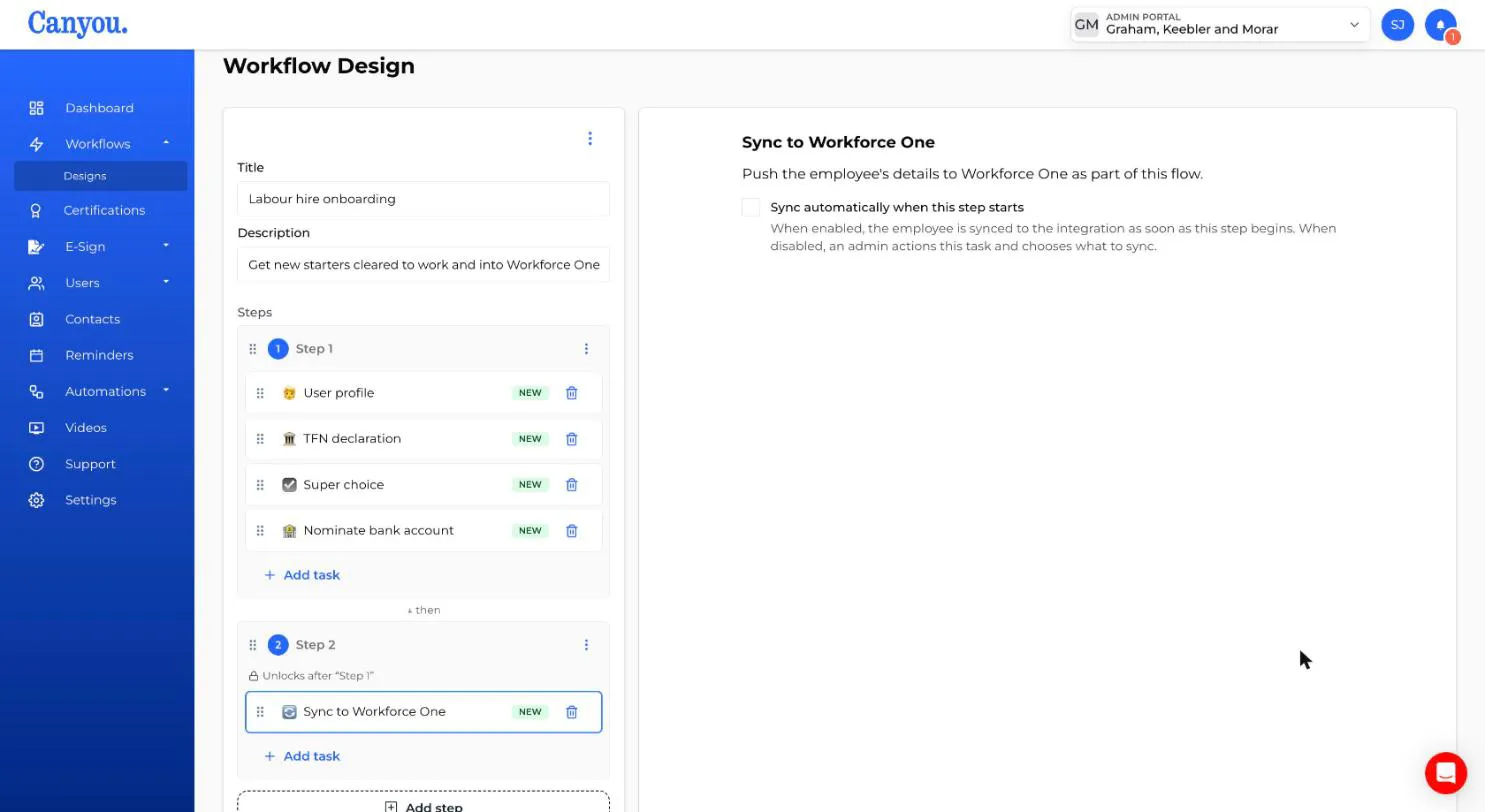
- Put the task in a later step than your User profile, TFN declaration, Super choice and Nominate bank account tasks, so their details are collected before the sync. If the sync is in the same step or earlier, Canyou shows a warning. Click Fix for me to move it into a new step after them.
- Choose how the sync runs:
- Leave Sync automatically when this step starts unticked to have an admin review and run the sync. This is the default.
- Tick it to send the user to Workforce One as soon as the step starts, with no admin needed.
- Click Save.
Completing the task
If the task isn't set to sync automatically, an admin completes it once the step starts:
-
Open the Sync to Workforce One task from the user's workflow.
-
Review the parts of the profile that will be synced. Each part shows Ready once the user has completed the matching workflow task, or Incomplete if they haven't.
- Employee profile
- Tax & employment
- Bank account
- Superannuation
The first time a user is synced, Employee profile, Tax & employment and Superannuation are always sent, because Workforce One needs them to create the employee. Bank account can be switched off. After that, you can switch off any part you don't want to update.
-
Under Tax & employment, optionally enter a Start date and check the Employment type. Canyou fills in the employment type from the user's TFN declaration.
-
Open Overrides to check the Tax scale, whether they Claim the tax-free threshold, and whether the Payee has study or training loans. These are also filled in from the TFN declaration.
-
Click Sync to Workforce One.
The first sync creates the employee in Workforce One and saves their Workforce One employee ID in Canyou. Later syncs update the same employee rather than creating a new one. If a sync fails, the task shows Sync failed with the reason. Fix the details and sync again.
Note: A workflow can have one Sync to Workforce One task. Once a user has a Workforce One employee ID, any document rules sending to Workforce One can upload their documents too.
NextConnecting to Workforce One