Set Custom Field Task 🗃️
The Set custom field task fills in a user's custom fields for you when its step in a workflow starts. Nobody has to complete it, and only admins can see it.
Use it to keep a user's details up to date as they move through a workflow. For example, set Candidate stage to "Registration sent" when a pre-hire workflow is assigned, then to "Registration complete" once the candidate has filled in their form.
Note: In the workflow designer this task is listed as Set User Field.
Before you start
The task can only set a custom field that admins are allowed to edit. When you create or edit the field, make sure Admins can edit this is ticked.
Learn how to create a custom field
Add the task to a workflow
- Open your workflow and click Add task on the step you want.
- Choose Set User Field from the Custom group.
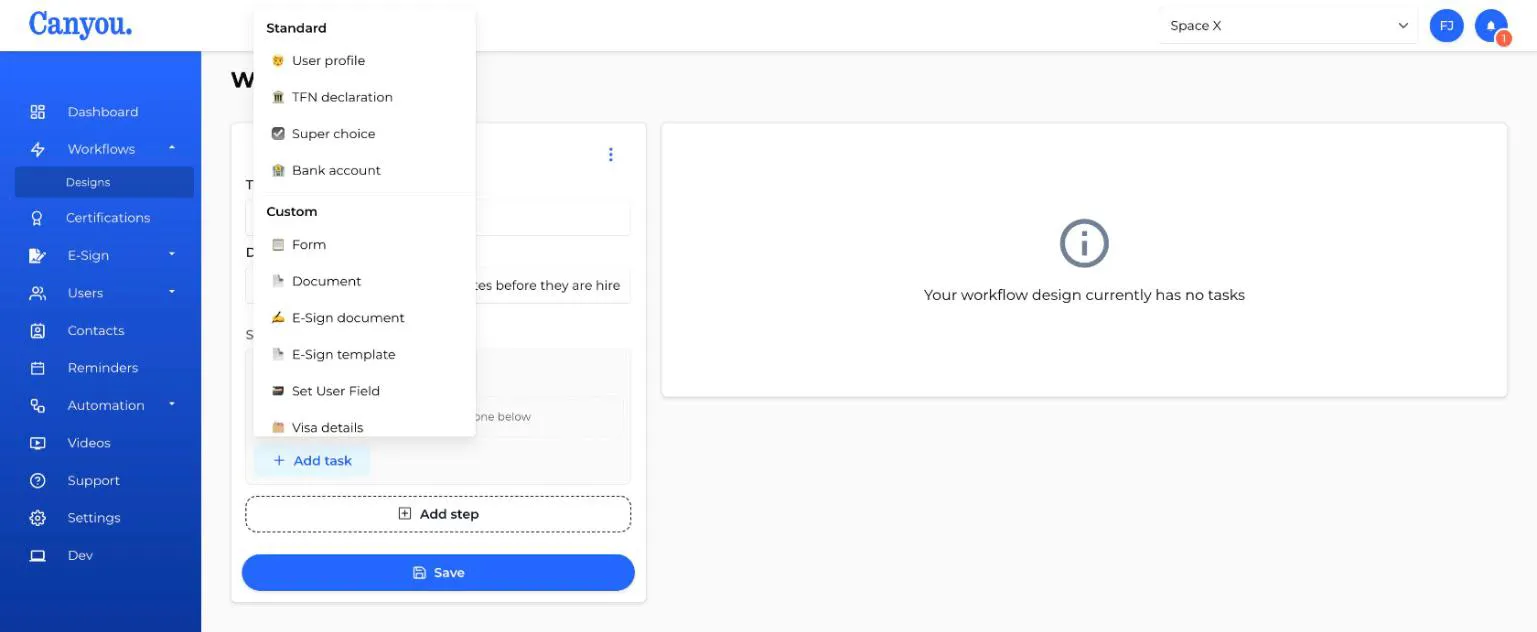
- Give the task a title that says what it does, e.g. "Mark candidate as registration sent".
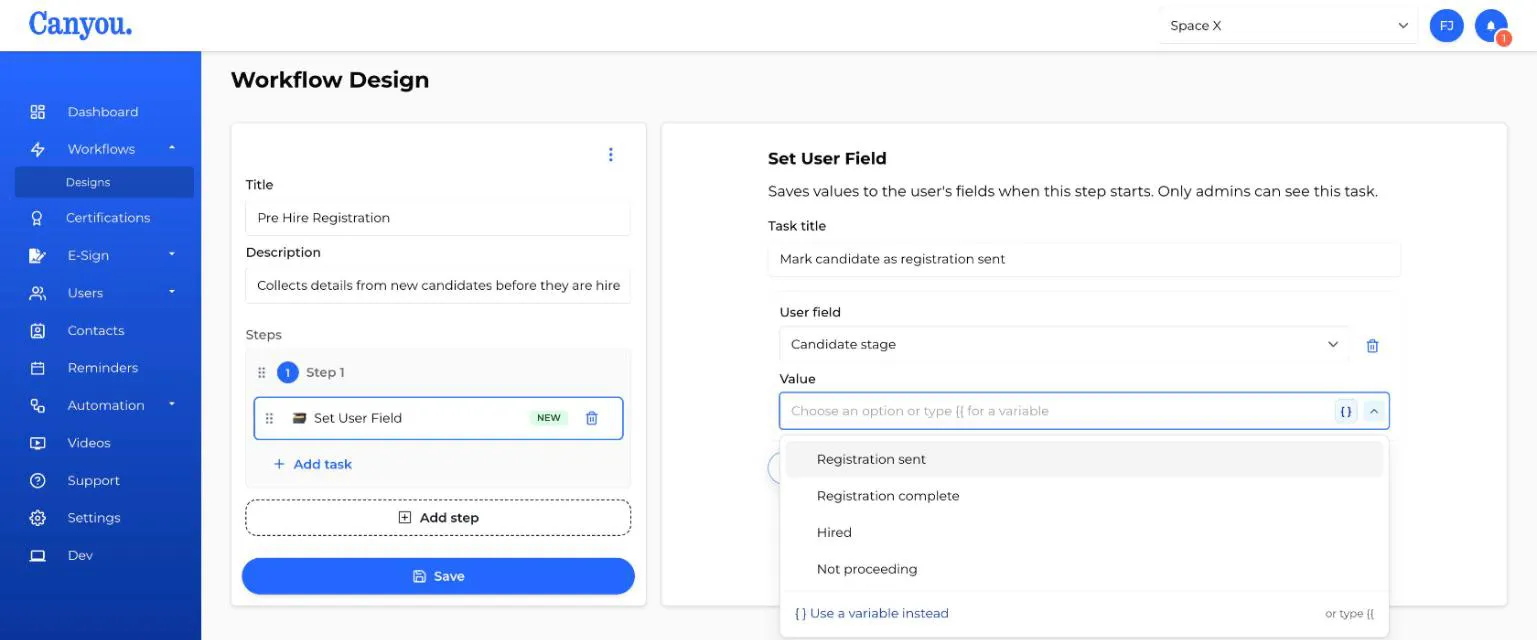
- Under User field, choose the custom field to set.
- Under Value, choose what to save:
- A fixed value: for a field with a fixed set of choices, pick one from the list. For other fields, type the value or use the calendar to pick a date.
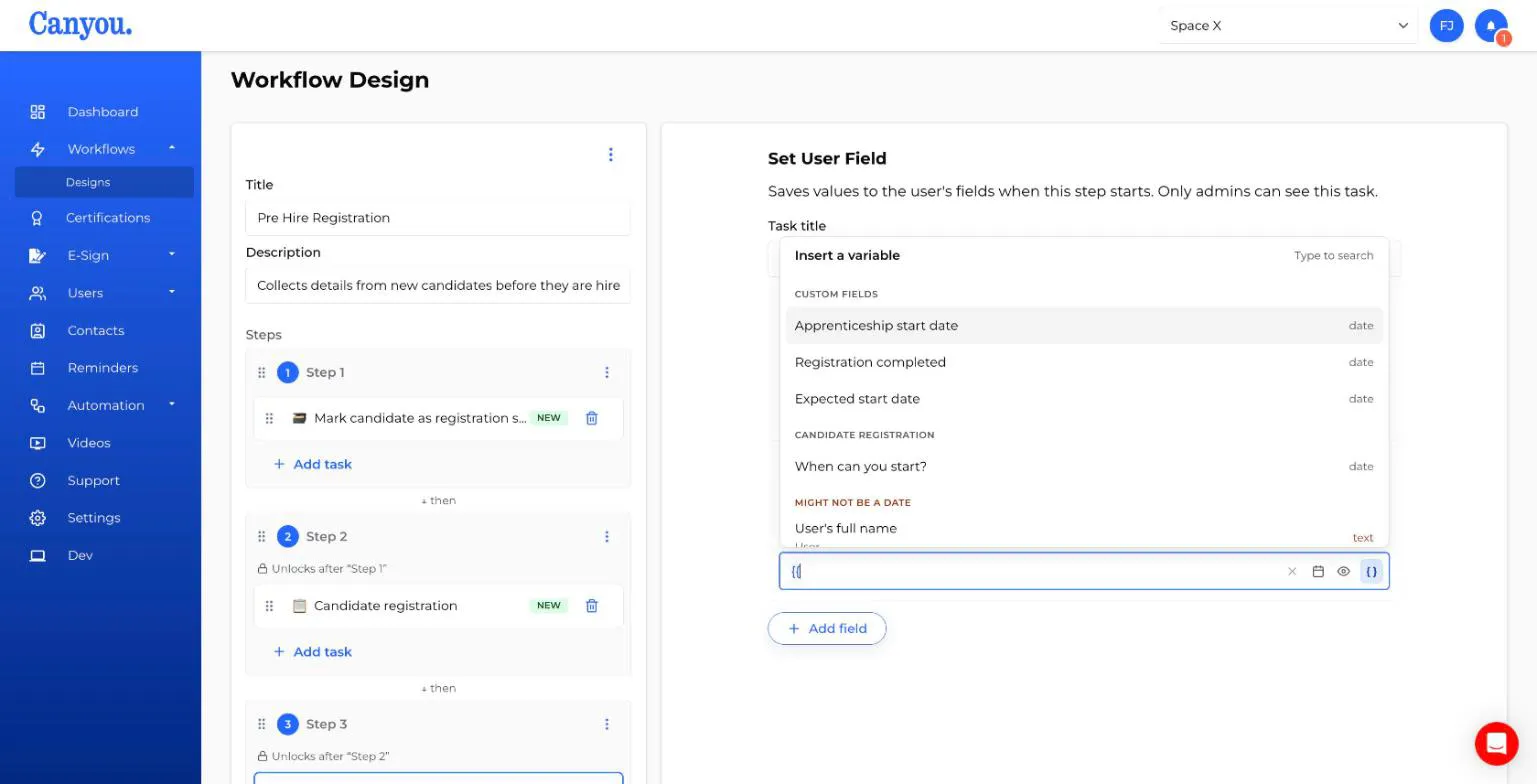
- A variable: click (or type
{{) to insert a value from the user's other custom fields, or from an answer to a form task in an earlier step of the same workflow. - Nothing: leave the value empty to clear the field.
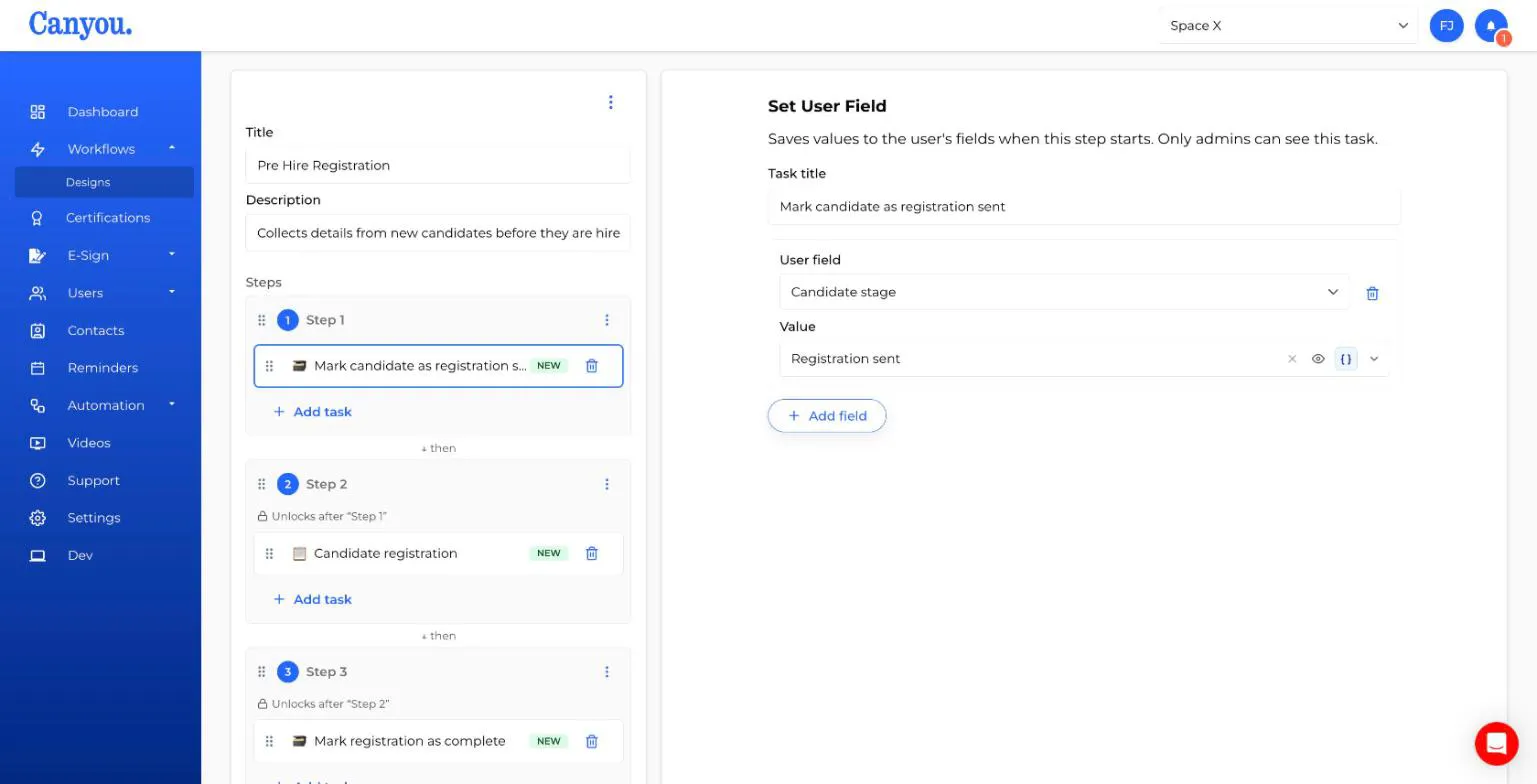
- To set more than one custom field, click Add field and repeat.
- Click Save on the workflow.
What happens when the workflow runs
The task runs on its own as soon as its step unlocks. If it's in the first step, it runs when the workflow is assigned.
- When every value saves, the task completes itself and shows each field as Saved.
- If a value doesn't suit the field (for example, a form answer that isn't a valid date for a date field), that field shows Not saved. The task waits with the message "Some user fields were not saved", and admins see it as something to action. Enter the missing values and save them to complete the task.
- If a custom field has been deleted since the workflow was set up, it's Skipped and the rest of the task carries on.
- The task needs a user to save to. On a workflow that isn't assigned to a user, every field shows Not saved.