Field Validation
Field validation is the set of rules that decides whether a signer's answers are complete. A signer can't finish signing until every one of their fields passes. Getting these rules right is the best way to stop signers getting stuck.
Each heading on this page has its own link, so you can send a signer or a colleague straight to the rule that applies. Hover over a heading and click the # to copy its link.
How validation works
- Validation only applies to the signer's own fields. Other signers' fields are never checked.
- It runs as the signer types or ticks, not just at the end.
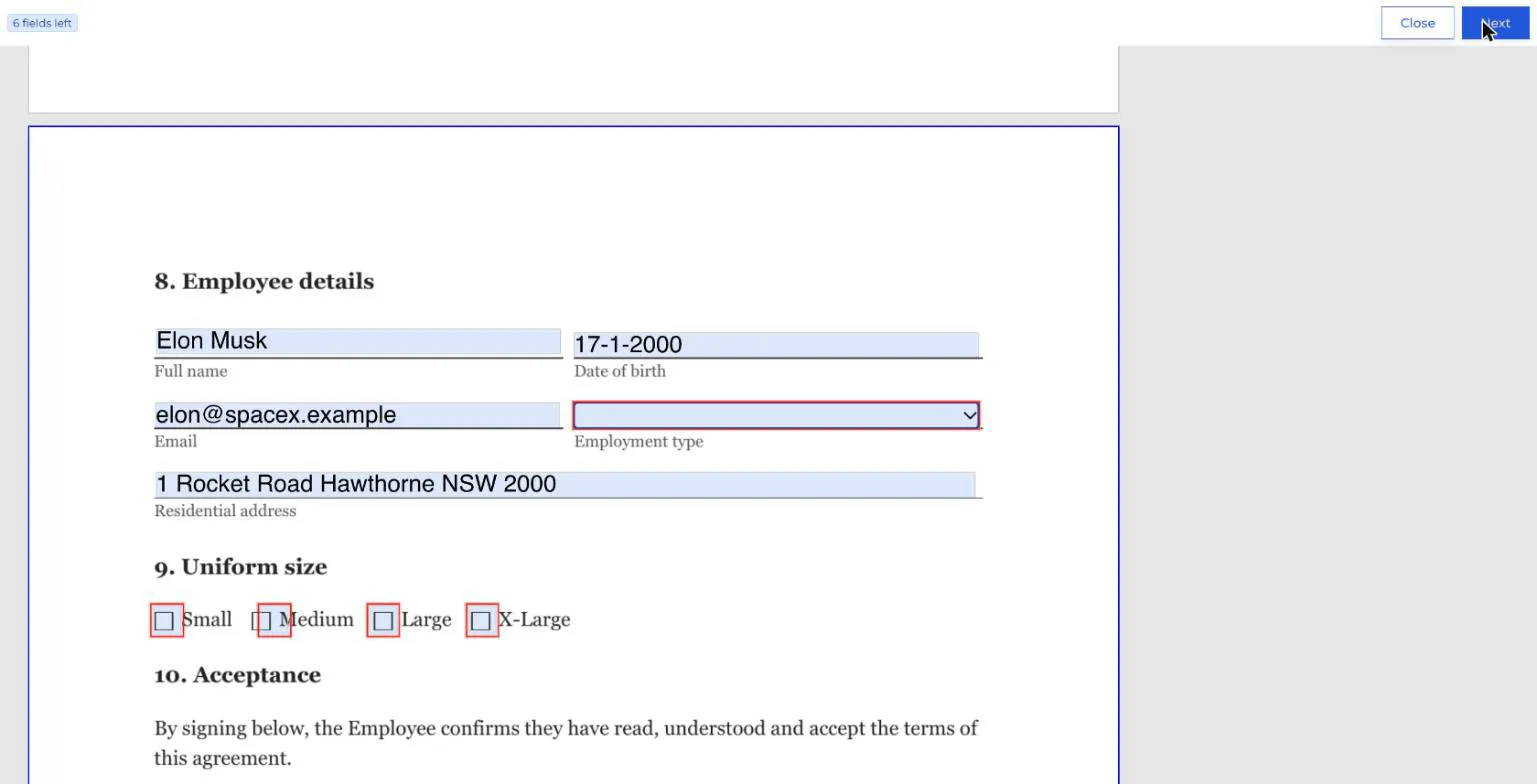
- Fields that need attention have a red outline. Hovering over a field shows its name and, in red, what's wrong.
- The fields left counter in the top left shows how many fields still need attention. Finish signing only appears once it reaches 0.
- Canyou checks the answers again when they're submitted, so a rule can't be skipped.
Required fields
- Signature fields are always required. Every signer must add their signature.
- Text and dropdown fields are required by default. Untick Required in the field's settings to make them optional.
- Date signed fields fill themselves in, so they never need attention.
- Checkboxes don't have a Required setting. They follow their checkbox group rule instead.
An empty required field shows Required.
An optional text field can be left blank. But if the signer does type something, it must still pass the field's character limit and text validation rule.
Character limit
Text fields have a Characters setting, which is the most a signer can type. It's 4,000 by default and can be set from 1 to 10,000. Spaces at the start and end aren't counted.
If the answer is too long, the field shows Must be less than [limit] characters.
Keep in mind the text box on the PDF doesn't grow. If you expect a long answer, make the field bigger in the designer as well as raising the limit.
Text validation
A text field can have one validation rule that the answer must match. Set it under Validation in the field's settings. The default is None, which accepts anything.
Prefilled Email and Date of birth fields come with the email and date rules already set. Other prefilled fields have no rule.
Number
The answer must be a number. It must start with a digit or a minus sign, and can only contain digits, spaces, commas, full stops and minus signs.
- Passes:
1250,1,250.50,-20,0412 345 678 - Fails:
$100(starts with a symbol),ten,12kg
BSB
The answer must be a 6-digit BSB. Spaces and dashes are ignored, so 062-000 and 062000 both pass.
The answer must be a valid email address, like name@example.com.
Phone
The answer must be a phone number of the right length. Australian numbers can be written with or without the country code, for example 0412 345 678 or +61 412 345 678. International numbers need their country code.
Date
The answer must be a real date written day, month, year, for example 25/12/2026. Any separator works (25-12-2026 and 25.12.2026 pass too), and two-digit years are accepted. Impossible dates like 31/02/2026 fail.
Because Canyou reads the date as day then month, American-style dates like 12/25/2026 fail.
Letters only
The answer can only contain letters and spaces. Numbers, hyphens and apostrophes fail, so avoid this rule for names (like "O'Brien" or "Smith-Jones").
TFN
The answer must be a valid Australian Tax File Number. Canyou checks both the length and the TFN checksum, so a number with a typo fails even if it's the right length.
ABN
The answer must be a valid 11-digit Australian Business Number. Spaces and dashes are ignored. Canyou checks the ABN checksum, so made-up numbers like 12 345 678 901 fail.
Dropdown validation
A required dropdown must have an option selected. If it's empty, it shows Required.
If you set a Default option, the dropdown starts with that option selected, so the signer can finish without changing it. Only set a default when that answer is genuinely right for most people.
Checkbox groups
Checkboxes work in groups. Each group has one rule about how many boxes in that group must be ticked. Most signer confusion with checkboxes comes from groups being set up differently to how the question reads on the document.
How groups are formed
- Dragging (or clicking) Checkbox in the left panel always starts a new group.
- Selecting a checkbox and clicking the small + below it adds a box to the same group.
- All boxes in a group belong to the same signer. Moving one checkbox to another signer moves the whole group.
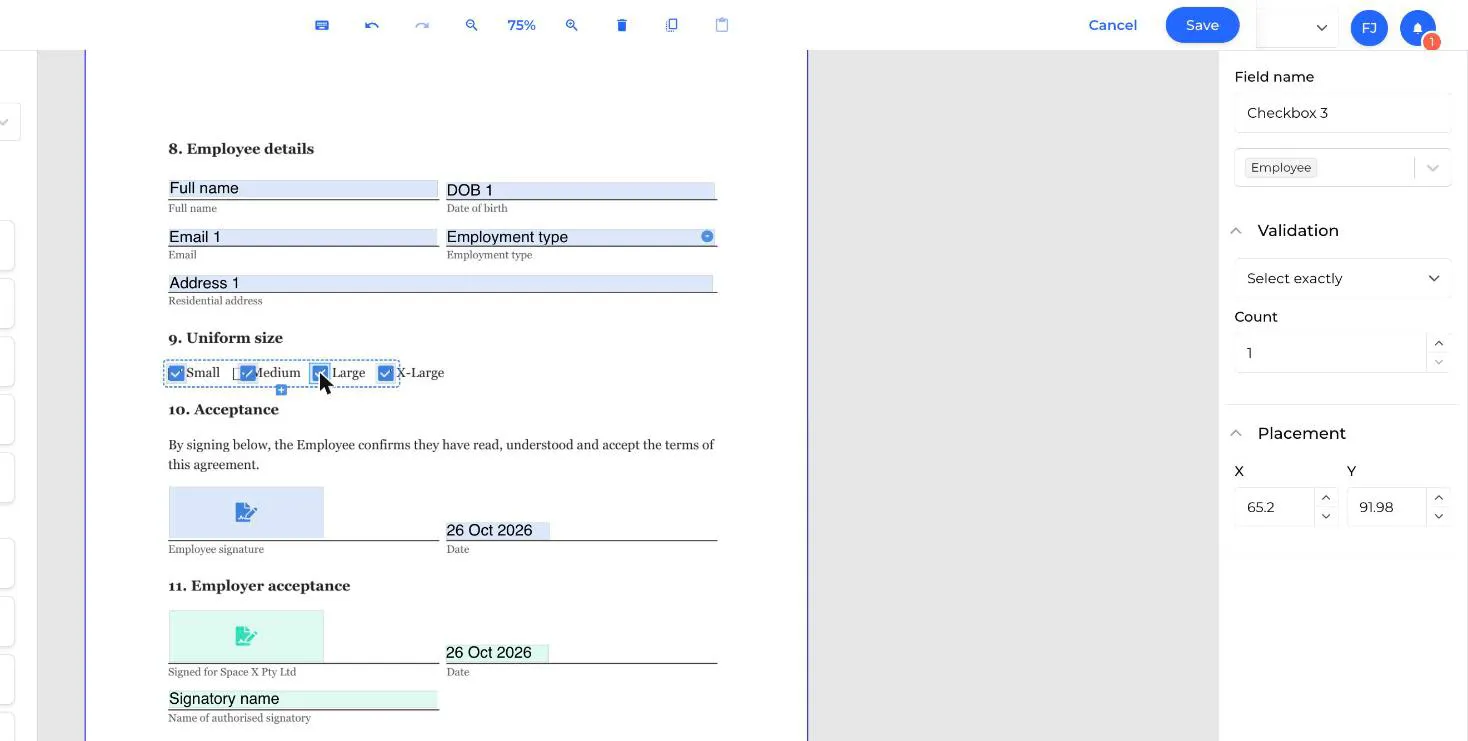
So for a question like "Uniform size: Small, Medium, Large, X-Large", add the first box from the left panel, then use + for the other three. If you drag four separate checkboxes instead, you get four groups, each with its own rule.
Setting the rule
Select any checkbox in the group and choose a rule under Validation. The rule applies to the whole group. New groups start as Select at least 1.
Select exactly
The signer must tick exactly the number you set. Use Select exactly 1 for single-choice questions like "Yes / No" or a uniform size.
Message shown: Select 1 (or Select 2, and so on).
Select at least
The signer must tick at least the number you set and can tick more. Use it for "tick all that apply" questions where at least one answer is needed.
Message shown: Select at least 1.
Select at most
The signer can tick up to the number you set, including none. Use it for optional questions with a limit, like "choose up to 2 shifts".
Message shown: Select at most 2.
Select between
The signer must tick between the two numbers you set, inclusive.
Message shown: Select between 1 and 3.
What the signer sees
Every box in a group shares the group's status. If the rule isn't met, all the boxes in the group are outlined in red, including ones already ticked. Hovering over any of them shows the field name and the rule.

In this example the rule is Select exactly 1. Ticking two sizes keeps the whole group red until one is unticked.

A single checkbox on its own
A single checkbox is a group of one, and it starts as Select at least 1, which makes it compulsory. That's right for "I agree to the terms". For an optional checkbox, change the rule to Select at most 1.
Prefilled fields
Prefilled fields (Email, Name, Date of birth and Address) start with details from the signer's own profile. They're still normal text fields:
- The signer can change the value before signing.
- They're required by default, so if the profile detail is missing the signer has to type it in.
- Email and Date of birth use the email and date rules.
Troubleshooting
"I've filled everything in but I can't finish." Look at the fields left counter, then click Next to jump to the next field that needs attention. Hover over red fields to see what's wrong. Remember that fields can be on any page.
"The checkboxes stay red after I tick one." The group probably needs a different number of boxes ticked. Hover to see the rule, for example Select exactly 1 or Select at least 2. See checkbox groups.
"My date isn't accepted." Write it day first, for example 25/12/2026. See date.
"My name isn't accepted." The field may use the Letters only rule, which rejects hyphens and apostrophes. Ask the business to change the rule. See letters only.
"My ABN or TFN isn't accepted." Canyou checks these numbers are genuine, so double-check each digit. See ABN and TFN.
Fixing a rule on a template. Edit the template, change the field's settings in the designer and save a new version. Documents already sent keep the old rules. See Updating an e-sign template.
NextAdding fields to a template NextSigning a document