Pause Notifications for a User
This section shows how to stop Canyou sending notifications to a user for a while, or until you turn them back on. This is handy when:
- You're making a lot of changes to their profile. If you're reorganising their workflows, certifications or positions, pause their notifications first. They won't get a stream of emails about half-finished changes, and you can turn notifications back on once everything is in order.
- They're away. For example, someone on leave or between jobs.
- They've asked not to be contacted for a while.
The pause only applies to the business you set it in. If the user belongs to other businesses in Canyou, they still get notifications from those businesses.
You need permission to edit users to pause or resume notifications. You can't pause notifications for an archived user.
Pause notifications
- Navigate to the Users menu and click on the user.
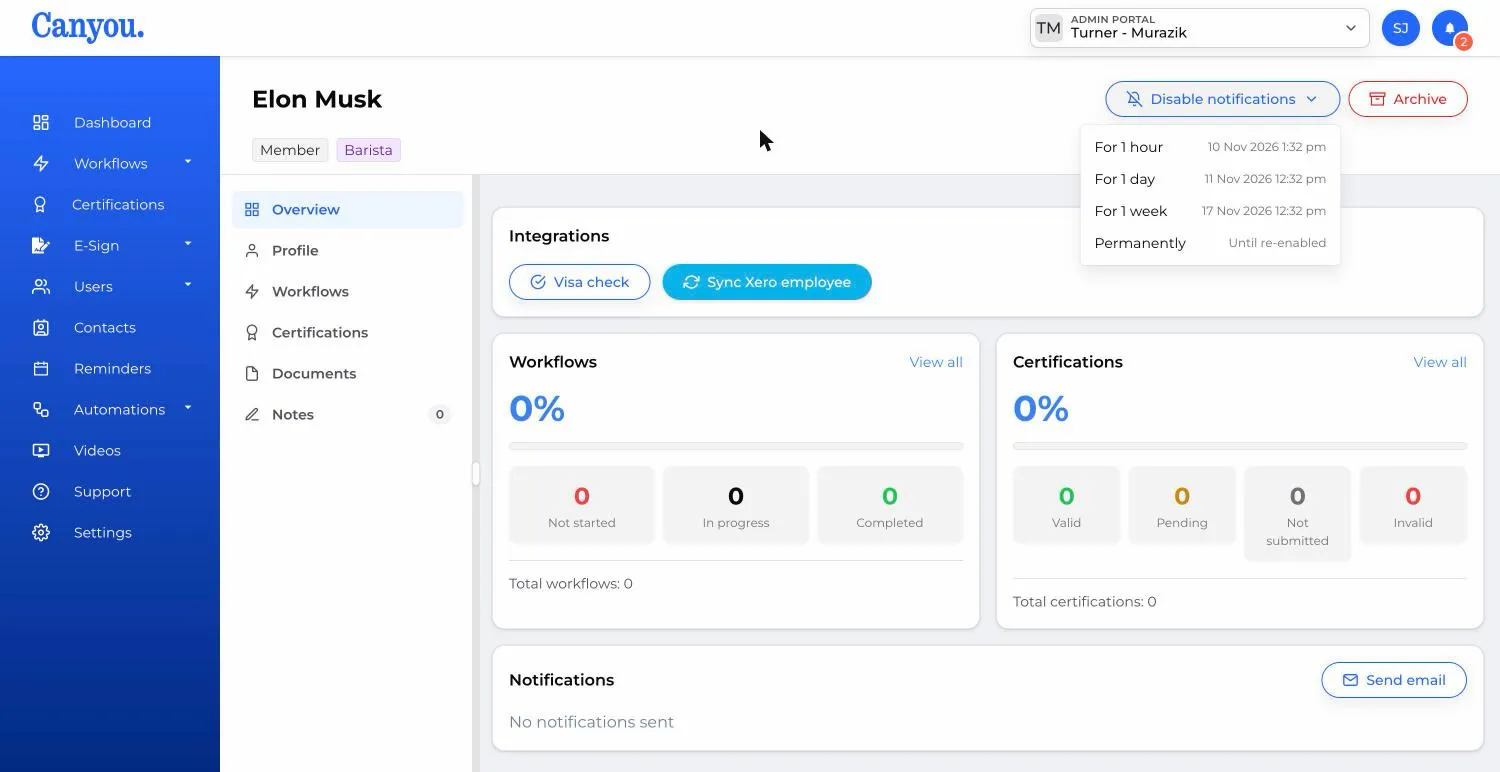
- At the top of their profile, click Disable notifications.
- Choose how long to pause for: For 1 hour, For 1 day, For 1 week or Permanently. Each option shows the date and time notifications will come back on.
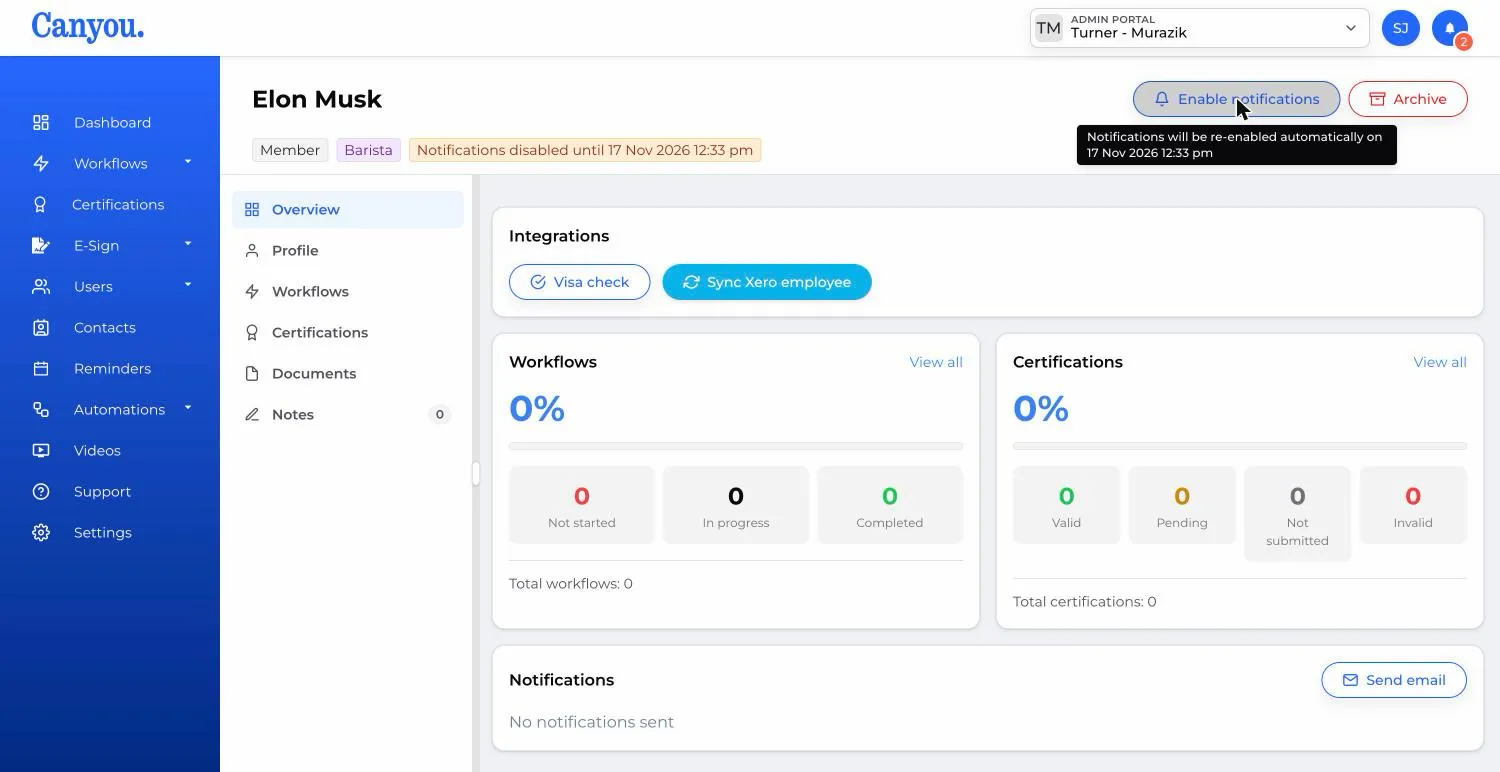
An orange tag at the top of the profile now reads "Notifications disabled until" followed by the date and time, or "Notifications disabled permanently".
When a timed pause ends, notifications turn back on by themselves. You don't need to do anything.
Turn notifications back on
If you paused notifications while you updated someone's profile, turn them back on once your changes are finished. Choosing Permanently for this kind of work means you don't have to guess how long it will take.
- Navigate to the Users menu and click on the user.
- At the top of their profile, click Enable notifications. Hover over the button first to see when notifications would come back on by themselves.
What happens while notifications are paused
- New notifications aren't sent. Nothing new is created for the user, and they're left out of notifications sent to business managers and workflow completion notices.
- Reminders and certification expiry notices are skipped. Any that fall due during the pause won't be sent later.
- Notifications already waiting are held. Anything that was queued for the user before the pause is sent once notifications are back on, so they may receive a few older notifications at once.
- Reminding the user. If you send a reminder to a paused user, Canyou shows "Notifications are disabled for this member". E-sign reminders skip paused signers, including invite emails.