Tracking E-Sign Documents
Every e-sign template document sent from your business, whether through a workflow or as a one-off, is listed on E-Sign > Documents. From there you can see who has signed, chase people who haven't and download the signed PDF.
The Documents page
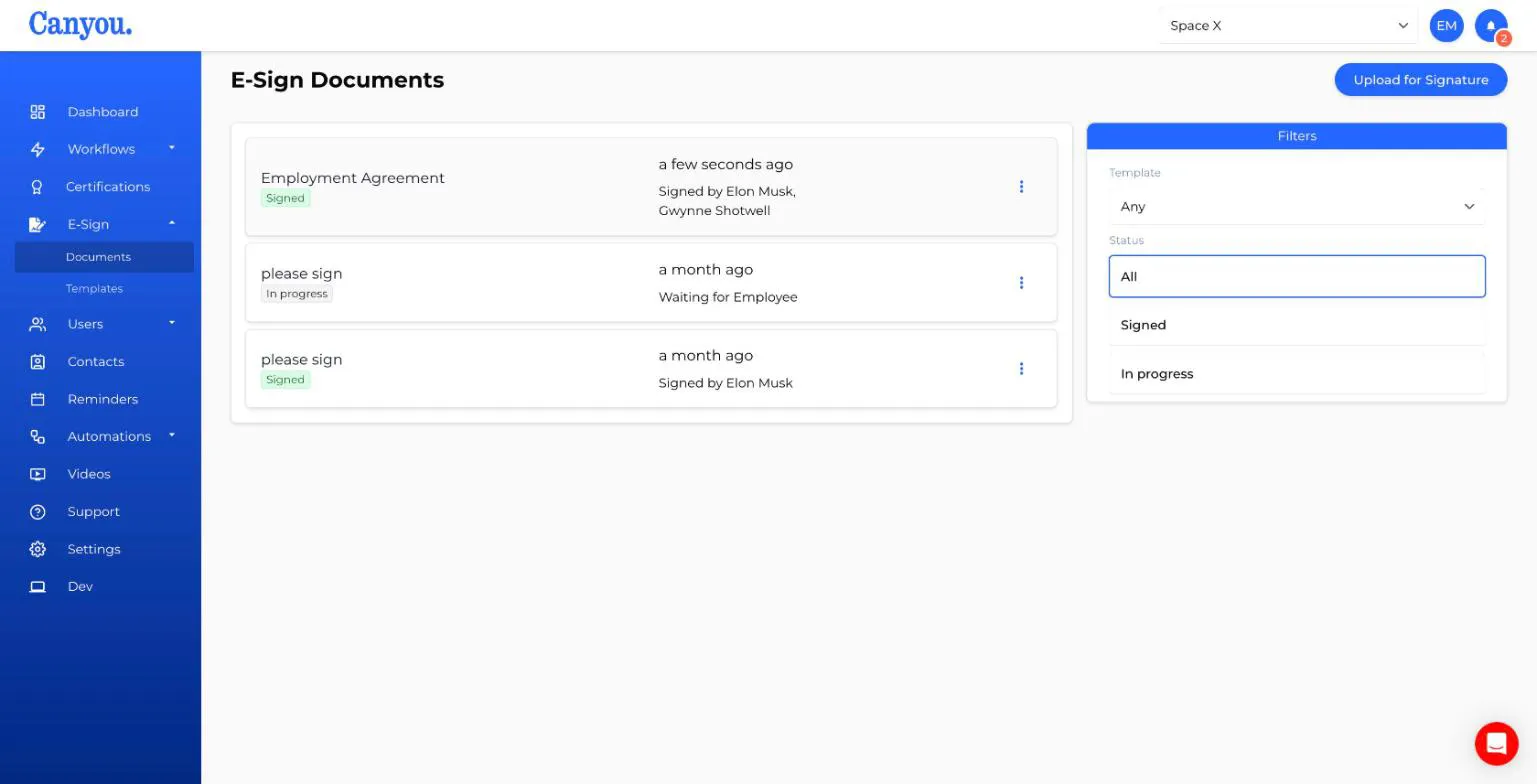
Each row shows:
- The document name and its status: Signed or In progress.
- When it was last signed, or when it was sent if nobody has signed yet.
- Signed by - who has signed so far.
- Waiting for - the signer (or signers) whose turn it is, such as "Waiting for Employee".
Use the Filters on the right to show documents from one template, or only signed or in-progress documents.
Click a row to open the workflow the document belongs to.
Row menu
Click the three dots on a row for quick actions:
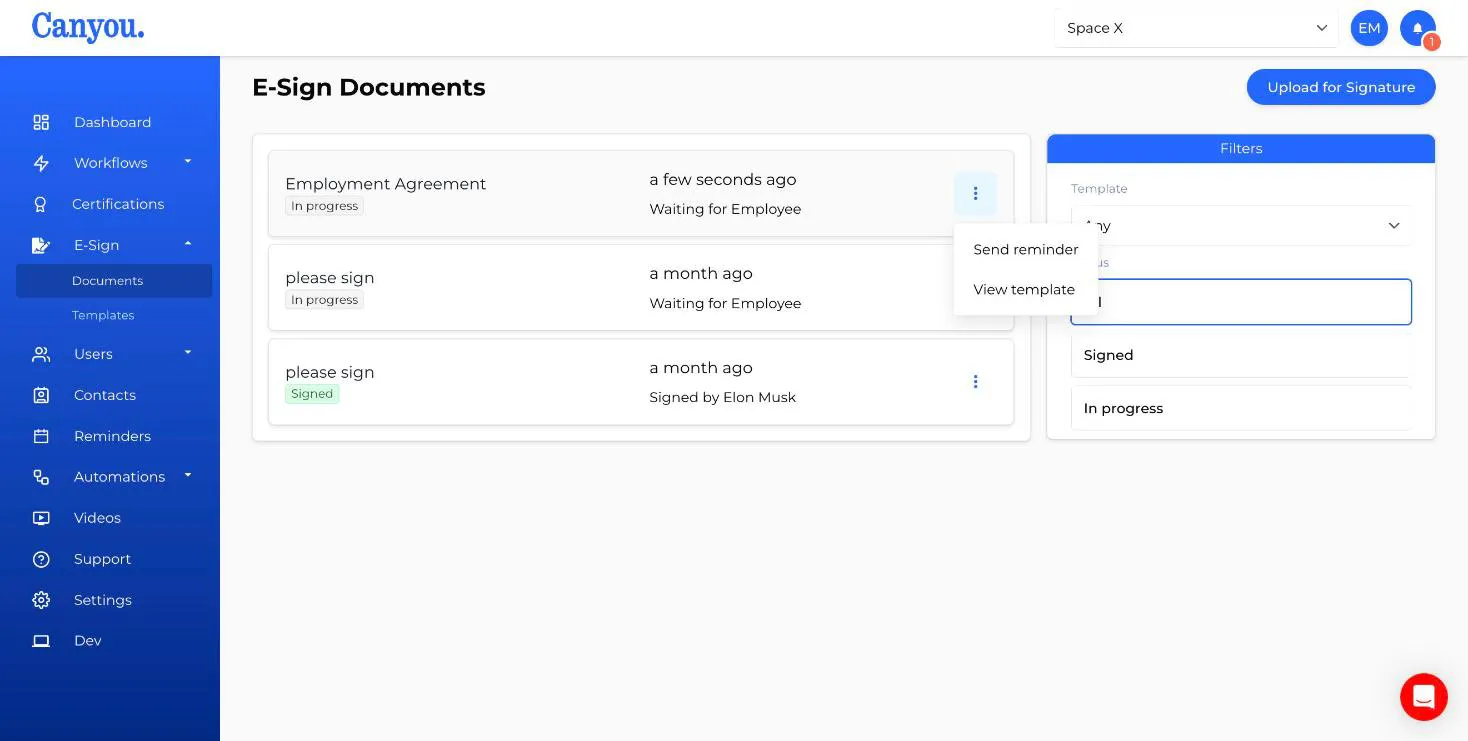
- Send reminder - for documents in progress. See Sending reminders.
- View signed file - for signed documents. Opens the final PDF.
- View template - opens the template the document was sent from. Not shown for one-off documents.
The History tab
Open a document and click the History tab to see each signer's progress.
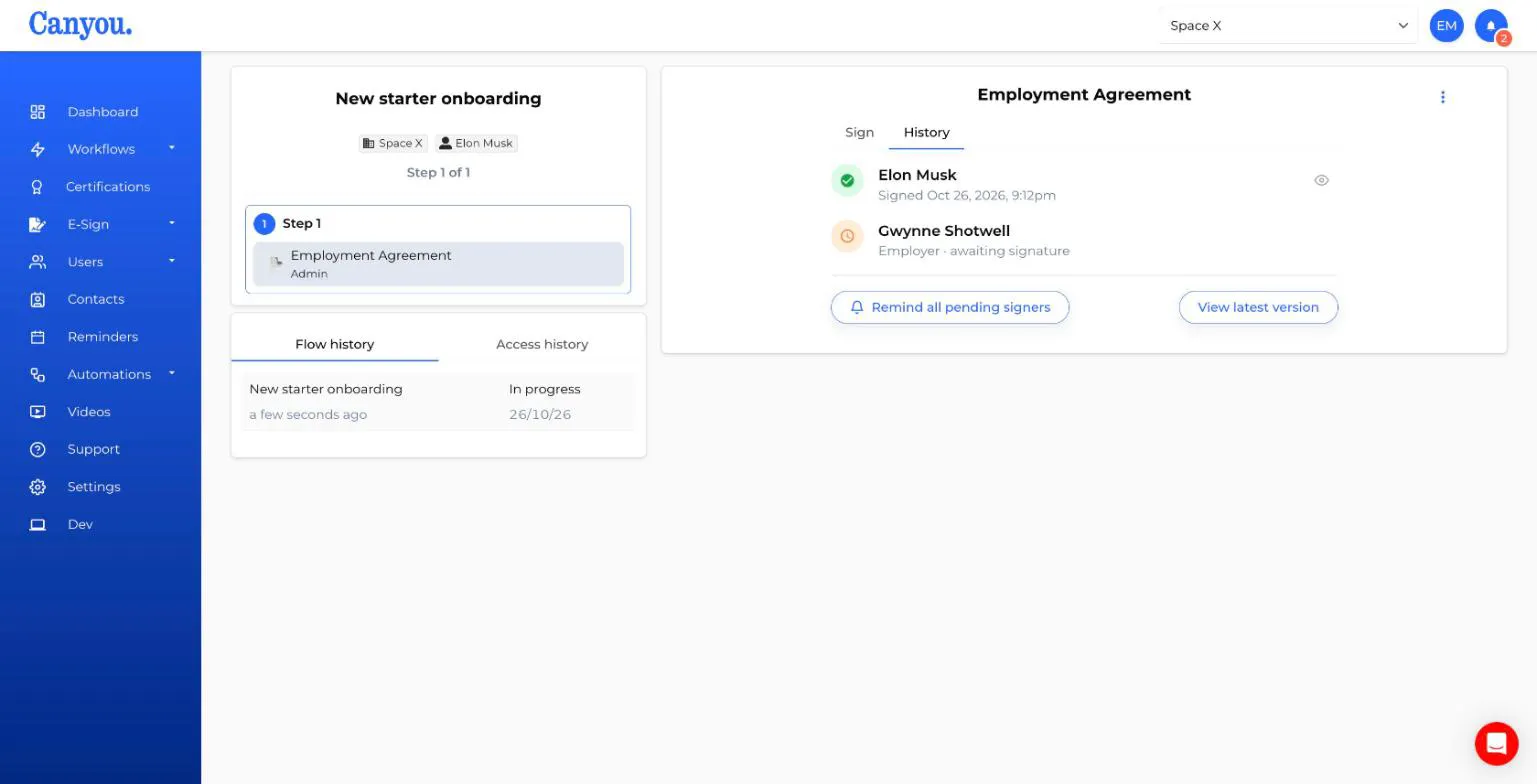
- Green tick - signed, with the date and time. Click the eye icon to see a snapshot of the document as it was straight after that signature.
- Orange clock, awaiting signature - this signer can sign now.
- Grey clock, waiting for others - with ordered signing, this signer is waiting for an earlier signer.
Before everyone has signed, click View latest version to see the document with all the answers so far.
Right after someone signs, Canyou takes a moment to prepare their snapshot. You might briefly see a loading icon in place of the eye.
Sending reminders
If a signer hasn't signed, send them a reminder:
- From E-Sign > Documents, click the three dots on the row and choose Send reminder, or
- From the document's History tab, click Remind next to the signer (ordered signing) or Remind all pending signers (unordered signing, or when only one signer is left).
The reminder goes to everyone who can sign for the signers whose turn it is:
- People who use Canyou get a notification saying you need their signature on the document, with a link to their dashboard.
- People who've been invited but haven't joined yet get their invitation email again, saying you've requested their signature.
Reminders can take a few minutes to arrive. You need permission to message users, and an active subscription, to send them.
When everyone has signed
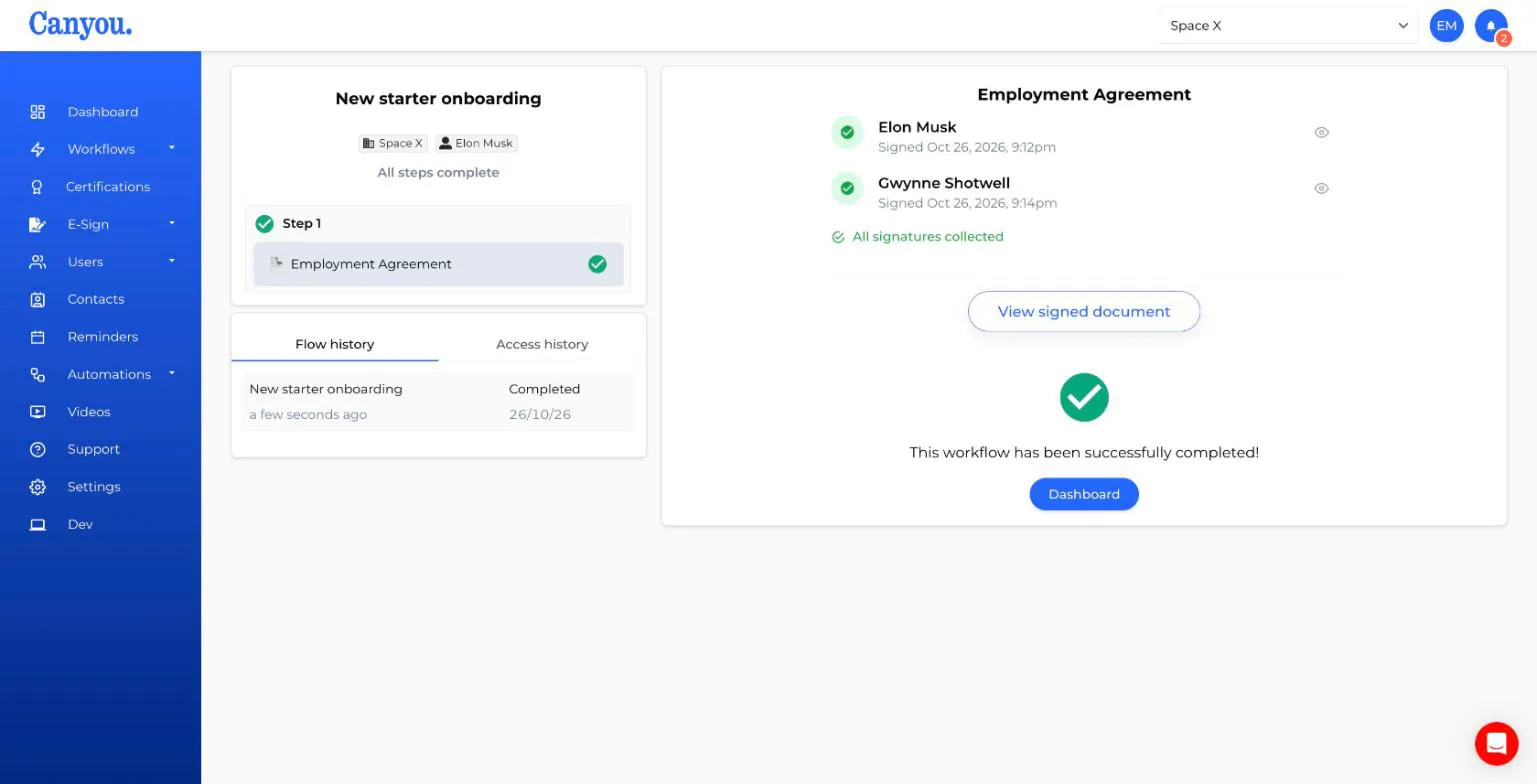
Once the last signer finishes:
- Canyou builds the final PDF. This usually takes a few seconds, and View signed document shows a loading state until it's ready.
- The History tab shows All signatures collected and a View signed document button.
- The document shows as Signed on the Documents page.
- Every signer whose part has Email completed document to signer ticked is emailed the signed PDF, with a link back to the workflow.
What's in the signed PDF
- Your original PDF with every answer and signature stamped in place.
- A Certificate of Completion page added to the end. It lists the document's envelope ID, completion time and time zone, plus a history of every time the document was viewed and every signature, including each signer's name, email address, IP address and a unique signature ID.
The certificate is your audit trail. Keep the signed PDF with your records.
NextNext: Updating an e-sign template NextOrdered signing explained