Onboarding Candidates from JobAdder
Once JobAdder is connected, your recruiters can onboard candidates and follow their progress from inside JobAdder, without signing in to Canyou.
Before starting ensure you've connected JobAdder (learn how to do that here).
Opening Canyou in JobAdder
-
In JobAdder, open a placement or a candidate.
-
Click Onboard in Canyou. Canyou opens in JobAdder's side drawer.
What the drawer shows depends on whether the candidate is already in Canyou:
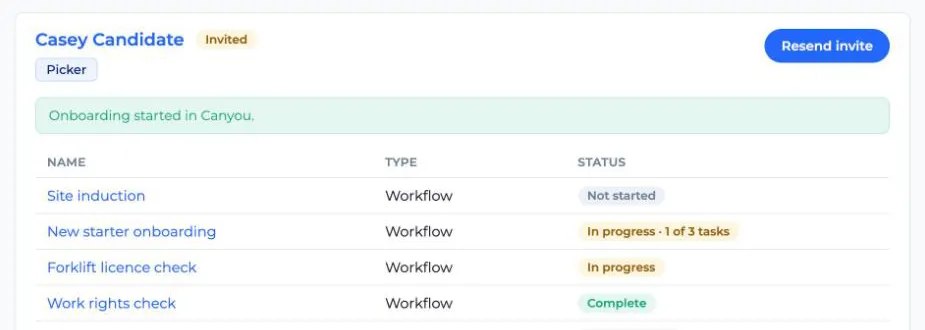
- Linked: the candidate is already linked to a Canyou user, because they were imported or onboarded from JobAdder. The drawer shows their onboarding progress.
- Matched: a Canyou user has the same email as the candidate but isn't linked yet. The drawer asks whether to link them.
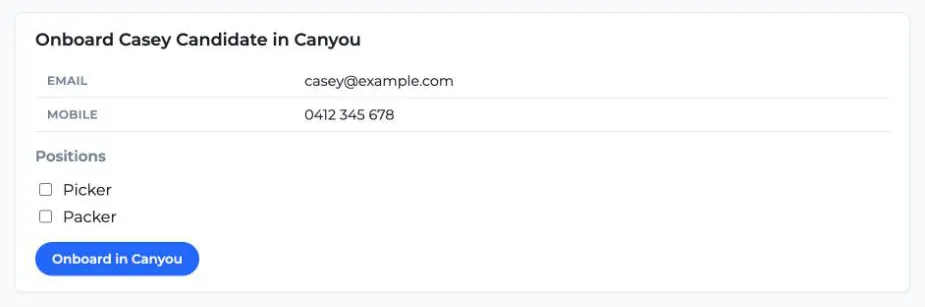
- Not in Canyou: the drawer shows a form to onboard them.
Onboarding a new candidate
-
Check the candidate's Email and Mobile. These come from JobAdder.
-
Under Positions, tick the positions to give them.
-
Click Onboard in Canyou.
Canyou adds the candidate as a user, assigns the workflows for their positions and sends their invite. You'll see Onboarding started in Canyou. and their progress.
Canyou records the inviter as the Canyou admin with the same email as the recruiter's JobAdder login, or, if there isn't one, the admin who connected JobAdder.
Linking an existing Canyou user
If the drawer says the candidate and a Canyou user share an email, check it's the same person, then click Link to and their name. Nothing is linked until you click it.
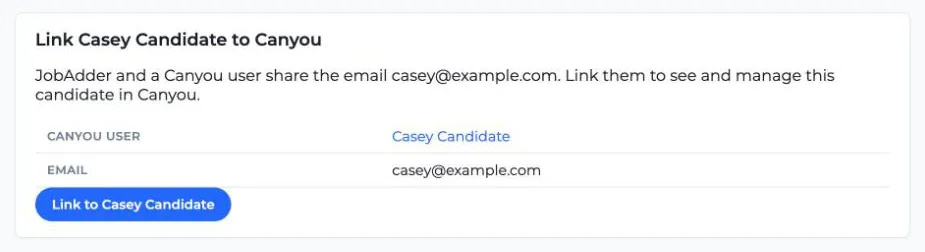
Once a candidate is linked, every placement for that candidate in JobAdder opens the same Canyou user.
Managing onboarding from the drawer
For a linked candidate, the drawer shows their status, positions, workflows and certifications. Click a name to open it in Canyou.
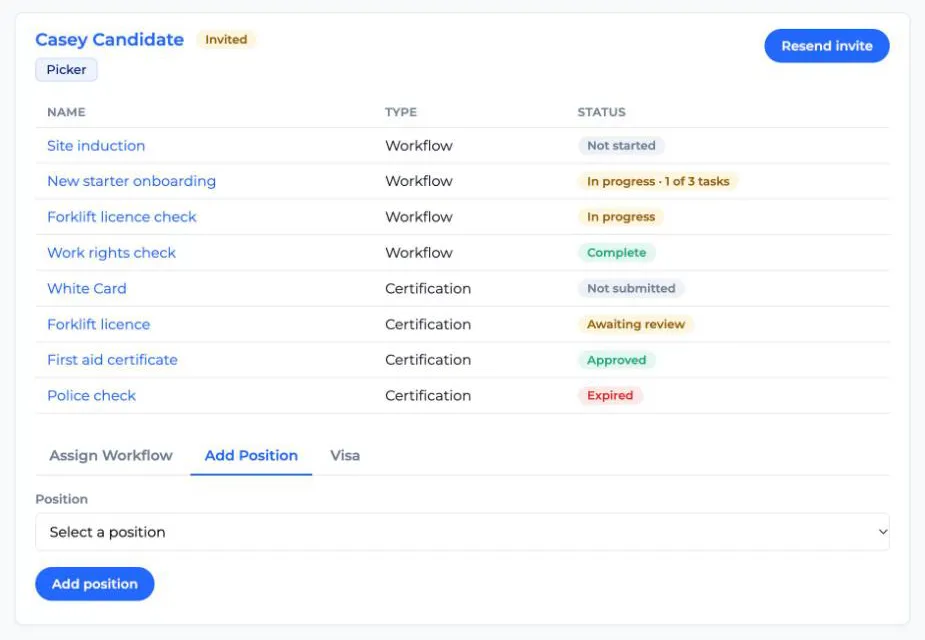
- Send invite (or Resend invite): shown at the top if they haven't joined yet.
- Assign Workflow: choose a Workflow that isn't already assigned, then click Assign workflow.
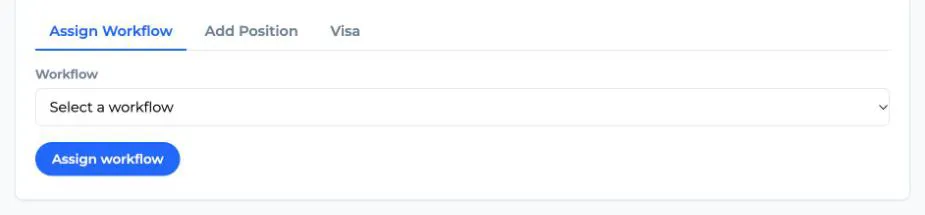
- Add Position: choose a Position, then click Add position.
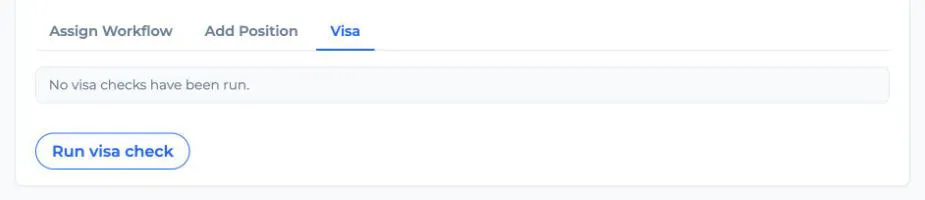
- Visa: click Run visa check to check their work rights with the Department of Home Affairs. The button shows if your business has visa checks set up and the candidate has entered visa details other than Australian or New Zealand citizenship. Learn more about visa checks.
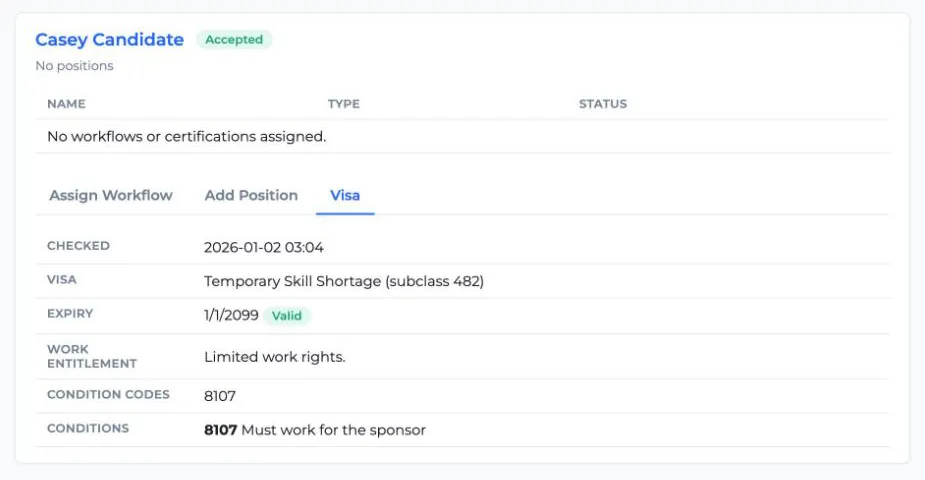
Once a check has run, the Visa tab shows the result: when it was checked, the visa, its expiry, their work entitlement and any visa conditions.
Progress in JobAdder
The Onboard in Canyou button in JobAdder shows the candidate's onboarding status:
- Workflows 2/3 · Certifications 1/4, while they're working through it. Cancelled workflows aren't counted, and a certification counts once it's submitted or approved and hasn't expired.
- Onboarding complete, once every workflow and certification is done.
- No onboarding assigned, if they have nothing assigned yet.
Canyou updates it when the drawer is opened, and when a workflow is assigned or completed or a certification is submitted. If the candidate is opened from a different placement, the status moves to that placement.
If the drawer shows an error
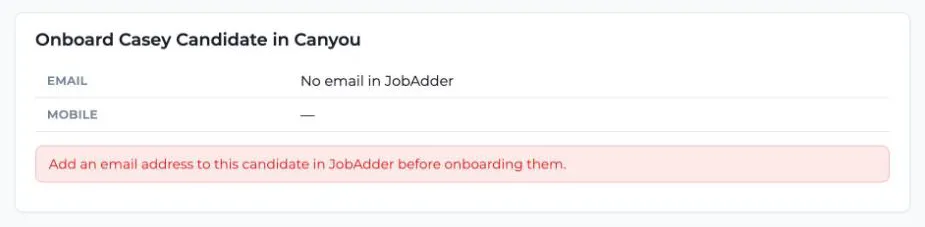
- No email in JobAdder: add a valid email address to the candidate in JobAdder, then reopen the drawer.
- The Canyou user with this email is already linked to another JobAdder candidate: the email belongs to a user linked to a different candidate. Check for a duplicate candidate in JobAdder.
- This Canyou business needs an active subscription: add a subscription in Canyou. Learn how in adding a subscription.
- Reconnect JobAdder in Canyou to continue: the admin who connected JobAdder is no longer in your business. Ask an admin to reconnect JobAdder.
- That JobAdder link has been used, or the drawer stops responding: each drawer link works once and lasts 15 minutes. Close the drawer and click Onboard in Canyou again.