Connecting to Astute Payroll
Follow this guide to connect your Canyou business to Astute Payroll.
Before you start
Have these details from Astute Payroll ready:
- Your portal address: the address you sign in to Astute Payroll at, e.g.
https://acme.astutepayroll.com. - An API username and API password. API access isn't on by default, so ask Astute Payroll support to turn it on and issue these details.
Connecting
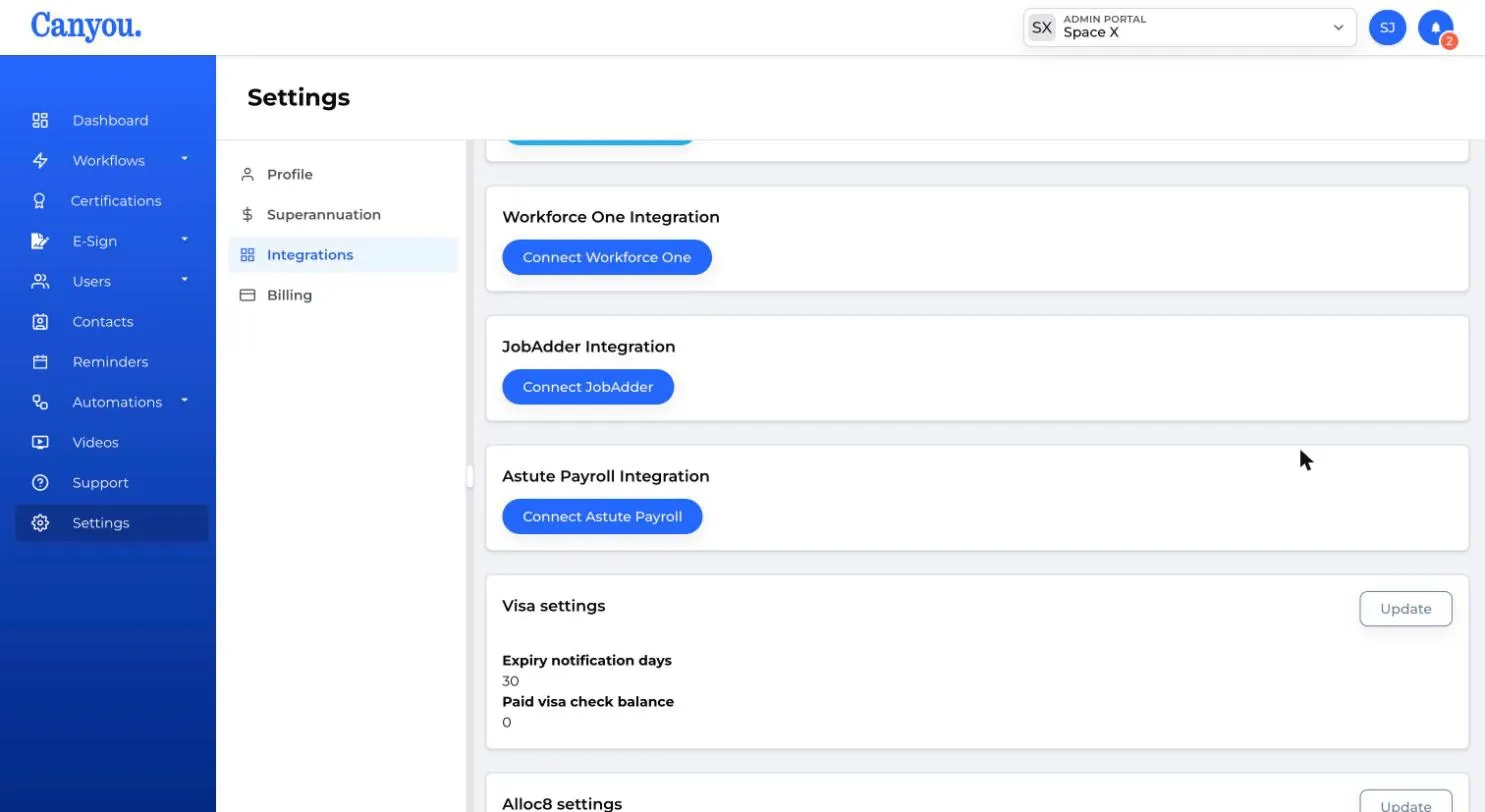
- Navigate to Settings > Integrations, then click the Connect Astute Payroll button.
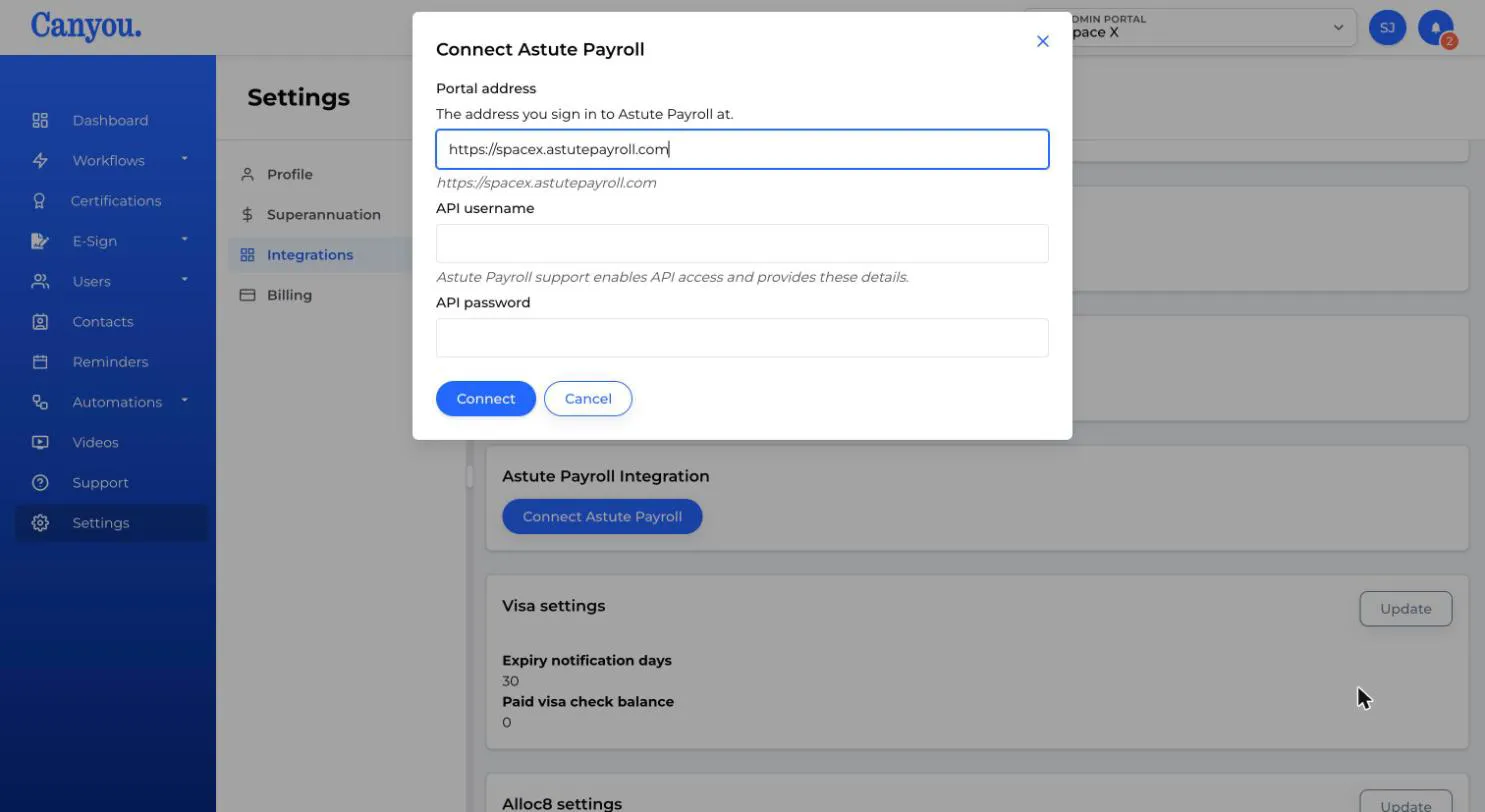
- Enter your Portal address, API username and API password. You can paste the full address you sign in at, and Canyou shows the address it will use underneath.
-
Click Connect. Canyou checks the details with Astute Payroll before saving them. Your API password is encrypted when it's saved.
-
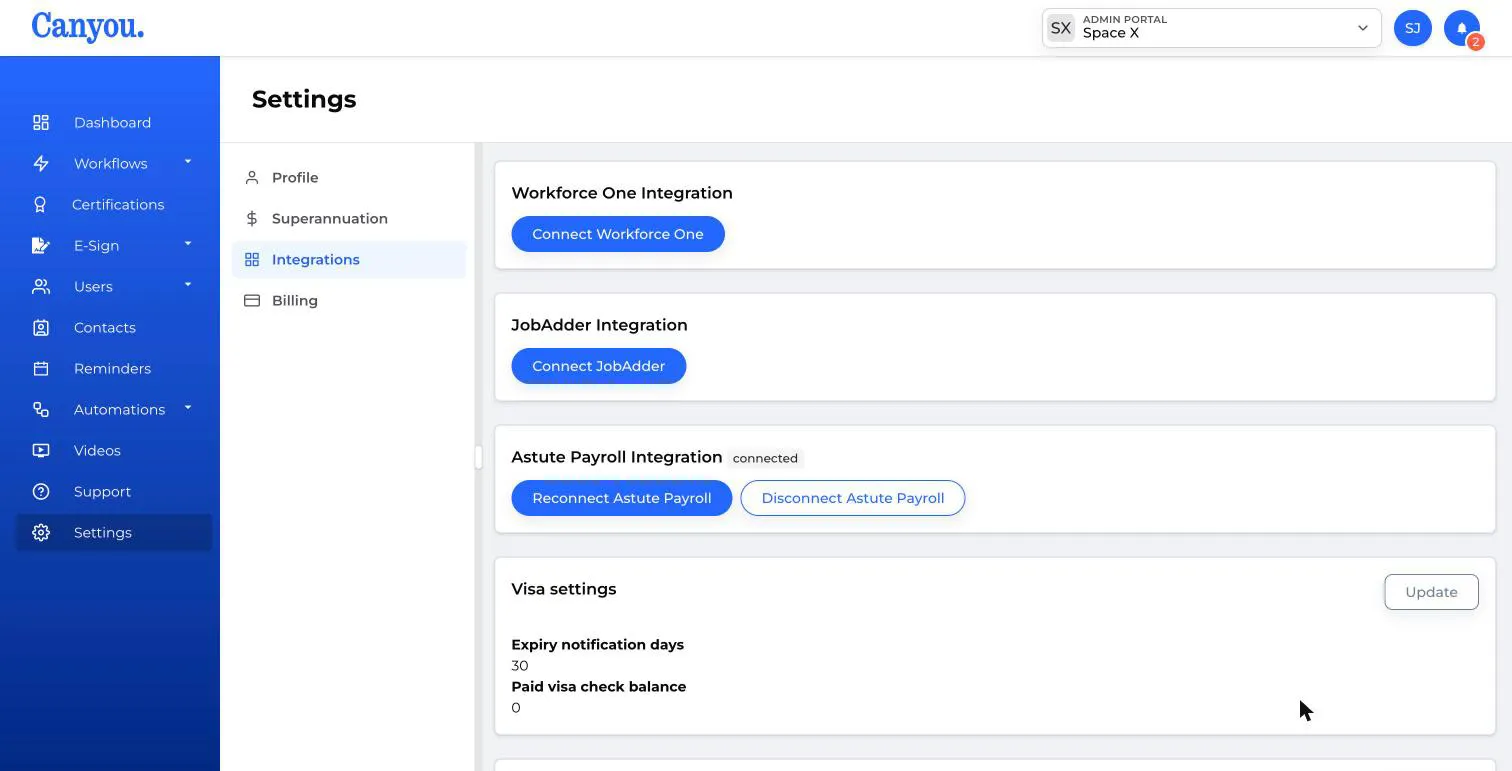
Your business is now connected, shown by the connected badge next to Astute Payroll.
If Canyou can't connect, nothing is saved and you'll see a message asking you to check the details. Make sure the portal address is right, the API username and password are typed exactly, and Astute Payroll has turned on API access for that user.
After you connect
Canyou loads your billers, workplaces, pay cycles, approvers, pay through entities, tax tables, employment eligibility options and visa types from Astute Payroll in the background. These fill the dropdowns when you sync a user, and Canyou refreshes any list that's more than an hour old when you open a sync.
If you've just connected and see "still loading" when you sync a user, wait a minute and try again.
Reconnecting or disconnecting
- Click Reconnect Astute Payroll to enter new details, for example if your API password changes.
- Click Disconnect Astute Payroll, then confirm, to disconnect. The Astute Payroll employee ID saved on each user's profile is kept, so if you reconnect to the same portal, later syncs still update the right employees.
Great job, you're now connected to Astute Payroll!
NextSyncing employees to Astute Payroll