Connecting to JobAdder
Follow this guide to connect your Canyou business to JobAdder.
You'll need the Manage integrations permission in Canyou, and a JobAdder login that can approve access for your JobAdder account.
Connecting
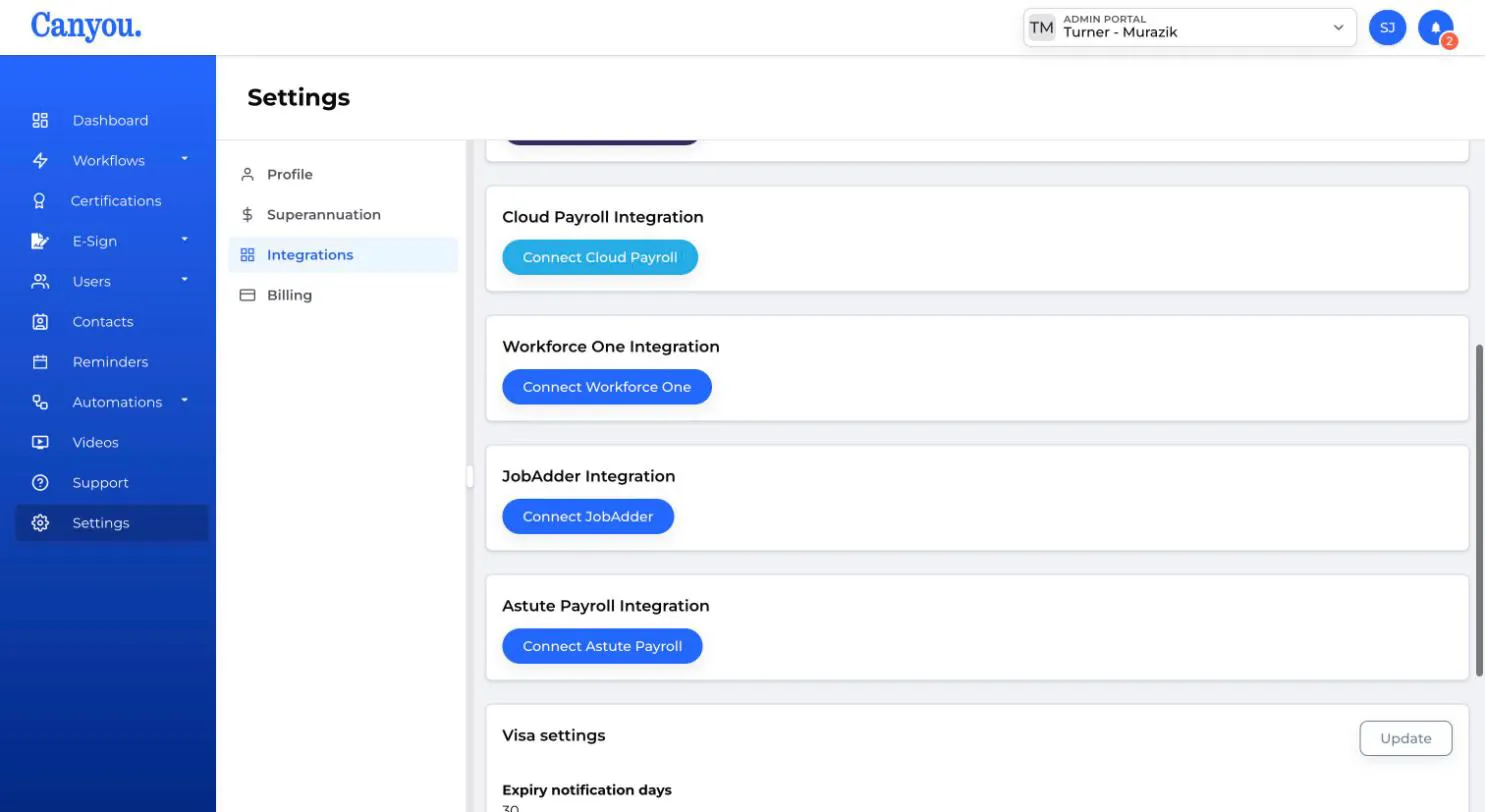
- Navigate to Settings > Integrations, then click the Connect JobAdder button.
-
You'll be taken to JobAdder. Sign in and approve access for Canyou.
-
You'll be returned to Canyou. Your business is now connected, shown by the connected badge next to JobAdder.
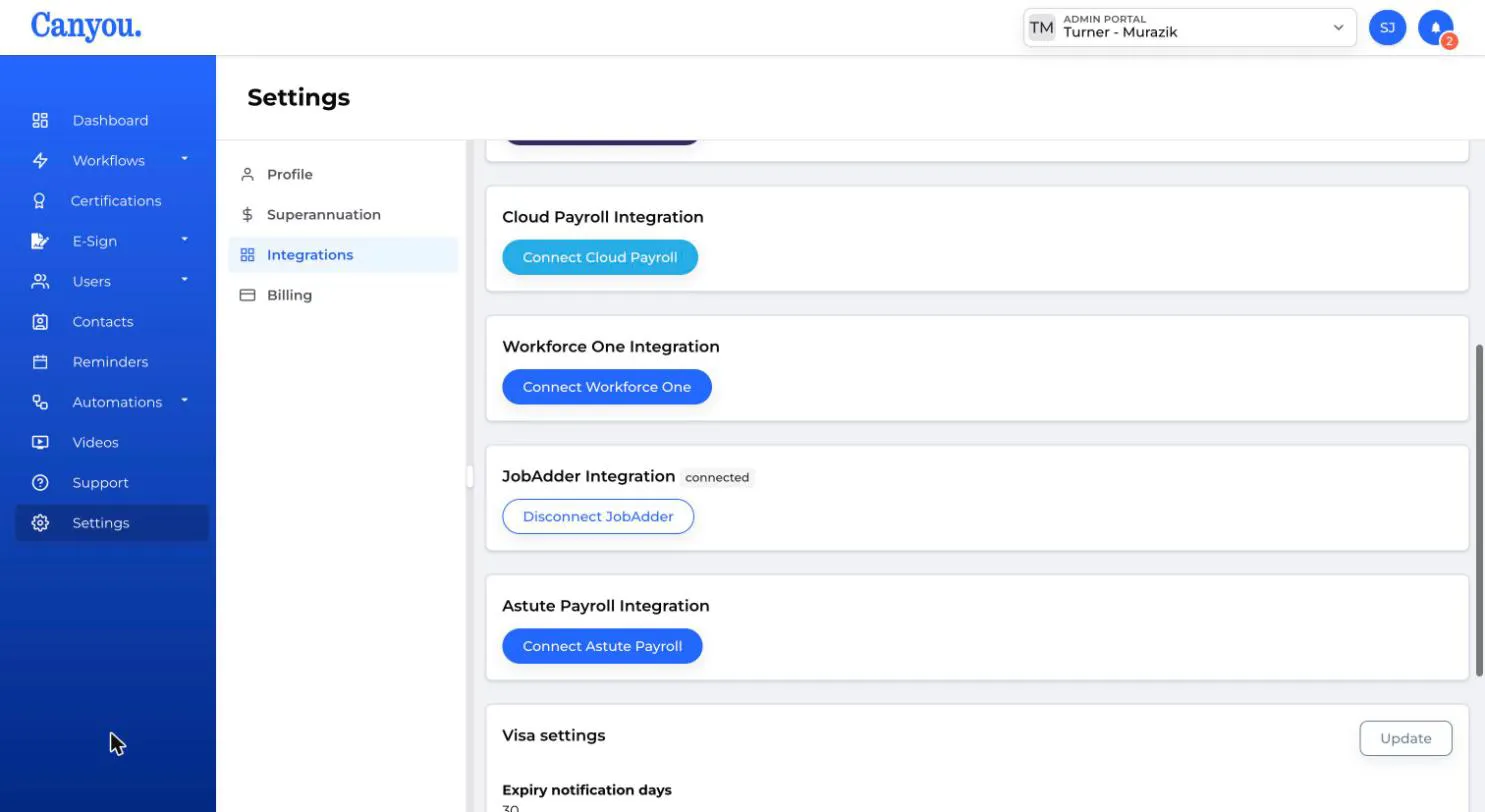
The same person needs to start and finish the connection, so don't share the JobAdder sign-in link with someone else.
After you connect
- Canyou starts loading your placements from JobAdder straight away, so the import list is ready within a few minutes. Learn how to import placements.
- The Onboard in Canyou button is added to placement and candidate records in JobAdder. If you reconnect later, the same buttons are updated rather than added again.
- Canyou checks JobAdder for new and changed placements every 6 hours. This also keeps your connection active.
One Canyou business per JobAdder account
A JobAdder account can only be connected to one Canyou business. If you connect a JobAdder account that's already connected to another Canyou business, the other business is disconnected without warning. Check with your team before connecting if you have more than one Canyou business.
If the connection expires
If JobAdder stops accepting the connection, for example because nobody has used it for 14 days, Canyou shows Access has expired. Please reconnect your integration. Click Connect JobAdder and approve access again. Your users' JobAdder links are kept.
Disconnecting
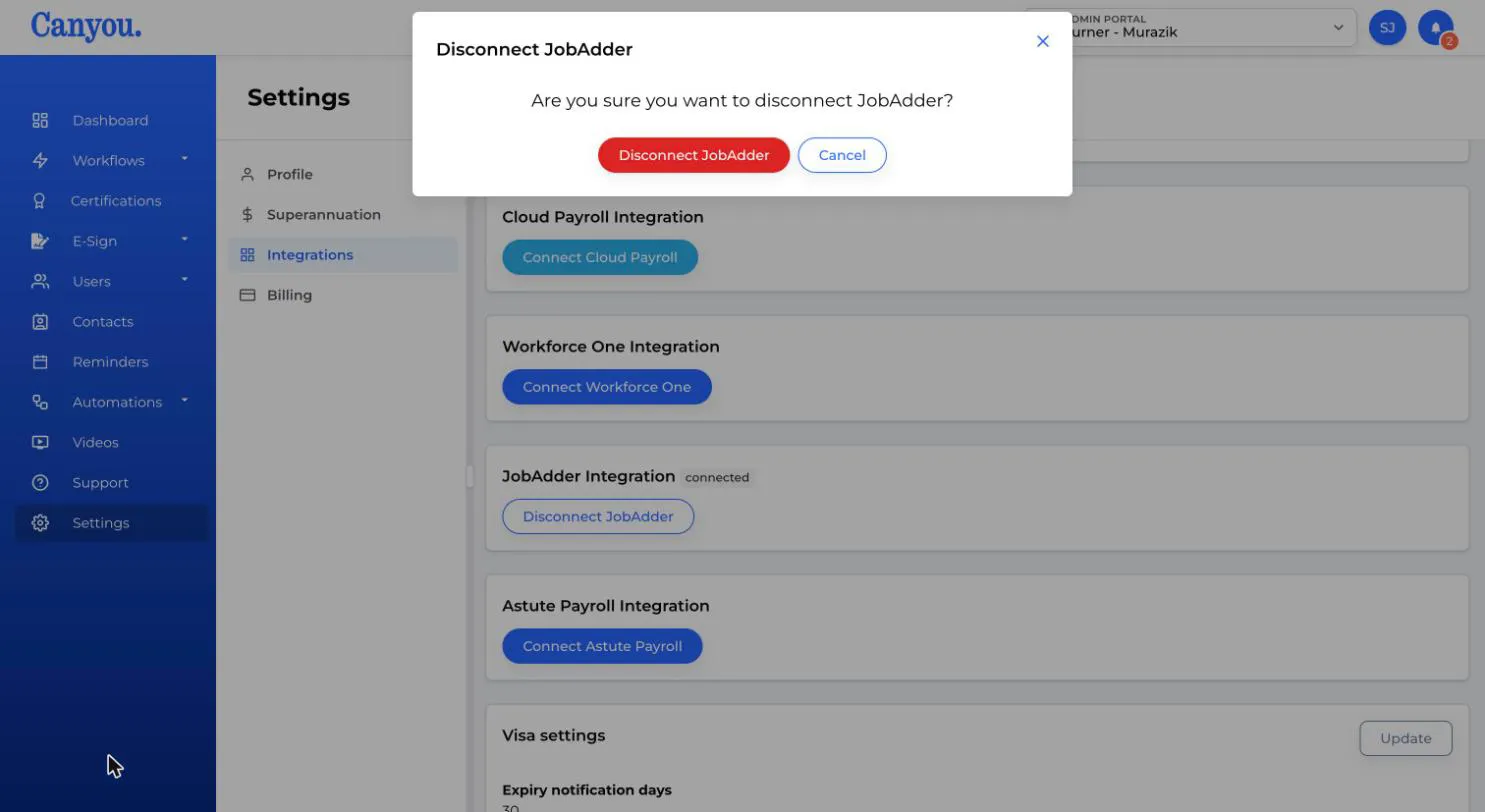
Click Disconnect JobAdder, then confirm. Canyou removes the Onboard in Canyou buttons from JobAdder and stops loading placements. Each user's JobAdder candidate ID and placement ID stays on their profile.
Great job, you're now connected to JobAdder!
NextImporting placements from JobAdder