Creating a Reminder 🔔
Reminders notify chosen people ahead of an important date - either a date that lives on each user's profile, like a start date, or a single date for the whole business, like an insurance renewal.
What it does
A reminder is a rule you set up once. Canyou then works out which dates it applies to and sends notifications ahead of each one, based on the lead times you choose.
There are two kinds of reminder:
- From each user's profile - tracks a date stored on each user, such as a start date or visa expiry. The reminder runs separately for every user who has that field filled in.
- A specific date - one date for the whole business, such as an insurance renewal or lease expiry. This sends a single notification, not one per user.
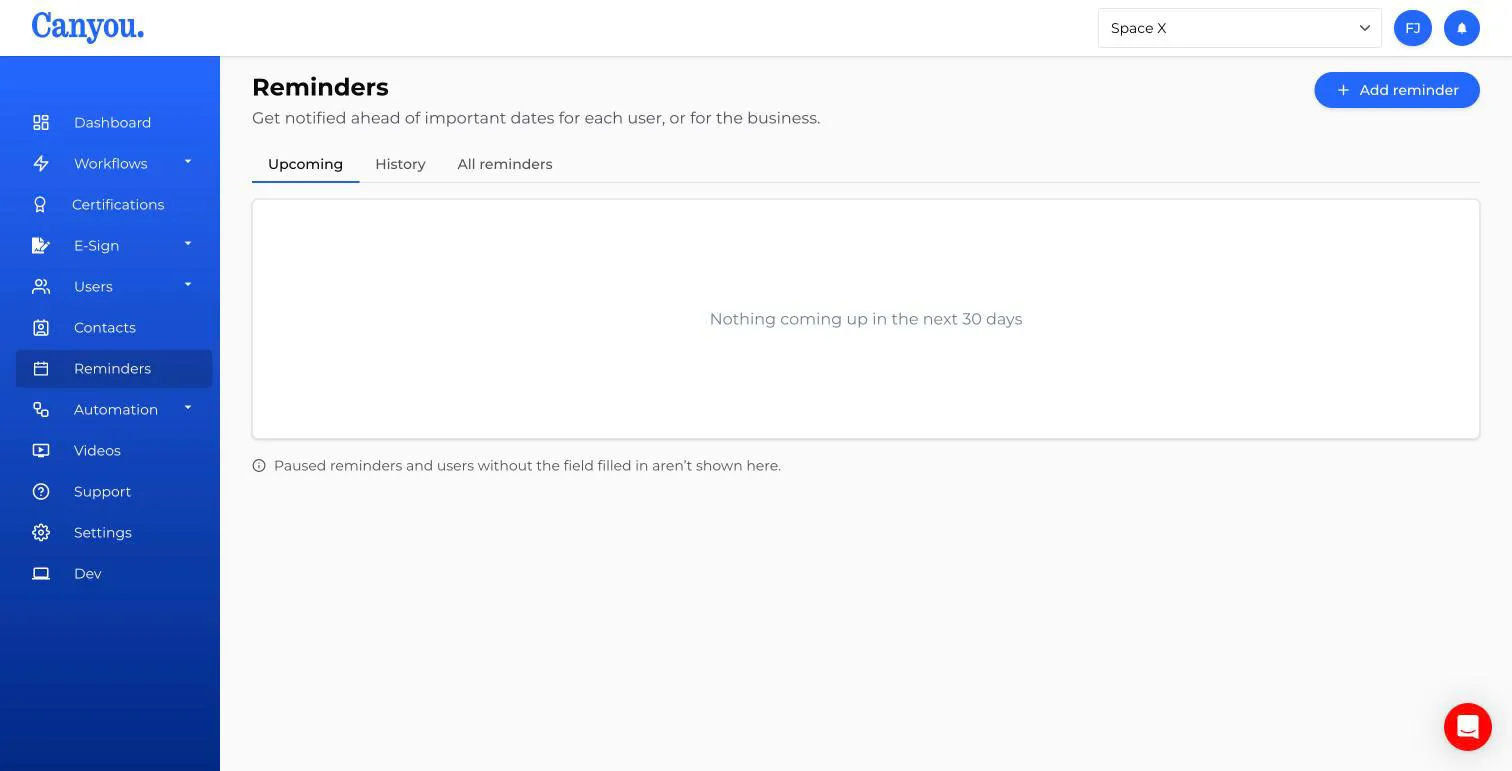
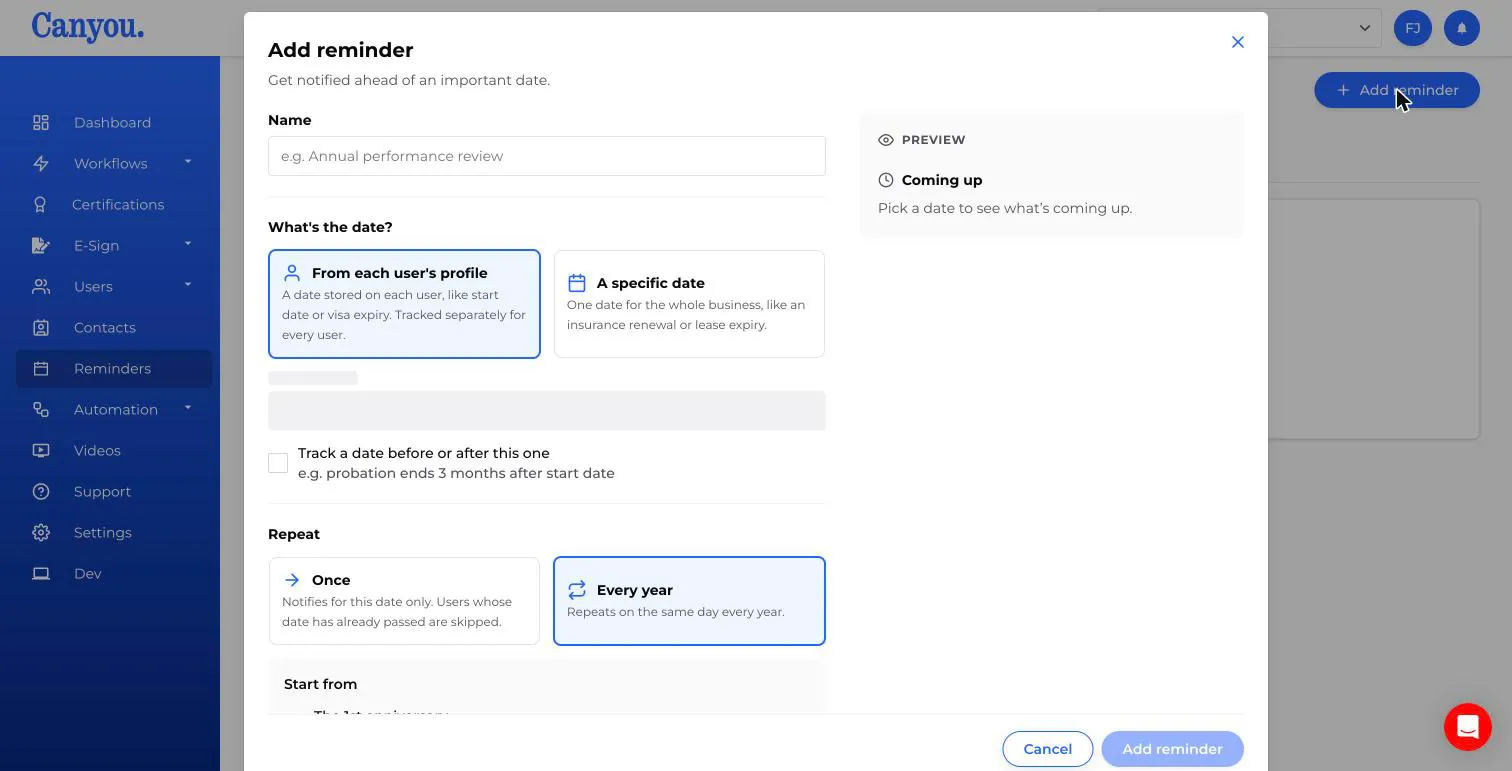
To get started, go to Reminders in the left-hand menu and click Add reminder.
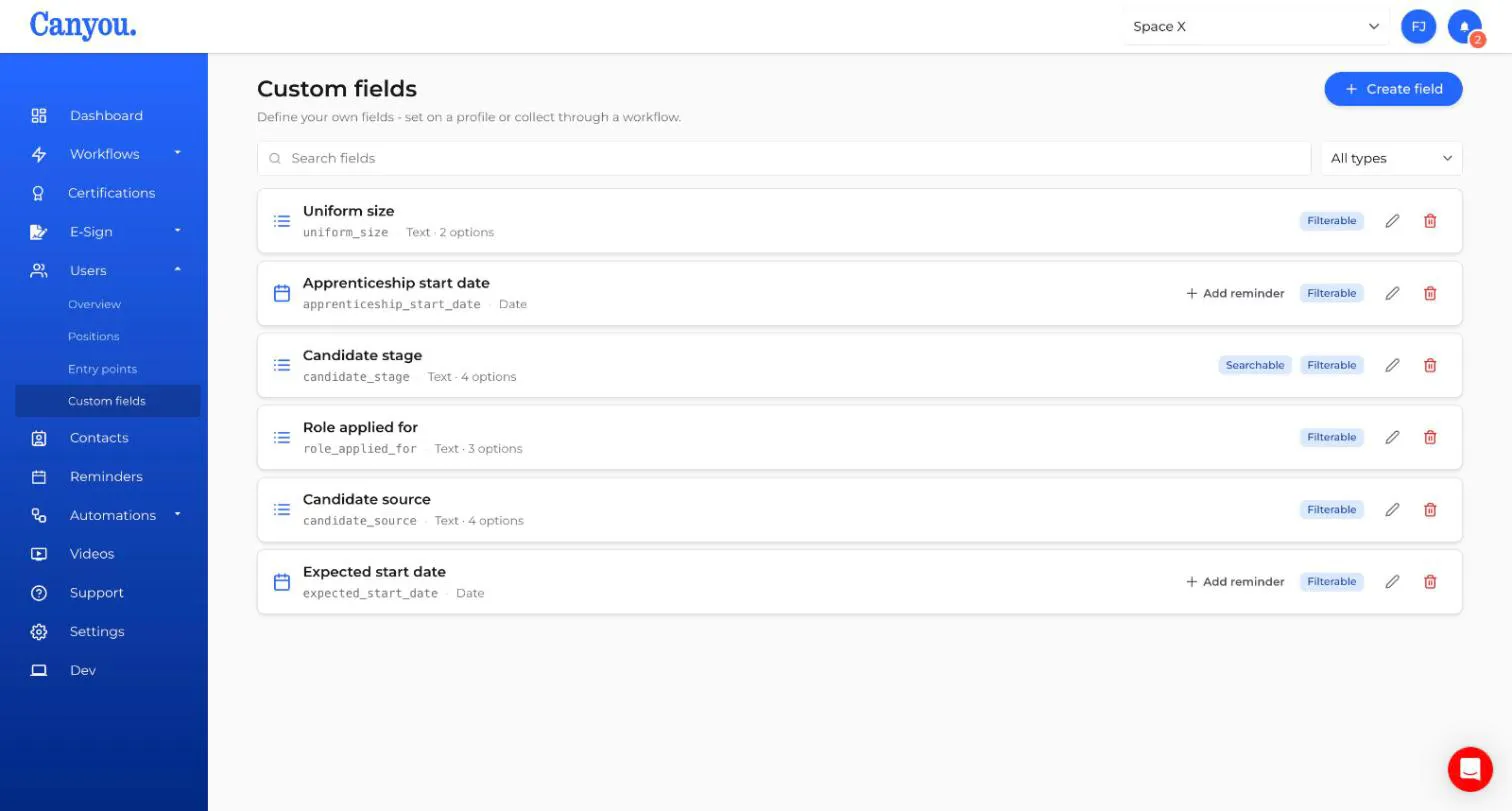
You can also start a reminder from a date custom field. Go to Users > Custom fields and click Add reminder next to any date field. The reminder opens with that field already chosen. Fields that already have reminders show how many they have.
Example 1 - A reminder from a custom field (Apprenticeship date)
This example sets up a reminder for an apprenticeship review, based on a custom field called Apprenticeship start date that's already set up on each user's profile.
-
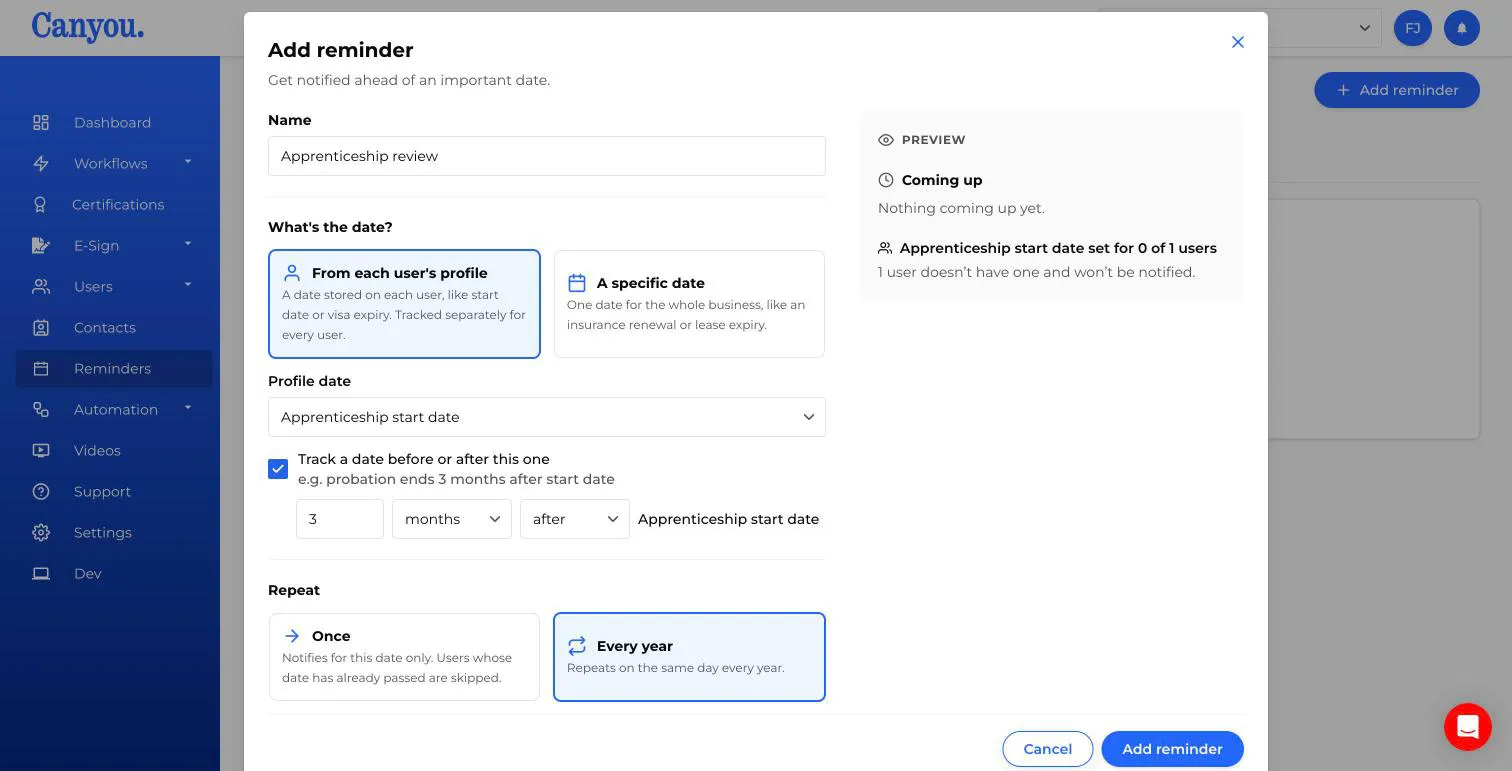
Give the reminder a Name, e.g. "Apprenticeship review".
-
Under What's the date?, choose From each user's profile, then pick the field from the Profile date dropdown - in this case, Apprenticeship start date.
-
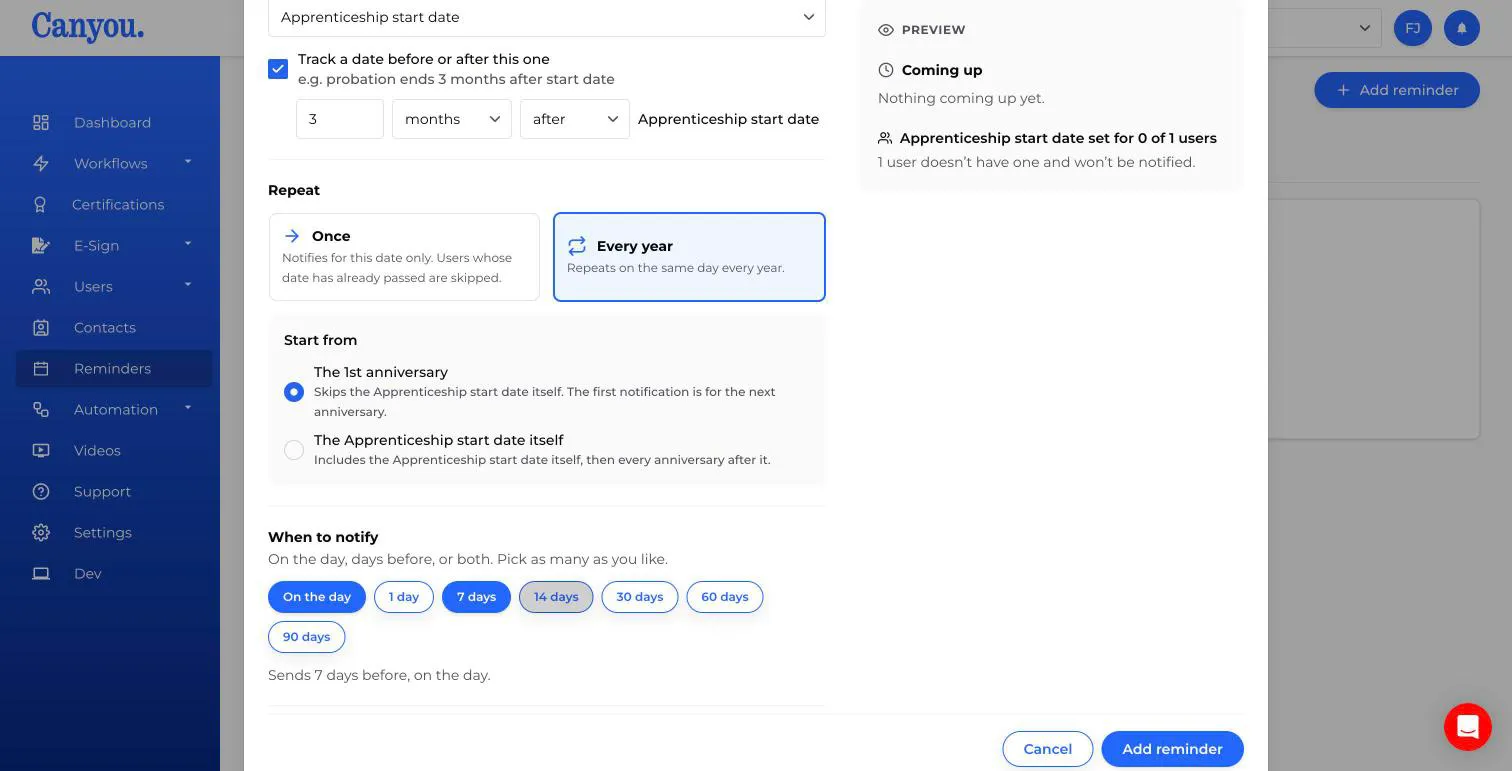
If the reminder isn't about the date itself but something that happens relative to it, tick Track a date before or after this one. Here, the apprenticeship review happens 3 months after the start date, so the reminder is set to track 3 months after the Apprenticeship start date.
-
Choose how often it Repeats:
- Once - notifies for this date only. Users whose date has already passed are skipped.
- Every year - repeats on the same day every year.
-
When Every year is selected for a profile-based reminder, choose Start from:
- The 1st anniversary - skips the date itself. The first notification is for the next anniversary.
- The [field] itself, e.g. "The Apprenticeship start date itself" - includes the date itself, then every anniversary after it.
-
Under When to notify, pick as many lead times as you like - on the day, days before, or both. The summary line below confirms what you've chosen, e.g. "Sends 7 days before, on the day."
-
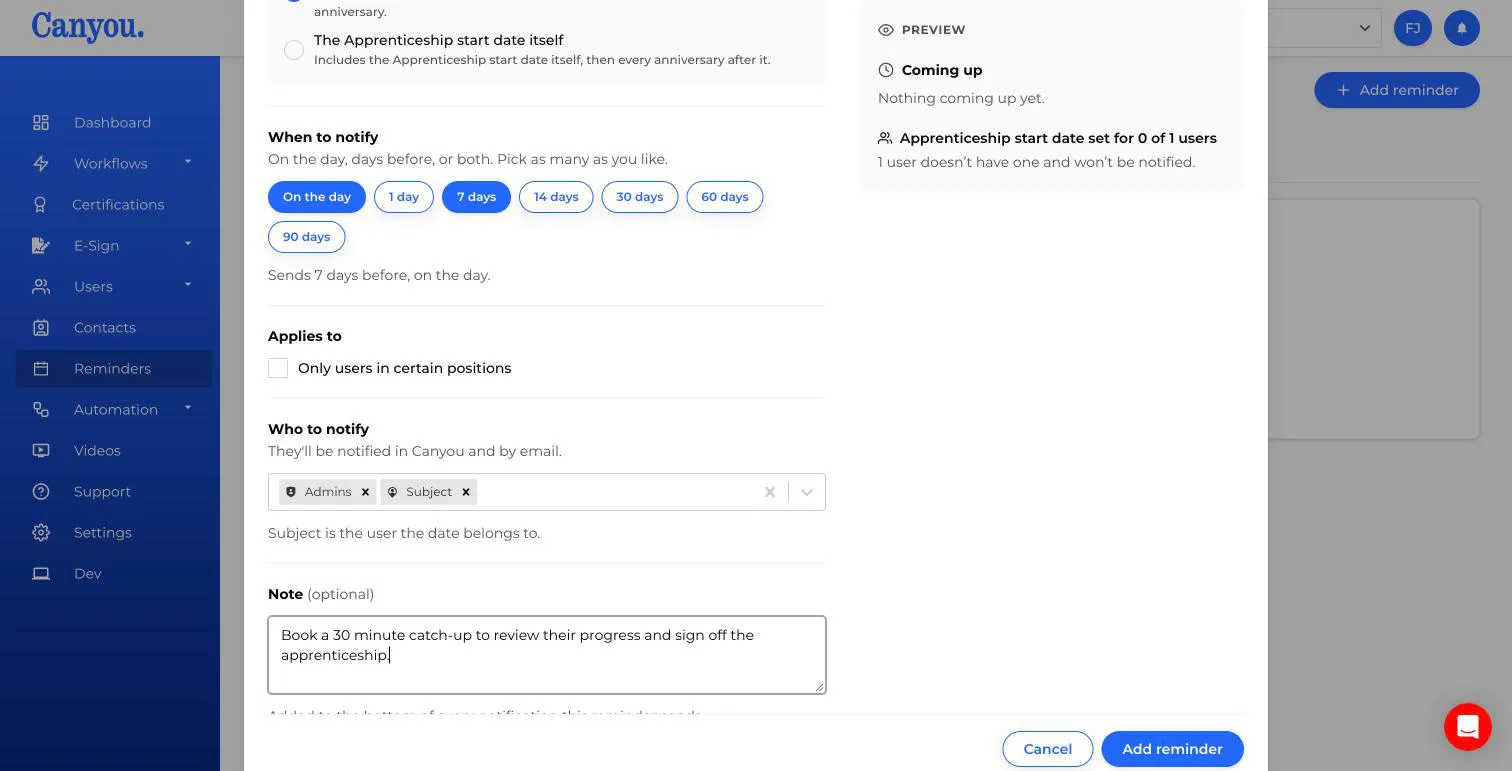
If this reminder should only apply to certain people, tick Only users in certain positions under Applies to and choose which ones. Leave it unticked to apply to every user with the field filled in.
-
Under Who to notify, choose who receives the notification, in Canyou and by email. You can mix Admins, specific positions, specific people, and Subject - the user the date belongs to.
-
Add an optional Note. It's added to the bottom of every notification this reminder sends.
- Click Add reminder to save.
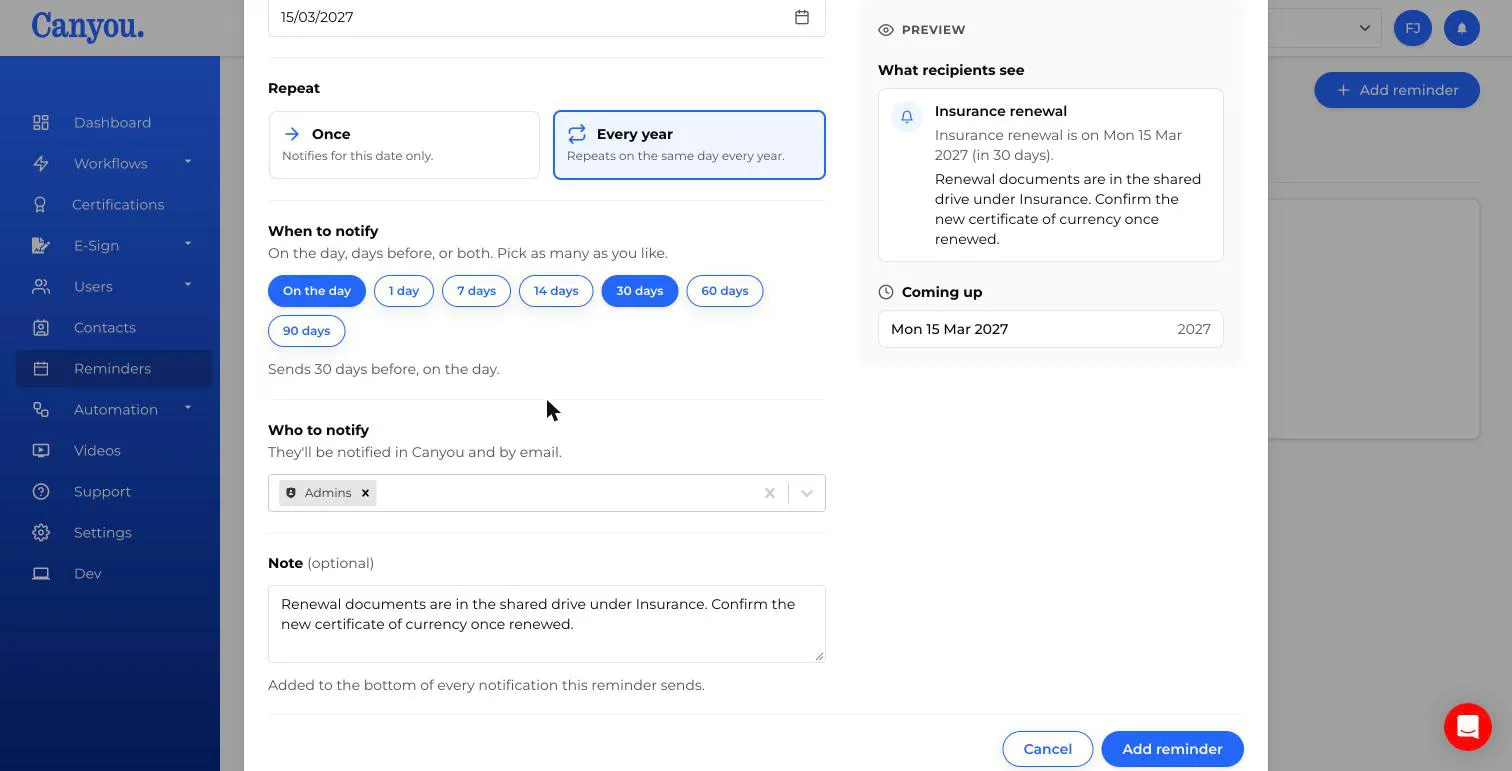
Example 2 - A reminder on a specific date (Insurance renewal)
This example sets up a business-wide reminder for an insurance renewal - a single date that isn't tied to any user.
-
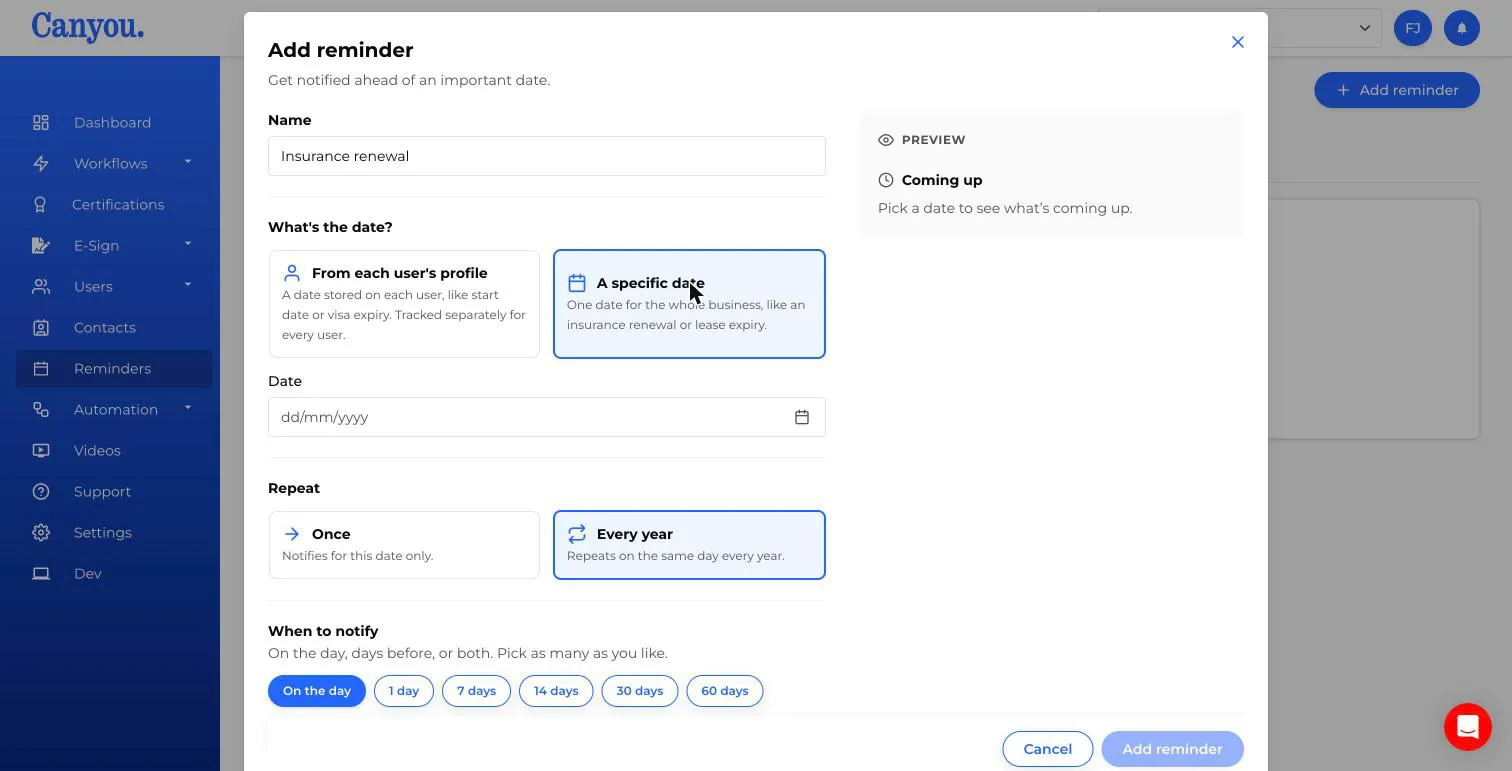
Give the reminder a Name, e.g. "Insurance renewal".
-
Under What's the date?, choose A specific date, then pick the date in the Date field.
-
Choose how it Repeats - Once for a one-off date, or Every year if it recurs annually, like most insurance renewals.
-
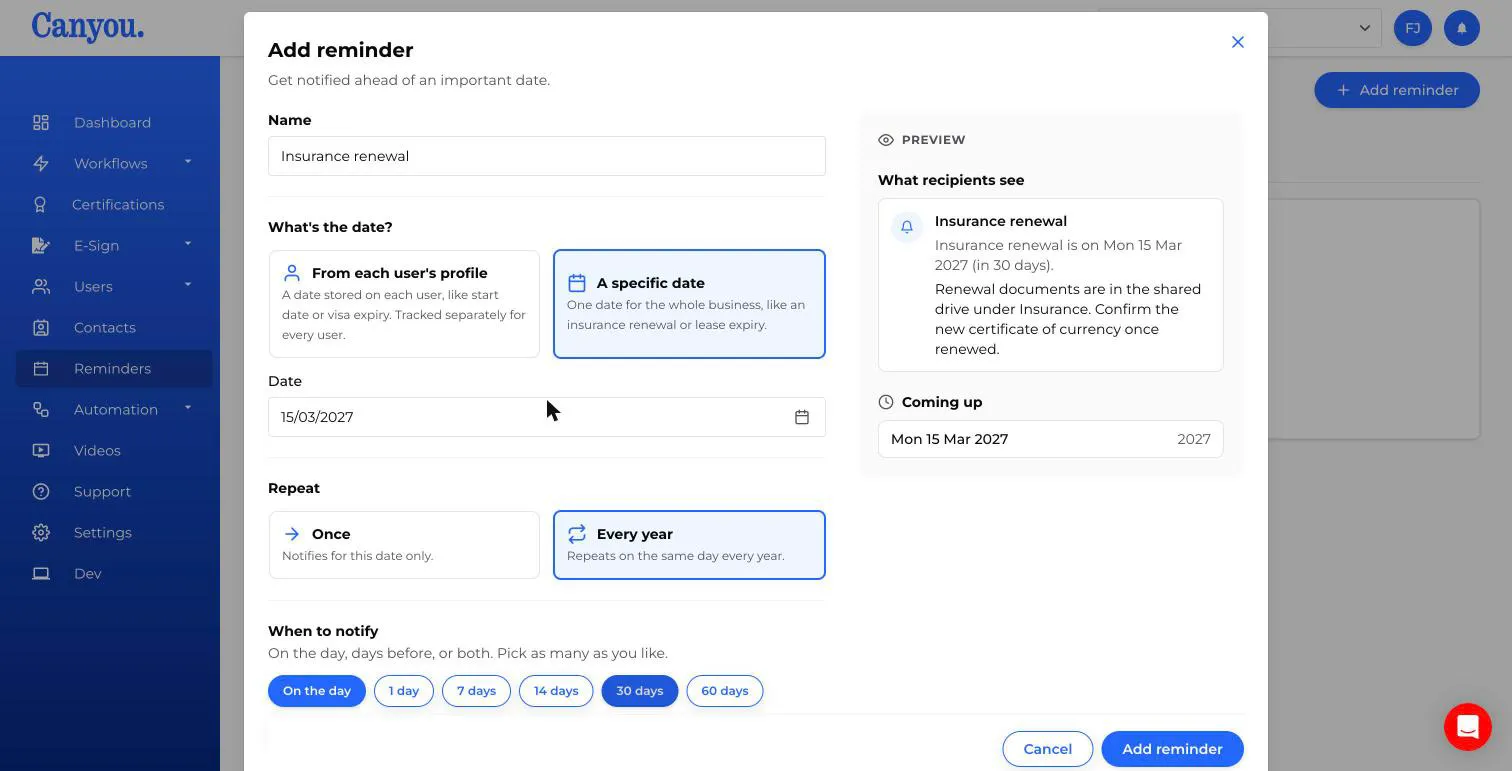
Pick your lead times under When to notify. For something like an insurance renewal, it's worth giving yourself enough runway - here, 30 days and On the day are both selected.
As you fill in the form, the Preview panel on the right shows exactly what recipients will see, and when the next notification is coming up.
-
There's no Applies to section for a specific date reminder, since it isn't tied to individual users.
-
Under Who to notify, choose who should be notified - for a business-wide date, this is usually Admins.
-
Add an optional Note with anything recipients need to know, such as where to find renewal paperwork. Added notes show up directly in the preview too.
- Click Add reminder to save.
Mark a reminder as done
Once you've dealt with a date, mark it done so nobody is notified about it again.
- On the Upcoming tab, hover over the date and click Mark done.
- Reminders that are due also show on your dashboard under Reminders, with a Mark done button.
Marking a date done stops any notifications still to come for that date. For a reminder from each user's profile, it only affects that one user. Done dates move to the History tab, which shows who marked them done and when. Click Undo there if you marked one done by mistake.
A few things to know
- Once saved, a reminder appears under the All reminders tab, grouped by whether it's from a custom field or a specific date. The Upcoming tab shows what's due in the next 30 days, and History shows what's already been sent or marked done.
- Paused reminders and users without the relevant field filled in don't show up on the Upcoming tab.
- If a user's field value changes, is cleared, or they're archived, any pending notification for them is automatically cancelled - past notifications are left alone.
- A reminder can be paused and resumed at any time from its edit screen, without losing its settings.
- Recipients are notified both in Canyou and by email.
NextCreating and Using a Custom Field