Importing Placements from JobAdder
Follow this guide to add candidates from your JobAdder placements as users in Canyou.
Before starting ensure you've connected JobAdder (learn how to do that here). You'll need permission to add users in Canyou.
Which placements are listed
The import list shows approved placements that started in the last 90 days or start in the future. A placement is hidden if:
- the candidate has no valid email address in JobAdder, or
- a Canyou user with that email is already in your business.
Canyou checks JobAdder for new and changed placements every 6 hours, and again when you open the list if it hasn't checked in the last hour. A placement you've just approved in JobAdder can take a few minutes to appear.
Importing a placement
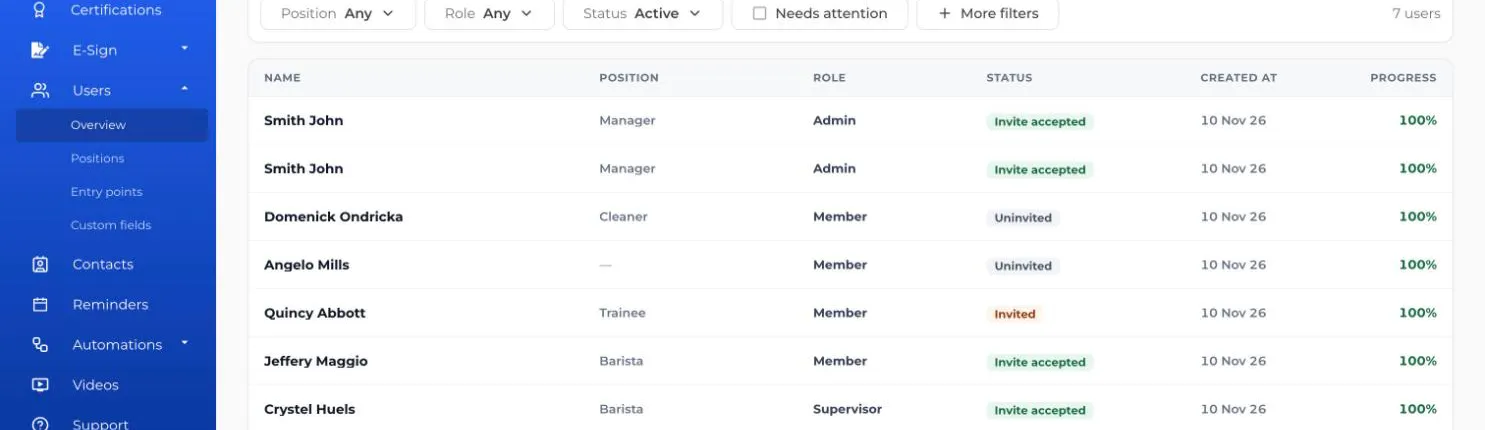
- From the Users menu, click the Import from JobAdder button.
- Find the placement. Each one shows the candidate's name, then the job title, company and start date.
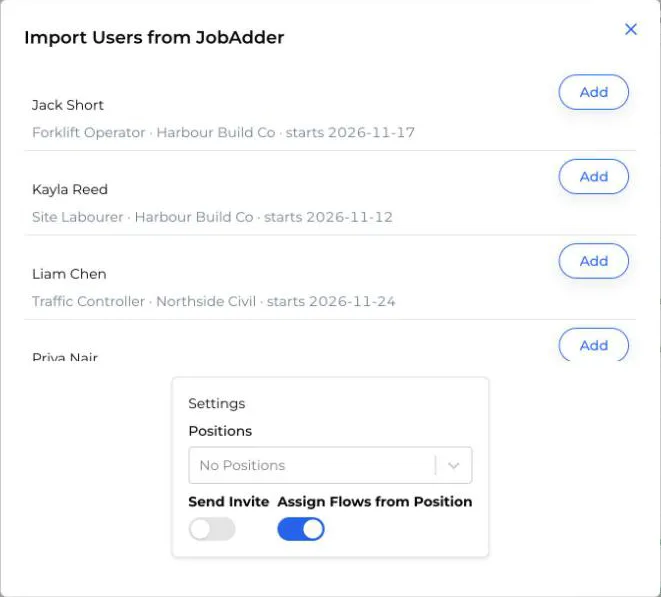
- Under Settings, choose:
- Positions: the positions to give the new user.
- Send Invite: switch on to email the user their invite now. It's off unless you change it.
- Assign Flows from Position: switch on to assign the workflows set up for those positions. It's on unless you change it.
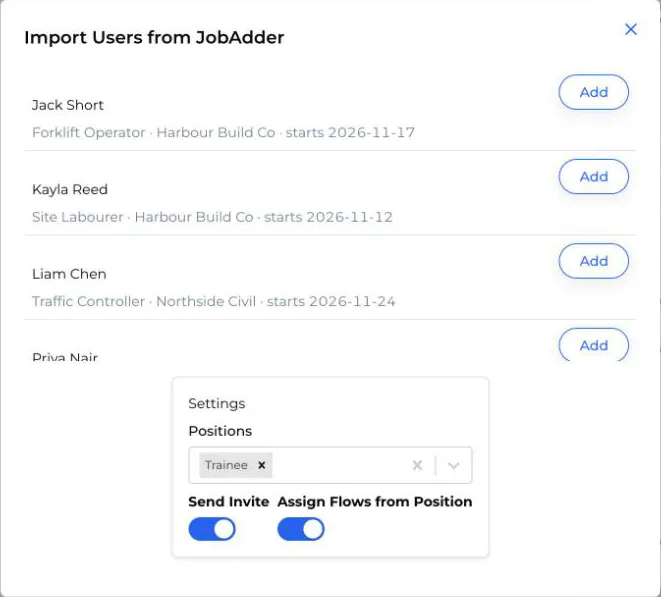
- Click Add next to the placement.
The candidate is added as a user with their name, email and mobile from JobAdder. Canyou saves their JobAdder candidate ID and placement ID on their profile, along with when they were imported, so the Onboard in Canyou button in JobAdder shows the same user.
If the list is empty
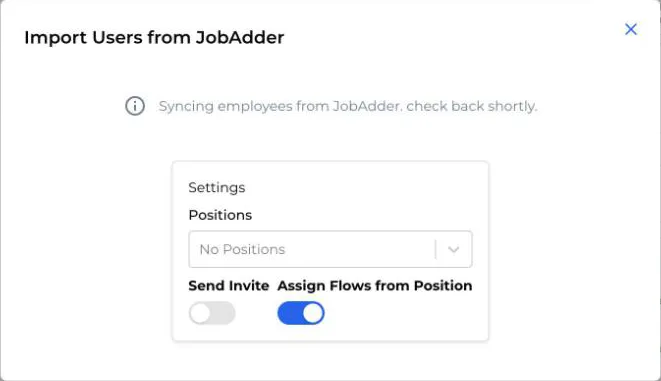
- Syncing employees from JobAdder: you've just connected and Canyou is still loading your placements. Check back shortly.
- No JobAdder employees left to import: every recent placement is either already in Canyou or has no valid email. Check the candidate's email and that the placement is approved in JobAdder.