Creating and Using a Custom Field
This walks through the whole life of a custom field, using uniform size as the example: creating it, binding it to a workflow question so it fills in automatically, seeing it on a person's profile, and filtering your Users page by it.
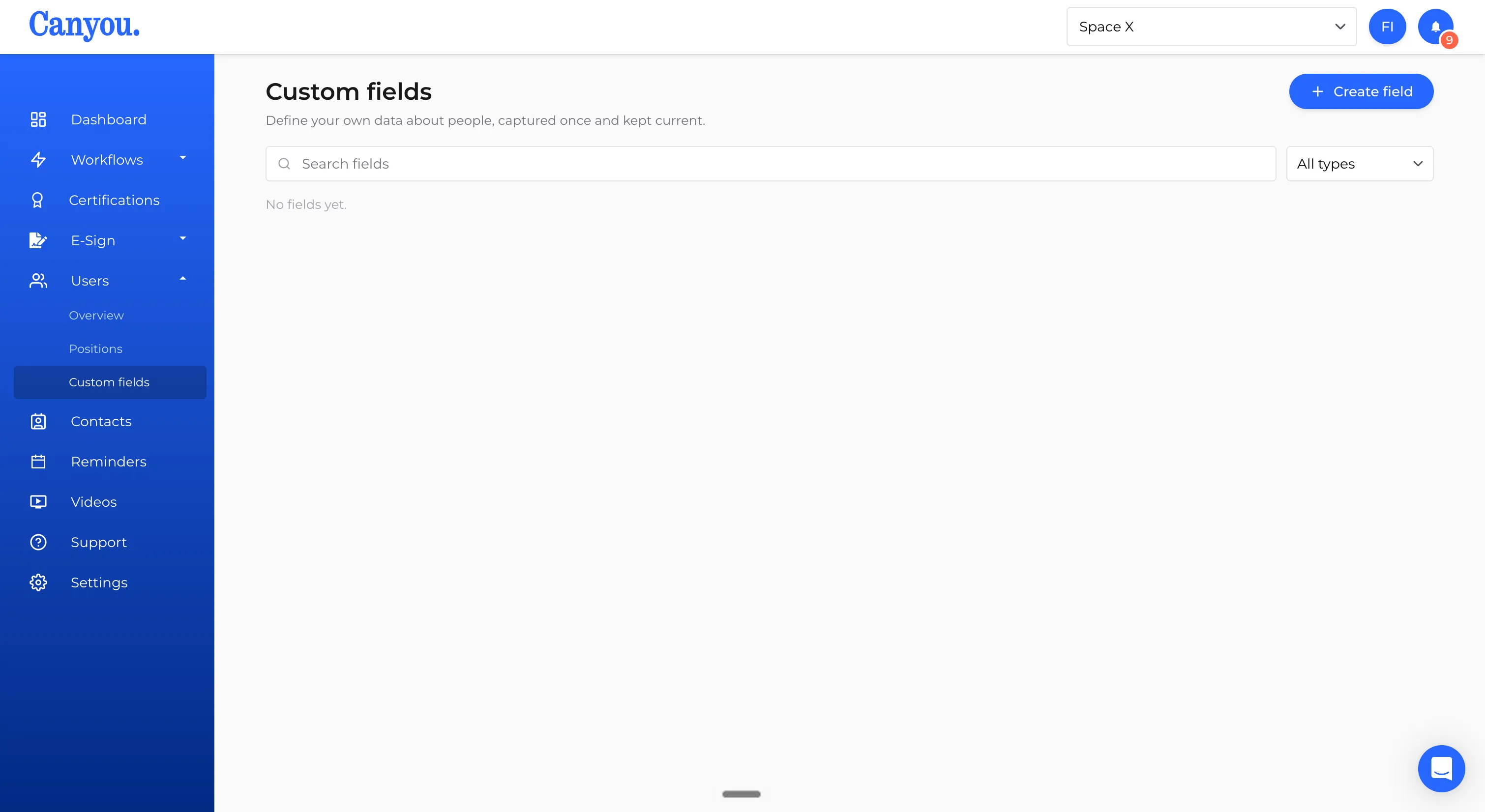
- Go to Users > Custom fields and click Create field.
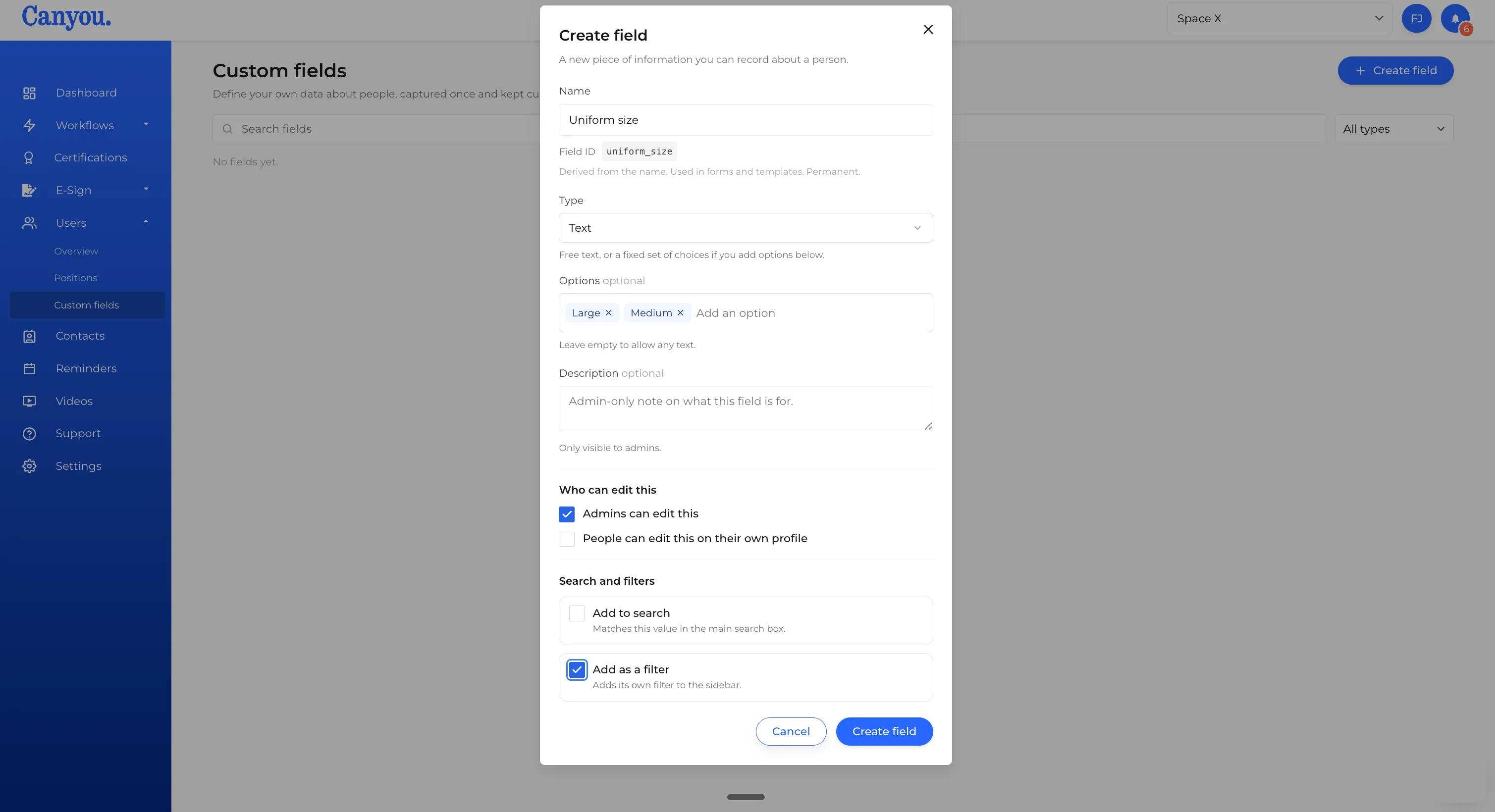
- Fill in the field's details:
- Name - what admins see, e.g. "Uniform size". Typed as you go.
- Field ID - derived automatically from the name (e.g.
uniform_size). It's used to reference this field in forms and templates, and can't be changed later. - Type - see step 3.
- Options (optional, Text fields only) - leave empty for free text, or add entries to turn this into a fixed set of choices.
- Description (optional) - an admin-only note on what the field is for. It's never shown to the person it's about.
- Who can edit this - tick Admins can edit this and/or Users can edit this on their own profile, depending on who should be able to set the value.
- Add to search - tick this if you want to be able to find someone by typing this field's value into search on the Users page.
- Add as a filter - tick this if you want to be able to narrow down the Users list using this field. It's added to the More filters menu on the Users page.
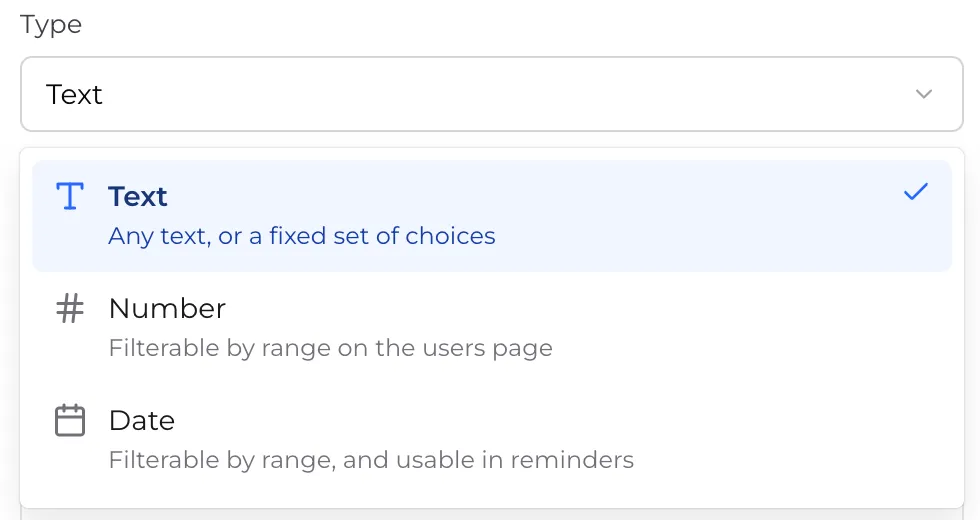
- Choose a Type:
- Text - any text, or a fixed set of choices if you add Options.
- Number - filterable by range on the Users page.
- Date - filterable by range, and usable in reminders. Date fields show an Add reminder button in your list of custom fields.
For Uniform size, leave it as Text.
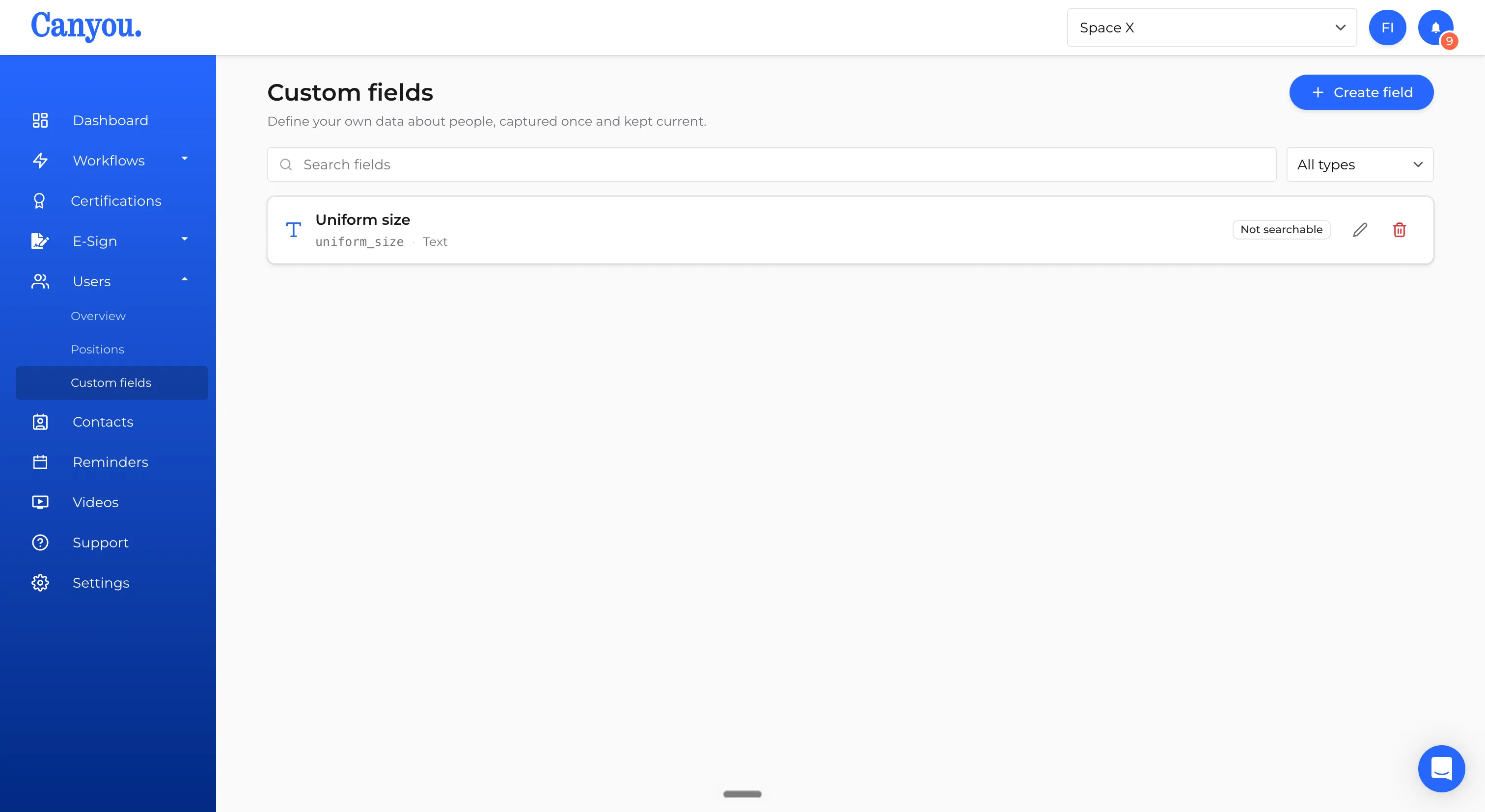
- Click Create field. It now appears in your list of custom fields, with its Field ID, type, and a badge showing whether it's currently searchable or filterable.
-
To make Uniform size easy to filter by on the Users page, edit it again: click the pencil icon, add your sizes (e.g. S, M, L, XL) under Options, which turns it into a fixed set of choices, then tick Add as a filter and save. Giving it options means you can pick a size from a list when you filter, rather than typing it.
-
You can now bind Uniform size to one or more workflow questions, so submitting any of those forms fills in the person's field automatically. Open Workflows > Designs, edit a workflow, and add or select a question. In the question editor, tick Save to a custom field and choose Uniform size from the dropdown. Repeat on any other workflow where you want the same field filled in.
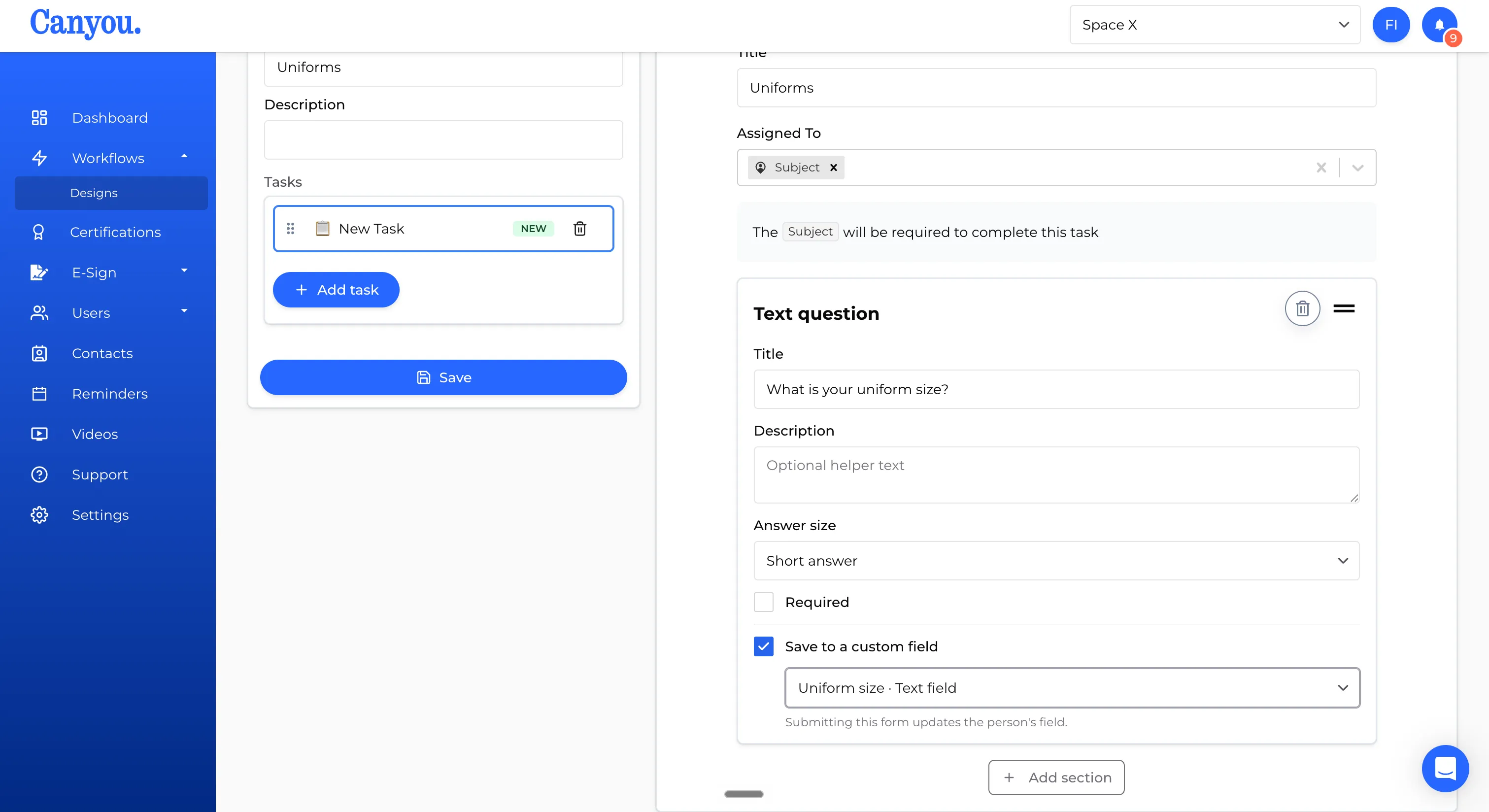
Submitting a form now updates the person's Uniform size field directly, no separate data entry required.
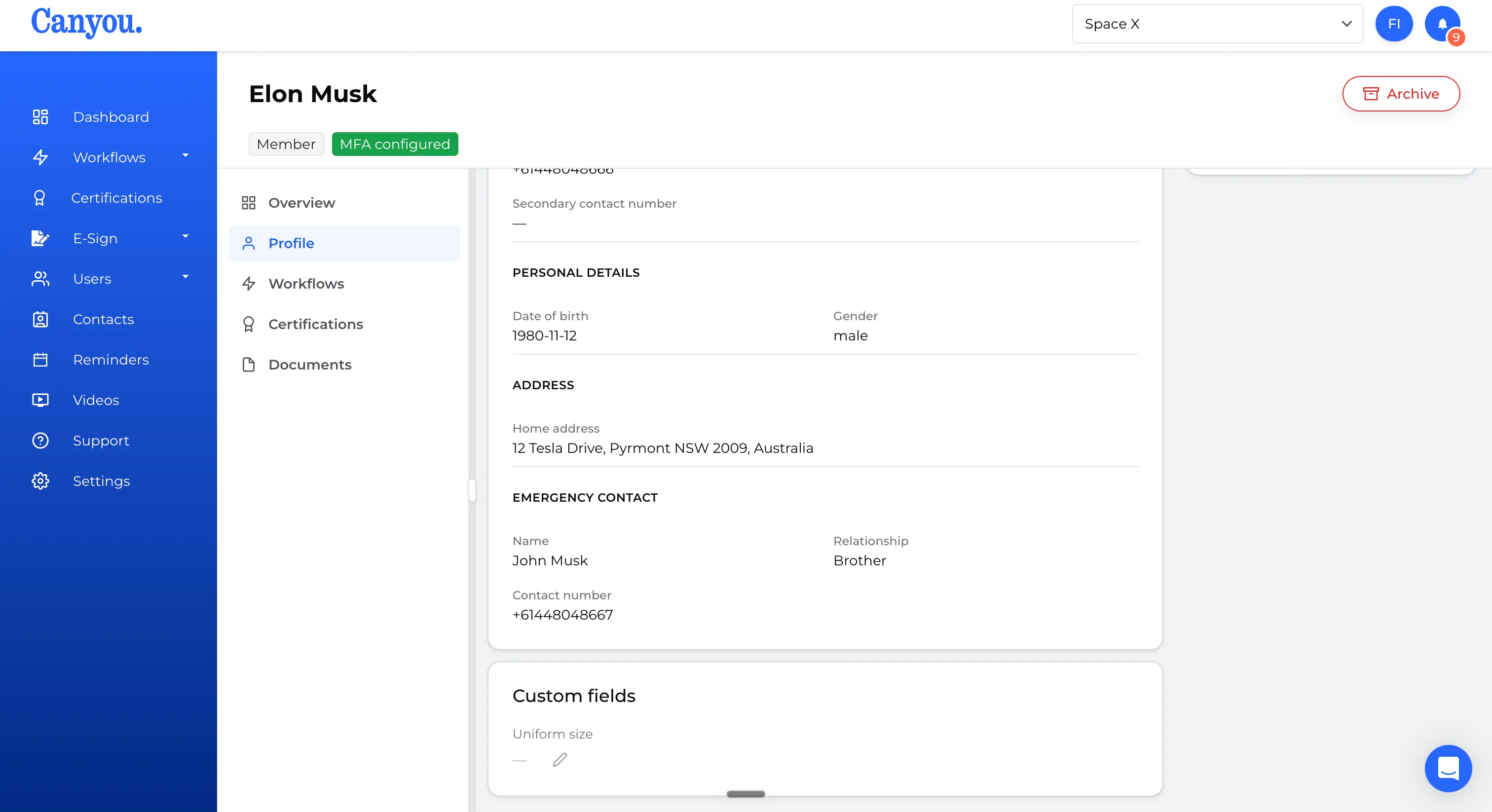
- Uniform size also shows up on the person's profile, under Custom fields. Anyone allowed to edit it (per the settings from step 2) can update it here directly using the pencil icon next to the value.
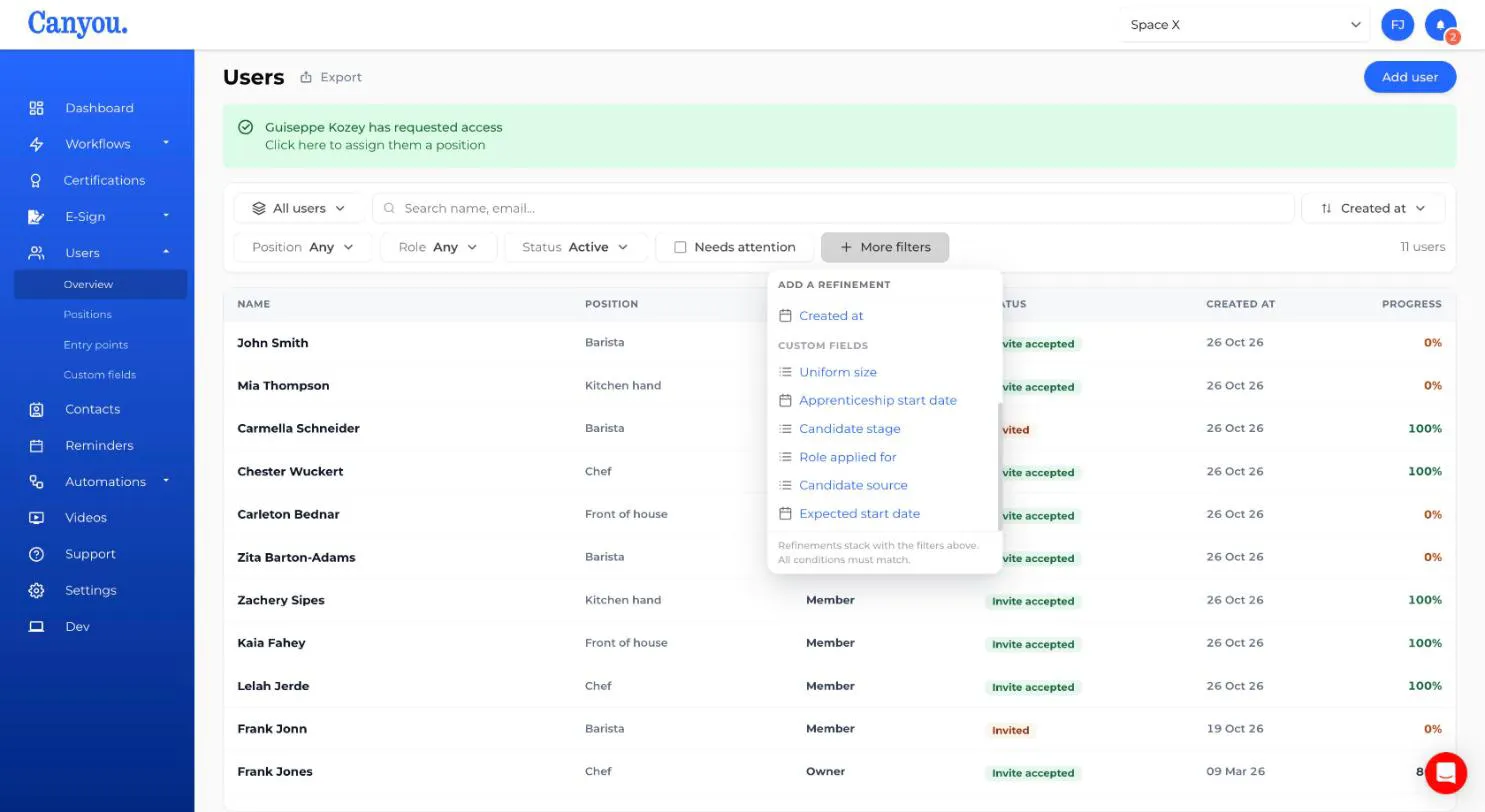
- Because Uniform size is now a filterable field, it's listed under Custom fields in the More filters menu on the Users page. Add it to narrow the list down to people of a particular size. Learn more about filtering users
- To pull this data out of Canyou, click Export at the top of the Users page, switch on Include custom fields and click Export. Once the file is ready, it downloads automatically in your browser - no need to wait around or check back. Learn more about exporting users
The exported CSV includes one column per custom field, alongside the standard columns like name, position, and email. Two things worth knowing:
- The column header uses the field's Field ID, not its display name, so
Uniform size appears as
uniform_size. This is the same Field ID you set in step 2 and can't change later, so it's worth choosing a clear one up front. - Each person's row shows that field's current value, formatted by type
(dates as
DD/MM/YYYY, everything else as plain text).
The export also respects whatever filters are currently applied on the Users page. So if you've filtered down to people with Uniform size set to L, clicking Export only exports that filtered list - custom field filters included.
That's it: the field is created, filling in automatically from one or more workflows, visible on profiles, usable to filter your Users page, and included in exports.
NextBack to Custom Fields basics