Syncing Employees to Astute Payroll
Follow this guide to send a user from Canyou to Astute Payroll as an employee.
Before starting ensure you've connected Astute Payroll (learn how to do that here). The user needs a given name and a family name, and it's best to sync once they've completed their TFN declaration, Nominate bank account and Super choice tasks, and their visa check if they have one.
Syncing a user
-
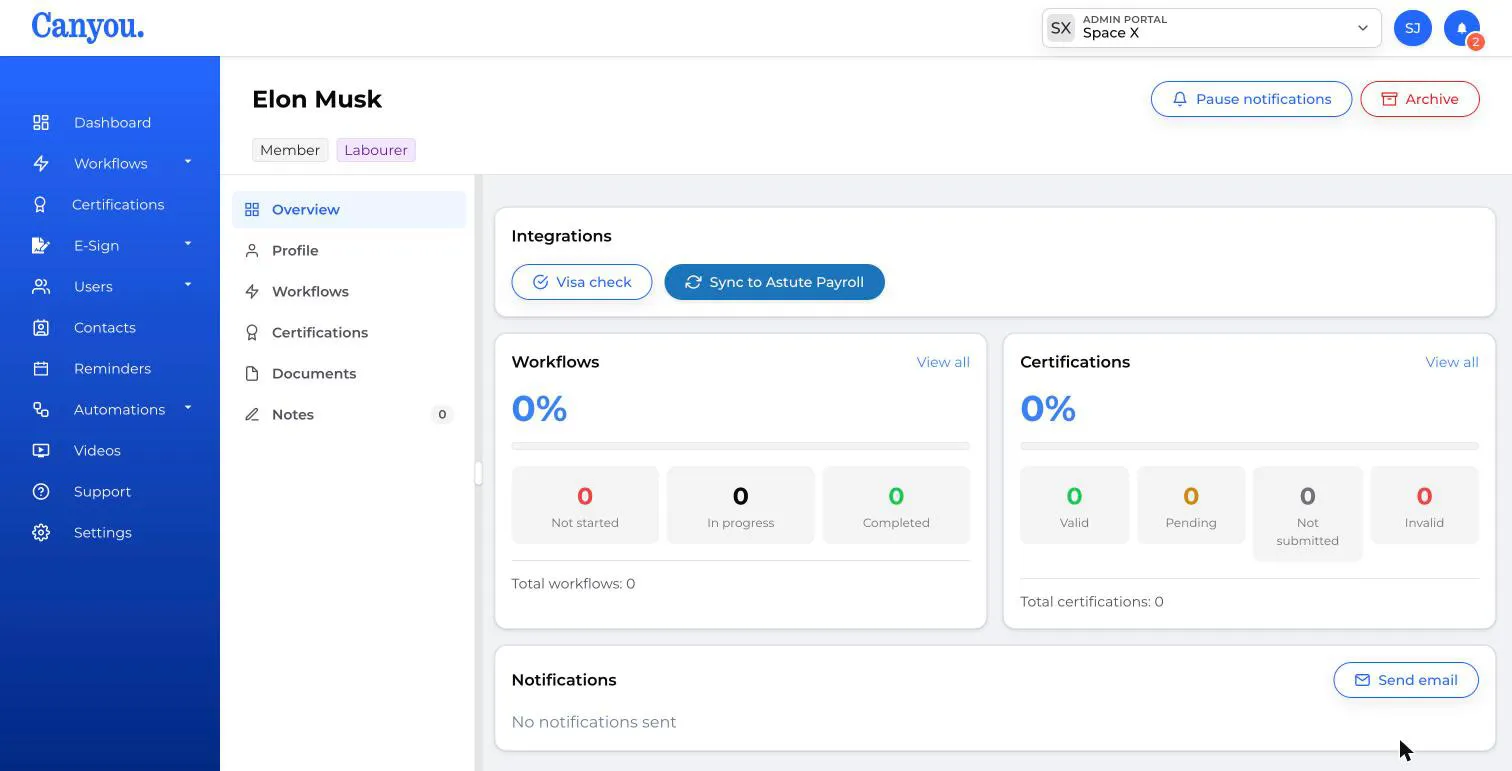
From the Users menu, click the user you want to sync.
-
Click the Sync to Astute Payroll button under Integrations.
-
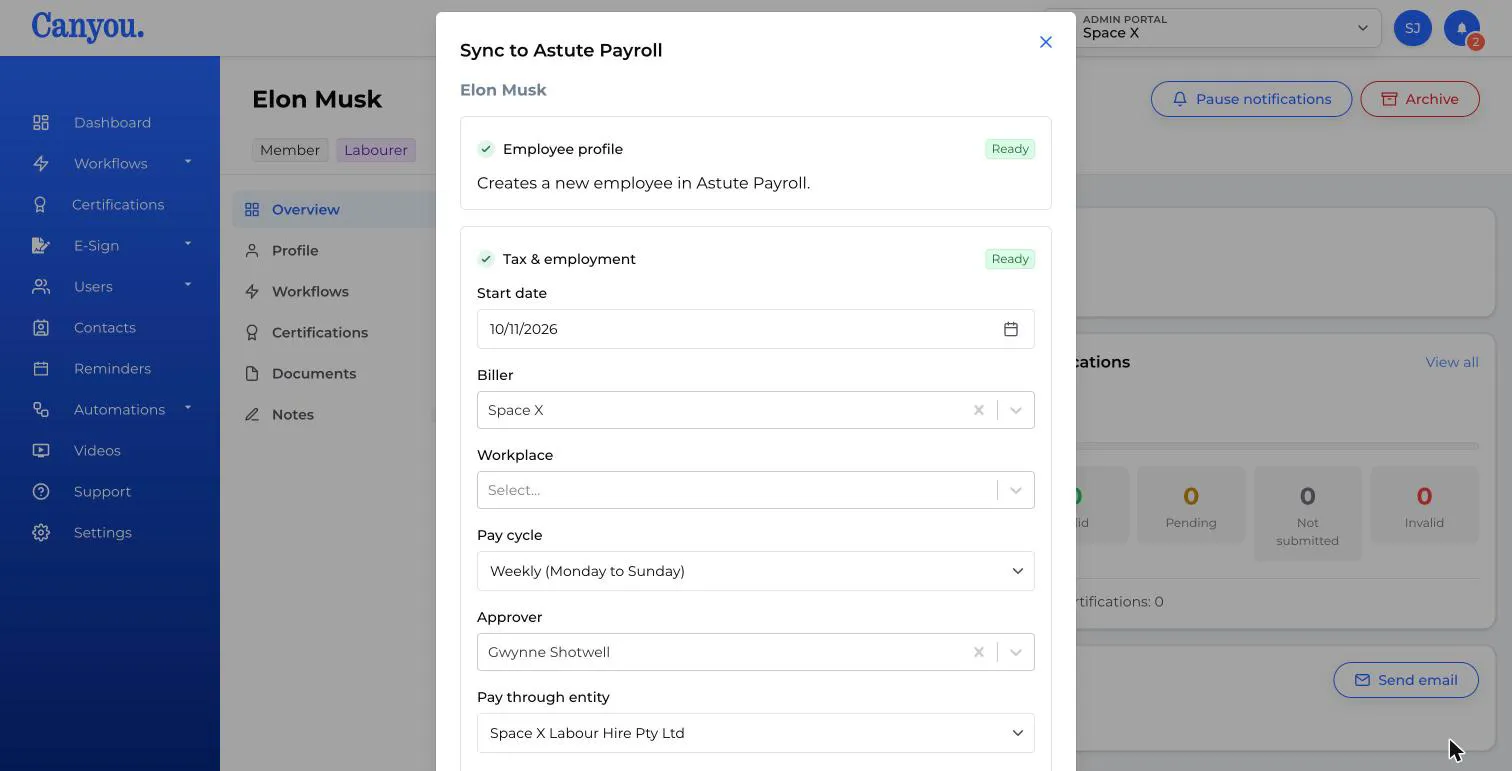
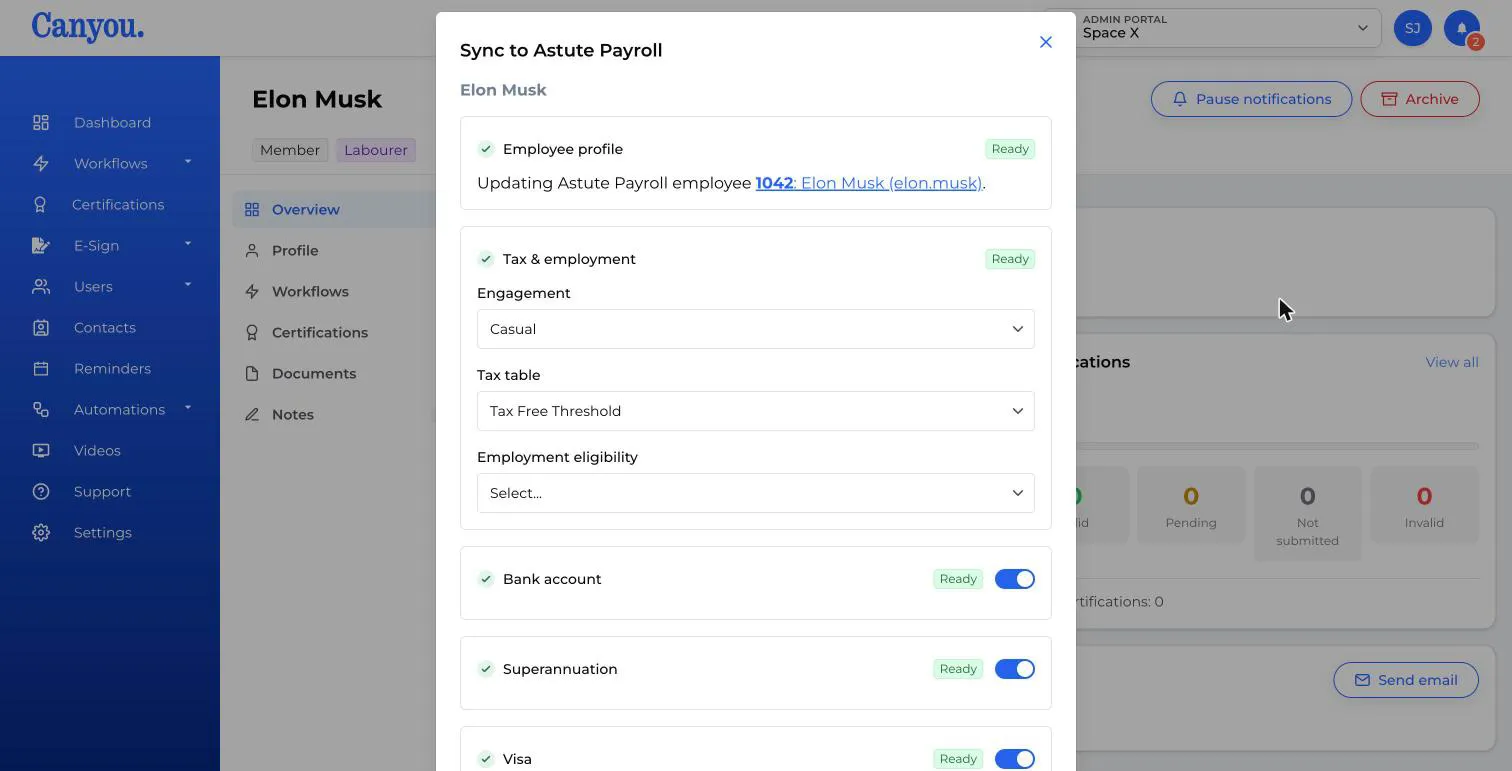
Check the Employee profile section. It shows either Creates a new employee in Astute Payroll or the Astute Payroll employee this user is linked to, with a link to open them in Astute Payroll.
-
Under Tax & employment, fill in the details. For a new employee:
- Start date (required). Today's date is filled in.
- Biller (required) and Workplace (optional). The workplace must belong to the biller you choose.
- Pay cycle and Approver (both required).
- Pay through entity (optional).
- Send the Astute Payroll welcome email: choose Yes to have Astute Payroll email the employee their login. It's No unless you change it.
If Astute Payroll only has one active biller, pay cycle, approver or pay through entity, Canyou picks it for you.
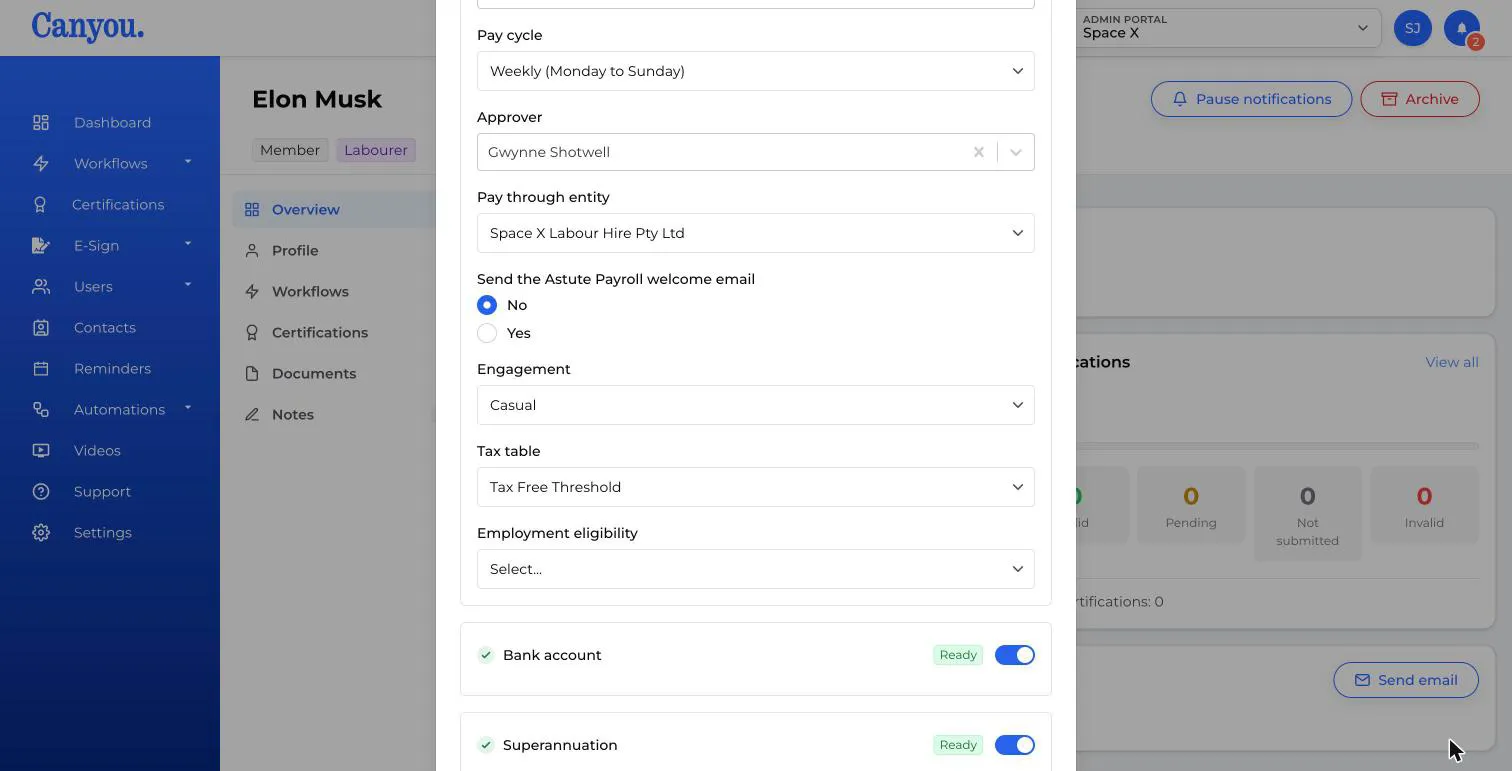
- Check the Engagement, Tax table and Employment eligibility. Canyou fills these in where it can:
- Engagement comes from the payment basis on the user's TFN declaration (or, when updating, what's already in Astute Payroll).
- Tax table is worked out from the TFN declaration: Foreign Resident, Tax Free Threshold or No Tax Free Threshold, with + STSL added if they have a study or training support loan. It's only picked if your portal has a tax table with exactly that name. Working holiday makers need to have their tax table chosen by hand.
-
Switch the Bank account, Superannuation and Visa sections on or off. Each shows Ready once Canyou has the details, or Incomplete if it doesn't. A section can't be switched on until the user has completed it.
-
If Visa is on, check the Visa type. Canyou matches the subclass from the user's visa check to Astute Payroll's visa types. If there's more than one match, for example 417 Year 1 and 417 Year 2, choose the right one.
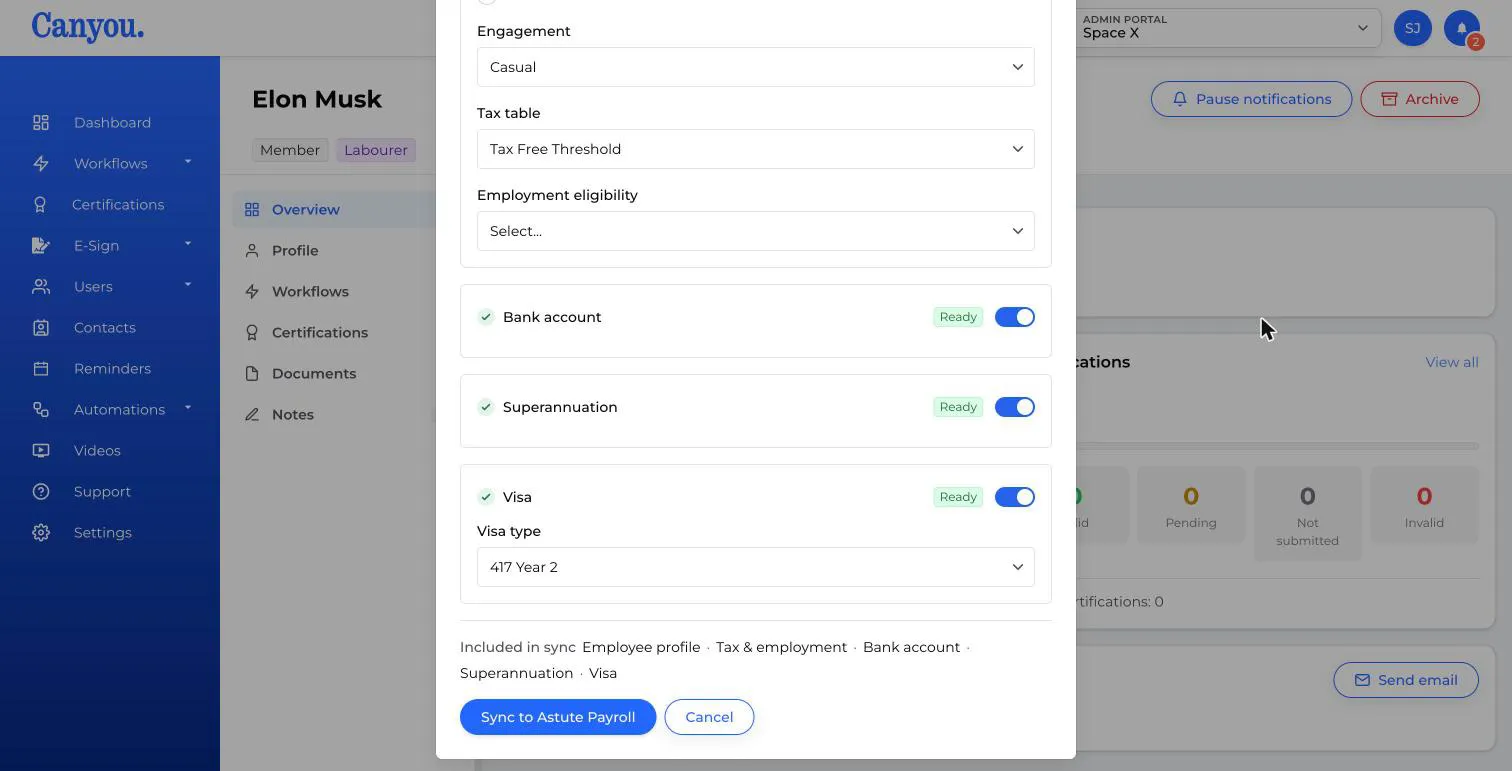
- Click Sync to Astute Payroll.
The first sync creates the employee in Astute Payroll and saves their Astute Payroll employee ID on the user's profile in Canyou, along with when they were last synced. Later syncs update the same employee rather than creating a new one.
Updating an employee
Sync a user again to send changes, for example new bank details. The form shows the Astute Payroll employee they're linked to, with a link to open them in Astute Payroll. When updating, Canyou only updates the employee's personal, tax, bank, super and visa details. Their biller, workplace, pay cycle, approver and start date stay as they are in Astute Payroll, so change those in Astute Payroll.
Linking a user to an existing Astute Payroll employee
If a user is already in Astute Payroll, link them before you sync so you don't create a second employee:
-
In Astute Payroll, find the employee's UID.
-
In Canyou, open the user's profile and enter the UID in Astute Payroll employee ID. Learn more about custom fields.
-
Sync the user. Canyou updates that employee.
The employee needs a job code in Astute Payroll for Canyou to update them. If the UID isn't found, or the employee has no job code, Canyou tells you what to fix when you open the sync.
If the sync doesn't open or fails
When you click Sync to Astute Payroll, Canyou may show a message instead of the form:
- This employee's profile is incomplete: add the user's given name and family name.
- Still loading billers, workplaces, pay cycles and approvers: Canyou is loading them from Astute Payroll. Try again in a minute.
- Astute Payroll has no active billers, pay cycles or approvers: add one in Astute Payroll before syncing new employees.
- No longer available, reopen the sync: something you chose was changed in Astute Payroll while the form was open. Close it and click Sync to Astute Payroll again.
If Astute Payroll rejects the sync, Canyou shows Astute Payroll's reason. Fix the details and sync again.
If the sync works but Canyou can't read back the new employee's UID, the employee is still created. Find their UID in Astute Payroll and enter it in Astute Payroll employee ID on the user's profile, so the next sync updates them instead of trying to create them again.
NextAstute Payroll frequently asked questions